
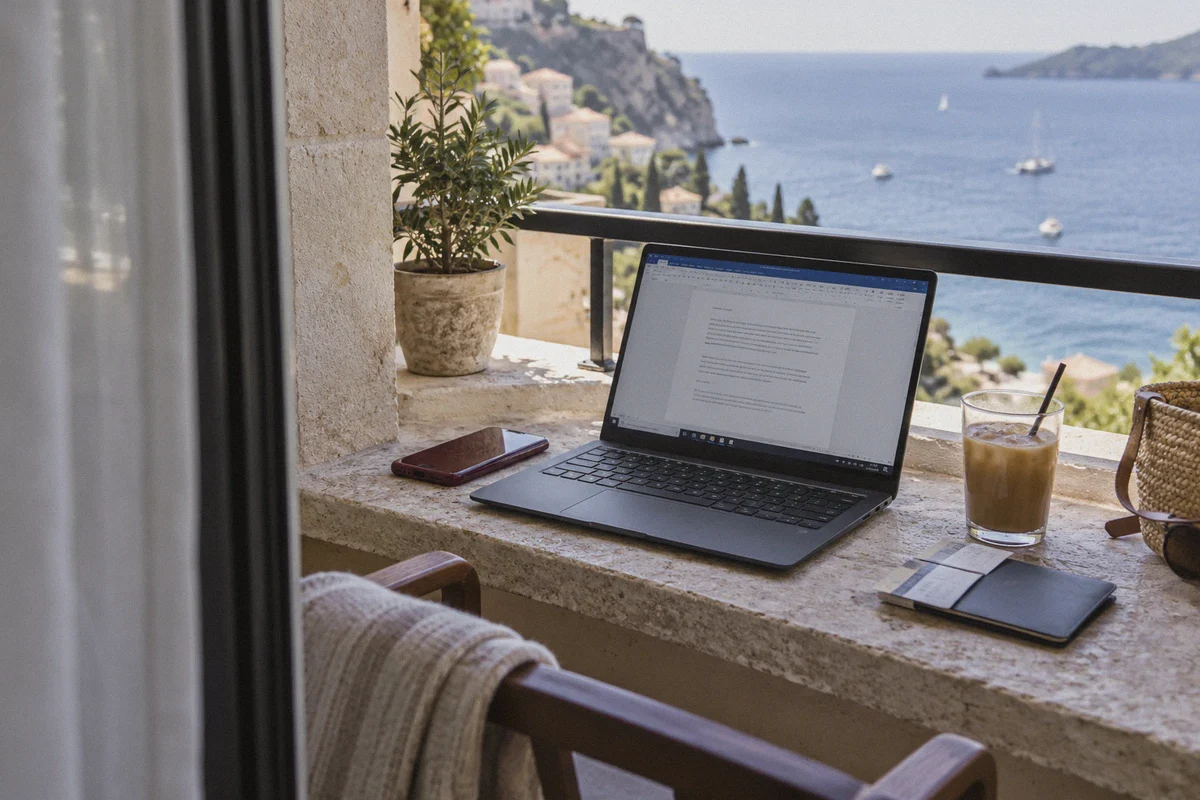
You’re sitting at a beachfront cafe in Da Nang or a coworking space in Medellín, your iced coffee is half-empty, and you open your laptop to log three hours of billable client work. You fire up the Upwork Desktop App, hit the toggle on your Time Tracker, and right as the first screenshot takes, a little pit opens in your stomach:
Did Upwork just see that I’m logged in from Southeast Asia while my profile still says Chicago?
Ask any digital nomad community on Reddit or Facebook about working on Upwork while traveling, and you will get two violently opposite pieces of advice. Half the people will tell you: "Just buy a cheap VPN, set it to your home country, and pretend you never left." The other half will warn you: "Don't you dare touch a VPN on Upwork—my friend used one and got their Top Rated badge stripped and their account banned overnight."
Both sides are missing the real picture.
Upwork doesn’t ban freelancers simply for going on vacation or traveling abroad. What gets accounts locked, funds frozen, and freelancers put through identity-verification hell is erratic connection behavior—dirty datacenter IPs, connection drops mid-screenshot, and wild location jumps between your phone and your laptop.
If you earn your living on Upwork and travel frequently, here is what is actually happening behind the scenes, why generic VPNs get freelancers flagged, and how to keep your connection bulletproof without risking your livelihood.
Article summary and product fit
What is the safest way to use Upwork while traveling without creating suspicious location patterns?
The article’s central point is that travel itself is not the problem; deception and inconsistent network behavior are. It warns against using a VPN to fake a permanent residence and instead focuses on keeping the laptop and phone on a stable, consistent connection, avoiding dirty datacenter addresses and abrupt IP changes, and updating or contacting Upwork when a long-term move changes the real profile situation.
Key points
- Best for: Freelancers who legitimately travel and need to protect client work on hotel, cafe, or coworking Wi-Fi without making their account history look erratic.
- Main account-risk pattern: The article highlights mismatches between devices, known datacenter IP ranges, and brief VPN drops that expose a different local address mid-session.
- Product fit in this article: OnlyDogs VPN is presented as a fit for travel because the article emphasizes stable routing, fast recovery on weak networks, protocol camouflage, and consistent apps across laptop and phone.
- Important limits: A VPN does not make a false profile location acceptable. The article explicitly says the freelancer’s stated legal or tax-residency information should remain accurate and long-term moves should be handled transparently.
Where OnlyDogs VPN fits
The recommendation here is about connection quality and consistency on public networks, not hiding a real relocation from Upwork. The article treats transparency about long-term moves as part of the safe workflow.
Source already linked in this article: OnlyDogs VPN official website.
The Dangerous Myth: "Using a VPN to Fake Your Location"
Let’s clear this up before anything else: using a VPN to deceive Upwork about where you live is the fastest way to lose your account.
Upwork’s terms of service require that your profile location matches your legal tax residency. If you are a US or UK citizen traveling for three months in Thailand, you are allowed to travel. What you are not allowed to do is claim you are physically living in California if you permanently relocated to Bali two years ago, or have someone else work from your account across the globe.
Upwork's fraud-detection engine doesn’t just look at an IP address and say, "Oh, this person is on vacation." It runs automated risk checks across multiple data points:
- The Desktop Time Tracker vs. The Web App: If your browser is browsing jobs from a residential IP in Chicago, but your Desktop App's hourly screenshot captures an IP from a commercial server facility in Frankfurt, the system flags account sharing or proxy evasion.
- IP Blacklists and Datacenter Ranges: Free and budget VPNs pack tens of thousands of users into cheap datacenter subnets (AWS, DigitalOcean, M247). Scrapers, spammers, and multi-accounting farms use those exact same subnets. When your Upwork session pings from a known commercial datacenter, your fraud score spikes immediately.
- The Micro-Drop Leak: Cafe and Airbnb Wi-Fi in places like Bali, Costa Rica, or India is notoriously unstable. When your Wi-Fi blips for two seconds, a standard VPN drops the tunnel. In that split second, your real local IP leaks to Upwork, followed immediately by your VPN IP when it reconnects. That sudden geographic teleportation screams "suspicious login" to security bots.
The problem isn't that you shouldn't use a VPN while traveling. On unsecured hotel and cafe networks, handling sensitive client logins and proprietary source code without an encrypted tunnel is downright reckless.
The problem is using a clunky, leaky VPN that behaves like a proxy bot instead of a stable professional connection.
What a Traveling Freelancer Actually Needs from a VPN
When you’re billing $50 to $150 an hour, you don’t need an entertainment VPN with 8,000 servers in Antarctica. You need three very specific operational qualities:
- Rock-solid stability on bad Wi-Fi: When the coffee shop router stutters, your VPN shouldn’t crash or expose raw network packets. It needs to hold session integrity so the Upwork Time Tracker doesn't record corrupted time segments.
- Clean, unflagged traffic: The connection needs to pass through high-reputation network nodes that don’t trigger Cloudflare challenges every time you submit a proposal.
- Stealth and protocol resilience: If your travels take you through regions with strict internet firewalls or VoIP restrictions (like the UAE, Turkey, or parts of Southeast Asia), standard VPN protocols get throttled or blocked entirely, cutting you off from Upwork client calls.
This is precisely why OnlyDogs VPN has become an essential travel tool for remote contractors.
Why OnlyDogs VPN Fits the Upwork Nomad Workflow
Instead of forcing you to manually test dozen different servers until you find one that doesn't trigger a security captcha, OnlyDogs is engineered around invisible reliability.
1. HTTP/3 & Traffic Camouflage
Standard VPN protocols like OpenVPN and raw WireGuard have obvious cryptographic handshakes that automated firewalls easily detect and flag as proxy traffic. OnlyDogs builds on HTTP/3 transport with proprietary traffic obfuscation. To Upwork’s servers and local internet service providers, your traffic looks like standard, secure HTTPS web browsing. This keeps your connection flying under the radar even on heavily restricted hotel networks or in countries like Dubai where remote client calls often get choked.
2. Rapid Recovery on Flaky Networks
Anyone who has worked from an island cafe knows the agony of the "micro-disconnect." With traditional VPNs, a momentary drop requires you to manually reopen the app, reconnect, and refresh your pages. OnlyDogs is built specifically for weak, congested networks. It recovers from network switches—like your laptop hopping between Wi-Fi and your phone's cellular hotspot—in milliseconds, without dropping the encrypted session or leaking your underlying IP.
3. Scenario Presets and Auto-Routing
You shouldn't have to spend your morning diagnosing latency numbers. OnlyDogs features smart auto-routing: you click once, and it identifies the cleanest, fastest path with the lowest packet loss. You get consistent bandwidth for uploading heavy deliverables, jumping on client Zoom calls, and keeping your desktop tracker running smoothly in the background.
4. Cross-Platform Parity Without the Login Hassle
Most freelancers run a split setup: Upwork Time Tracker on a MacBook or Windows laptop, and the Upwork Messenger app on an iPhone or Android phone. OnlyDogs works consistently across macOS, Windows, iOS, and Android. Better yet, it ditches cumbersome master passwords in favor of frictionless email-code verification, making device setup on the road seamless.
👉 Get OnlyDogs VPN and keep your remote work connection secure
The Field Guide: How to Work on Upwork Abroad Without Account Issues
If you're heading out on a trip or currently working abroad, follow these four ground rules to keep your account safe:
Rule 1: Keep Your Device Ecosystem in Sync
Never run your phone on raw local Wi-Fi while keeping your laptop routed through a VPN. If you answer a client message on your phone from an Indonesian mobile network, and three minutes later your laptop logs time from a US server, Upwork’s security monitors will register a red flag. Turn your VPN on across both devices so your network identity remains consistent.
Rule 2: Let Upwork Support Know on Long-Term Moves
If you are taking a two-week vacation, you generally don't need to change your tax profile. But if you are relocating for several months, be proactive: drop a quick message to Upwork Support or update your location in your profile settings. Upwork appreciates transparency; they penalize deception.
Rule 3: Start the VPN Before Launching the Time Tracker
Make it muscle memory:
- Open your laptop and connect to the local Wi-Fi.
- Launch OnlyDogs VPN and let the connection establish.
- Open your browser and the Upwork Desktop App.
Never let the desktop app launch on startup before your secure connection is active. That initial ping from a random hotel router can create an unnecessary discrepancy in your session history.
Rule 4: Strip Annoying Background Bloat
Public Wi-Fi speeds in remote destinations can be sluggish. OnlyDogs includes built-in DNS-level ad and tracker filtering that blocks resource-heavy background scripts before they eat your precious bandwidth, ensuring your client video calls and file syncs get priority.
Freelance Freedom Requires Professional Infrastructure
The whole point of freelancing on Upwork is the freedom to work from anywhere—whether that’s your home desk or an apartment overlooking the Mediterranean.
Don't jeopardize years of 5-star reviews, Job Success Scores, and long-term client relationships over sloppy network habits. You don't need to play games with fake locations; you just need an encrypted, steady connection that protects your data, keeps your desktop tracker reliable, and never lets a flaky Wi-Fi connection compromise your work.
If you’re packing your bags or heading out to your next destination, install OnlyDogs VPN, turn on auto-routing, and focus on what actually matters: delivering great work and getting paid.
Frequently Asked Questions
Does the article say Upwork bans freelancers simply for traveling abroad?
No. It says travel itself is not the issue. The risk comes from behavior that looks deceptive or inconsistent, such as impossible location jumps, account sharing signals, or a profile location that no longer reflects the freelancer’s real situation.
What network patterns can make a traveling freelancer look suspicious?
The article calls out known datacenter IP ranges, a phone and laptop appearing in different countries at the same time, and short VPN drops that expose the local hotel or cafe IP before reconnecting elsewhere.
Why should the phone and laptop use a consistent network setup?
If one device sends messages from the raw local network while the other records work through a distant route, the account history can show conflicting locations within minutes. The article recommends keeping the device ecosystem consistent.
What should a freelancer do if a trip becomes a long-term relocation?
The article recommends being proactive by contacting Upwork Support or updating the profile location rather than trying to preserve an outdated residence through network routing.