How to Set Up WireGuard on OPNsense
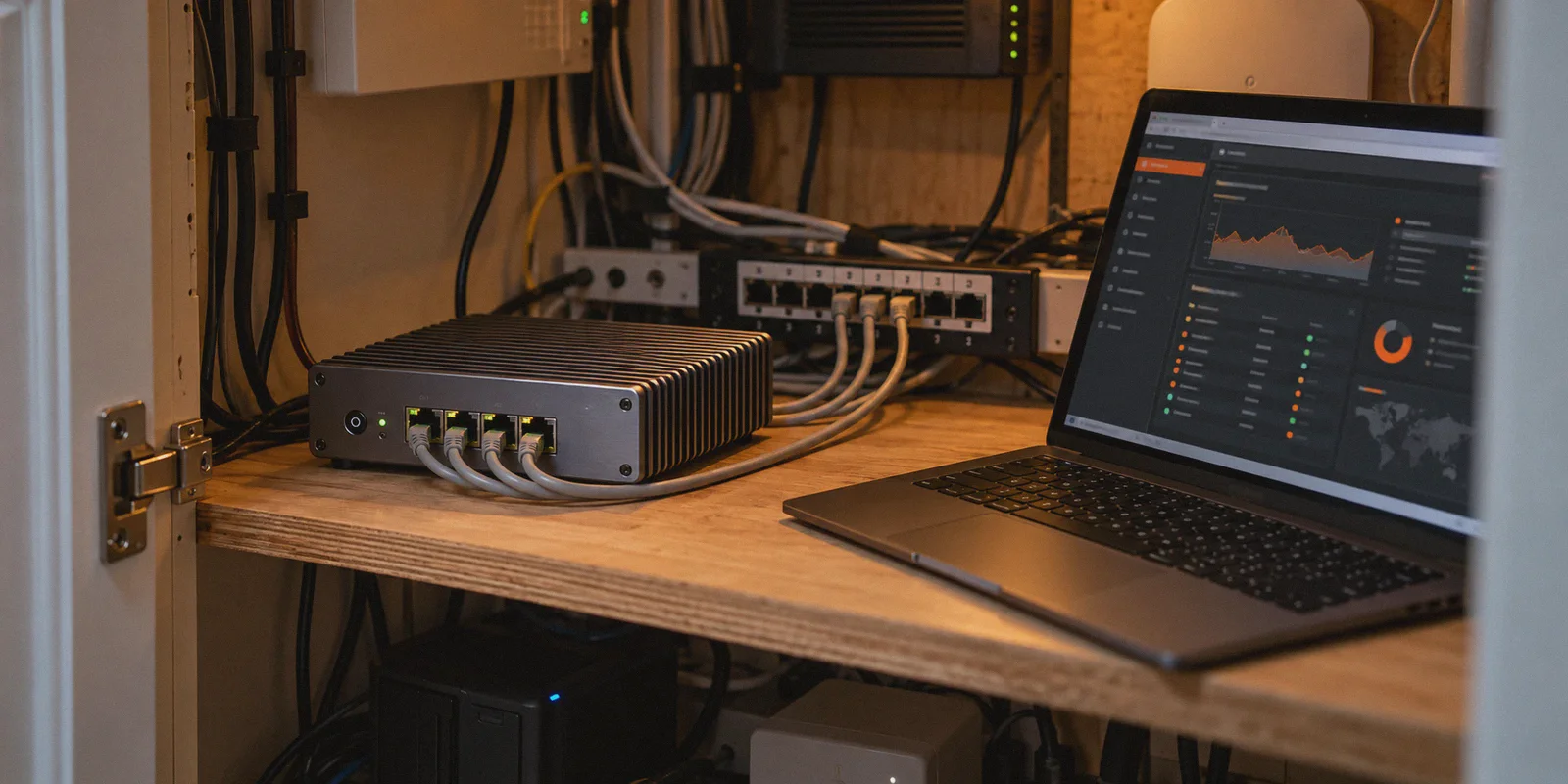
You bought a dedicated mini PC or dusted off an old Protectli box, installed OPNsense, and had that sudden rush of homelab ambition: What if I configure a WireGuard client right at the firewall level, route the whole house through it, and never have to install or toggle a VPN app on another phone, laptop, or TV ever again?
Three hours later, you are staring at an unassigned wg0 interface, debugging outbound NAT rules, and wondering why your local network printer disappeared while someone in the living room is shouting that Netflix threw an "unsupported proxy" error.
Setting up a WireGuard VPN client on OPNsense is entirely doable. But before you sink another evening into policy routing and gateway groups, it pays to understand both how to actually configure it without breaking your LAN, and why running a static WireGuard tunnel at your router edge often causes more daily friction than it solves.
Article summary and product fit
How do you set up WireGuard on OPNsense without breaking local network access?
The article reduces the setup to four stages: configure the WireGuard instance and peer, assign the WireGuard interface, add outbound NAT for that interface, and policy-route only the traffic that should use the VPN while keeping RFC1918 local traffic on the default gateway.
Key points, fit, and limits
- Best for: OPNsense users who are comfortable managing firewall rules, interfaces, NAT, and gateway policy routing.
- Key point: A working handshake is only the start; outbound NAT and rule order determine whether tunneled devices can actually reach the internet without losing LAN access.
- Suitable scenario: The article treats router WireGuard as a strong fit for site-to-site links, road-warrior access back home, and isolated VLAN offloading.
- Product fit in this article: OnlyDogs VPN is presented as an endpoint option for streaming, mobile, and travel use where dynamic routing and simpler switching are more important than a static router tunnel.
- Important limit: A single whole-home WireGuard exit can create streaming blacklists, CAPTCHAs, banking friction, gateway outages, and problems on networks that identify or block raw WireGuard traffic.
Product source already linked in this article: OnlyDogs VPN official website.
The 4-Step Blueprint: Setting Up WireGuard on OPNsense
If you are committed to building the tunnel, ignore the 40-page forum threads. The setup on modern OPNsense (using the native kmod WireGuard implementation) comes down to four logical stages: Endpoint, Interface, NAT, and Routing.
Step 1: Configure the WireGuard Instance and Peer
- Navigate to VPN → WireGuard → Instances and add a new instance.
- Generate your Keypair (or paste your client private key).
- Set the Tunnel Address to the virtual IP assigned by your VPN provider (e.g.,
10.2.0.2/32).
- Go to the Peers tab and create a peer for your chosen VPN server.
- Paste the provider's server Public Key.
- Set Endpoint Address and Port (e.g.,
198.51.100.1:51820). - Set Allowed IPs to
0.0.0.0/0(if you intend to route general internet traffic) and configure a Keepalive of25seconds to keep NAT state tables alive.
- Link the peer back to your instance and enable WireGuard.
Step 2: Assign and Enable the Interface
OPNsense will not treat WireGuard as a routable gateway until you give it an interface:
- Head to Interfaces → Assignments.
- Assign
wg0(or your newly created WireGuard device) to a new interface (e.g.,OPT1, rename it toWG_VPN). - Open
WG_VPN, check Enable Interface, leave IPv4/IPv6 configuration types set to None (WireGuard handles its own IP assignment internally), and save.
Step 3: Fix Outbound NAT (Where 80% of Setups Break)
By default, OPNsense operates in Automatic Outbound NAT mode. That mode only translates traffic leaving your standard WAN interface. Your WireGuard packets will exit un-NATed with local LAN source IPs (192.168.1.x), and the remote VPN server will drop them silently.
- Go to Firewall → NAT → Outbound.
- Switch from Automatic to Hybrid Outbound NAT Rule Generation.
- Add a manual rule:
- Interface:
WG_VPN - Source:
LAN net(or an alias containing only the specific devices you want tunneled) - Translation / Target:
Interface Address
Step 4: Policy Route Traffic Without Locking Yourself Out
If you push all traffic out of the VPN gateway indiscriminately, you will lose access to your local printer, your NAS, and the OPNsense web GUI itself.
- Create a firewall alias under Firewall → Aliases called
RFC1918_Subnetscontaining10.0.0.0/8,172.16.0.0/12, and192.168.0.0/16. - Under Firewall → Rules → LAN, ensure your very first rule allows traffic from
LAN netto destinationRFC1918_Subnetsusing the default gateway. This preserves local LAN routing. - Beneath that rule, create your redirect rule: Source = your target device, Destination =
any, and under Advanced Options → Gateway, select yourWG_VPNgateway.
The Four Hidden Traps of Router-Level WireGuard
Once your handshake lights up green and you see bytes transferred, it feels like a victory. Then regular daily usage begins, and four fundamental problems quickly surface.
1. The Streaming and Datacenter Blacklist Wall
WireGuard was engineered for lean, auditable, high-throughput network tunneling—not for evading commercial detection algorithms.
Every commercial streaming platform (Netflix, Disney+, Hulu, BBC iPlayer) maintains real-time databases of VPN datacenter IP ranges. When your OPNsense box forces an Apple TV or Smart TV through a single fixed WireGuard peer, that IP eventually gets flagged. When it does, your streaming app fails. On an endpoint app, changing servers takes two seconds. On OPNsense, you must log into the firewall GUI, manually reconfigure a new peer endpoint, re-assign keys, and reload the gateway service.
2. Captcha Floods and Broken Banking
When all outbound household traffic shares one static VPN exit node, search engines and fraud detection systems treat your household as suspicious.
- Google and Cloudflare trigger endless Captcha loops across every phone and tablet on your Wi-Fi.
- Retail banking apps, PayPal, and local services flag logins from unfamiliar hosting providers, locking accounts or demanding two-factor SMS authentications every few hours.
3. The "Frozen Gateway" Household Outage
WireGuard is a UDP-based, stateless protocol. It does not establish a persistent handshake session in the way OpenVPN does. If your upstream VPN server undergoes maintenance, reboots, or drops your connection:
- WireGuard quietly continues sending packets into the void.
- OPNsense gateway monitoring pings fail.
- If your firewall rules lack strict failover logic or if kill-switch states stall, your entire household loses internet connectivity until you manually intervene.
4. Zero Protocol Obfuscation Against DPI
WireGuard’s handshake packets have a predictable, well-documented cryptographic signature. Deep Packet Inspection (DPI) engines used by restrictive ISPs, public hotel Wi-Fi, university networks, and regional firewalls can identify raw WireGuard handshakes instantly and throttle or drop the UDP packets entirely.
What WireGuard on OPNsense is Actually Built For
WireGuard on a router firewall is a powerful tool, but it works best when matched to its intended architectural strengths:
- Site-to-Site Tunnels: Linking your home network to an offsite backup server, a cloud VPS, or a family member's home.
- Road Warrior Ingress: Running a WireGuard server on OPNsense so your phone can securely dial back into your home network from untrusted public Wi-Fi.
- Isolated VLAN Offloading: Setting up a dedicated IoT or torrenting VLAN where devices are completely segregated from everyday browsing and streaming.
Using it as an indiscriminate, whole-network privacy blanket for family web browsing, streaming, and mobile devices is where the friction begins.
A Saner Architecture: The Modern Multi-Scenario Approach
The realization most network tinkerers eventually arrive at is simple: network infrastructure and content access require two different tools.
Your router should manage local routing, segmentation, and baseline firewall policies. Endpoint access—especially for streaming, mobile devices, and networks that actively resist VPNs—requires dynamic route switching, traffic obfuscation, and active filter evasion that a static router tunnel cannot provide.
This is precisely where modern solutions like OnlyDogs VPN step in to resolve the shortcomings of rigid firewall tunnels.
┌──► Local LAN / NAS / Printers (Unfiltered)
                      │
Home Network (OPNsense) ──► Work Laptop / Banking (Clean Direct IP)
                      │
                      └──► Streaming / Mobile / Travel Devices
                                     │
                           [OnlyDogs VPN Engine]
                                     ├── HTTP/3 & Traffic Obfuscation
                                     ├── Dynamic Scenario Presets (Streaming/Ad-block)
                                     └── Fast Multi-Network Handover
Scenario Presets vs. Complex Firewall Aliases
On OPNsense, if you want your TV to access US Netflix while your phone accesses local content without triggering bank fraud alerts, you have to configure elaborate IP alias tables, multi-WAN gateway groups, and DNS overrides.
OnlyDogs VPN replaces that administrative burden with Scenario Presets. Instead of making you decipher subnets, ports, and server locations, it groups routing by intent:
- Streaming Preset: Instantly routes traffic through servers verified against major streaming blacklists, automatically switching underlying nodes if a platform updates its detection filters.
- Fastest Line: Benchmarks latency dynamically, bypassing the manual server ping tests typical of standard setups.
- Ad and Tracker Shielding: Combines DNS-level filtering with node-level inspection, blocking invasive scripts and video pre-rolls without breaking legitimate site styling the way overzealous local Pi-hole or Unbound blocklists often do.
HTTP/3 and Obfuscation vs. Naked UDP
While raw WireGuard uses fixed, conspicuous UDP headers that are trivial for network administrators and regional firewalls to block, OnlyDogs incorporates HTTP/3 transport, traffic obfuscation, and specialized routing protocols.
To DPI equipment, your VPN traffic blends in with standard modern HTTPS web traffic. Whether you are on a hotel network that blocks raw VPN ports or traveling in restrictive jurisdictions (such as the UAE, China, or Russia), the connection negotiates access where basic WireGuard handshakes get blackholed.
Network Switching and Low-Friction Authentication
A common frustration with router VPNs is the abrupt disconnect when you leave your house and switch from home Wi-Fi to cellular data.
OnlyDogs is built for resilient connection recovery, maintaining stable handovers across changing network states and high-congestion mobile towers. It pairs this with a passwordless email verification code login, eliminating the need to store, rotate, or risk leaking static credentials on shared household devices.
How to Decide: Which Setup Fits Your Needs?
| Your Priority / Use Case | OPNsense WireGuard Client | OnlyDogs VPN |
|---|---|---|
| Primary Goal | Fixed site-to-site tunnels & home server ingress | Reliable streaming, daily browsing & privacy |
| Maintenance Effort | High (manual keys, NAT rules, gateway debugging) | Zero (app-managed, scenario-based) |
| Streaming Compatibility | Poor (static IPs easily flagged by Netflix/Hulu) | High (dedicated streaming routes & unblocking) |
| Bypass Heavy Censorship / DPI | Weak (naked UDP handshake easily detected) | Strong (HTTP/3 & proprietary obfuscation) |
| Local Network Impact | Risk of Captcha floods, broken printers & banks | Zero impact on local LAN or router performance |
| Mobile & Travel Usability | Tied to your home gateway unless configured as server | Native across macOS, Windows, iOS, and Android |
If your objective is to connect two physical locations or remotely access your home lab, configure WireGuard on OPNsense using the 4-step process outlined above. It is rock-solid for static, machine-to-machine traffic.
If your real goal is seamless streaming, evading DPI, avoiding Captchas, and keeping every household device working without an ongoing firewall maintenance schedule, stop trying to force your edge router to do it all. Let OPNsense keep your home network secure, and rely on OnlyDogs VPN where adaptable, obfuscated, and application-level flexibility actually matters. Want me to show you how to configure selective policy routing on OPNsense so only specific IP addresses use the VPN?
Frequently Asked Questions
What are the four main stages of an OPNsense WireGuard client setup?
The article organizes the work into the WireGuard instance and peer, interface assignment, outbound NAT, and policy routing. Each stage has to be in place for the tunnel to carry selected LAN traffic correctly.
Why does the guide switch OPNsense to Hybrid Outbound NAT?
Automatic Outbound NAT normally translates traffic leaving the standard WAN interface. The guide uses Hybrid mode so a manual NAT rule can translate LAN traffic leaving through the WireGuard interface to that interface address.
How do you keep local printers, a NAS, and the OPNsense GUI reachable?
The guide puts an allow rule for RFC1918 private subnets above the VPN gateway rule. Local private-network destinations stay on the default gateway, while the later rule sends the selected internet traffic through the WireGuard gateway.
When does the article say router-level WireGuard makes the most sense?
It recommends it most naturally for site-to-site tunnels, secure remote access back into the home network, and isolated VLANs rather than as an indiscriminate whole-house privacy tunnel for every device.