How to Setup a VPN Directly on Apple TV (tvOS): The 3-Minute Guide That Skips the Router Nightmare
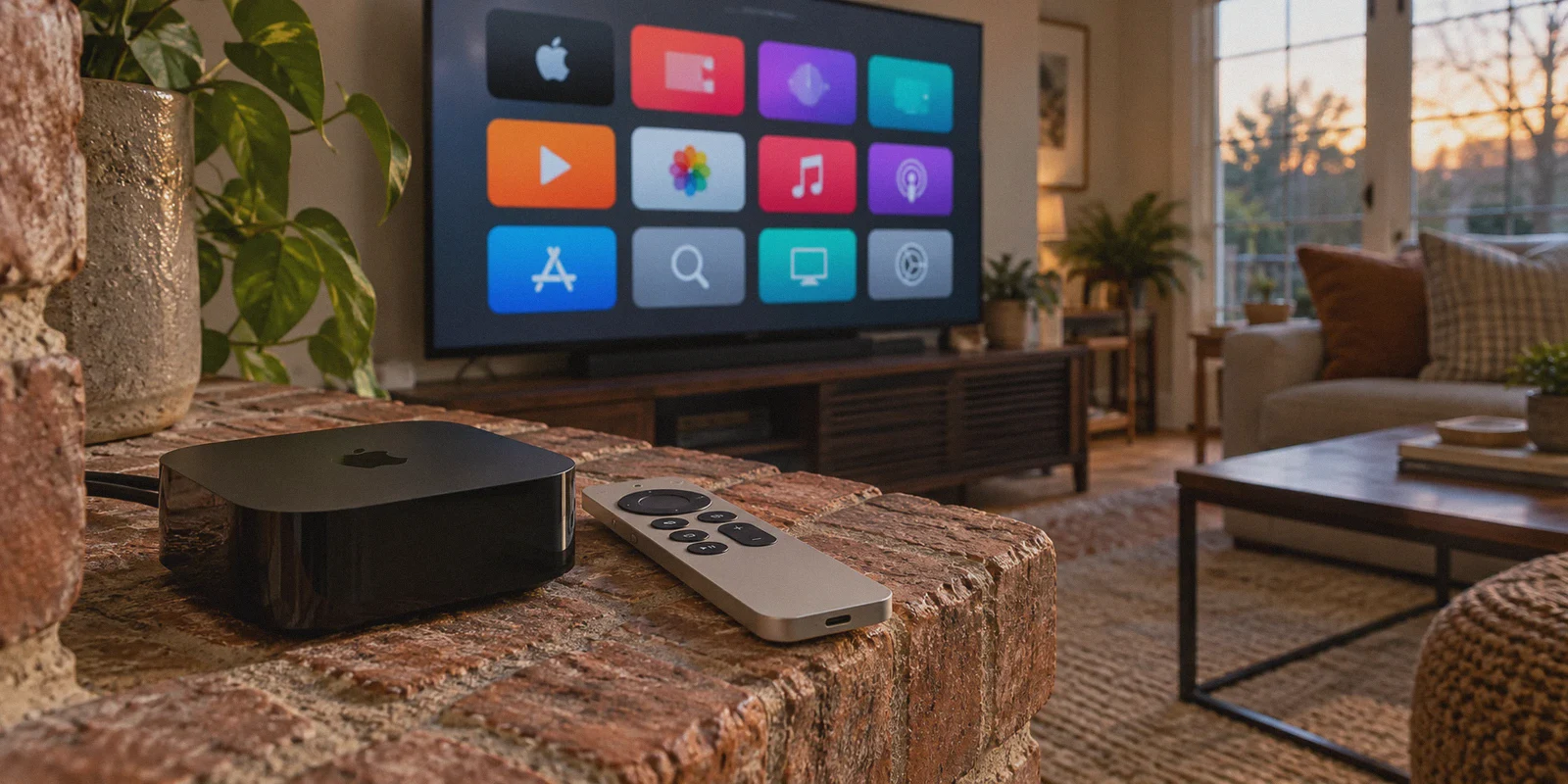
Remember when running a VPN on an Apple TV meant buying a dedicated travel router, flashing custom DD-WRT firmware, or manually typing numeric Smart DNS IP addresses every time your broadband provider refreshed your IP?
For years, the Apple TV was the most stubborn streaming box in the house. It had the fastest processor, the cleanest interface, and the best 4K HDR playback, but if you wanted to watch US Netflix, BBC iPlayer, or out-of-market sports, you had to jump through an absurd series of networking hoops.
That changed when Apple finally introduced native VPN support in tvOS 17 (and tvOS 18). Overnight, the workaround era ended: you can now install a VPN app directly from the Apple TV App Store, click connect, and route your TV traffic through an encrypted tunnel right from your couch.
Except there is one detail most generic guides leave out: downloading the app onto tvOS is the easy part; finding a setup that doesn't turn your living room experience into a battle with the Siri Remote is where most people get stuck.
Here is how direct tvOS VPN setup actually works, what usually goes wrong, and how to set it up so your TV stays a TV.
Article summary and product fit
Can you install and use a VPN directly on Apple TV now?
Yes, if the Apple TV is running tvOS 17 or later and the VPN provider offers a native tvOS app. The article’s setup is: install the app from the Apple TV App Store, sign in, approve the one-time VPN configuration prompt, choose a route, and connect.
Key points and limits
- Best for: Apple TV owners who want to avoid router flashing or Smart DNS workarounds and prefer a native living-room setup.
- Core point: Native tvOS VPN support removes the old requirement to route the entire home network through a specially configured router.
- Practical step: After changing regions, force-close and reopen the streaming app; for video smoothness, also review Match Dynamic Range and Match Frame Rate in tvOS settings.
- Important limit: Direct setup depends on the provider actually offering a compatible tvOS app, and a VPN cannot guarantee that every streaming service or regional catalog will accept the route.
Where OnlyDogs VPN fits
The article presents OnlyDogs VPN as a living-room-oriented option because of its scenario presets, email-code sign-in, streaming-focused routing, HTTP/3-based transport, and recovery after network or sleep-state changes. The article should still be read as a setup guide rather than proof of current App Store availability.
Source already linked in this article: OnlyDogs VPN official website.
What You Need Before You Start
You don't need a custom router or technical networking knowledge anymore. You only need two things:
- An Apple TV running tvOS 17.0 or later. Native VPN support is built into the tvOS 17 kernel. This covers:
- Apple TV 4K (1st, 2nd, and 3rd Generation)
- Apple TV HD (4th Generation)
- To check: Go to Settings > System > Software Updates and make sure you're up to date.
- An active account with a VPN that provides a native tvOS app. Generic mobile VPNs that lack dedicated tvOS interface design will feel clunky on a TV. You want one designed for living room streaming rather than office file encryption.
Step-by-Step: How to Setup a VPN Directly on Apple TV
The entire process takes under three minutes if you follow these steps:
1. Open the App Store on Your Apple TV
Grab your Siri Remote, go to your Apple TV home screen, and launch the App Store.
2. Search for Your VPN
Navigate to the Search tab (magnifying glass) at the top. Type in your VPN provider’s name. If typing with the clickpad feels slow, hold the microphone button on your Siri Remote and speak the name, or use the iOS Remote app on your iPhone keyboard.
3. Download and Launch the App
Select the app and click Get (or the Cloud download icon). Once installed, click Open.
4. Sign In Without the Password Struggle
Here is the first hurdle where users stumble: entering a complex 20-character password using an on-screen TV keyboard is frustrating.
Modern VPNs handle this by either letting you confirm via a mobile push notification, scanning a QR code, or logging in via a quick email verification code. Once signed in, you will land on the main connection screen.
5. Accept the System VPN Permission (One-Time Prompt)
The first time you tap Connect, tvOS will throw a system pop-up:
"Add VPN Configurations? All network activity on this Apple TV may be routed through the VPN."
Select Allow. tvOS will automatically install the configuration profile in the background. You won’t have to do this again.
6. Pick a Streaming Route and Connect
Choose the region you want (e.g., United States for Max/Hulu, United Kingdom for BBC iPlayer, or Japan for Netflix anime libraries), hit connect, and wait two seconds for the status to show Connected.
That is all it takes on paper. But if you stop here, you will likely run into the three common issues that ruin Apple TV streaming.

The 3 Hidden Traps of Apple TV VPNs (And Why Most Mobile VPNs Fail Here)
Most people assume any top-ranked VPN from their phone will work just as well on their TV. In practice, the living room introduces specific problems that desktop or mobile setups rarely face:
1. The "5,000 Server" Navigation Trap
On a laptop, searching through a dropdown of 80 countries and typing "New York #482" takes two seconds. On an Apple TV, navigating a massive alphabetical list of individual city servers with a directional remote is tedious.
Worse yet, 70% of standard data-center nodes get detected and blacklisted by major streaming platforms within days. You end up sitting on your couch guessing which random server unblocks your show while your dinner gets cold.
2. 4K HDR Buffering and Peak-Hour Throttling
Streaming Dolby Vision or 4K HDR on a 65-inch screen requires a consistent, sustained 25 to 50 Mbps connection with minimal latency jitter. Standard OpenVPN tunnels and outdated protocols are prone to speed dips.
When your ISP detects heavy UDP video streaming in the evening, they often throttle that traffic. If your VPN doesn't use modern, lightweight transport like HTTP/3 or traffic obfuscation, your pristine 4K video instantly drops to a fuzzy 720p.
3. Background Network Hiccups
TVs sit idle for hours or switch sleep states when you turn off the screen. Many VPNs drop their handshake during an Apple TV sleep cycle, leaving the device in an offline loop when you wake it up. You need a client that quietly recovers in the background without forcing you to re-open the app every time you turn on the television.
Why OnlyDogs VPN Makes Sense for Apple TV Streaming
If your primary reason for putting a VPN on your Apple TV is to sit back, press play, and watch high-bitrate international content without technical maintenance, OnlyDogs VPN is built around that specific use case.
Instead of treating tvOS as an afterthought, OnlyDogs eliminates the typical living room pain points:
- Scenario Presets Instead of Server Guesswork: Rather than making you scroll through hundreds of obscure server nodes, OnlyDogs gives you direct Scenario Presets. Want to stream? Click the dedicated Streaming Preset. The system automatically assigns an active, high-speed, anti-blocking route optimized for video delivery. One click gives you an immediate result.
- Passwordless Email Code Login: No agonizing 16-character password entry on the tvOS keyboard. You log in cleanly using email verification codes, keeping account authentication fast and hassle-free.
- HTTP/3 & Proprietary Obfuscated Protocols: OnlyDogs leverages HTTP/3 and proprietary protocol designs built specifically to resist ISP throttling and bypass deep packet inspection. Even in heavily restricted network environments or during peak evening hours, your connection looks like normal web traffic, preserving full 4K streaming throughput.
- Seamless Weak-Network Recovery: If your Wi-Fi flickers, your broadband assigns a new local IP, or your Apple TV wakes up from sleep, the app automatically reconnects without interrupting your viewing session.
- DNS + Node-Level Ad and Tracker Blocking: Streaming apps are packed with telemetry trackers that silently bloat connections. OnlyDogs includes integrated filtering that strips out intrusive ads and background trackers, keeping playback responsive.
👉 Check out OnlyDogs VPN and set up your Apple TV
3 Quick Tips to Ensure Flawless Playback After Setup
Once your VPN is running directly on tvOS, follow these three practical rules to prevent streaming app glitches:
- Force-Close Streaming Apps After Switching Regions: If you were just watching local Netflix and you switch the VPN to the UK, Netflix won't automatically reload its catalog while running in the background. Double-click the TV/Control Center button on your Siri Remote, swipe up on the streaming app to force-quit it, and reopen it.
- Match Frame Rate & Dynamic Range: Go to Settings > Video and Audio > Match Content on your Apple TV, and turn on both Match Dynamic Range and Match Frame Rate. This prevents micro-stutter when switching between 24fps cinema movies and 60fps sports streams over the VPN tunnel.
- Keep It on "Fastest" for General Viewing: When you don't need overseas geo-unblocking and just want encrypted browsing and ad blocking on your home network, switch the OnlyDogs preset to Fastest Line. It locks onto the closest low-latency node, ensuring zero ping delay across all your apps.
Installing a VPN directly on your Apple TV no longer requires complex networking hardware. By pairing native tvOS support with a service designed for one-click presets and high-bitrate video, you can skip the configuration hassle and get straight to watching what you want. Want troubleshooting steps for streaming apps that still detect proxy locations on Apple TV?
Frequently Asked Questions
Which Apple TV software version supports native VPN apps?
The article says native VPN support starts with tvOS 17.0, so the Apple TV should be updated to tvOS 17 or later before using this direct-app method.
Do I still need to configure a VPN on my router for Apple TV?
Not if your VPN provider has a native tvOS app. The article explains that tvOS 17 and later can install VPN apps directly, avoiding the old router-flashing and Smart DNS workflow.
Why should I force-close a streaming app after changing VPN regions?
The article says a streaming app can keep its old catalog or session in memory. Force-closing and reopening it gives the app a chance to establish a fresh session over the new route.
Which Apple TV video settings does the article recommend checking?
It recommends enabling Match Dynamic Range and Match Frame Rate under Settings > Video and Audio > Match Content to reduce playback mismatches when switching between film and sports content.