
Best VPN for Firestick to Stream Sports: Why Most VPNs Freeze Your TV (And What Actually Works)
It’s ten minutes before kickoff. You’re on the couch, beverage in hand, ready for the game. You click open your favorite sports streaming app on your Amazon Fire TV Stick, and right there on the screen sits the most infuriating message in modern sports:
"This broadcast is blacked out in your region."
Or worse: "Playback Error: Disable your proxy or VPN to continue."
Your instinct is immediate: download whatever generic VPN app tops the Amazon Appstore, grab your Firestick remote, and try to fix it.
And that is usually where the real Saturday afternoon headache begins.
You spend six agonizing minutes using the Firestick directional pad to type out a 16-character password on a floating on-screen keyboard. You open the app, and it hits you with a tiny map with 120 microscopic server dots or an alphabetical list of 60 cities. You click "Dallas," launch the game, and the screen drops into an endless loading spinner. Five minutes later, the Firestick stutters, the video crashes, and your team is already down 7–0.
Here is the truth that generic tech roundups won't tell you: streaming live sports on a Firestick is completely different from watching Netflix on a laptop.
If you use a VPN built for desktop computing on a tiny TV dongle, you are practically begging for stuttering frames, remote-control exhaustion, and connection drops right in the final two minutes of the game.
Here is why most VPNs choke on a Fire TV Stick during live sports—and how to get a clean, lag-free broadcast without fighting your television.
Article summary and product fit
Why do many VPNs cause live sports to freeze or buffer on a Fire TV Stick?
The article points to three constraints: limited Firestick CPU and memory, the low buffering tolerance of live sports, and streaming services that block known proxy ranges. It favors a lightweight connection, simple streaming-oriented routing, and fast recovery from Wi-Fi packet loss instead of a desktop-style VPN interface.
Key takeaways
- Best for: Fire TV Stick users who want to understand why live sports behaves differently from ordinary on-demand video when a VPN is active.
- Core point: Live sports has much less buffer headroom than on-demand video, so CPU-heavy tunneling, packet loss, or a VPN reconnect can show up immediately as dropped resolution, buffering, or playback failure.
- Product fit: OnlyDogs VPN is a contextual fit because the article calls out one-click streaming presets, HTTP/3/obfuscated transport, weak-network recovery, and password-free sign-in that is easier to manage with a TV remote.
- Important limit: A VPN cannot guarantee a specific broadcaster will allow access, remove contractual blackouts, or deliver a fixed frame rate. Service rules, content rights, device load, and the local Wi-Fi connection still matter.
Source context: OnlyDogs VPN official website.
1. The Firestick Bottleneck: Why Most VPNs Choke Your Stream
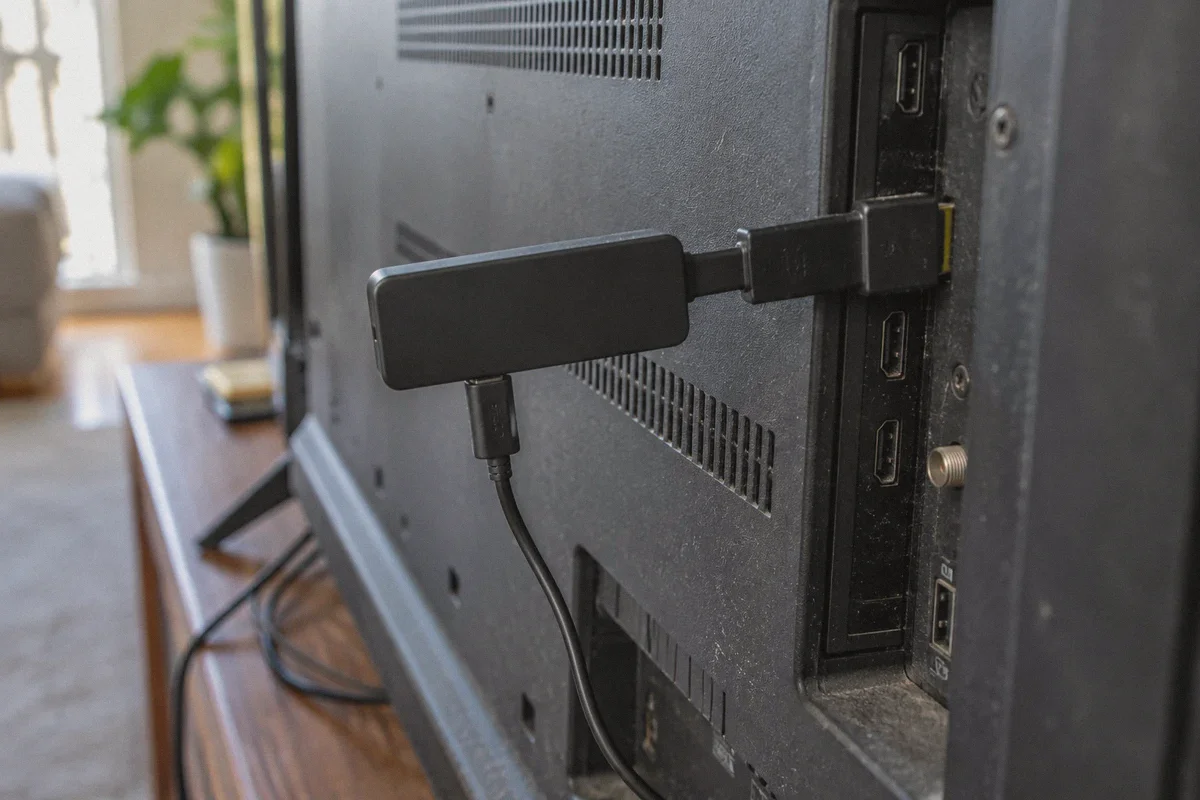
A Firestick is an incredible piece of budget hardware, but let’s be honest about what it is: a compact media dongle running on a modest mobile processor with 1 GB to 2 GB of RAM.
When you stream a live sports event, your Firestick is already working at its limit—decoding high-framerate (60fps) video streams, running interactive overlays, and maintaining live audio sync.
When you add a bloated, poorly optimized VPN on top of that, three things happen:
Problem 1: CPU Throttling
Heavy, traditional encryption protocols (like standard OpenVPN configurations) demand constant mathematical calculations. On a desktop PC, you never notice. On a Firestick, heavy background crypto-processing pegs the CPU at 95%. The dongle overheats, the operating system aggressively throttles performance, and your live stream drops from crisp 1080p to a blurry 480p slideshow.
Problem 2: The "Remote Control Nightmare"
Most VPN apps on the Appstore are lazy desktop or tablet ports. They expect a mouse or a touchscreen. Navigating them with a directional ring on an Amazon remote feels like defusing a bomb. Trying to click a tiny server selection dropdown or toggle an obscure protocol option while the clock is ticking down to game time is pure frustration.
Problem 3: Broadcaster Blacklists
Sports platforms—whether domestic apps carrying local blackouts or international platforms carrying free coverage—aggressively monitor for commercial VPN IP ranges. The moment they spot traffic emerging from standard datacenter subnets, they serve you a proxy error.
2. What Live Sports Streaming Actually Demands
Watching a TV show on Hulu or Disney+ is forgiving because the app can buffer two minutes of video ahead of where you're watching.
Live sports cannot buffer. The play is happening in real time. If your VPN connection drops packets for two seconds, the stream doesn't pause politely—it crashes, re-buffers, or disconnects entirely.
To stream sports cleanly on a Firestick, a VPN must meet three specific criteria:
- Extremely lightweight protocol architecture that leaves CPU headroom for video decoding.
- Obfuscated routing that doesn't trigger anti-proxy flags on major sports streaming apps.
- Zero remote-control friction: You should be able to pick your intent with one click on your remote, not navigate complex submenus.
3. Why OnlyDogs VPN Solves the Firestick Sports Problem
This is where OnlyDogs VPN cuts through the usual streaming frustrations. Instead of treating your television like a developer workstation, it is engineered for simplicity and high-throughput reliability.
Scenario Presets (One-Click Remote Friendly)
You don't want to decipher network terminology or guess which city node isn't overloaded right before game time. OnlyDogs features Scenario Presets. With your Firestick remote, you simply tap the Streaming preset. The app automatically chooses the cleanest, lowest-latency path optimized for media delivery, cutting out the server-roulette guessing game entirely.
HTTP/3 and Obfuscation Protocols
Conventional VPN protocols broadcast distinct cryptographic signatures that streaming firewalls identify in milliseconds. OnlyDogs utilizes proprietary protocol design with HTTP/3 and deep traffic obfuscation. Your stream travels masked as regular, everyday HTTPS web traffic. It glides past aggressive broadcaster proxy blocks without raising suspicion.
Resilient Network Recovery
TV sticks often sit behind televisions where Wi-Fi reception can be spotty. When typical VPNs encounter a split-second packet drop or Wi-Fi hiccup, the tunnel collapses and requires a manual app restart. OnlyDogs is built with specialized weak-network recovery, keeping your encrypted session persistent and healing micro-drops in milliseconds without killing your video player.
No Password Typing Hell
Typing complex passwords with an on-screen keyboard is the worst part of smart TV ownership. OnlyDogs uses clean email verification code logins. You get in quickly, configure your stick in minutes, and never have to fight an on-screen keyboard again.
4. The 3-Minute Game Day Setup
Don't wait until the opening whistle to test your stream. Run through this simple setup 15 minutes before the match:
[Game Day Firestick Routine]
1. Open OnlyDogs VPN on your Firestick
   ↓
2. Tap the "Streaming" Preset (Select your desired region)
   ↓
3. Launch your sports streaming app
   ↓
4. Enjoy smooth 60fps HD without regional blackouts- Fire Up OnlyDogs VPN: Open the app on your Fire TV device.
- Choose the Streaming Preset: Select the region where the game is being broadcast (e.g., a non-blackout state for domestic games, or the UK/Australia for free international broadcasts).
- Clear the Sports App Cache (If Needed): If you previously opened your sports streaming app and saw a blackout screen, go to Firestick Settings → Applications → Manage Installed Applications → Select the sports app → Click Clear Cache and Force Stop. This wipes old location cookies stored on your device.
- Launch the Stream: Open the sports app and start the broadcast. It will recognize your new clean location and load the live feed immediately.
👉 Get OnlyDogs VPN and get your Firestick game-ready
5. Three Pro-Tips for Bulletproof Firestick Streaming
Even with a top-tier VPN, these three practical habits will keep your Firestick running at peak performance:
- Use the 5 GHz Wi-Fi Band: If your router has two bands (2.4 GHz and 5 GHz), make sure your Firestick is connected to the 5 GHz network. Live HD sports demand higher continuous bandwidth and lower local interference.
- Keep Other Apps Closed: Fire TV sticks have limited memory. Before launching a major game, restart your stick or force-stop background apps (like heavy games or social apps) so your processor can dedicate 100% of its resources to video playback.
- Don't Server-Hop Mid-Game: Once your stream is playing cleanly, leave your connection alone. Constantly toggling server locations while a live player is running can trigger security alerts on your sports provider's account.
The Bottom Line
Watching sports on your TV shouldn't feel like a tech support exercise.
You don't need a bloated VPN that treats your television like a network test bench. You need a fast, lightweight connection that bypasses blackout restrictions, protects against proxy errors, and works effortlessly with a simple TV remote.
Grab your remote, set up your stream before kickoff, and enjoy the game the way it was meant to be seen: live, smooth, and in full HD.
👉 Check out OnlyDogs VPN and stream live sports without interruptions
Frequently Asked Questions
Why is a Firestick more sensitive to VPN overhead than a desktop computer?
The article describes the Firestick as a small device with limited processor and memory headroom that is already busy decoding live video, so heavy tunneling can compete directly with playback.
Why does live sports buffer more noticeably than on-demand video?
On-demand services can pre-buffer farther ahead. A live broadcast has much less time to hide packet loss or a tunnel reconnect, so even short interruptions can be visible.
What should be checked before kickoff?
The article recommends testing the connection early, using 5 GHz Wi-Fi when practical, closing unnecessary background apps, and clearing the sports app cache if it is carrying an old blackout or proxy state.
Why avoid changing VPN locations in the middle of a game?
Changing the network identity during an active player session can interrupt playback and may trigger another location or proxy check by the streaming service.