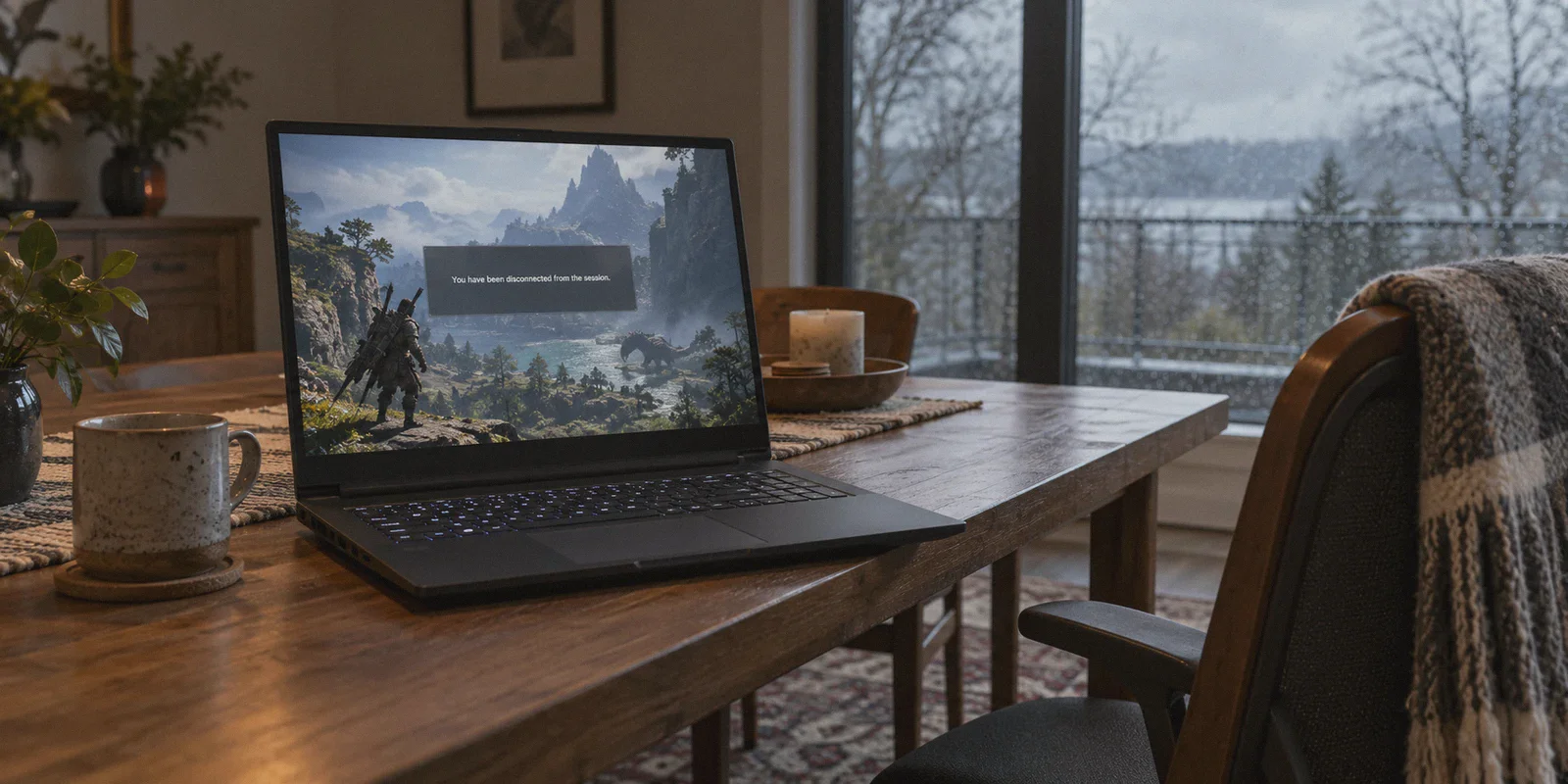
You’re fifteen minutes into a grueling hunt in Monster Hunter Wilds. The monster is limping, your squad has zero carts left, and you’re about to land the final greatsword true charge slash.
Then it happens: your three teammates freeze in place, running endlessly against a rock wall.
Two seconds later, a grey dialogue box pops up:
"You have been disconnected from the session. Returning to single-player mode."
The monster roars, its health is still scaled for a four-player lobby, your buffs are gone, and you’re left stranded in the Forbidden Lands alone.
If you’ve played Monster Hunter Wilds on Steam, PS5, or Xbox Series X/S, you’ve probably lived this nightmare more than once. The immediate reaction from most gamers is: "Capcom's servers are trash." The second reaction when someone suggests a VPN is: "A VPN? Won't routing through an encrypted tunnel just add ping and make disconnects worse?"
Under normal circumstances, that logic holds. But Monster Hunter Wilds isn't running on normal dedicated servers.
Here is why Wilds kicks you out of lobbies mid-hunt, why the right VPN actually fixes the problem instead of slowing you down, and why OnlyDogs VPN is the cleanest solution to keep your squad connected.
Article summary and product fit
When can a VPN help with Monster Hunter Wilds disconnects?
The article’s case is about route stability rather than magic latency reduction: a different route may help when jitter, packet loss, or poor ISP peering disrupts the game’s peer connections, but local Wi-Fi and distant hosts still matter.
Key points and product fit
- Best for: Players whose co-op sessions fail during otherwise playable connections, especially during congested evening hours or cross-region hunts.
- Core issue: The article emphasizes jitter, brief packet drops, and inefficient peering as the practical triggers to investigate.
- Product fit: OnlyDogs VPN is presented as an automated low-jitter route with recovery behavior intended for unstable networks.
- Important limit: The article still recommends wired Ethernet and sensible matchmaking regions because a VPN cannot remove local wireless interference or physical distance.
Sources already linked in this article: Product source: OnlyDogs VPN official website.
Why Monster Hunter Wilds Drops Your Hunts (It’s Not Just "Bad Servers")
Unlike competitive shooters that run entirely on high-tickrate central servers, Monster Hunter Wilds relies heavily on a hybrid peer-to-peer (P2P) network mesh for co-op hunts, synchronized by Capcom’s central matchmaking servers.
When you join a quest via an SOS flare or hunt with crossplay friends across the globe, here is what actually triggers the disconnect:
1. The Strict 3-Second Packet Drop Rule
Capcom’s netcode requires constant UDP packet handshakes between all four players and the quest host. If your local internet service provider (ISP) drops packets for even 2 to 3 seconds during an exchange, the game doesn't just give you a lag spike—it aggressively severs your connection to protect the host's session stability.
2. Evening ISP "Traffic-Shaping" (QoS Throttling)
Most multiplayer disconnects happen between 7:00 PM and 11:00 PM. During these peak hours, residential ISPs secretly deprioritize unencrypted UDP traffic (the exact protocol games use) to preserve bandwidth for Netflix and YouTube streams. That momentary throttle translates directly to a session timeout in Wilds.
3. Terrible Regional Peering Hops
With full crossplay enabled, you might be in California hunting alongside players in Tokyo, London, and Sydney. Your ISP often routes your game packets through cheap, congested transit hubs that bounce between six different backbones before reaching the host. Each unnecessary hop increases jitter and packet loss.
A good VPN doesn’t fix Capcom’s netcode; it fixes your ISP’s broken route. By establishing a direct, optimized highway to a clean network node, you bypass congested ISP bottlenecks and packet shaping altogether.
What a Hunter Actually Needs in a Gaming VPN
Most commercial VPNs are built for unlocking streaming catalogs or downloading files, which makes them awful for gaming. They bog your system down with heavy encryption overhead and connect you to overloaded datacenter servers.
To stabilize Monster Hunter Wilds, your VPN must meet three specific requirements:
- Low Jitter & Clean Peering: Pure ping (e.g., 40ms vs. 55ms) won't cause a disconnect. Jitter (ping jumping violently from 40ms to 280ms) and packet loss are what trigger Capcom's error prompt. The connection must be rock-solid.
- Traffic Obfuscation: The VPN must disguise gaming traffic so your ISP cannot detect UDP packets and throttle them during evening peak hours.
- Instant Network Recovery: If your connection experiences a split-second hiccup, the VPN protocol must recover immediately without tearing down the game's active socket.
Why OnlyDogs VPN Solves the Multiplayer Disconnect Problem
If you’ve ever tried setting up a traditional VPN for gaming, you know the frustration: downloading confusing config files, manually testing twenty different server nodes to find one that isn't lagging, or dealing with bloated desktop apps that eat CPU resources while your GPU is already screaming at 100%.
OnlyDogs VPN strips out that friction completely.
1. One-Click "Fastest Line" Auto-Routing (Zero Node Guessing)
When your squad is waiting for you in Discord, you don't have five minutes to scroll through server lists guessing whether "Tokyo #12" or "Frankfurt #4" has less packet loss.
OnlyDogs provides dedicated Scenario Presets. You click the Fastest Line preset, and the app’s automated routing engine instantly analyzes packet quality, latency, and node load to route your traffic through the most stable path available.
2. Proprietary Protocol & Traffic Obfuscation
Standard gaming packets stick out like a sore thumb to ISP traffic-shaping filters. OnlyDogs uses modern HTTP/3 architecture and proprietary obfuscation, disguising your gaming stream as normal, encrypted HTTPS web traffic. Your ISP’s automated throttling algorithms simply pass it through without deprioritizing your quest packets.
3. Weak Network & Packet Loss Resilience
Monster Hunter Wilds demands huge data throughput due to seamless open-world environmental shifts and dense weather effects. OnlyDogs was specifically engineered for complex and restricted network conditions. Its lightweight transport protocol handles minor packet drops silently in the background, keeping Capcom’s lobby session alive instead of kicking you to an offline camp.
4. Frictionless Multi-Device Setup (No Password Memorization)
Whether you’re playing on a dedicated gaming PC, a handheld like the ROG Ally / Steam Deck (running Windows), or a gaming laptop, you don’t need to juggle passwords. OnlyDogs logs you in instantly with an email verification code, letting you get into the game in seconds.
👉 Check out OnlyDogs VPN and stabilize your hunts
Step-by-Step: How to Set Up OnlyDogs VPN for Monster Hunter Wilds
To ensure a seamless connection without cached network errors, follow these simple steps:
Step 1: Fire Up OnlyDogs VPN Before Launching Steam / Game Launcher
- Open OnlyDogs VPN on your PC.
- Select the Fastest Line scenario preset.
- If you are playing primarily with friends in a specific region (for instance, you’re in North America playing with a squad in Japan), select the region nearest to your quest host. If you’re just matchmaking via public SOS flares, select the nearest server to your physical location.
- Click Connect.
Step 2: Clear Temporary Network Handoffs (If You Just Disconnected)
- If you just suffered a disconnect inside the game, fully restart the game client. This ensures the game clears any broken Capcom ID handshake tokens and establishes a fresh socket over the OnlyDogs route.
Step 3: Head to the Gathering Hub & Post Your Quest
- Jump into an online lobby or fire an SOS flare.
- You’ll notice that teammate animations stay smooth, damage numbers register without delay, and the dreaded mid-hunt disconnect disappears.
Two Quick In-Game Settings That Help Further
To get the absolute most out of your setup, pair OnlyDogs VPN with these two minor in-game adjustments:
- Check Your Crossplay Matchmaking Preferences: If you are experiencing constant desync with random SOS flares, check the in-game options under Network. If your internet connection has high inherent latency, set matchmaking to "Same Language" or "Same Region" to avoid connecting to peer hosts halfway across the planet.
- Prioritize a Wired Ethernet Connection: Wi-Fi—especially 2.4GHz bands—is notorious for micro-packet bursts caused by physical interference. Combining a wired Ethernet cable with OnlyDogs VPN eliminates local packet drop and transit route congestion simultaneously.
The Verdict
Few things in modern gaming are more frustrating than putting fifteen minutes of sweat into an Elder Dragon hunt only to be kicked to single-player mode because your ISP dropped three packets at 9:00 PM.
You don't need complex router mods, static IP purchases, or expensive gaming gear to fix it. You just need an encrypted, low-jitter route that stops your ISP from interfering with Capcom’s P2P netcode.
Turn on OnlyDogs VPN, tap the Fastest Line preset, grab your weapon of choice, and finish the hunt with your squad intact.
👉 Get OnlyDogs VPN today and never lose a hunt to disconnects again
Frequently Asked Questions
Why can a Monster Hunter Wilds hunt disconnect even when average ping is not extremely high?
The article focuses on short packet-loss events and jitter. A brief break in the peer-to-peer session can matter more than a modestly higher but stable ping.
What does the article recommend before blaming the game servers?
Check local connection quality, use wired Ethernet if possible, consider whether the issue appears during peak ISP congestion, and compare the route to the quest host or matchmaking region.
How should crossplay region choices affect troubleshooting?
The article suggests avoiding unnecessarily distant peer hosts when the connection is already fragile and using region or language matchmaking preferences to reduce difficult cross-continent paths.