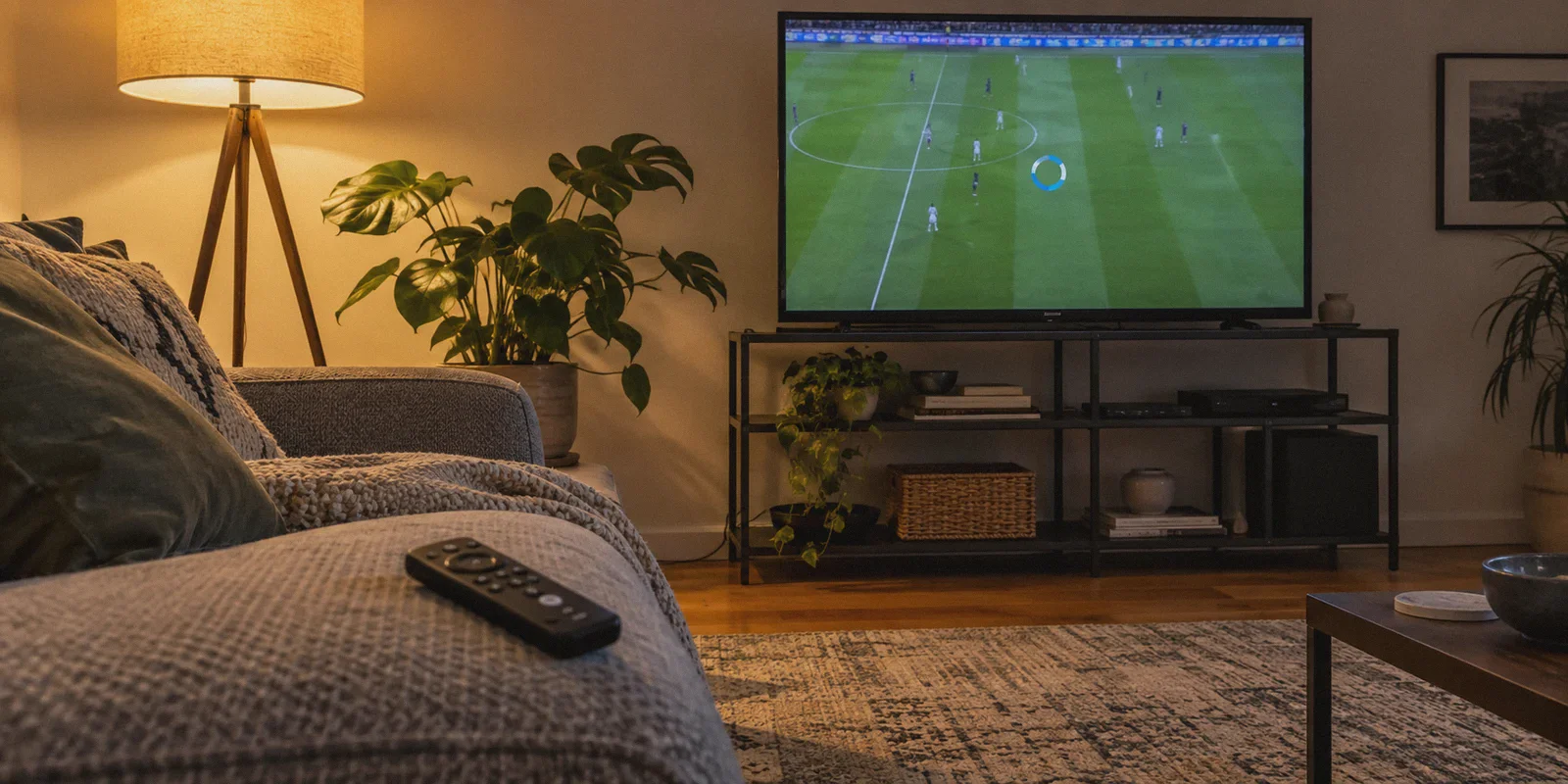
It is 8:15 PM on a Saturday night. You have your drink poured, you settle onto the couch, fire up IPTV Smarters Pro on your Firestick or Android TV, and click into the live match.
Three minutes in, the picture stutters. The audio loops twice. Then comes the dreaded blue spinning circle.
You pull out your phone in frustration, run a speed test on the exact same Wi-Fi, and see 450 Mbps download. You can load 4K YouTube videos instantly. You can download a 10GB file in minutes. Yet your IPTV stream is choking along like it’s 2004 on dial-up.
So you hit Reddit or Google and type in: best vpn for iptv smarters pro to fix buffering and throttling.
Every generic tech blog gives you the exact same cookie-cutter advice: "Buy this top-ranked VPN, connect to a server, and your buffering will magically disappear!"
If you’ve already tried that, you probably noticed an infuriating reality: half the time, turning on a standard commercial VPN makes IPTV Smarters Pro buffer worse, not better.
If you want to stop staring at loading wheels and actually watch your channels in peace, you need to understand what is actually choking your stream, why most big-name VPNs fail on TV devices, and what kind of VPN setup actually fixes the problem.
Article summary and product fit
How do you tell whether IPTV Smarters Pro buffering is caused by your ISP or by the IPTV provider?
The article recommends a simple hotspot comparison: if the same stream works smoothly over mobile data but not home broadband, the home route is suspect; if it buffers on both, the IPTV provider may be overloaded and a VPN will not repair the source feed.
Key points from this article
- Best for: Fire TV, Android TV, and IPTV Smarters Pro users who have fast speed tests but still see live-TV buffering.
- Diagnostic: Compare the same stream on home broadband and a phone hotspot before changing anything else.
- Player tuning: The article also suggests ExoPlayer or VLC, a larger buffer, and switching between MPEG-TS and HLS when appropriate.
- Product fit: OnlyDogs VPN is presented here for a Streaming preset, obfuscated HTTP/3 transport, weak-network recovery, and email-code login on TV devices.
- Important limit: No VPN can fix an overloaded or crashed IPTV origin server if the missing video data never leaves the provider.
Product link cited in this article: OnlyDogs VPN official website.
The 60-Second Test: Is Your ISP Throttling You, or Is Your IPTV Provider Just Bad?
Before you spend a single dime or waste another hour tweaking network settings, do this quick diagnostic. It saves more wasted time than anything else.
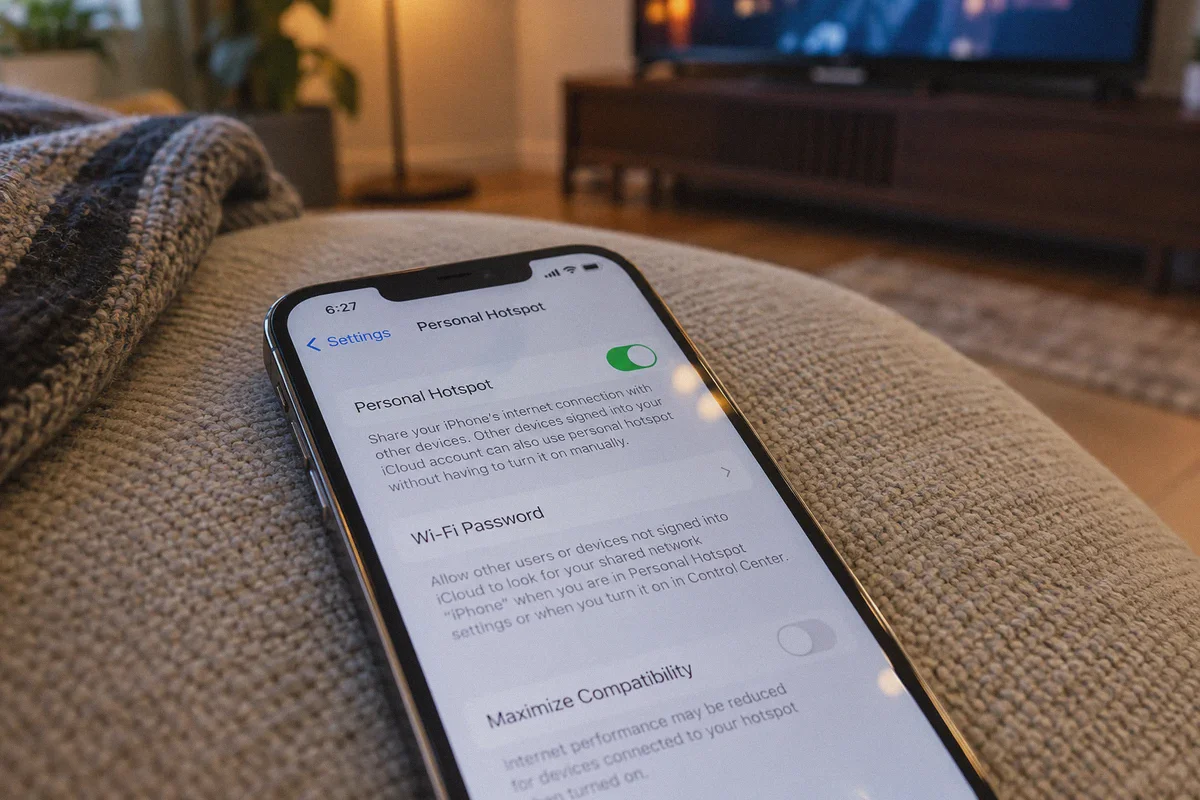
- Disconnect your TV or Firestick from your home Wi-Fi.
- Turn on the mobile hotspot on your phone (using your 4G/5G mobile data).
- Connect your TV to the phone hotspot and open IPTV Smarters Pro.
- Result A: The channel plays smoothly without buffering on cellular data. Your IPTV provider’s server is fine. Your home ISP is actively throttling your IPTV traffic. They inspect video packets during peak evening hours or live sporting events and artificially squeeze your bandwidth down to a crawl. A properly configured VPN will immediately fix this.
- Result B: It still stutters and buffers just as badly on cellular data. Your ISP isn’t the culprit. Your IPTV seller has overloaded their servers with too many subscribers on a cheap host. When 10,000 people tune into the same stream, their server melts. In this scenario, no VPN in the world can fix the stream because the missing frames never leave the host server.
If you landed on Result A, read on. Your ISP is playing games with your connection, and here is how to beat them.
Why Regular VPNs Often Ruin IPTV Smarters Pro
When people search for an IPTV VPN, they usually grab whatever brand has the biggest marketing budget. Then they run into three brick walls:
1. The Remote Control Nightmare
Most VPN apps were designed for Windows or iPhone, then clumsily ported to Android TV and Amazon Fire TV. You open the app and are forced to type a 24-character random password using a clunky TV remote, click through three permission pop-ups, and scroll through an alphabetical list of 80 countries just to find a server that isn't overloaded.
2. Protocol Bloat and Micro-Drops
IPTV Smarters Pro relies on continuous, real-time live video streams (MPEG-TS or HLS). Unlike Netflix or YouTube, which can pre-buffer 30 to 60 seconds of video ahead of time, live TV only has a 2-to-4-second buffer window.
Standard open VPN protocols (like traditional OpenVPN or generic WireGuard setups) carry heavy encryption packet overhead. If the VPN node experiences even a 1% packet loss spike, your TV’s buffer drains instantly, freezing the picture while it re-negotiates the connection.
3. Known VPN IP Flagging
Major internet service providers don't just throttle random domains; they actively inspect packet headers using Deep Packet Inspection (DPI). Furthermore, many IPTV services themselves block known commercial VPN datacenter IP ranges to prevent automated stream scraping. When you use a massive public VPN server, you often get a black screen or an "Authorization Failed" error inside Smarters Pro.
What an IPTV-Optimized VPN Actually Needs
To get a flawless, freeze-free picture inside IPTV Smarters Pro, your VPN needs to do four specific things:
- Bypass ISP Deep Packet Inspection: Your traffic must look like regular, un-throttled HTTPS web browsing so your ISP’s automated throttling algorithms leave your stream alone.
- Auto-Routing Without Manual Guesswork: You shouldn't have to test 12 different cities with a TV remote every time you sit down to watch a game. The app must automatically find the cleanest, lowest-latency pipe.
- Resilient Packet Loss Recovery: When streaming live video over residential Wi-Fi, micro-drops will happen. The protocol must recover lost packets smoothly in the background without dumping the player buffer.
- Frictionless TV Login: Logging in on a Firestick or smart TV should take 15 seconds, not a 10-minute battle with an on-screen keyboard.
This is precisely where OnlyDogs VPN fits into the picture.
Why OnlyDogs VPN Fixes the Smarters Pro Bottleneck
OnlyDogs VPN was built from the ground up around real-world connection friction, bypassing heavy restrictions, and keeping streaming video stable even on unstable or throttled networks.
Here is how it tackles the exact pain points of IPTV Smarters Pro users:
1. One-Tap "Streaming" Scenario Preset
Instead of forcing you to guess whether you need a server in Dallas, London, or Frankfurt—or making you pick between UDP, TCP, and custom MTU sizes—OnlyDogs uses Scenario Presets.
You open the app on your Firestick, Android TV, or mobile device, click the Streaming preset button, and you are done. The system automatically benchmarks and pairs your device with an optimized routing pathway tuned specifically for continuous, high-bitrate video throughput.
2. HTTP/3 Architecture and Traffic Obfuscation
Most ISPs throttle IPTV using automated traffic-shaping rules: they detect sustained UDP video streaming packets heading to unverified host addresses and throttle that specific port.
OnlyDogs utilizes HTTP/3 protocol design and traffic obfuscation. To your internet provider’s inspection firewalls, your IPTV traffic looks identical to standard, encrypted web traffic heading to everyday modern web platforms. Your ISP cannot categorize the stream as IPTV, meaning their automated throttling filters never trigger.
3. Weak-Network & Congestion Recovery
Live sports and high-definition IPTV streams demand steady packet flow. OnlyDogs features advanced weak-network and packet recovery mechanisms. Even if your home Wi-Fi suffers from congestion, interference, or bandwidth jitter, the connection handles micro-packet drops silently under the hood. The result? The video player inside Smarters Pro stays fed, and the dreaded spinning wheel disappears.
4. Email-Code Login (Built for TV Remotes)
If you’ve ever tried entering a complex account password using directional buttons on an Amazon Fire TV remote, you know the frustration. OnlyDogs replaces traditional passwords with a quick email verification code. Type your email once, punch in the 6-digit code, and your TV is fully authenticated across all your devices.
👉 Get OnlyDogs VPN and Test Your Stream Without Throttling
Quick Setup: How to Configure Smarters Pro + OnlyDogs in 3 Minutes
Once you have OnlyDogs VPN, follow these simple steps to lock in the smoothest playback:
- Install OnlyDogs VPN on Your Streaming Device: Download the app on your Android TV, Fire TV, phone, or tablet. Sign in using your email code.
- Activate the Streaming Preset: Tap the Streaming scenario button. Let the app lock onto the optimal route automatically.
- Optimize IPTV Smarters Pro Settings: Open IPTV Smarters Pro and go to Settings (the gear icon in the top right):
- Player Selection: Change your default player from Native Player to VLC or ExoPlayer. (ExoPlayer handles live H.264/H.265 streams with significantly less memory overhead on low-spec streaming sticks).
- Buffer Size (Player Settings): Increase your playback buffer from normal/small to Large or 3–5 seconds. This gives your stream an extra cushion against momentary network hiccups.
- Stream Format: If live channels occasionally display a black screen, toggle the stream format setting from MPEG-TS to HLS (m3u8).
- Launch Your Stream: Head back to Live TV, pick your channel, and enjoy uninterrupted playback.
A Final Reality Check Before You Watch
A VPN is a powerful tool, but it is not magic:
- It WILL fix: ISP bandwidth throttling during peak sports hours, local network blocks (like hotel or campus Wi-Fi filtering streaming apps), and regional ISP routing bottlenecks.
- It WILL NOT fix: A $2-a-month IPTV provider running thousands of channels off a single overloaded domestic VPS. If your provider's backend is crashed, no network tool can fix broken source feeds.
If your provider's streams work fine during Tuesday mornings but turn into a slideshow on Saturday afternoons, your ISP is throttling you.
Stop fighting with bloated VPNs that weren't built for television screens. Switch on OnlyDogs VPN, hit the Streaming preset, and get back to watching your screen without the spinning wheel.
👉 Check Out OnlyDogs VPN and Clean Up Your Stream Today
Frequently Asked Questions
How can you quickly test whether the ISP is causing IPTV Smarters Pro buffering?
Disconnect the TV from home Wi-Fi, connect it to a phone hotspot, and replay the same channel. If it becomes smooth on mobile data, the article treats the home ISP route as the likely problem.
Why can a regular VPN make live IPTV buffering worse?
The article points to protocol overhead, small live-TV buffer windows, packet loss, congested shared nodes, and sometimes blocked or flagged datacenter IP ranges.
Which IPTV Smarters Pro settings does the article suggest checking?
It suggests trying VLC or ExoPlayer, increasing the player buffer to Large or roughly 3–5 seconds, and switching between MPEG-TS and HLS when a stream shows a black screen or instability.
What buffering problem can a VPN not fix?
It cannot fix an overloaded or broken IPTV provider backend. If the source server is failing on both home broadband and mobile data, changing the route does not create missing video frames.