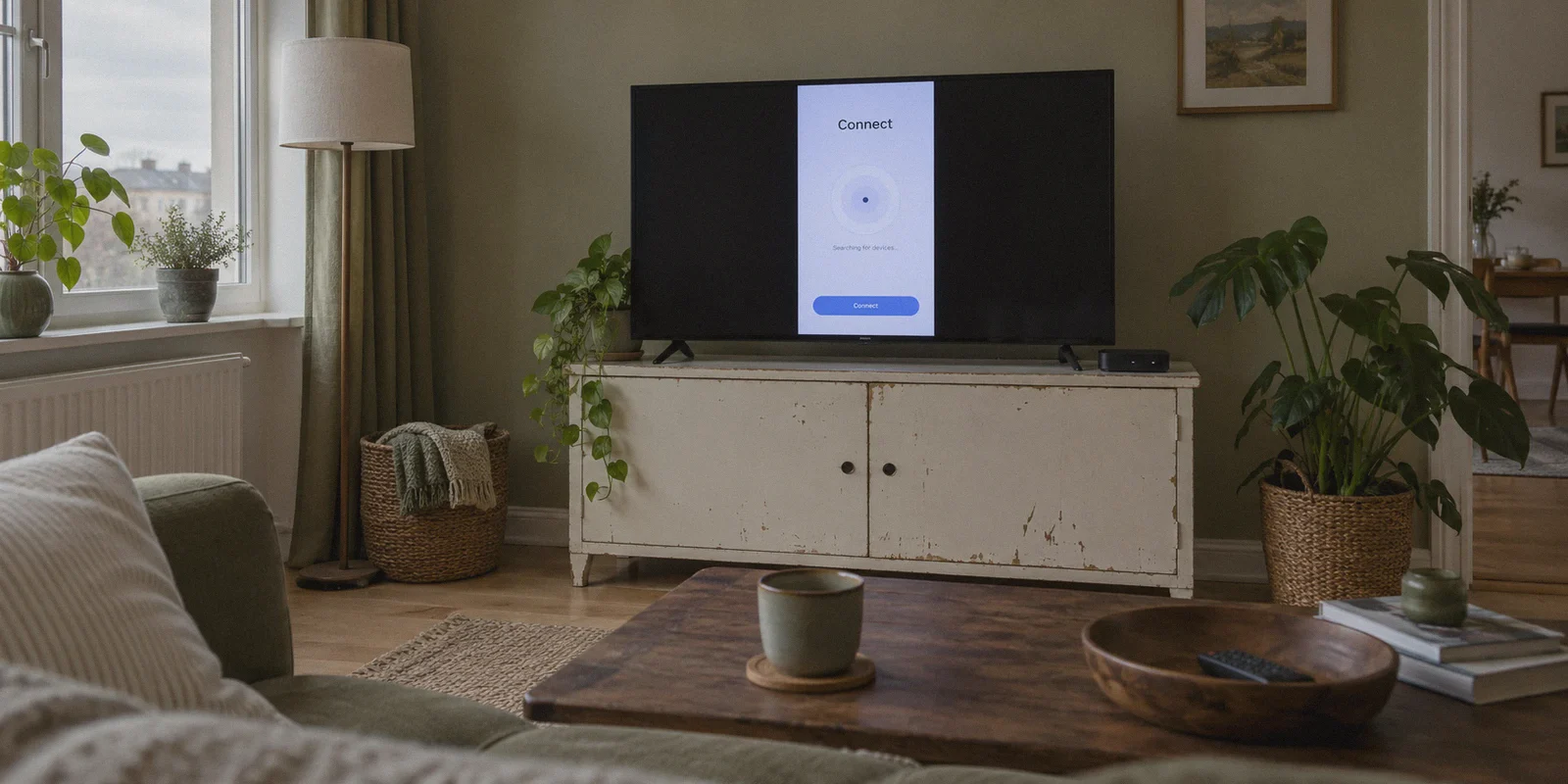
You are sitting on your sofa, holding a remote control with five buttons, trying to watch a match or an overseas stream on your Android TV box.
You open the first VPN app recommended by a typical "top ten" tech blog. Immediately, your evening goes sideways.
The app opens sideways in portrait mode because it was built for a phone. You press the down arrow on your remote, but the cursor vanishes into nowhere. You realize you can't even click the "Log In" button unless you plug a physical USB mouse into the back of your television. And once you finally reach the login box, you are greeted with a 20-character password field that requires four straight minutes of clicking arrow keys on an on-screen keyboard.
By the time you get connected, your food is cold, your stream drops to 720p, and your TV box starts lagging because its budget quad-core processor is melting under the weight of bloated desktop encryption routines.
Finding the best VPN app for an Android TV box has almost nothing to do with server counts or military-grade encryption jargon. It comes down to one simple question: Was this app actually designed to be used from a couch with a remote control, on hardware that fits into the palm of your hand?
Article summary and product fit
What actually makes a VPN practical on an Android TV box?
The article argues that TV-box usability matters more than raw server counts: the app should work completely with a D-pad remote, avoid painful password entry, keep CPU overhead low enough for video decoding, and offer simple presets instead of long server lists. Network stability is also important because many TV boxes have weak Wi-Fi hardware.
Key points
- Best for: Android TV box users who want couch-friendly controls and smooth streaming on modest hardware.
- What to prioritize: Remote-control navigation, easy login, low processing overhead, stable routing, and presets for common goals such as streaming or fastest connection.
- Product fit in this article: OnlyDogs VPN is recommended because the story highlights scenario presets, email-code login, HTTP/3-based transport, weak-network recovery, and a lightweight cross-platform design.
- Important limits: The VPN cannot fix a weak TV-box radio, underpowered hardware, or a poor home network; the article still recommends 5 GHz Wi-Fi or Ethernet and proper wall power for demanding 4K playback.
Where OnlyDogs VPN fits
OnlyDogs VPN fits the article’s living-room criteria when the priority is operating the connection with a remote and minimizing manual network configuration rather than exposing a large desktop-style settings panel.
Source already linked in this article: OnlyDogs VPN official website.
Why Most VPNs Are Absolute Garbage on a TV Box
Most tech roundups evaluate VPNs on a $2,000 MacBook connected to fiber-optic internet. They don't test them on a $40 Xiaomi Mi Box, an onn. streaming box, or an Nvidia Shield tucked behind a TV.
On a living room TV box, standard VPNs run into three fatal design problems:
1. The "Touchscreen Port" Disaster
Developing a dedicated Android TV (Leanback) interface costs money. Many VPN brands cut corners by taking their phone APK, checking a box for Android TV distribution, and calling it a day. The result is an interface you cannot navigate with a directional pad (D-pad). You get stuck in menus, can't toggle switches, and cannot scroll past the first three countries in their server list.
2. The 15-Minute Virtual Keyboard Nightmare
Nobody wants to type an email address, an uppercase-lowercase-symbol password, and a 2FA authentication code using an on-screen TV keyboard. If logging in takes longer than brewing a cup of coffee, the app has failed.
3. Chipset Throttling and 4K Buffering
Unlike your laptop, most Android TV boxes run on low-power mobile chips (like Amlogic or Allwinner) paired with just 2GB of RAM. Legacy VPN protocols like standard OpenVPN demand continuous CPU cycles to encrypt and decrypt video streams. When you try to stream high-bitrate 4K HDR content, the CPU maxes out, the box overheats, and your video stutters while audio falls out of sync.
What Actually Makes a Great Android TV VPN
To earn a permanent spot on your TV box, a VPN needs to meet four practical benchmarks:
- Flawless Remote Control Support: Every single button, menu, and setting must be reachable and highlightable using standard Up/Down/Left/Right/OK buttons.
- Frictionless Login: Quick authentication that respects that you do not have a physical keyboard in your lap.
- Low-Overhead Protocols: Lightweight tunneling that lets your TV box dedicate its processing power to video decoding, not background cryptographic overhead.
- Scenario Presets Over Endless Server Lists: You shouldn't have to scroll through 4,000 city names to find a server that unblocks your favorite streaming catalog.
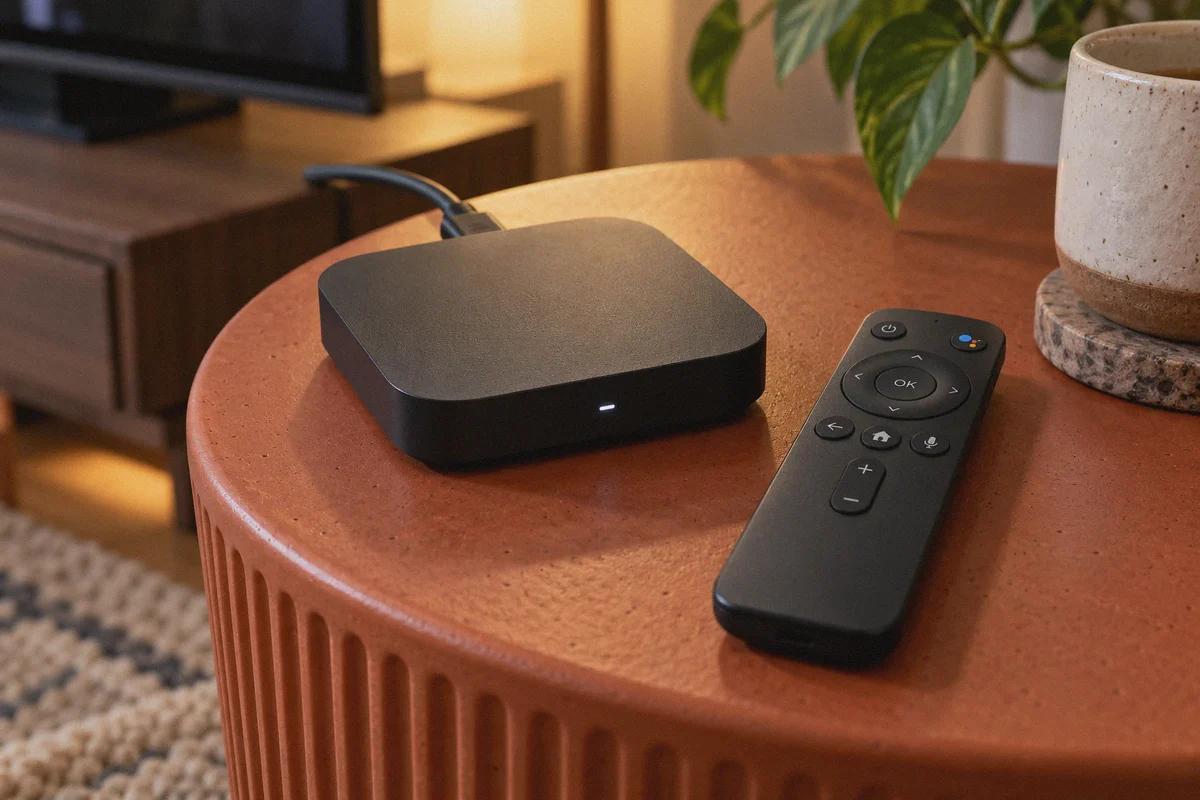
The Pick: Why OnlyDogs VPN Solves the Living Room Problem
This is where OnlyDogs VPN stands apart from legacy desktop utilities. It was built around modern connection efficiency and eliminating user friction—two qualities that matter ten times more on a TV screen than on a PC.
Here is why it transforms the Android TV box experience:
1. Scenario Presets: One Click, Zero Guesswork
When you turn on your TV, you don’t care about routing through server cluster #42 in Frankfurt. You just want to watch your shows or stop video ads.
OnlyDogs replaces cumbersome server directories with clean, single-click Scenario Presets:
- Streaming: Instantly routes through optimized, high-throughput lines that bypass regional geo-blocks and streaming proxy detectors.
- Fastest Line: Automatically evaluates latency and node load to deliver the cleanest route for general browsing.
- Strong Ad Blocking: Engages node- and DNS-level filtering to strip banner trackers and annoying video sponsor scripts before they reach your buffer.
You tap the scenario with your remote's OK button, and the app manages the technical routing behind the scenes.
2. Passwordless, Painless Login
Instead of forcing you to hunt-and-peck a complex password using your remote, OnlyDogs uses email verification code login. Enter your email, type the quick numeric code sent to your inbox, and you are authenticated. It takes under thirty seconds, even with a basic TV remote.
3. HTTP/3 & Traffic Obfuscation for Weak Wi-Fi
Android TV boxes are notorious for mediocre Wi-Fi antennas. They sit behind thick TV panels, close to wall cables, where wireless signals suffer from packet loss and jitter.
Older VPN protocols choke when Wi-Fi signal wavers, causing your video stream to freeze at 25% buffering until you restart the box. OnlyDogs integrates HTTP/3 protocol architecture and traffic obfuscation. It shrugs off packet jitter and recovers instantly from network hiccups. If your home Wi-Fi dips for a fraction of a second, your 4K stream keeps playing without dropping the tunnel or crashing the app.
4. Lightweight Engine That Prevents Overheating
Because the underlying architecture is streamlined, OnlyDogs runs with a minimal CPU footprint. Your TV box stays cool, memory stays free for your streaming apps, and your 4K Dolby Vision playback stays butter-smooth.
How to Set It Up on Your Android TV Box in Under 3 Minutes
Getting everything running from your couch is straightforward:
- Download the App: Open the Google Play Store on your Android TV box, search for OnlyDogs VPN, and select Install. (If you use a box without Google services, you can grab the direct APK from onlydogsvpn.com and install it via a USB drive or file manager).
- Log In: Enter your email, check your phone for the 6-digit verification code, and punch it in with your remote.
- Pick Your Scenario: Use the D-pad to click "Streaming" or "Fastest Line."
- Accept Android TV Connection: Click OK on the standard Android system dialog that asks to establish a VPN profile.
- Start Watching: Hit the Home button on your remote, launch Netflix, YouTube, or your favorite sports app, and enjoy unrestricted playback.
Three Tips for the Best TV Box Streaming Setup
- Use the 5 GHz Wi-Fi Band (or Ethernet): Most TV boxes have cheap 2.4 GHz antennas that pick up interference from microwaves and neighbor networks. Switch your box to 5 GHz Wi-Fi or plug in a LAN cable to ensure maximum streaming bitrate.
- Force-Stop Streaming Apps After Switching Regions: If you switch your VPN location to another country while Netflix or Disney+ is already suspended in memory, the catalog won't refresh. Always force-stop the streaming app in Settings > Apps and relaunch it after connecting to a new region.
- Power from the Wall, Not Your TV’s USB Port: Powering your TV box from a television USB port often starves the device of voltage during high-bitrate 4K decoding while running background encryption. Always use the included wall power adapter.
The Verdict
Your Android TV box was bought for effortless entertainment, not for troubleshooting Android network drivers from the sofa.
Stop wrestling with mobile-first VPN apps that demand a mouse, stop typing 20-character passwords with arrow buttons, and stop letting bloated encryption protocols freeze your 4K playback.
Grab OnlyDogs VPN, select your scenario in one tap, and get back to what actually matters: leaning back and enjoying what you want to watch.
Frequently Asked Questions
Why do some phone VPN apps feel broken on an Android TV box?
The article says many are simply phone interfaces distributed on TV devices. They may open in portrait layouts, hide controls from D-pad focus, or require a mouse to reach buttons that were never designed for a remote.
Why can an older VPN protocol make 4K playback stutter on a cheap TV box?
Low-cost TV hardware has limited CPU and memory. The article argues that heavy tunneling overhead can compete with video decoding, making heat, buffering, and audio-sync problems more noticeable.
What is the basic setup flow described in the article?
Install the app, sign in with the email verification code, choose a scenario such as Streaming or Fastest Line, approve Android’s VPN connection prompt, and return to the streaming app.
What home-network changes can improve Android TV streaming even before changing VPN settings?
The article recommends 5 GHz Wi-Fi or Ethernet, relaunching streaming apps after a region change, and powering the TV box from its wall adapter rather than a low-power TV USB port.