You’re sitting in front of your Samsung Smart TV with the sleek little remote in hand, ready to watch a show that everyone on the internet is raving about. You fire up the TV, open the Samsung App Store, search for your favorite VPN, and get hit with nothing.
No results. Not even an official search suggestion.
That’s when you learn the dirty little secret of Samsung Smart TVs: Samsung TVs run Tizen OS, not Android. Tizen completely blocks native VPN apps. There is no APK sideloading, no Google Play Store, and no magic switch to install a VPN client directly onto the panel.
If you google around for a solution, 99% of tech blogs throw the same phrase at you: "Just use Smart DNS!"
They make it sound like a five-minute hack that solves all your problems. But nobody warns you about what happens 48 hours later—when your stream abruptly cuts out, your TV throws a network connection error, and you’re stuck typing eight-digit IP addresses with a directional remote on a Friday night.
Here is the honest guide to setting up Smart DNS on a Samsung TV, why it so frequently breaks down, and the much saner way to get uninterrupted 4K streaming onto your big screen.
Article summary and product fit
How do you set up Smart DNS on a Samsung TV, and why can it stop working later?
The article’s Smart DNS flow is to register your home public IP with the provider, enter the DNS address manually in Samsung network settings, and hard-reboot the TV. It also explains that the setup can fail later when the public IP changes, a DNS endpoint is blocked, or you need encryption rather than DNS-only routing.
Key points from this article
- Best for: Samsung TV owners who cannot install a native VPN app on Tizen and want to understand both Smart DNS setup and its tradeoffs.
- What matters: Smart DNS identifies the household by its registered public IP and does not encrypt the video connection, so dynamic-IP changes and ISP-side behavior remain relevant.
- Product fit: The article presents a VPN-powered mobile or Windows hotspot as an alternative and positions OnlyDogs VPN around streaming and multi-device-sharing presets for that setup.
- Important limit: Smart DNS and a VPN hotspot solve different problems. The TV still depends on the sharing device, local Wi-Fi quality, and the current rules of the streaming service.
Product source already referenced in the article: OnlyDogs VPN official website.
Part 1: How to Set Up Smart DNS on Samsung TV (Step-by-Step)
If your VPN provider gives you a Smart DNS address and you want to test it right now, here is the exact configuration path on modern Samsung Smart TVs (2016–2026 models):
Step 1: Whitelist Your Public IP on Your Provider's Portal
Smart DNS does not use passwords. Instead, it identifies your TV based on your home internet’s public IP address.
- Open a browser on your phone or laptop (connected to the same home Wi-Fi as your TV).
- Log into your VPN account dashboard and find the Smart DNS tab.
- Click Activate / Register My IP Address.
- Copy the Primary Smart DNS IP address (it looks something like
192.0.2.1).
Step 2: Open Network Settings on Your Samsung TV
- Press the Home button on your Samsung remote and navigate to Settings (the gear icon on the left).
- Go to General (or Connection on newer Tizen interfaces) ➔ Network ➔ Network Status.
- Wait two seconds for the TV to confirm it’s connected to your router, then click IP Settings.
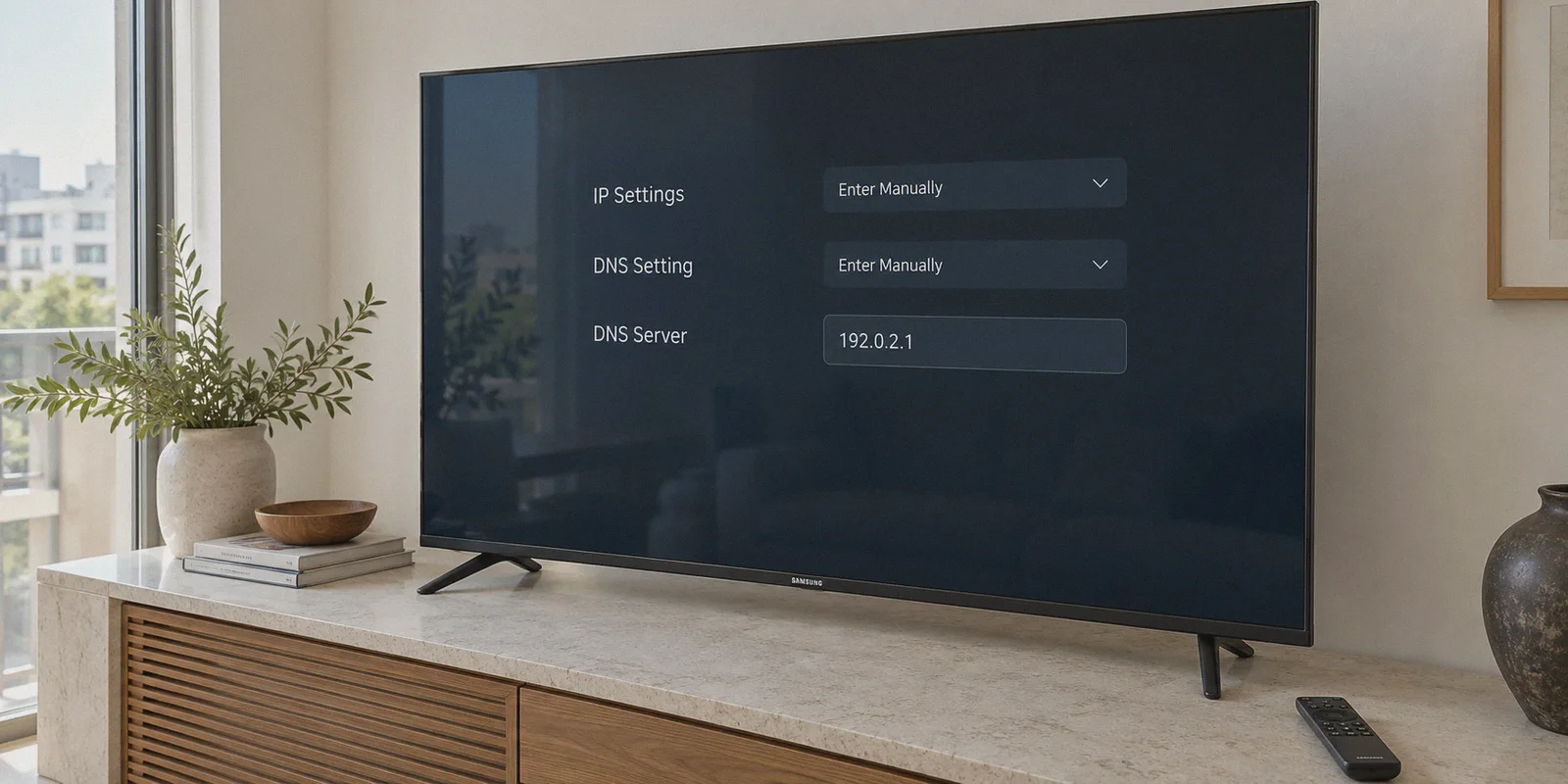
Step 3: Enter the DNS Manually
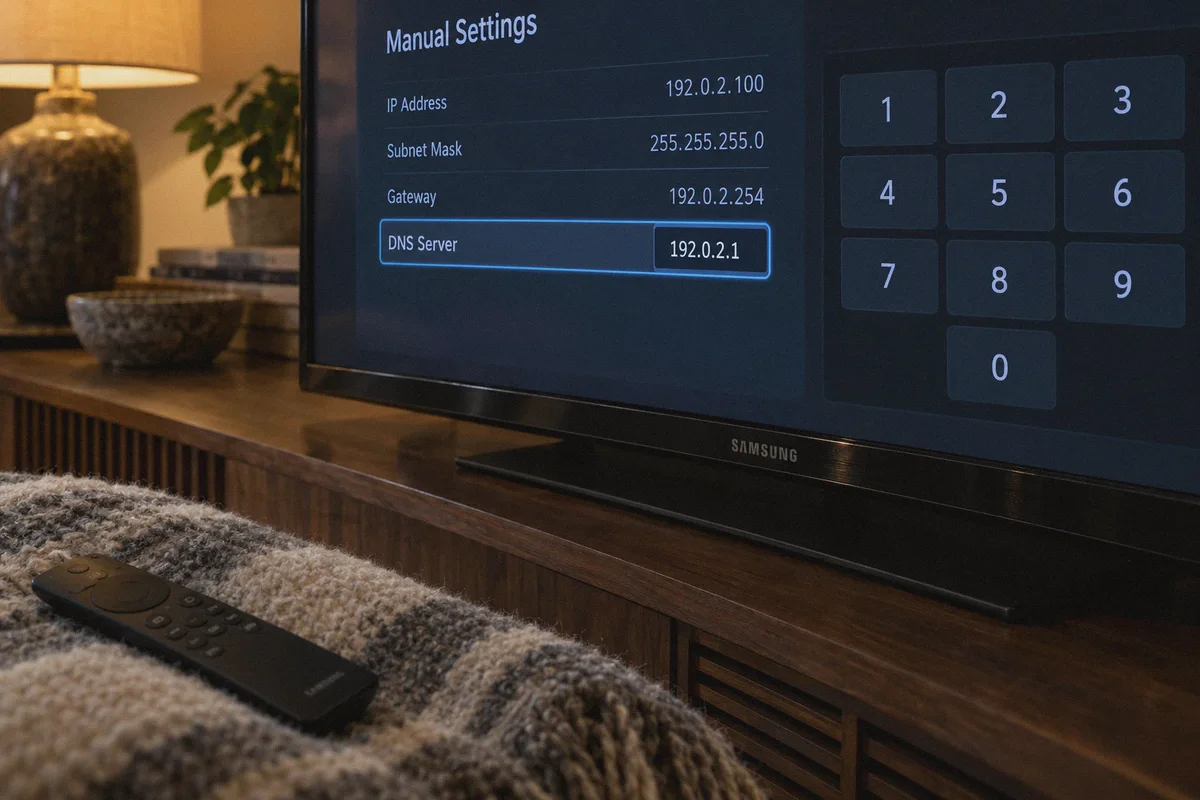
- Scroll down to DNS Setting. By default, it says Get Automatically. Change it to Enter Manually.
- Click into DNS Server.
- Using the on-screen numeric keypad and your remote's arrow keys, type in the Smart DNS IP address you copied in Step 1.
- Click OK.
Step 4: The Mandatory Hard Reboot
If you simply back out to the home screen, your TV will keep using its cached local DNS records.
- Hold down the Power button on your Samsung remote for about 5 seconds until the TV turns off and the Samsung boot logo flashes on the screen.
- Alternatively, unplug the power cord from the wall for 30 seconds and plug it back in.
Once it boots back up, open your streaming app. If everything aligned correctly, your catalog should refresh to the target region.
Part 2: The 48-Hour Trap of Smart DNS
If you followed those steps, congratulations—it probably worked.
Now, here is why you will likely be searching for an alternative by next week.
1. The Dynamic IP Nightmare
Smart DNS operates on a simple premise: the provider’s server only accepts traffic coming from your registered home IP.
Here’s the catch: 95% of residential internet service providers (ISPs) use Dynamic IP addresses. Every time your router reboots, or every few days when your ISP refreshes their lease, your home IP changes.
The moment that happens, the Smart DNS server treats your Samsung TV as an unauthorized stranger. Your TV will either lose internet access entirely or silently revert back to your local domestic streaming library. To fix it, you have to get off the couch, log into your VPN account on a computer, hit "Re-register IP," and reboot your television. Having to do that twice a week completely kills movie night.
2. Zero Encryption Means ISP Throttling Stays Active
Smart DNS is not a VPN. It routes only your DNS lookup requests through a remote server; your actual video data streams straight through your normal local connection without encryption.
If your ISP throttles high-bitrate 4K video during peak evening hours, Smart DNS does absolutely nothing to stop it. You’ll still experience sudden resolution drops, grainy playback, and buffering wheels during live sports or high-action scenes.
3. The Streaming Blockade
Because Smart DNS providers route thousands of users through a handful of static DNS endpoints, streaming giants like Netflix, Disney+, and Max identify and blacklist those IP clusters aggressively. One day a channel works; the next morning you get a "Proxy Detected" error code.
Part 3: The Better Way: A Real Encrypted Tunnel Without the Headaches
You don’t have to buy an expensive $200 custom router or flash dangerous third-party firmware just to get around Tizen's limitations.
The most reliable way to stream geo-restricted content on a Samsung TV is to route its connection through a Virtual Hotspot or Mobile Relay powered by a VPN built specifically for modern streaming stability.
This is where OnlyDogs VPN completely changes the living room experience.
Instead of expecting you to understand DNS routing tables, port forwarding, or terminal commands, OnlyDogs simplifies the entire process:
1. Dedicated "Streaming" & "Multi-Device Sharing" Presets
With traditional VPNs, you have to guess which city server isn't blocked by streaming algorithms. OnlyDogs eliminates the guesswork with Scenario Presets. You open the app on your phone or laptop, tap Streaming or Multi-Device Sharing, and the software automatically routes you through optimized lines designed to bypass proxy detectors while maximizing video throughput. No server hunting, no trial-and-error.
2. HTTP/3 & Traffic Obfuscation
Most VPN tunnels fail when shared over wireless hotspots because local Wi-Fi interference causes packet drops that break standard OpenVPN handshakes. OnlyDogs uses HTTP/3 architecture and proprietary traffic obfuscation. It treats streaming packets like regular secure web traffic, shrugging off network jitter and bypassing aggressive ISP throttling. Even if your home Wi-Fi dips for a second, your 4K stream doesn't buffer or crash.
3. Passwordless, Painless Access
Typing 24-character generated passwords on secondary devices is annoying. OnlyDogs utilizes email verification code logins. You enter your email, type the quick numeric code, and you’re authenticated in seconds across your phone, tablet, and PC.
4. Background Ad & Telemetry Blocking
Modern Samsung Smart TVs are notorious for spamming your home screen with sponsored banner ads and running background tracking scripts that eat bandwidth. OnlyDogs’ built-in DNS- and node-level filtering cleans out tracking requests and intrusive ads before they reach your TV, keeping your connection clean and snappy.
How to Stream Smoothly on Samsung TV in 3 Minutes
Instead of constantly registering your IP on a Smart DNS dashboard, try this one-time setup:
- Get the Client: Download OnlyDogs VPN on your Windows laptop or smartphone.
- Hit the Preset: Select the Streaming or Multi-Device Sharing preset and click Connect.
- Turn on Mobile Hotspot:
- On Windows: Turn on Mobile Hotspot in Network Settings and share the VPN adapter.
- On Mobile: Enable your phone's personal hotspot (preferably on the 5 GHz band).
- Connect Your Samsung TV: In your TV’s Network Settings, select your hotspot Wi-Fi, enter the password, and start streaming.
Your Samsung TV gets full encryption, zero DNS leaks, and consistent access to foreign media catalogs—without ever touching manual IP settings again.
The Takeaway
Smart DNS sounds great in theory because it requires no extra devices. But in practice, dealing with dynamic IP refreshes, unencrypted ISP throttling, and frequent server bans turns your television into a troubleshooting headache.
If you just want to sit down, grab your remote, and watch your shows in crisp 4K without interruptions, skip the manual DNS entry screen. Grab OnlyDogs VPN, turn on a secure shared hotspot, and let the software handle the heavy lifting while you enjoy the movie.
Frequently Asked Questions
Why can’t I install a normal VPN app directly on many Samsung Smart TVs?
The article explains that Samsung Smart TVs use Tizen rather than Android TV, so they do not offer the same native VPN-app installation path as Google TV devices.
Why does Smart DNS sometimes stop working after a router restart?
Smart DNS commonly authorizes your home by its public IP address. If your ISP assigns a new dynamic IP, the article says the provider may no longer recognize the TV until you register the new address again.
Does Smart DNS encrypt the video traffic from the TV?
No. As described in the article, Smart DNS changes DNS routing but does not create a full encrypted tunnel for the TV’s video traffic.
Why does the article recommend a hard reboot after changing DNS settings?
The article says the TV may keep cached DNS information if you simply return to the home screen. A full restart forces the TV to start a fresh network session with the new DNS setting.
What alternative does the article suggest when Smart DNS becomes too fragile?
It suggests sharing a VPN-protected connection from a Windows computer or phone hotspot, then connecting the Samsung TV to that shared Wi-Fi network instead of repeatedly editing DNS settings on the TV.