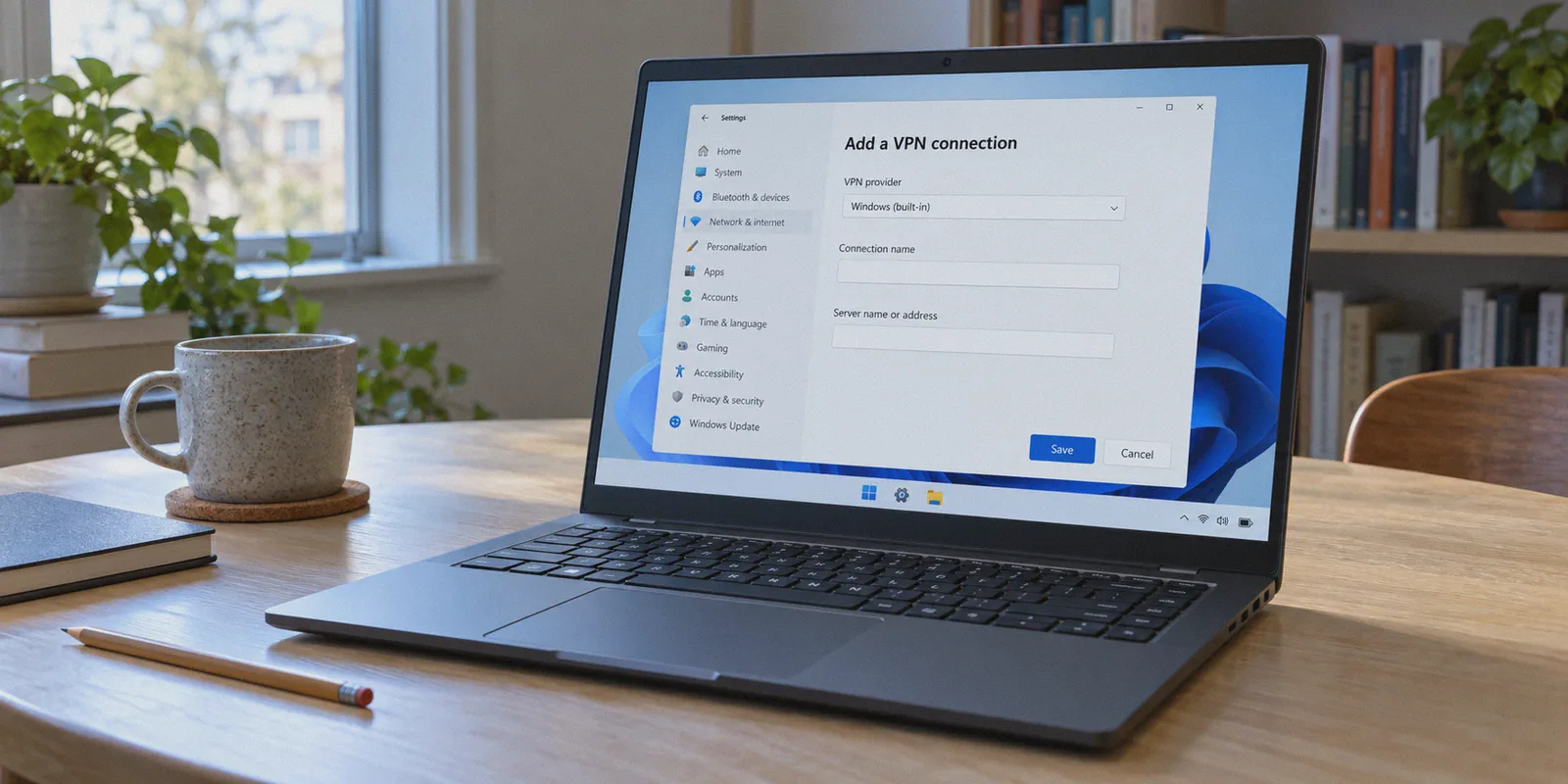
You clicked on Windows 11’s Settings, navigated to Network & Internet, spotted that clean little toggle labeled VPN, and thought: “Great, Microsoft finally built a VPN directly into Windows. No extra apps, no bloatware, just flip a switch.”
Then you clicked Add VPN, and this dialog box popped up:
- VPN provider: Windows (built-in)
- Server name or address: [ Empty ]
- VPN type: [ Automatic / IKEv2 / L2TP / SSTP ]
- Type of sign-in info: [ Username, Certificate, Smart Card... ]
And you froze.
Where is the country list? Where are the server locations? Why is Windows asking for a “Pre-shared key” and a server host domain?
Here is the cold, practical truth nobody explains upfront: Windows 11 does not have a built-in VPN service. It has a built-in VPN client—an empty digital dialer from the Windows XP era with a modern coat of paint.
It does not give you secure internet access. It simply gives you an interface to manually punch in technical credentials if your employer’s IT department or a private server admin handed you a dedicated IP address on a piece of paper.
If you actually have a server address to configure, here is the exact step-by-step setup to get it connected without triggering classic Windows network errors. And if you searched this because you just wanted fast, private, unblocked internet on your PC without the headache, here is why doing this manually is the hardest possible way to achieve that goal.
Article summary and product fit
What is the Windows 11 built-in VPN, and when does this article say it is the right tool?
The article explains that Windows 11 includes a VPN client, not a VPN service. It is useful when an employer, university, or server administrator has already given you a server address, protocol, and sign-in credentials; it does not provide its own countries, servers, or consumer VPN network.
Key points, fit, and limits
- Setup requirement: You need an existing VPN endpoint plus the correct server address, protocol, and authentication details before the Windows built-in client can connect.
- Real-world friction: The article highlights L2TP/IPsec Error 809, poor sleep/wake recovery, and the lack of streaming-specific routing or ad filtering as common pain points.
- Product fit: OnlyDogs VPN is presented as a consumer alternative for readers who want scenario presets, obfuscated HTTP/3-based transport, quick network recovery, and email-code login.
- Best for: Use the native Windows client for a known workplace, university, or self-hosted VPN endpoint; use a managed consumer VPN when you do not already have a server to dial.
- Important limit: The article’s consumer-VPN recommendation does not replace a corporate VPN when access to a private office network depends on the company’s specific server, certificate, or policy.
Sources already linked in this article: OnlyDogs VPN official site.
Part 1: How to Set Up the Windows 11 Built-in Client
If your workplace, university, or private cloud VPS provided you with VPN credentials, follow these steps to connect using Windows 11’s native tool:
Step 1: Open the Built-in VPN Menu
- Press
Win + Ito open Settings. - Click Network & internet on the left sidebar.
- Select VPN on the right pane.
- Click the blue Add VPN button at the top.
Step 2: Fill in the Connection Details
In the pop-up window, configure the fields:
- VPN provider: Keep it set to Windows (built-in).
- Connection name: Give it any recognizable nickname (e.g., Work Office or Home Server).
- Server name or address: Type the exact IP address (e.g.,
198.51.100.24) or domain name provided by your network administrator. - VPN type: Leave as Automatic, or select the specific protocol your server uses (IKEv2 or SSTP are the most common; avoid PPTP as it is obsolete and insecure).
- Type of sign-in info: Choose User name and password (or One-time password / Certificate depending on your server setup).
- Enter your User name and Password.
- Check Remember my sign-in info and click Save.
Step 3: Connect
You will now see your connection listed under the VPN menu. Click Connect.
If the status flips to Connected, congratulations—your traffic is routing through that specific host.

Part 2: The Three Traps of the Native Windows Client
If you are setting this up for personal privacy, streaming, or bypassing network restrictions, the built-in client quickly turns into a chore.
1. The Notorious "Error 809" (NAT Traversal Failure)
If your server uses L2TP/IPsec, Windows 11 will almost certainly fail on standard home Wi-Fi with Error 809: "The network connection between your computer and the VPN server could not be established."
Why? Because Windows disables NAT-T (Network Address Translation Traversal) by default. To fix it, you have to open the Windows Registry Editor (regedit), dig through HKEY_LOCAL_MACHINE\SYSTEM\CurrentControlSet\Services\PolicyAgent, create a new DWORD (32-bit) key named AssumeUDPEncapsulationContextOnSendRule, set it to 2, and reboot your entire PC.
That is an absurd amount of friction just to encrypt your web browser.
2. The Broken Sleep/Wake Cycle
When you close your laptop lid, put Windows to sleep, and open it an hour later at a coffee shop, the built-in VPN does not recover cleanly.
The connection hangs, your DNS requests fail, and your browser shows "No Internet" until you open Settings, manually disconnect the frozen adapter, and reconnect it. Worse, during those few seconds of dropped connectivity, Windows silently leaks your real IP address onto the public network.
3. Streaming Blocks and Zero Ad Defense
The built-in client has no intelligence. It routes raw packets through a single static IP.
If you use it to access Netflix, BBC iPlayer, or YouTube, streaming firewalls will recognize the static hosting data center within 48 hours and block it. Furthermore, it offers zero tracker or banner ad blocking—meaning pop-ups, telemetry scripts, and YouTube ads pass straight through.
Part 3: The Modern Fix: Why OnlyDogs VPN Makes Windows 11 Painless
If you are trying to connect to a corporate intranet, the built-in client is mandatory.
But if your goal is private browsing, bypassing ISP bandwidth throttling, or unlocking global streaming libraries on your PC, you do not need to spend your evening tweaking registry files and copying IP addresses.
This is where OnlyDogs VPN completely redefines what using a VPN on Windows 11 feels like.
Instead of expecting you to understand tunneling protocols, subnet routing, and registry hacks, OnlyDogs automates the entire process:
1. Scenario Presets Instead of IP Tables
With the native Windows client, if an IP gets congested, you have to find a new server, edit the adapter settings, and re-authenticate.
OnlyDogs replaces technical configuration with Scenario Presets:
- Fastest Line: Instantly pings and routes your PC through the lowest-latency path available.
- Streaming: Automatically connects to media-optimized nodes that bypass proxy detectors without manual server hopping.
- Strong Ad & Tracker Blocking: Uses DNS- and node-level filtering to wipe out annoying banner ads and background tracking scripts before they hit your browser.
You click the scenario you want, and the software makes the routing decisions in the background.
2. HTTP/3 & Traffic Obfuscation
The Windows built-in client relies on legacy protocols like IKEv2 and L2TP. These protocols leave blatant cryptographic signatures that university networks, hotel captive portals, and corporate firewalls easily detect and throttle.
OnlyDogs utilizes HTTP/3 protocol architecture and proprietary traffic obfuscation. Your encrypted traffic blends in with standard modern web traffic, allowing you to bypass aggressive firewalls and packet-inspection systems effortlessly.
3. Instant Network Recovery
Unlike the native Windows dialer that freezes when your PC wakes from sleep, OnlyDogs was built for unstable mobile environments. When you flip open your laptop lid or switch from Wi-Fi to a phone hotspot, the connection restores in milliseconds without breaking your active downloads or stalling your browser.
4. Zero-Password Authentication
Setting up a Windows client usually means digging out long, complicated generated passwords. OnlyDogs streamlines access with email verification codes. Enter your email, type the quick code, and your Windows PC is authenticated in seconds.
The Verdict: Which Path Makes Sense?
Here is the clean breakdown:
- Use the Windows 11 Built-in Client if: Your company’s IT department specifically handed you a corporate server address, an SSTP configuration, or an enterprise certificate to access internal office files.
- Use OnlyDogs VPN if: You want your PC protected on public Wi-Fi, you want to bypass ISP throttling, you want to stream 4K content without proxy errors, and you never want to look at a Windows network adapter setting again.
Setting up a connection should not feel like an exam in network administration. Download OnlyDogs VPN, pick your scenario in one click, and let your Windows 11 PC handle the internet the way it was meant to.
Frequently Asked Questions
Does Windows 11 include a complete VPN service?
No. The article explains that Windows 11 includes a VPN client. You must already have a server address and the authentication details supplied by an employer, university, private server, or other VPN provider.
What information do I need to add a VPN connection in Windows 11?
You need a connection name, the exact server name or IP address, the VPN type or protocol, and the required sign-in method such as a username and password, certificate, or one-time password.
Why can the Windows built-in VPN show Error 809?
The article discusses Error 809 mainly in the context of L2TP/IPsec and NAT traversal. Its described workaround involves a Windows Registry setting and a reboot, which illustrates why manual native-client setups can become technical.
When is the Windows 11 built-in client still the better choice?
Use it when your company or network administrator specifically gave you a corporate server address, SSTP or other protocol settings, or an enterprise certificate needed to reach internal resources.