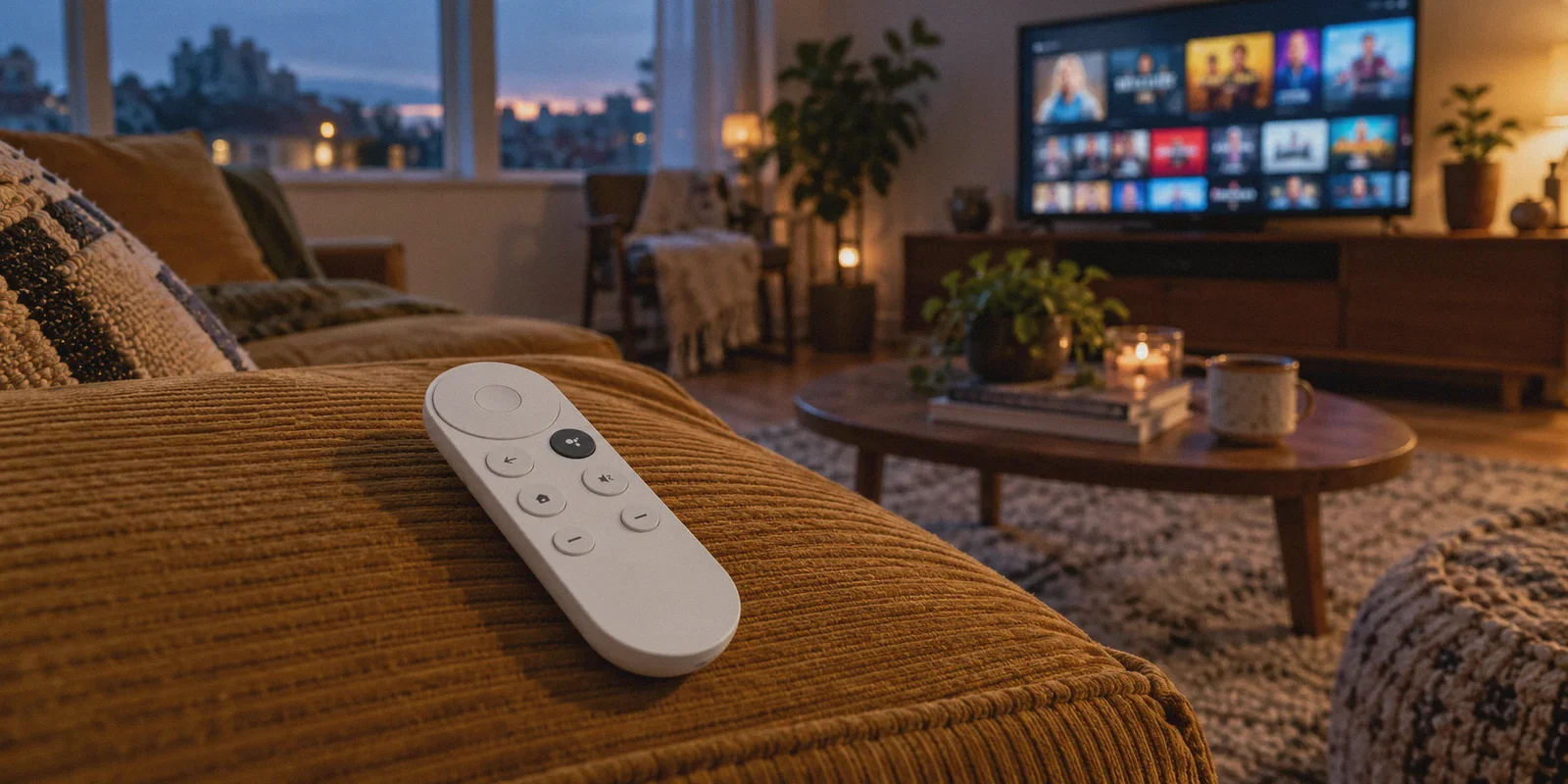
You are probably sitting on your couch right now, clutching that slippery little white Google TV remote, trying to figure out why a show everyone on Twitter is talking about isn't showing up in your living room.
Maybe you tried searching for it on Netflix, only to get a screen full of generic suggestions. Maybe you opened an overseas sports stream and ran straight into a geo-block. Or maybe you just searched "how to setup vpn on chromecast with google tv" expecting a nightmare involving USB debugging, sideloading obscure APK files, or flashing your home Wi-Fi router.
Take a breath. The actual installation is dead simple—it takes less than three minutes.
The part nobody warns you about, however, isn't how to install a VPN on Google TV. It’s what happens five minutes later, when you realize 90% of VPN apps were built for a phone screen, and using them with a directional plastic remote feels like trying to write an email with an Atari joystick.
Here is how to get a VPN running on your Chromecast properly, along with the few things you actually need to look out for so you don't spend your entire movie night troubleshooting connection drops.
Article summary and product fit
What is the simplest way to run a VPN on Chromecast with Google TV?
If the Chromecast has the Google TV interface and its own remote, the article recommends installing a VPN directly from the Google Play Store. Older cast-only Chromecast models cannot run the app themselves and need router-level routing instead.
Key points from this article
- Best for: Chromecast with Google TV owners who want a couch-friendly streaming setup without sideloading or manual router work.
- What matters: The article focuses on remote-control login friction, streaming-app cache, weak Wi-Fi behind the TV, and reliable power as the practical issues that matter after installation.
- Product fit: OnlyDogs VPN is presented as a fit for this use case because the article describes email-code login, scenario presets, automated routing, and recovery from weak-network interruptions.
- Important limit: This native-app method does not apply to older cast-only Chromecast hardware, and changing regions may still require force-stopping and reopening the streaming app.
Product source already referenced in the article: OnlyDogs VPN official website.
First: Make Sure You Have the Right Chromecast
Before touching any settings, take a quick look at your hardware.
If your Chromecast is an older, round puck that only works when you "cast" video from your phone or laptop, it does not run apps on its own. For those older models, the only way to route traffic through a VPN is at the router level.
If your Chromecast comes with an oval remote control and boots directly into an interface with movies, apps, and recommendations, you have a Chromecast with Google TV (running Android TV OS). It has a built-in Google Play Store, which means you can install a VPN directly onto the dongle in a few clicks.
The 3-Minute Setup Walkthrough
Setting up a native VPN on Google TV requires zero technical background. Follow these steps right from your sofa:
1. Open the Google Play Store on Your TV
From your Google TV home screen, scroll to the top navigation bar and select Apps. Scroll down to Search for apps and games, or hold down the Google Assistant microphone button on your remote and speak the name of the VPN app.
2. Install the App
Select the app from the search results and click Install. Because TV storage on the Chromecast dongle is tight (most models have only around 4.4 GB of usable space), a lightweight app installs in about 20 to 30 seconds.
3. Log In (The First Big Hurdle)
This is where most people get stuck cursing at their screens.
Most legacy VPNs require you to type a 20-character generated password and an email address using an on-screen keyboard, clicking one letter at a time with a directional pad. If you mistype a single character, you start over.
Modern VPNs handle this much better. OnlyDogs VPN, for instance, completely drops traditional account passwords in favor of a fast email verification code. You punch in your email, get a quick code, type six digits with your remote, and you are in. No password managers, no QR code acrobatics, and no endless pecking with the arrow keys.
4. Accept the Android Connection Request
The first time you click "Connect," Android TV will pop up a system dialogue asking: "OnlyDogs VPN wants to set up a VPN connection that allows it to monitor network traffic."
This is standard Android security protocol for every single VPN. Click OK.
5. Hit Connect and Open Your Streaming App
Once the status flips to connected, press the Home button on your remote, launch your streaming app (Netflix, BBC iPlayer, Max, etc.), and start watching.
Why Most VPNs Ruin the "Couch Experience"
If installing the app is so easy, why do so many people end up uninstalling their VPN on Google TV after a week?
Because a TV is not a smartphone.
When you use a VPN on your laptop or phone, you don't mind fiddling with dropdown menus, selecting specific protocol types (WireGuard vs. OpenVPN), or trying five different cities to see which one works. You have a touch screen and a physical keyboard.
On a TV, you have three buttons and an arrow ring. The moment a VPN makes you do "network admin work" from your sofa, the experience falls apart.
The Remote-Control Maze
Most VPN providers simply ported their Android mobile app onto Android TV without rethinking the interface. You end up scrolling through an endless alphabetical list of 80 countries and 3,000 servers just to find a working US line. By the time you find a server and click it, your popcorn is cold.
The "Proxy Error" Roulette
Streaming platforms aggressively flag and block known commercial VPN IP addresses. With traditional VPNs, you click a server in Los Angeles, launch Netflix, and get a proxy warning. You have to back out, close Netflix, re-open the VPN app, scroll to Dallas, reconnect, force-stop Netflix, and test again. Doing that with a TV remote is exhausting.
Hardware and Wi-Fi Choke
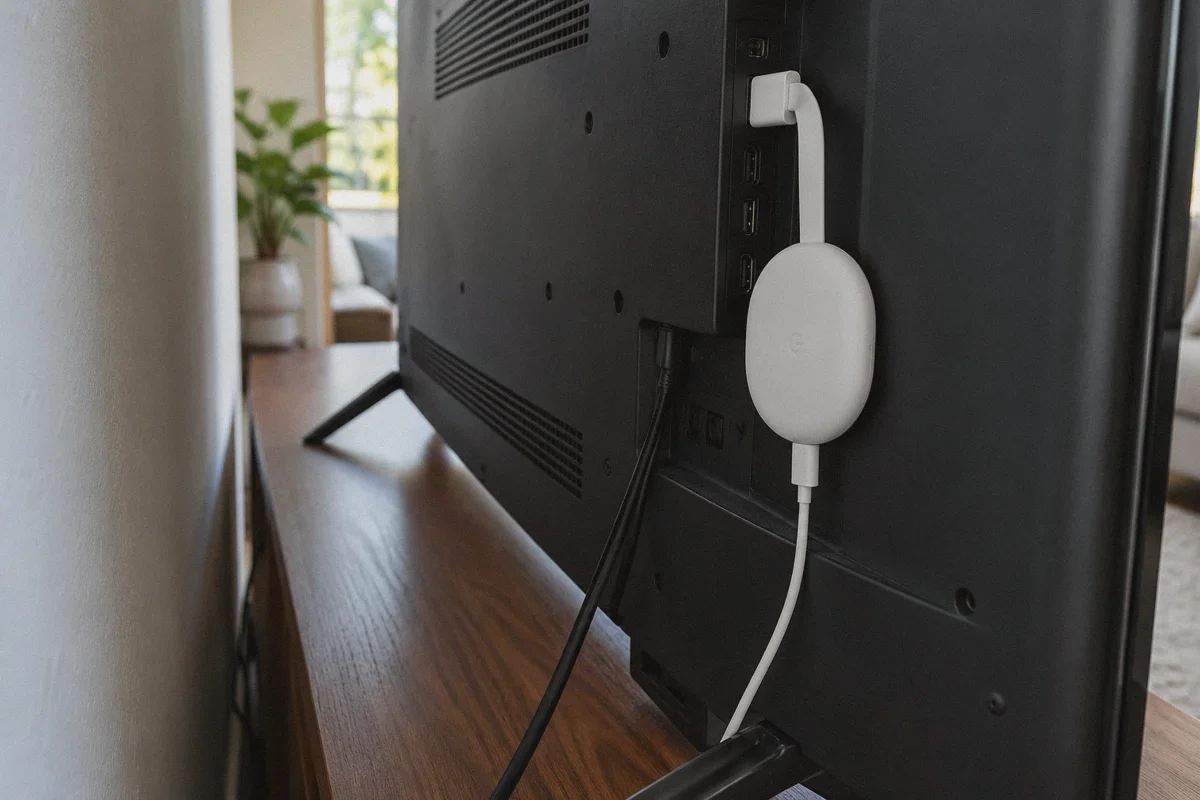
A Chromecast is a compact HDMI dongle tucked directly behind your television—often surrounded by metal brackets, HDMI cables, and wall insulation. That means its Wi-Fi signal is naturally more prone to interference.
Furthermore, the Chromecast has modest hardware specs. Bloated VPN apps with heavy background encryption routines can overheat the stick, leading to UI stuttering and 4K buffering loops right in the middle of an action sequence.
What Actually Matters in a Google TV VPN
If your primary goal is streaming movies and shows without friction, you don't need dozens of esoteric technical toggles. You need a VPN that understands the constraints of a living room.
1. Scenario Presets Instead of Server Lists
You rarely turn on your TV thinking, "I really want to route my traffic through an obfuscated server cluster in Secaucus, New Jersey."
You turn on your TV thinking, "I want to watch 4K streaming," or "I want to stop getting interrupted by ads."
This is why OnlyDogs VPN takes a scenario-first approach. Instead of dumping a giant server table on your screen, the interface gives you clean, single-click presets:
- Streaming Preset: Automatically connects to dedicated media-optimized lines that bypass platform blocks.
- Fastest Line: Routes your device through the lowest-latency route available for general browsing.
- Strong Ad-Blocking: Activates node-level filtering to suppress trackers and aggressive banner/video ads.
You click the scenario you want, and the app makes the routing decisions in the background.
2. Auto-Routing That Solves the Streaming Block
Rather than making you test five different city nodes when a streaming platform updates its firewall, OnlyDogs uses automated route selection. If a specific routing path experiences congestion or gets restricted, the system reroutes traffic behind the scenes so your stream doesn't cut out with an error code.
3. Modern Protocols (HTTP/3) for Weak Wi-Fi Recovery
Because the Chromecast hangs directly in the Wi-Fi "shadow" of your TV, micro-drops in wireless signal happen all the time.
Older VPN protocols like standard OpenVPN handle packet loss poorly on weak Wi-Fi, often stalling the connection until you manually disconnect and reconnect. OnlyDogs utilizes modern protocol designs, including HTTP/3 architecture and traffic obfuscation. This gives it strong resilience against jitter and weak Wi-Fi signals, allowing it to recover instantly without freezing your 4K stream or crashing the Android background service.
4. Built-In Ad and Tracker Filtering
Sitting through unskippable video ads on a big screen is significantly more jarring than on a phone. By deploying DNS- and node-level filtering directly within the connection pipeline, OnlyDogs cuts down on tracking scripts and network-level video advertising before the data even reaches your screen buffer.
Three Common Mistakes to Avoid After Connecting
Once your VPN is up and running on Google TV, keep these three practical details in mind:
- Always force-quit your streaming app after changing regions. If you had Netflix or Disney+ open before turning on the VPN, the app still has your local catalog cached in memory. Simply switching on the VPN won't refresh the library. Press the Home button, go to Settings > Apps > See all apps > [Your Streaming App] > Force Stop, then reopen it.
- Don't mess with complex protocol toggles on TV. Unless you are diagnosing a severe local firewall issue, leave protocol selection on automatic. Let the app negotiate between obfuscated lines and HTTP/3 routes based on current network throughput.
- Check your power supply. Avoid powering your Chromecast through the TV’s built-in USB service port. Those ports often deliver sub-optimal wattage. When running high-bitrate 4K video while simultaneously processing real-time VPN encryption, a low-power port can cause the Chromecast to suddenly reboot. Use the official power adapter plugged directly into a wall outlet.
The Verdict
Getting a VPN onto your Chromecast with Google TV takes less than three minutes through the native Google Play Store. But the real difference between a setup you use every evening and one you abandon comes down to usability.
You bought a streaming stick because you wanted a simple, lean-back entertainment setup—not a second job tweaking network configurations with a directional remote.
If you want a setup that avoids password-typing headaches, skips the server-guessing game, and lets you start streaming in a single click, grab OnlyDogs VPN directly from the Google Play Store on your Chromecast or visit OnlyDogs VPN to set up your account. Pick your streaming scenario, sink into the couch, and let the software handle the rest.
Frequently Asked Questions
How do I know whether my Chromecast can install a VPN app?
A Chromecast with Google TV has its own remote, boots into a Google TV interface, and includes the Google Play Store. Older round cast-only Chromecast models do not run apps directly, so the article says those models need VPN routing at the router level.
Why can my streaming catalog stay unchanged after I connect the VPN?
The article says the streaming app may still have the old region cached. After changing regions, force-stop the streaming app from Google TV settings and reopen it so the app starts a fresh session.
Why can VPN streaming buffer or make a Chromecast unstable?
The article points to weak Wi-Fi behind the television, modest Chromecast hardware, and inadequate USB power as common causes. It recommends using the official wall power adapter and avoiding unnecessary protocol tweaking on the TV.
Should I manually change VPN protocols on Google TV?
For normal streaming, the article recommends leaving protocol selection on automatic unless you are diagnosing a specific firewall problem. The goal is to avoid doing network-admin work with a TV remote.