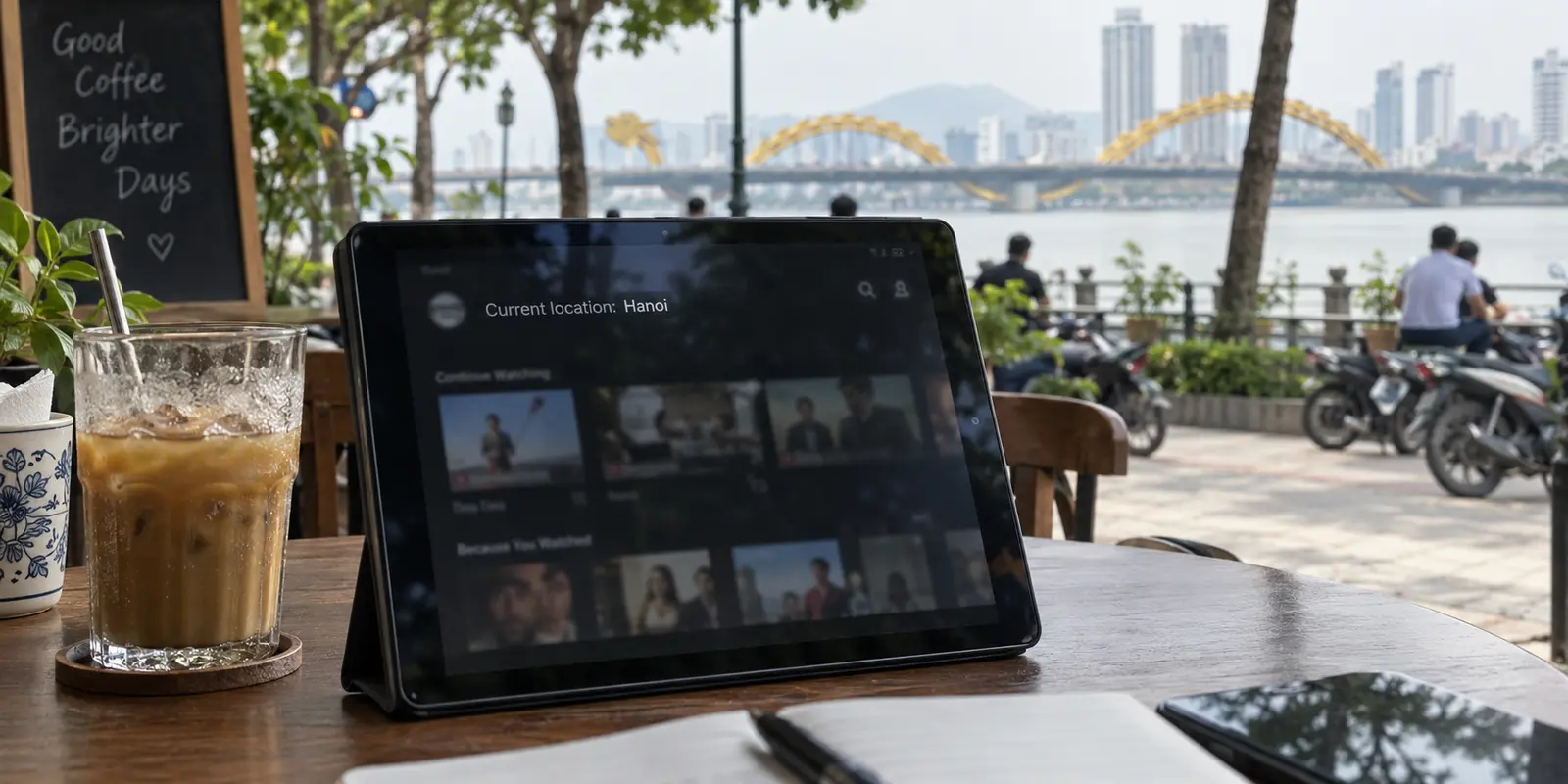
You are sitting in a cafe in Da Nang, firing up your favorite streaming app, only to find the app declaring you are in Hanoi. Or maybe Ho Chi Minh City. Or, worse, an entirely different country altogether.
The immediate reaction is almost universal: something is broken. You pull up your VPN or network settings and start cycling through servers, hoping to nudge the digital map pin closer to where you are physically sitting.
Pause before you start server-hopping.
When an app gets your location wrong, the first and most important question is not “Why does it say Hanoi?” It is: Does this mismatch actually change what you can watch?
Streaming platforms do not view geography the way humans do. To an app, an approximate city is often nothing more than statistical noise generated by internet routing, whereas a country or region mismatch governs licensing rights, content libraries, and playback permissions. Trying to force a streaming app’s location label to match your exact street corner is usually a waste of time. You only need to intervene when the error alters your actual streaming experience.
Article summary and product fit
When a streaming app shows the wrong location in Vietnam, when does it actually matter?
Ignore a harmless city mismatch if the expected catalog and playback still work. Act when the country is wrong, content changes, or playback is blocked; then check the apparent country from the exact same network as the streaming device. If the wrong country follows the connection, troubleshoot routing. If the network already reports Vietnam, investigate the app’s location permissions, playback-area rules, or account state instead.
What to keep in mind
- Best for: Travelers in Vietnam who see Hanoi, Ho Chi Minh City, or another location in a streaming app and need to know whether the error is cosmetic or actually affects rights and playback.
- Key distinction: IP geolocation is approximate and city labels can be noisy; country-level licensing and app-specific hardware location checks are more consequential.
- Product fit: OnlydogVPN fits only the confirmed routing case, where the article presents Smart Auto Mode as a way to avoid manual server testing on unstable travel networks.
- Important limit: A VPN is not a GPS spoofer or an account-repair tool, and some streaming services explicitly restrict VPN or proxy use during location checks.
Sources used in this article: MaxMind IP geolocation accuracy guidance, Fast.com, Netflix VPN and location guidance, YouTube TV location guidance, OnlydogVPN official website.
A Wrong City Is Not the Same Problem as a Wrong Country
If you are in Da Nang and your streaming app thinks you are in Ho Chi Minh City, but the catalog is normal, Vietnamese subtitles are available, and the stream plays instantly—leave it alone.
IP-based geolocation is not GPS. It is an informed guess. When an internet service provider (ISP) routes traffic, it assigns public IP addresses from large administrative blocks. Commercial geolocation providers map these IP ranges to physical regions, but their accuracy degrades sharply the narrower you zoom in.
Vietnam is a prime example of this reality. Industry-standard geolocation databases, such as those maintained by MaxMind, reliably identify Vietnam at the country level, but their precision drops significantly when pinpointing specific Vietnamese cities. On mobile data networks—where roaming IP addresses frequently route through central telecom gateways hundreds of kilometers away—the city label is almost always an estimate.
Because of this, streaming platforms rarely care about cities unless they are broadcasting hyper-local live sports or regional news. For the vast majority of on-demand movies, series, and standard streaming libraries, licensing rights are negotiated by country, not municipality.
Apply a simple rule of thumb:
- If only the city name looks strange, but your shows play without restriction, it is harmless network noise.
- If the app shows a completely different country, strips away your usual shows, or blocks playback with an unblocker or proxy warning, the location error is actionable.
Check the Location on the Exact Same Connection
Once you establish that a location mismatch is genuinely breaking your playback, the next step is isolating the cause. The most common diagnostic trap is testing the connection on one device while streaming on another—for instance, running a speed or IP test on your phone over 4G while your Smart TV struggles on the hotel's Wi-Fi.
Keep your testing on the exact connection used by the streaming device:
- Use platform-native diagnostic tools: Netflix offers an extraordinarily clean baseline check for this via Fast.com. If you open Fast.com on any browser sharing the streaming device’s connection, tap “Show more info,” and expand the client details, it shows the exact country code Netflix’s edge servers see for your connection.
- Use an IP inspection tool: If you are using a service without a dedicated diagnostic tool, open an IP-checking site on that same local network to verify which country your connection reports to the outside world.
This single test splits your troubleshooting in half:
- If the network reports the wrong country: The problem lives in the network routing path. The streaming app is simply reacting to what the connection is broadcasting.
- If the network correctly reports Vietnam, but the app still acts displaced: Stop troubleshooting your router and VPN. The issue is tied to the app’s internal device permissions, account profiles, or playback-area rules.
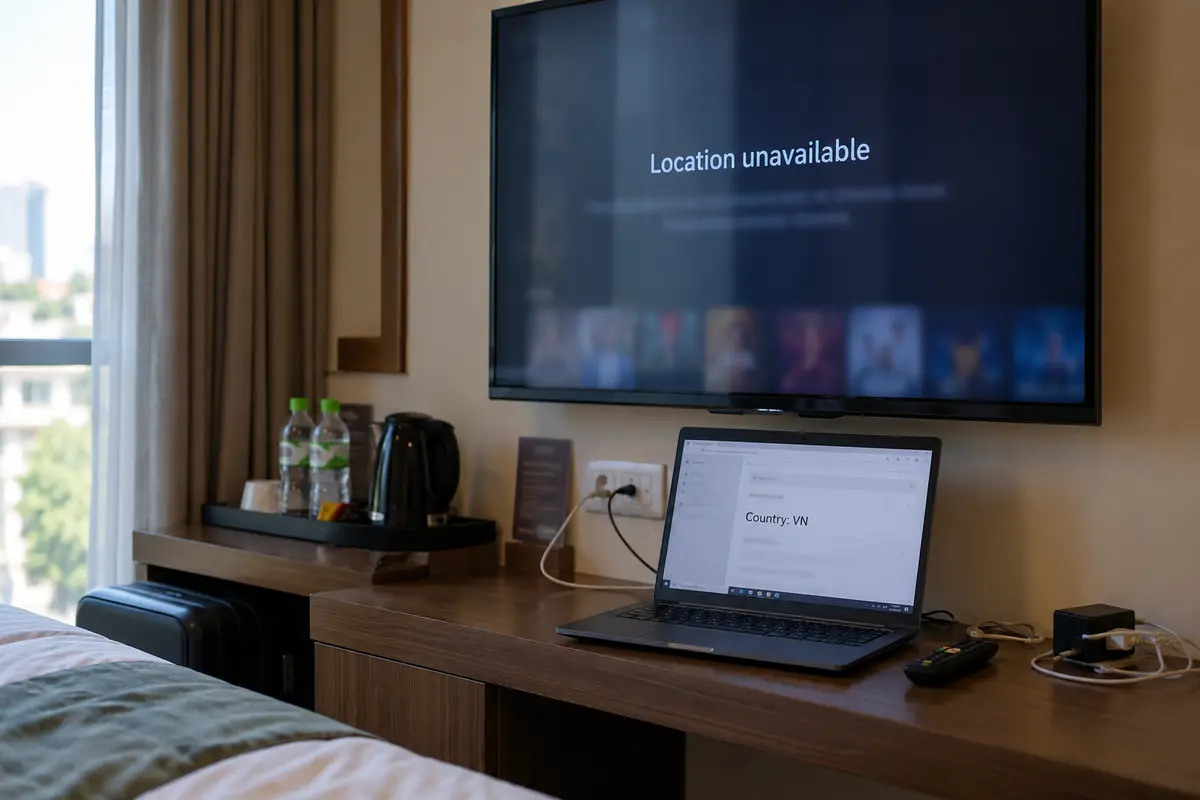
If the Wrong Country Follows the Network, Change the Route
If your network check confirms that your connection is registering as Thailand, Singapore, or somewhere else entirely, the app isn't at fault—your route is.
Start by ruling out hidden network intermediaries. Many travelers forget that modern operating systems and security suites often run background tunnels automatically. Check whether you have an active VPN, a corporate configuration profile, an iCloud Private Relay session, or third-party antivirus software running a “web shield” or built-in proxy. Netflix explicitly notes that bundled security software can route traffic through international gateways without the user realizing it.
Next, test the route by changing the physical connection:
- Disconnect from hotel or public Wi-Fi and tether to a local Vietnamese physical SIM or eSIM.
- Alternatively, test a known, stable local broadband connection.
If your content library returns the moment you switch to a domestic mobile connection, your original network path was the culprit. Reinstalling the streaming app or clearing its cache ten times over would never have fixed that broken route.
If you are stuck on a local connection that misidentifies your region—or if you are traveling and need your connection to reliably reflect a specific region without fighting unpredictable hotel routing—you need a deliberate way to stabilize your route.
If the Network Says Vietnam but the App Does Not, Stop Switching Servers
The opposite scenario requires a completely different mindset: what if your connection unequivocally reports Vietnam, but the streaming app insists you are elsewhere or refuses to play?
This is where users waste hours switching VPN servers in vain. The reason your server changes aren't working is that the app isn't looking at your IP address to determine where you are.
Modern mobile platforms (iOS and Android) allow applications to request hardware-level location signals. These include GPS coordinates, nearby Wi-Fi network handshakes, and cellular tower IDs.
Certain streaming services build their operational rules strictly around these hardware signals rather than raw IP routing. Services like YouTube TV, for instance, separate an account's "Home Area" from its "Current Playback Area" and require periodic check-ins using hardware location permissions. Furthermore, many live-streaming and regional services actively restrict streaming if they detect an active VPN tunnel, regardless of what country the server claims to represent.
When the network is correct but the app is stubborn:
- Review application permissions: Go to your device’s settings and see if the streaming app has access to device location. If it requires location access to verify regional compliance, ensure permissions are set to "While Using the App."
- Look for in-app region settings: Check your account profile within the service for options like “Update Playback Area,” “Home Location,” or “Check In.”
- Disable conflicting VPN profiles: If the platform explicitly bans proxy routing during location handshakes, disable your tunnel while verifying your location through the service's official flow.
Once the network layer is proven accurate, changing VPN servers will not fix an account-level or hardware-level check.
Use a VPN Only When the Viewing Problem Is a Routing Problem
A VPN is a tool for changing and securing your network path. It is not an account repair utility, nor is it a GPS spoofer. You should only introduce one when you have verified that your underlying network route is the actual barrier between you and your stream.
If you determine that your network path is indeed the problem—say, your current accommodation routes traffic through an unresponsive overseas gateway, or local network policies restrict the services you need—you do not want a VPN that turns every streaming session into an IT administration project. Manually testing fifteen identical-looking server nodes across Southeast Asia just to watch an episode of a show gets old quickly.
This is where OnlydogVPN fits this specific travel use case.
Instead of overwhelming you with complicated manual configurations, OnlydogVPN is built around a practical, one-tap approach powered by Smart Auto Mode. When you are on the road in Vietnam—navigating flaky cafe connections, hotel Wi-Fi gateways, or regional mobile data—OnlydogVPN automates the routing decisions.
It evaluates connection quality and routes your traffic through optimized paths designed for streaming and cross-border app access, eliminating the tedious trial-and-error cycle of manual server selection.
The practical point is straightforward: if you are already dealing with a confirmed routing failure, you want the route fixed in the background so you can get straight to the video.
A note for the next stream
The next time a streaming app gives you an unexpected location in Vietnam, keep your response simple.
Check the playback first. If the city says Hanoi instead of Da Nang, but your show plays normally, close the settings menu and enjoy your movie. The map pin does not matter.
Then check the connection. If the catalog is wrong or blocked, run a quick network check on the same connection. If the network route is misidentified, adjust your connection or switch to an automated, streaming-ready solution like OnlydogVPN to correct the path cleanly. If the network is fine but the app is blocked, address the app’s internal location permissions or account playback areas directly.
Diagnose the signal before you touch the server list, and you will spend far less time troubleshooting and far more time watching.
Frequently Asked Questions
Does it matter if a streaming app shows the wrong Vietnamese city?
Usually not. If the app says Hanoi instead of Da Nang but the expected catalog, subtitles, and playback still work, the article treats the city mismatch as harmless IP-geolocation noise.
How should I check whether the network is reporting the wrong country?
Run the check on the exact connection used by the streaming device. Fast.com can show the client country seen by Netflix, and another IP-inspection tool can serve the same diagnostic role for services without a built-in check.
Why can mobile data place me in the wrong city even when I am physically in Vietnam?
IP geolocation maps administrative network ranges rather than GPS coordinates. Mobile providers can route users through centralized gateways, so the apparent city can be hundreds of kilometers away even when the country is correct.
What if the network clearly reports Vietnam but the streaming app still shows the wrong area?
Stop switching VPN servers. Check device location permission, in-app settings such as Home Area or Current Playback Area, and whether the service requires VPN or proxy routing to be disabled during location verification.
When is a VPN appropriate for this location problem?
Only when testing shows that the underlying network route is the problem—for example, a hotel or travel connection presents the wrong country or blocks the required path. It will not fix an account rule or hardware-location check.