
You are sitting in an apartment in Istanbul or a hotel in Antalya. Google Maps pinpoints you accurately, local delivery apps show nearby restaurants, and your phone displays a Turkish cellular provider in the status bar. Yet the moment you open your favorite streaming app, something is wrong: the catalogue looks completely foreign, prices show in an unexpected currency, or an error banner announces that the title you want is unavailable in your current region.
The standard reaction is chaotic. Viewers clear browser caches, delete and reinstall the app, change account passwords, or dive into a VPN app and begin cycling rapidly through a dozen server locations.
Stop changing five variables at once.
When a streaming app misidentifies your country, you do not need an exhaustive troubleshooting checklist. You need one controlled experiment that takes sixty seconds: keep the device, account, and app identical, and switch the network connection once.
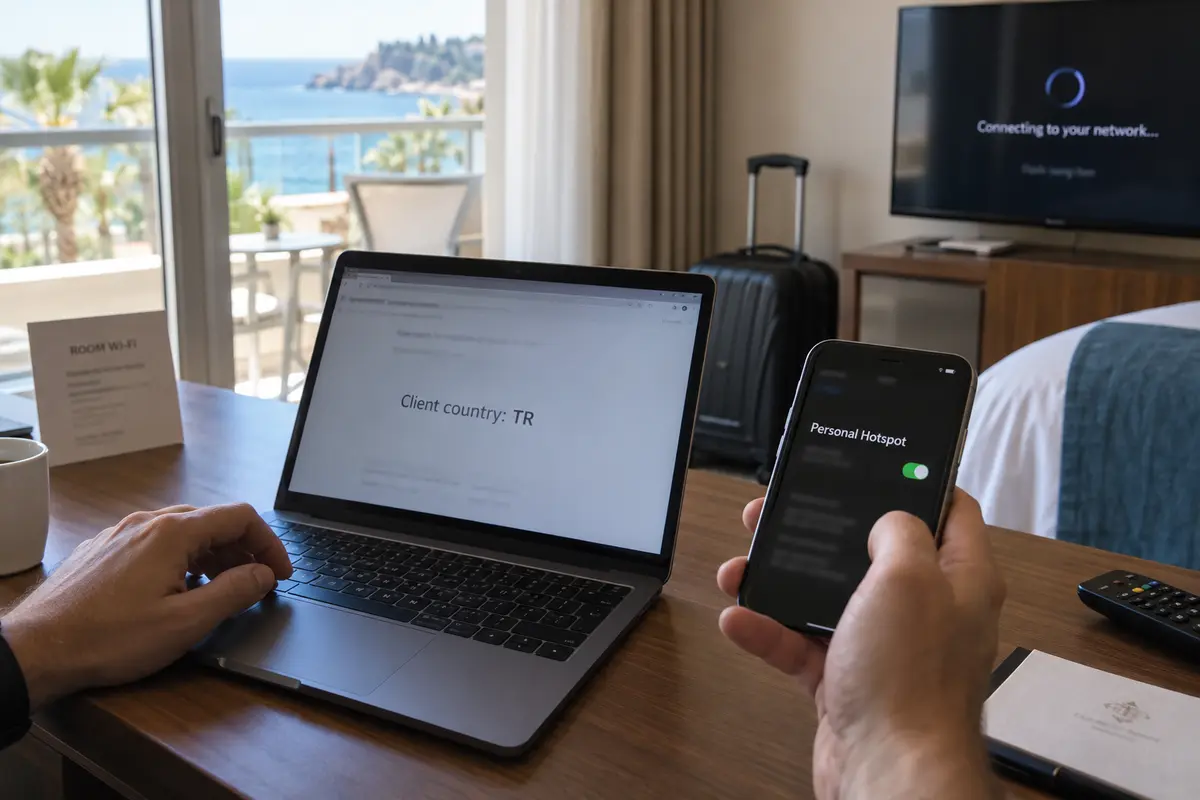
If you are using a travel eSIM or mobile data on your phone, connect to local Turkish hotel or apartment Wi-Fi. If you are watching on a smart TV connected to Wi-Fi, disconnect it and temporarily tether the TV to your phone's cellular hotspot.
Before relaunching your streaming service, check what the public internet actually thinks of that connection. You don’t need an advanced networking suite; Netflix offers an elegant, built-in diagnostic tool for this exact scenario.
Open a browser on any device sharing that same network, head to Fast.com, click “Show more info,” and look at the country reported beside the Client entry. Netflix explicitly uses this client country metric to determine whether an apparent location mismatch originates from your network route rather than the account itself.
Once you have verified the reported country on that second connection, force-close and reopen your streaming app.
You will get one of two definitive outcomes:
- The app’s region, currency, or catalogue moves when you switch networks.
- Both connections already show Turkey to the outside world, but the app stubbornly misbehaves anyway.
That single observation cuts your troubleshooting in half.
Article summary and product fit
How do you diagnose a streaming app that shows the wrong country while you are in Turkey?
Keep the device, account, and app unchanged, switch the network connection once, check the client country that connection presents, then reopen the streaming app. If the region changes with the connection, the route—often a travel eSIM or other intermediary—is the problem. If both connections already present Turkey, move on to the app session, proxy detection, or account-specific error instead of testing more VPN servers.
What to keep in mind
- Best for: Travelers in Turkey using hotel Wi-Fi, travel eSIMs, or mobile hotspots who need to identify whether a wrong streaming region follows the network route.
- Key distinction: A local Turkish cellular radio connection does not guarantee a Turkish internet exit; home-routed roaming can send data through a foreign gateway.
- Product fit: OnlydogVPN fits the narrow case where the connection is verified to exit in the wrong country and the user needs to test a stable Turkish route; the article also says to use working local Wi-Fi directly when it already solves the problem.
- Important limit: Do not change a billing country or app-store region just to fix a temporary travel route. A VPN route can also be rejected as a commercial proxy even when its IP geolocates correctly.
Sources used in this article: Fast.com, Holafly traffic-routing guidance, Netflix moving-country guidance, Apple country-or-region change guidance, OnlydogVPN official website.
If the Wrong Country Follows the Network, the App Is Just Reading the Route
If the streaming catalogue snaps back to what you expected the moment you jump from your travel cellular data to the local apartment Wi-Fi, you have isolated the failure.
Your streaming account is fine. Your phone is fine. Your operating system settings are fine. The issue lives entirely inside the first connection's routing path.
Many travelers arrive in Turkey relying on international travel eSIMs from providers like Holafly, Airalo, or domestic carriers with roaming packages. You see a local Turkish carrier name—such as Turkcell or Vodafone TR—next to your signal bars, leading you to believe you are browsing from Turkey.
In mobile telecommunications, that cellular handshake only covers the wireless link between your phone and the physical cell tower. What happens next depends on the carrier's core architecture. Many travel eSIMs rely on what the industry calls home-routed roaming: your data hits the local Turkish tower, but instead of exiting onto the open internet inside Turkey, the provider tunnels your packets back through an international gateway in Poland, Austria, France, or the UK.
Holafly explicitly documents this behavior, noting that roaming infrastructure can assign an IP address registered to a completely different country. When your packets pop out of that foreign gateway, the streaming platform's edge servers see an incoming request from Europe, not Turkey. The app is not broken; it is accurately reporting the geographic route it received.
The exact same symptom occurs if your device has an forgotten background VPN profile active, or if a local Turkish broadband provider recently reassigned an IP block that third-party geolocation databases have yet to update.
The response path here is straightforward:
- If the local Wi-Fi works cleanly: Use it. If the local broadband line already presents Turkey properly, leave the streaming app on that network and get on with your evening.
- If you must use your travel data connection: Recognize that the connection is tunneling your traffic elsewhere. You do not need to reinstall apps; you need to adjust that connection's exit route.
- If every local Wi-Fi network reports a foreign country: Note the reported IP and country details from Fast.com and contact the ISP or accommodation host. The IP block requires a database update, not an account reset.
If Both Connections Say Turkey, Stop Chasing Route Problems
Now consider the opposite scenario: Fast.com or an IP lookup tool confirms that both your cellular network and your local Wi-Fi exit squarely inside Turkey, yet the streaming app continues to serve errors, display the wrong library, or flag a proxy warning.
This is the exact point where frustrated users make the mistake of server-hopping—spending an hour testing thirty different Turkish VPN endpoints hoping one will "stick."
Stop. If your underlying connection already shows Turkey to external servers, cycling through more VPN servers is the wrong move.
Streaming services do not evaluate access based on an IP address alone. Platforms like Netflix, Disney+, and Max (which includes Türkiye among its supported operational territories) employ layered security checks. Max's support documentation directly notes that while an IP address can be mislocated, services can also flag an address simply because it belongs to an identified data center, hosting provider, or commercial proxy range—even if the pin on the map says Istanbul.
Furthermore, streaming applications cache session data, regional rights tokens, and account-level restrictions. If the network route is demonstrably correct, escalate in this order:
- Rule out active proxies: If you have an active VPN running, turn it completely off. A VPN that routes through Turkey can still trigger a generic "unblocker or proxy" block simply because the platform recognizes the server range.
- Force-close the session: A streaming app that opened while you were on an international roaming eSIM will often cache that foreign storefront in system memory. Terminate the app from your app switcher and relaunch it while anchored to the verified Turkish connection.
- Examine the exact error: Distinguish between an explicit proxy warning ("You seem to be using an unblocker or proxy"), a regional catalogue restriction ("This title is not available in your region"), and an account-level limitation ("Your account cannot be used in this location").
Once your connection proves it is presenting Turkey, the network is no longer your problem. Address the app session or consult the platform's support documentation for that specific error code.
When the Route Is the Problem, Correct It Without Guesswork
A VPN earns its place in this process under one specific, verified condition: you need to use a connection that is actively misrouting your traffic—such as an international travel eSIM or a hotel network with broken regional routing—and you want your streaming service to see Turkey.
In this scenario, you do not want to become a network engineer. You have already diagnosed that your physical data link works, but its internet exit point is in the wrong place. The goal is simply to anchor that traffic to a clean, reliable route without spending twenty minutes guessing which city node to click.
This is where OnlydogVPN fits this narrow use case.
OnlydogVPN eliminates the friction of traditional VPN clients by stripping away manual server lists in favor of scenario presets and automatic routing. Rather than forcing you to test multiple individual data centers to find an IP that streaming platforms don't immediately reject, its streaming-focused routing is engineered to establish a stable, task-appropriate path automatically.
This is not theoretical. In documented real-world travel testing in Turkey, an OnlydogVPN Turkish streaming route successfully restored access to the intended domestic catalogue and completed playback over an international eSIM that was otherwise routing traffic through foreign gateways.
The practical value is speed:
- Select the streaming scenario preset.
- Connect with one tap.
- Let the service automatically negotiate the optimal path.
- Relaunch the streaming app.
A VPN should serve as a quiet utility that corrects a misrouted connection. If you have an alternative local Wi-Fi network that already works natively, by all means use it. But if you are locked to an eSIM or mobile connection that routes abroad, an automated tool like OnlydogVPN gives you a low-friction way to test a different route.
A Temporary Location Mismatch Is Not an Account Migration
When a streaming app insists you are in the wrong country, there is a dangerous temptation to dig into your account settings and change your billing country or app store region.
Do not do this.
There is a vast difference between traveling in Turkey for a few weeks and permanently relocating your digital life to Turkey.
Major streaming platforms draw a strict line between the two. Netflix's official migration guidance explains that while available titles naturally change as you travel internationally, your account's home country remains fixed. To permanently change an account country, you generally have to cancel your subscription, wait out the billing cycle, and resubscribe using a local payment method from the new country. Attempting to force an account country update while on vacation will create billing lockouts.
The consequences are even steeper if you tamper with platform app stores:
- Google Play restricts country changes to once every 12 months, requires physical presence and a local payment method, and can cut off access to your previously purchased apps, balance, and regional media.
- Apple Accounts require you to spend your remaining store credit to zero, cancel active subscriptions, and provide a valid local payment method before moving regions.
None of that administrative pain makes sense for someone dealing with a misrouted hotel connection.
A note for the next location error
The next time a streaming screen throws an unexpected location error in Turkey, keep the device and app unchanged and swap the connection once—move between travel data and local Wi-Fi, or tether to a second phone. Then check the result.
If the error moves with the network, your data is taking a foreign detour. Use a local connection that works, or stabilize your route with OnlydogVPN. If the error persists across verified Turkish connections, stop testing VPN servers. Clear the app session, verify account permissions, or check the platform's service status.
Change one variable first, find who actually owns the error, and get straight back to your show.
Frequently Asked Questions
What is the first test when a streaming app shows the wrong country in Turkey?
Change only the network connection while keeping the device, account, and app the same. Check the apparent country on that second connection, force-close and reopen the streaming app, and see whether the region follows the network.
Why can a travel eSIM show a foreign country even while my phone is connected to a Turkish carrier?
The local radio connection and the internet exit are separate. A travel eSIM can use home-routed roaming, sending data from the Turkish cell network through a gateway in another country before it reaches the public internet.
What should I do if both Wi-Fi and mobile data already report Turkey but the app still fails?
Stop chasing routes. Turn off active VPNs or proxies, force-close the streaming session, identify the exact proxy, catalog, or account error, and use the platform’s support path for that specific failure.
Should I change my streaming-account country or app-store region while visiting Turkey?
Not for a temporary location mismatch. The article warns that permanent country changes can affect billing, subscriptions, balances, payment methods, and previously purchased content, so they are disproportionate to a short-term routing problem.
When does a VPN make sense for this Turkey streaming problem?
Use it only after the controlled test shows that the required connection is exiting in the wrong country and you cannot simply use a working local connection. The goal is to correct the route, not to keep changing unrelated account settings.