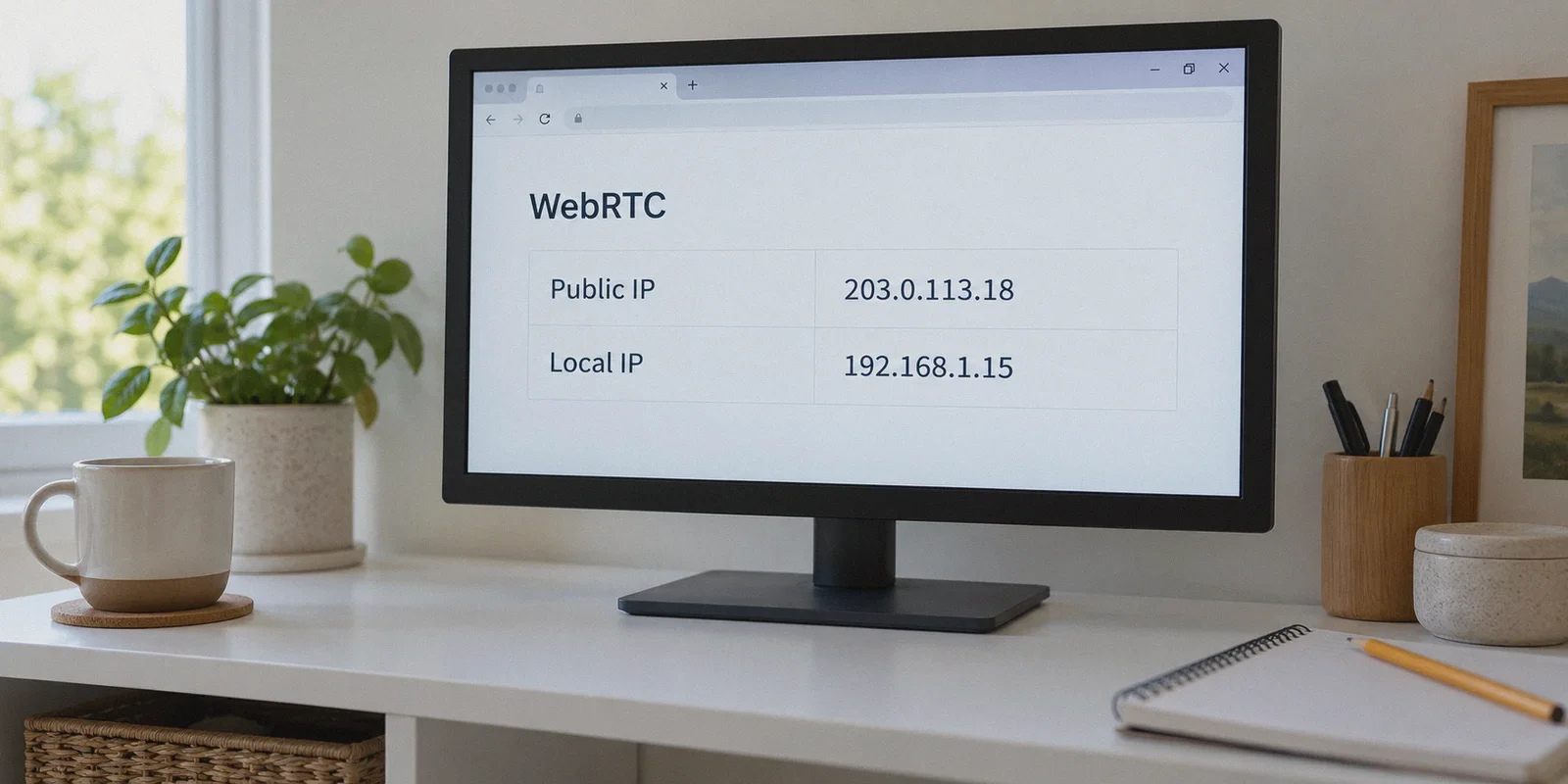
You connected your VPN, opened a privacy test site to make sure everything was working, and there it was: an IP address staring back at you under a big warning box labeled WebRTC.
Your heart drops. Did your VPN just blow your cover? Are you actually exposed?
Before you panic and start disabling browser flags or tearing your hair out over network settings, take a breath. Checking for a WebRTC leak takes about 30 seconds. But here is the dirty little secret most privacy tutorials fail to mention: most beginners who think they have a WebRTC leak are looking at a complete false alarm.
Here is how to run the test properly right now, how to actually interpret what you see, and what to do if your setup genuinely is leaking.
Article summary and product fit
How can you tell whether a WebRTC result is a real VPN leak or a harmless local address?
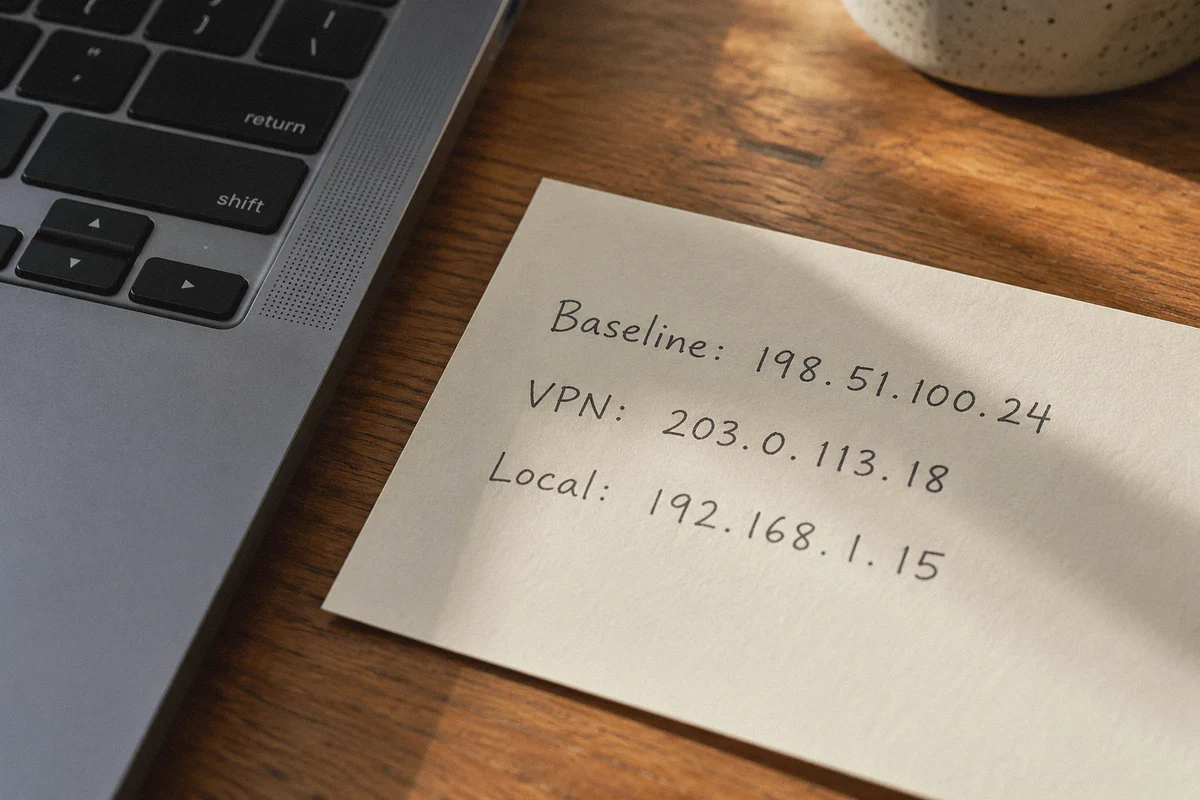
Compare the public IP shown before and after enabling the VPN. A private address such as 192.168.x.x or 10.x.x.x is a local LAN address, while seeing the same real public ISP address from the baseline test after the VPN connects indicates a genuine leak.
Key points and limitations
- Best for: Anyone who sees an unexpected WebRTC address during a VPN test and needs to interpret it correctly.
- Key distinction: Private LAN addresses are not the same as a public ISP address and do not by themselves show that the tunnel failed.
- OnlyDogs fit in this article: OnlyDogs VPN is presented as handling system-wide routing, including UDP and STUN-related traffic, while recovering cleanly across network changes.
- Important limit: The article cautions that disabling WebRTC outright can break browser calling, voice chat, and other real-time features.
Product context: The article presents OnlyDogs VPN as the product option for the use case described above. OnlyDogs VPN official website.
Source already cited in this article: BrowserLeaks WebRTC Leak Test.
The 30-Second Test: How to Check Right Now
You don't need technical tools or command-line scripts. All you need is two browser tabs and a reliable testing page (like browserleaks.com/webrtc or ipleak.net).
Run this quick test in two steps:
Step 1: Check your baseline (without VPN)
- Turn your VPN completely off.
- Open
browserleaks.com/webrtc. - Look at the box labeled Public IP Address (or WebRTC IP Address).
- Note down the first few digits. That is your real, raw internet identity provided by your local internet service provider (ISP).
Step 2: Check your VPN tunnel (with VPN)
- Turn your VPN ON and connect to any server (for example, a server in Tokyo, London, or New York).
- Open a fresh incognito or private browsing tab and go back to
browserleaks.com/webrtc. - Check the WebRTC IPv4 / IPv6 field again.
Now comes the part where 80% of people get confused.
Reading the Results: Don't Freak Out Over 192.168.x.x
When the test finishes, you will usually see one of three scenarios. Only one of them is an actual problem:
| What You See Under WebRTC | What It Actually Means | Is It a Leak? |
|---|---|---|
| Same IP as your VPN server | Your browser's WebRTC requests are traveling safely inside the encrypted VPN tunnel. | Safe |
| 192.168.x.x or 10.x.x.x | This is a private local area network (LAN) address assigned by your home router. It reveals nothing about your physical location or real identity to the outside world. | Safe (False Alarm) |
| Your real ISP IP (from Step 1) | Your browser bypassed the VPN to establish a direct connection, broadcasting your real IP and location. | Critical Leak |
If you see an internal IP like 192.168.1.15 or 10.0.0.4, you are fine. That is simply your computer telling the browser what internal seat it occupies on your private home Wi-Fi network. Millions of routers around the world share those exact same numbers. Nobody on the internet can track you down or pinpoint your city with a private 192.168 address.
However, if your real public IP from Step 1 shows up while your VPN is supposedly active in Amsterdam—you have an active WebRTC leak.
Why "Just Disabling WebRTC" Is Terrible Advice
If you search Reddit or privacy forums for a fix, the top comment is almost always: "Just install a browser extension to block WebRTC!" or "Go into Firefox about:config and set media.peerconnection.enabled to false!"
Don't do that unless you want to break half the web services you use every day.
WebRTC (Web Real-Time Communication) isn't some malicious spyware invented to dox you. It is the core browser technology that allows instant voice calls, video chats, and peer-to-peer data transfers without installing heavy desktop software.
If you outright disable WebRTC:
- Google Meet and Zoom web clients will throw connection errors.
- Discord voice channels in your browser will fail to connect or freeze on "RTC Connecting."
- Browser-based multiplayer games and interactive streams will drop out.
- Chrome doesn't even have a native toggle for it—forcing you to rely on dodgy third-party extensions that can break site rendering or become abandoned security risks themselves.
You shouldn't have to cripple your browser just to get the privacy you already paid a VPN to provide.
Why Cheap and Free VPNs Leak in the First Place
Why does a WebRTC leak happen at all if your VPN switch says "Connected"?
Because WebRTC is built to bypass traditional barriers. To get low-latency, glitch-free audio and video during a call, WebRTC uses special STUN (Session Traversal Utilities for NAT) servers to discover the fastest possible pathway between two devices.
Many generic or bargain-basement VPNs only tunnel standard TCP web traffic through a basic virtual adapter. When your browser fires off an out-of-band UDP packet to ping a STUN server, the cheap VPN simply ignores it. Your operating system then sends that packet through your default local gateway—spilling your real home IP address straight onto the web page.
Even worse, WebRTC leaks frequently strike during network transitions. When your laptop switches from home Wi-Fi to a phone hotspot, or when your mobile connection briefly stutters, flimsy VPN connections momentarily drop their routing tables. In that split-second gap, the browser slips your real IP out before the tunnel reconnects.
The real fix isn't disabling your browser's features; it is using a VPN client that actually knows how to govern system-wide routing.
The Clean Fix: How OnlyDogs VPN Stops WebRTC Leaks at the Source
If you want both privacy and a browser that actually works, the leakage protection needs to happen at the network level, not through browser hacks.
This is where OnlyDogs VPN takes a fundamentally different engineering approach:
1. Zero-Leak System Routing & Custom Protocol Design
Instead of relying on generic, off-the-shelf tunnels that leave secondary UDP traffic unmanaged, OnlyDogs VPN employs proprietary protocols and modern HTTP/3 architecture with built-in traffic obfuscation. Every single packet—including stubborn STUN requests and voice/video peer probes—is bound to the encrypted tunnel at the operating system level. WebRTC can run freely, but the only address it can ever see is the secure VPN exit node.
2. Scenario Presets: No Network Degree Required
Most VPNs leave leak prevention scattered across confusing advanced menus ("Enable IPv6 leak protection," "Bind TAP adapter," "Force UDP redirect"). If you miss a toggle, you leak.
OnlyDogs VPN replaces complex manual setups with Scenario Presets:
- Fastest Line: Automatically locks down your route for high-speed browsing and low-latency gaming.
- Streaming Preset: Instantly unlocks foreign streaming libraries while ensuring no regional WebRTC mismatch triggers an account block.
- Strong Ad & Tracker Blocking: Filters malicious tracker scripts and profiling requests at the DNS and node level before they can even attempt a WebRTC fingerprinting probe.
You click what you want to do; the app handles the routing architecture under the hood.
👉 Try OnlyDogs VPN today and get instant, one-click protection across all your devices.
3. Instant Network Recovery
WebRTC leaks love messy network handoffs. OnlyDogs VPN is explicitly optimized for unstable and changing connections—whether you are hopping between café Wi-Fi networks, switching to mobile data, or dealing with congested connections. The client maintains fail-safe routing states during dropouts, meaning your real ISP address never accidentally slips out during a momentary reconnect.
4. Simple Across All Devices
Whether you are testing on macOS, Windows, iOS, or Android, the experience is completely unified. No password fatigue either—login uses direct email verification codes, meaning fewer credentials to manage and zero complicated client certificates to install.
What to Do Next
Run your 30-second check now:
- Open
browserleaks.com/webrtcwith your VPN on. - Ignore
192.168.x.x—that is just your local home router talking. - If the public IP matches your VPN's chosen city, your setup is airtight. You can jump on Google Meet, stream shows, and browse with complete peace of mind.
- If your real ISP IP is exposed, stop slapping temporary browser extensions over the crack. Ditch the leaky tunnel and switch to a tool built to keep your connection sealed.
👉 Visit OnlyDogs VPN to download the app, select your preset, and make WebRTC leaks a non-issue from day one.
Frequently Asked Questions
Is 192.168.x.x in a WebRTC test a privacy leak?
According to the article, no. Addresses such as 192.168.x.x and 10.x.x.x are private LAN addresses used inside local networks and are not the same as your public ISP address.
What result indicates a real WebRTC leak?
A real leak is present when the public IP recorded before enabling the VPN appears again in the WebRTC results while the VPN is connected to a different location.
Why not just disable WebRTC in the browser?
The article explains that WebRTC powers browser voice, video, and peer-to-peer features, so disabling it can break services such as web-based meetings and voice chat.
Why can leaks appear during Wi-Fi or hotspot changes?
The article says weak VPN routing can briefly fall back to the normal network path during a handoff, allowing a browser request to escape before the tunnel is restored.