
It is 8:30 PM on a Friday. Classes are done, dinner is finished, and your Discord voice channel is already full. You sit down at your dorm desk, fire up your PC, and click play.
Discord works. YouTube streams in crisp 1080p. But the moment you launch your game, everything hits a wall:
- Steam is stuck spinning on "Connecting to Steam network..."
- Valorant throws error code
VAN 68orVAN 81before the main menu even renders. - Call of Duty, Apex Legends, or Fortnite sit on an infinite server handshake until you get hit with a connection timeout.
- Or worse: you actually get into a lobby, only to look at the top corner of your screen and see 380 ms ping alongside a flashing red packet-loss icon.
Your university IT department did not lose its internet connection. They deliberately locked the door on your games.
If you ask around your dorm floor or search Reddit, someone will inevitably shout: "Just download a VPN, bro!"
You do that, and one of two things happens: either the VPN app cannot even establish a handshake on your campus network, or it connects, but your ping spikes so high that your character teleports backward every three steps.
Bypassing campus Wi-Fi restrictions for gaming is not about brute-forcing the network with a random free app. It requires understanding what campus firewalls actually look for, why conventional fixes fail, and how to make gaming traffic glide past network filters without turning your connection into a slideshow.
Article summary and product fit
Why can games fail on campus Wi-Fi while normal web browsing still works?
The article says campus networks may restrict nonessential UDP traffic, classify gaming through Deep Packet Inspection, or deprioritize it during congestion. That is why changing DNS alone may not help and why a generic VPN can either fail to connect or add too much latency. The article emphasizes traffic obfuscation, direct low-latency routing, and resilience to packet loss.
Key points and limits
- Best for: Students diagnosing game-client timeouts or extreme ping on dorm or campus Wi-Fi.
- Key network causes: The article focuses on UDP restrictions, traffic classification, QoS deprioritization, and evening congestion.
- Performance priority: Use the closest practical route, avoid unnecessary multi-hop paths, and prefer Ethernet when available to reduce radio interference and jitter.
- Important limit: Campus acceptable-use policies still apply. The article itself advises using personal devices and not modifying managed school hardware; congestion or upstream routing can still cause high ping even with a tunnel.
Where the product fit comes in
OnlyDogsVPN is positioned in the article for obfuscated HTTP/3 routing and weak-network recovery where campus policy permits personal VPN use; it cannot remove physical latency or override institutional rules.
Sources already linked in this article: OnlyDogsVPN official website. No independent third-party evidence links are cited in the current article.
What Campus IT Is Actually Blocking (It Is Not Just "Game Websites")
A common misconception among students is that university network administrators sit in an office manually blacklisting URLs like steampowered.com or riotgames.com.
If that were all they did, changing your DNS to 1.1.1.1 or 8.8.8.8 would solve the problem instantly. But as you have probably already discovered, changing your DNS does practically nothing for dorm gaming.
University networks (like eduroam, campus dorm LANs, and student housing Wi-Fi) deploy enterprise-grade edge firewalls—typically hardware from Fortinet, Palo Alto Networks, or Cisco Meraki. These systems restrict games using two distinct mechanisms:
1. Wholesale UDP Port Throttling
Websites and streaming video rely heavily on TCP (Transmission Control Protocol), where every single packet is acknowledged. Games, however, rely almost exclusively on UDP (User Datagram Protocol) for live player movement, hit registration, and server updates. UDP is fast because it does not wait for acknowledgments.
Because BitTorrent and P2P file sharing also use UDP, university IT departments frequently enforce aggressive firewall rules:
- They close non-essential outbound UDP ports entirely.
- Or they assign UDP traffic the lowest possible Quality of Service (QoS) tier, capping bandwidth to dial-up speeds whenever network load increases.
When your game tries to send UDP state packets to game servers on ports like 7000–8000 or 27000–27050, the campus firewall simply drops those packets into a black hole.
2. Deep Packet Inspection (DPI)
Enterprise campus firewalls do not just look at where a packet is headed; they inspect the digital fingerprint inside the packet header.
DPI engines easily recognize the protocol signatures of the Steam client, Blizzard Battle.net, Riot Vanguard, or Unreal Engine netcode. The firewall identifies the traffic as "Gaming," tags it as non-academic, and either terminates the connection or deprioritizes it behind campus Zoom calls and Canvas portal traffic.
Why Standard Workarounds Keep Failing
When students realize their campus Wi-Fi is hostile to gaming, they usually try three standard workarounds. Every single one has a glaring flaw.
| Workaround | What It Tries to Do | Why It Falls Apart in a Dorm |
|---|---|---|
| Mobile Hotspot | Bypasses campus infrastructure using cellular data. | Dorm buildings are constructed with reinforced concrete and metal framing, turning your room into a cellular dead zone. Even with a signal, a single 35 GB game patch drains monthly mobile data caps in an hour. |
| Free / Generic VPNs | Tunnels all traffic through a remote server. | Most commercial VPNs use standard, uncamouflaged OpenVPN or WireGuard protocols. Enterprise firewalls identify and block these protocol handshakes on sight. If they do connect, overcrowded servers spike latency well past 200 ms. |
| Custom DNS (1.1.1.1) | Bypasses domain-name lookups. | DNS only translates domain names into IP addresses. It cannot reopen blocked UDP ports or prevent DPI systems from inspecting data packets. |
The Real Fix: Traffic Obfuscation Meets Intelligent Routing
To play games smoothly on a restricted campus network, your connection must solve two conflicting challenges simultaneously:
- It must disguise the traffic completely: The data leaving your PC must look identical to ordinary, academic web traffic so the firewall's DPI engine ignores it.
- It must minimize routing overhead: Heavy encryption layers and multi-hop proxies usually introduce jitter and latency, which makes competitive gaming impossible.
This is where traditional VPN design fails modern students. Standard VPN protocols announce themselves to network filters: "Here comes a VPN tunnel." On an open home broadband connection, that is fine. On an eduroam or dorm network, an enterprise firewall flags that handshake instantly and throttles it.
The solution is protocol obfuscation over modern web standards.
When network traffic is wrapped inside HTTP/3 (QUIC) and proprietary obfuscation layers, the campus firewall sees data packets that mirror modern, secure browser traffic (the same underlying protocol utilized by Google Chrome, modern web apps, and cloud productivity suites). Because campus networks cannot block standard web protocols without breaking everyday internet access, obfuscated traffic moves cleanly through the perimeter.
Where OnlydogVPNs VPN Fits Dorm Gaming
OnlydogVPNs VPN was engineered specifically for heavily restricted and unpredictable network environments. While most conventional VPNs were built assuming a cooperative, open home Wi-Fi connection, OnlydogVPNs was designed from the ground up to operate where networks actively block standard protocols.
For a student trying to get into a game lobby without an IT headache, three practical features stand out:
1. Proprietary HTTP/3 Obfuscation That Slips Past Campus DPI
Unlike standard VPN services that rely on off-the-shelf OpenVPN or basic WireGuard implementations—which campus firewalls identify and choke immediately—OnlydogVPNs VPN uses a proprietary protocol architecture built around HTTP/3 and deep traffic obfuscation.
To the campus firewall, your gaming packets do not register as game data, nor do they register as a VPN tunnel. They blend in alongside everyday HTTPS web traffic. Your gaming connection passes through without triggering port blocks or automated throttling filters.
2. Scene Presets: Zero Protocol Guesswork
Most students do not want to become certified network engineers just to play two matches of Counter-Strike before bed. They do not want to configure virtual TUN adapters, manually adjust MTU values, or test dozens of obscure port numbers.
OnlydogVPNs VPN replaces technical configuration with Scene Presets. Instead of forcing you to decipher protocol types and server lists, you pick your scenario with a single click:
- Select Fastest Route or dedicated low-latency nodes.
- The application automatically calculates server proximity, protocol stability, and routing hops.
- You bypass manual trial-and-error, establishing a stable connection in seconds.
3. Weak-Network Jitter & Packet-Loss Resilience
Dorm networks suffer from severe bufferbloat. Between 8:00 PM and midnight, hundreds of students in the same building stream high-definition video, hop on video calls, and download large files. This creates network congestion, random packet loss, and severe jitter spikes.
OnlydogVPNs VPN features an adaptive protocol recovery engine. When dorm Wi-Fi fluctuates or packets drop, the connection stabilizes packet delivery instead of dropping the socket entirely. If you switch between dorm Wi-Fi and a backup network, it re-establishes routing instantly—preventing game clients from throwing authentication dropouts.
4. Lightweight, Password-Free Setup
Setting up on a new laptop or gaming handheld should not involve password managers or account verification mazes. OnlydogVPNs VPN uses direct email verification codes for login, works smoothly across Windows, macOS, Android, and iOS, and includes built-in DNS-level filtering that blocks intrusive ad networks and tracking scripts without extra software.
Step-by-Step: How to Bypass Dorm Wi-Fi Restrictions in 3 Minutes
If you are sitting at your desk looking at a connection error right now, follow this simple process to get your game running:
- Disconnect from the Game Client First: Close Steam, Riot Vanguard/Client, Battle.net, or Epic Games completely from your Windows system tray or macOS menu bar. Do not let them sit in an error state.
- Launch OnlydogVPNs VPN: Open the app and log in using your email verification code.
- Select the "Fastest Line" / Low-Latency Preset: Allow the auto-routing engine to select the closest, lowest-ping server relative to your physical location. Connecting to a server in your own region keeps latency minimal.
- Verify the Tunnel: Once connected, open a standard browser tab to confirm web traffic flows smoothly.
- Relaunch Your Game Client: Open your game platform. Steam, Riot Client, or Battle.net will now perform their handshake through the obfuscated tunnel, clearing port blocks instantly.
- Check In-Game Ping in a Practice Range: Before queuing for a competitive ranked match, jump into a practice lobby or casual server to verify that your latency is stable and packet loss sits at 0%.
Practical Dorm Rules: How to Keep Your Connection Fast and Undetected
To maintain a trouble-free gaming setup throughout the semester, keep these practical realities in mind:
- Do Not Torrent 100 GB Files Over Peak Hours: Campus IT departments rarely monitor individual game sessions, but automated alerts trigger when a single dorm port consumes 300 GB of continuous bandwidth during evening peak hours. Save massive downloads for off-peak hours so your connection remains unremarkable.
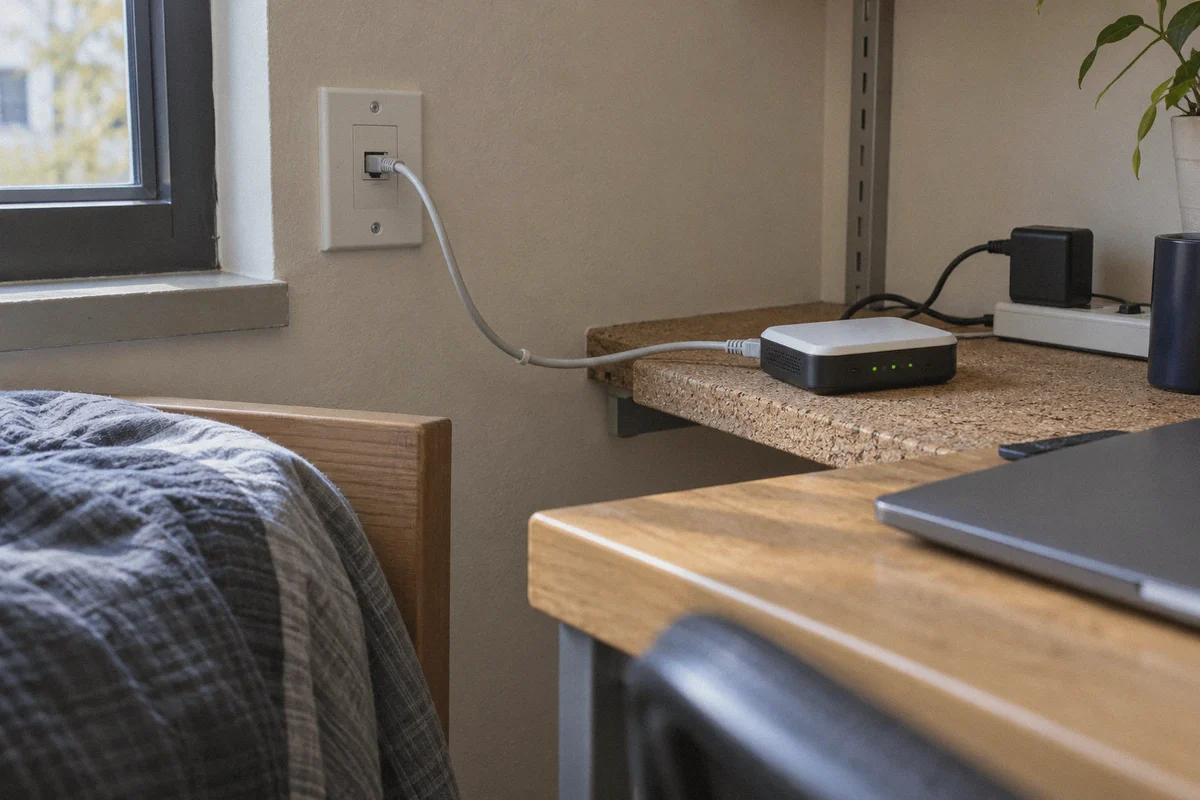
- Use Ethernet If Your Room Has an Active Jack: Wi-Fi adds radio interference, especially when dozens of dorm routers compete on the same 5 GHz spectrum. Plugging an Ethernet cable into your room's wall port, combined with an obfuscated tunnel, yields the lowest, most consistent ping possible.
- Avoid Multi-Hop Routing for Gaming: While multi-hop or chain-VPN setups sound impressive for privacy, bouncing your connection through three continents adds 150 ms of unavoidable physical latency. Stick to optimized, direct, single-hop routes for any real-time gaming.
Campus Wi-Fi is engineered to serve lecture slides, research databases, and administrative portals—it was never built with competitive gaming in mind. But you do not have to settle for weekend disconnects, locked lobbies, or lag spikes.
By swapping out brittle standard VPN protocols for smart HTTP/3 traffic obfuscation, you can slide clean past firewall restrictions, keep your latency sharp, and get right back into the queue.
Frequently Asked Questions
Why does changing DNS usually not fix blocked campus gaming?
DNS only changes how domain names are resolved. The article says it cannot reopen blocked UDP ports or stop a firewall from classifying and deprioritizing game traffic.
Why can a normal VPN get stuck on “Connecting” at school?
The article says campus firewalls may block common VPN ports or recognize standard VPN handshakes through Deep Packet Inspection before the tunnel is established.
What matters most for keeping game ping low?
The article recommends a nearby direct route, avoiding multi-hop connections, using Ethernet when available, and checking real in-game latency before joining a competitive match.
What boundaries does the article set for school networks?
It advises using a personal device during permitted downtime and explicitly says not to jailbreak, modify, or install unauthorized software on school-managed hardware. School network rules still apply.