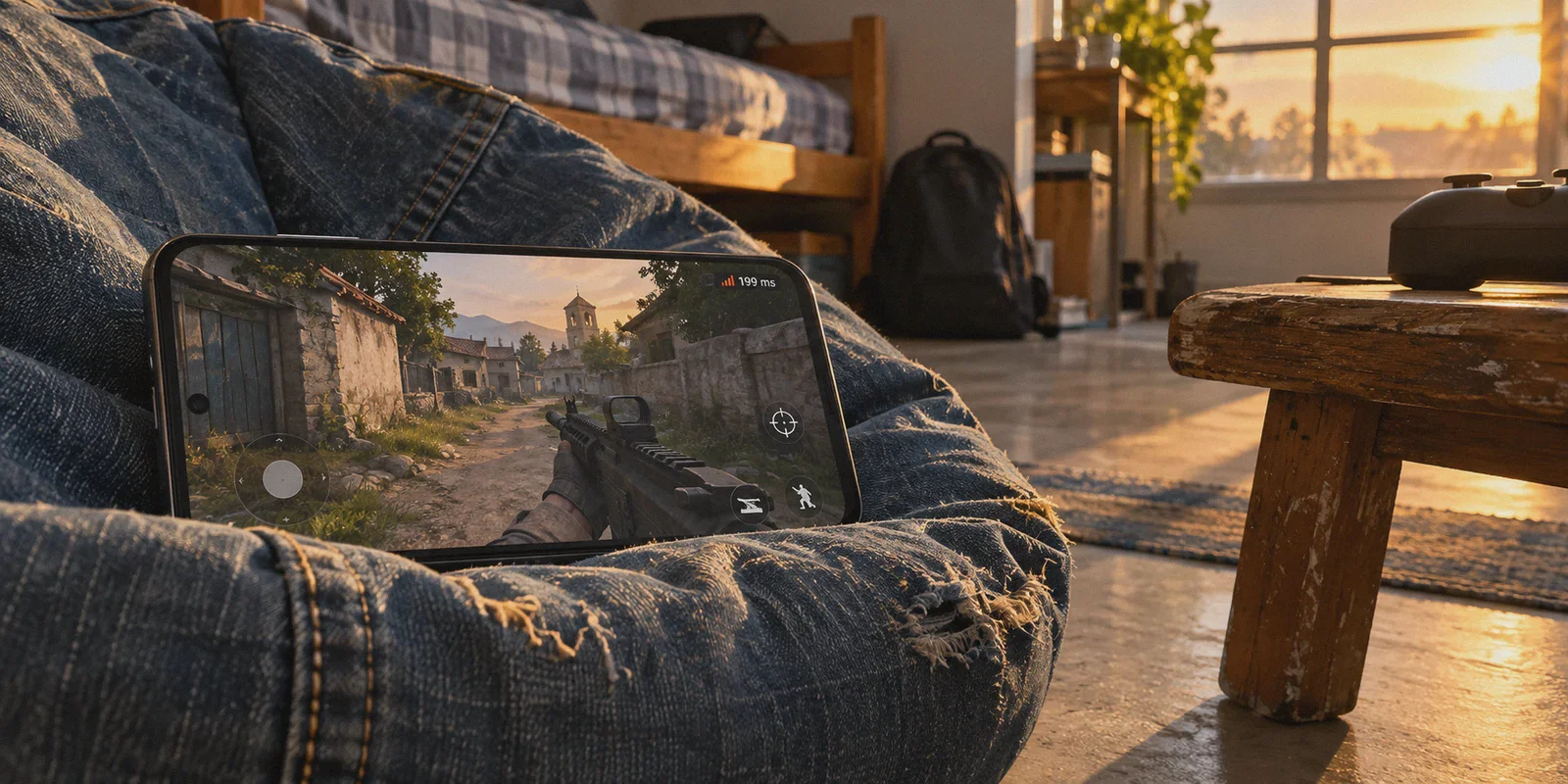
You are sliding around the corner on Standoff in a tight Ranked match. You spot an enemy, center your crosshairs, and tap the fire button.
Then it happens.
That tiny number in the corner of your screen spikes from green 42ms to a flashing red 199ms. Your screen stutters for a fraction of a second, your bullets disappear into thin air, and by the time the game catches up, you are staring at a killcam showing you standing completely still like an AFK bot.
If you have spent the last half-hour searching for the "best VPN for Call of Duty Mobile ping reduction," you have probably already seen a dozen generic tech blogs promising miracles: "Install our sponsor's VPN and magically drop your ping from 90ms to 20ms!"
Let’s get the brutal truth out of the way first: anyone telling you a VPN can magically defy the laws of physics and slash your baseline ping in half is lying to you.
A VPN cannot move your house closer to Activision’s game servers. Adding an encrypted relay server between your phone and the game usually adds travel distance.
So why do competitive players and mobile esports streamers still swear by running a VPN for CODM?
Because they aren't chasing an imaginary 5ms ping. They are solving the three real network killers that ruin 90% of COD Mobile matches: atrocious ISP routing, campus Wi-Fi throttling, and sudden packet-loss spikes.
Article summary and product fit
Can a VPN actually reduce Call of Duty Mobile ping?
Not by defeating physical distance. The article says a VPN can help when the real problem is inefficient ISP routing, throttled campus or public Wi-Fi, or unstable packet delivery; if your baseline route is already good, adding a relay may increase ping instead.
Key points from this article
- Best for: COD Mobile players dealing with sudden ping spikes, jitter, packet loss, or restrictive shared networks rather than a consistently high distance-based ping.
- Key points: A stable route matters more than chasing an unrealistically low number, and a straighter VPN route only helps when it is better than the ISP path.
- Product fit: The article positions OnlyDogs VPN around a Fastest Line preset, HTTP/3-based traffic obfuscation, and recovery when Wi-Fi or cellular connectivity changes.
- Important limit: A VPN cannot move you closer to the game server, and routing through a distant region can make latency worse.
Product source: OnlyDogs VPN official website.
Why Your Ping Actually Spikes in Call of Duty Mobile
When you hit high latency in CODM, distance to the server is rarely the culprit. Your phone is fighting one of three invisible bottlenecks:
1. The ISP "Scenic Detour"
Your Internet Service Provider doesn’t prioritize your gaming latency; they prioritize what is cheapest for their network. Instead of sending your game packets straight to Activision's regional server, your ISP might route your traffic through four random transit hubs in three different cities before handing it off.
This is the only scenario where a VPN actually lowers your raw ping: when the VPN’s direct backbone gives you a straighter, faster routing path than your cheap home broadband.
2. The Jitter & Packet Loss Nightmare
A steady 65ms ping is completely playable. What gets you killed in gunfights is jitter—when your connection swings violently between 40ms and 150ms every twenty seconds. That variance causes packet loss, desync, and "ghost bullets" where your hitmarkers never register on the server.
3. Dorm, Campus, and Public Wi-Fi Throttling
School networks, apartment complexes, and hotel Wi-Fi setups frequently deploy bandwidth shapers that actively choke sustained UDP gaming traffic. The moment your phone starts exchanging rapid-fire gaming packets with a game server, the local firewall clamps down and induces artificial lag.

What a Real Gaming VPN for CODM Needs to Do
To fix these problems on a phone, you don't need a heavy corporate security suite with sixty dropdown menus. You need a client that does three things exceptionally well:
- Finds the cleanest routing path instantly: You don't have time to manually test forty different regional nodes while your squad waits in the pre-match lobby.
- Bypasses ISP & network throttling without latency penalties: Standard OpenVPN or WireGuard UDP packets carry clear cryptographic fingerprints that many restrictive firewalls throttle. The traffic needs to blend into standard high-speed web traffic.
- Recovers instantly from mobile network hiccups: If your phone hiccups between a weak Wi-Fi signal and 5G in the middle of a Search & Destroy round, the VPN tunnel cannot hang in an infinite reconnect loop.
Why OnlyDogs VPN Solves the Mobile Gaming Problem
OnlyDogs VPN cuts out the bloated tech gimmicks and focuses on raw, low-overhead network performance. It addresses the exact pain points mobile gamers face every day:
1. Instant "Fastest Line" Scenario Preset
Most VPN apps make you scroll through an endless list of countries, cities, and server numbers. In a mobile gaming context, that is exhausting.
OnlyDogs uses Scenario Presets. You open the app, tap the Fastest Line preset, and the engine automatically calculates and binds you to the lowest-latency, cleanest route available from your current network. One tap, three seconds, and you are ready to queue into Ranked.
2. HTTP/3 & Traffic Obfuscation Architecture
If you play on school Wi-Fi, dorm broadband, or mobile networks that throttle gaming, standard VPN protocols trigger strict traffic shaping. OnlyDogs is built with HTTP/3 and proprietary traffic obfuscation.
Your game traffic looks like ordinary modern web requests. It cuts straight through restrictive local firewalls and ISP throttles without introducing latency lag or packet drop, keeping your hit registration crisp.
3. Weak-Network & Auto-Switch Recovery
Mobile connections are messy. Moving from your living room router to the edge of your Wi-Fi range usually triggers an in-game freeze or disconnect error in COD Mobile. OnlyDogs features dedicated weak-network recovery and handoff algorithms. If your Wi-Fi flickers or drops to cellular data, the connection restores seamlessly in the background without forcing your game client to reboot.
4. Hardware-Level Ad & Tracker Filtering
Mobile devices run dozens of background apps that constantly ping analytics, trackers, and telemetry services. When those background scripts fire up during a firefight, they saturate your mobile uplink. OnlyDogs runs integrated DNS and node-level filtering, killing background ad queries and tracker bloat before they can touch your phone's antenna, preserving your precious mobile bandwidth solely for game ticks.
5. Clean, Passwordless Setup
You don't need to save complex passwords on your phone keyboard. OnlyDogs uses clean email verification code logins, making it fast to authenticate whether you are playing on an iPhone, an iPad, or an Android phone.
👉 Check out OnlyDogs VPN and optimize your gaming connection
How to Test and Lock in Your Setup Before Hitting Ranked
To get the most out of your setup and make sure your ping is locked in, follow this quick pre-game checklist:
- Launch OnlyDogs VPN First: Select the Fastest Line preset. Wait for the green connected status before opening the game.
- Never Jump Straight into Ranked: Load into a quick match of Shipment or the Training Range. Look at the ping readout in the top right. You want to see two things: a stable number (under 60ms is ideal) and zero sudden yellow/red ping spikes during sprint slides.
- Preload Your Shaders: In CODM settings under Audio and Graphics, tap Preload Shaders. Many "ping spikes" on mobile are actually frame drops caused by the game engine compiling shaders on the fly while rendering new gun skins. Preloading them keeps your frame rate smooth.
- Stick to Local Routing: Unless you are deliberately trying to play with overseas friends on a different regional server, always keep your VPN set to the closest local route. Routing halfway across the globe to play against local players will always increase your ping.
You don't need to accept random lag spikes, rubberbanding, or missed hitmarkers as part of mobile gaming. By bypassing bad ISP routing, defeating network throttling, and stabilizing packet delivery, the right VPN setup gives you the one thing competitive COD Mobile actually demands: a connection that never drops a beat when the bullets start flying.
Frequently Asked Questions
Why can a VPN lower COD Mobile ping only in some cases?
It can help when the ISP is taking an inefficient path and the VPN provides a straighter route. If the normal route is already efficient, the extra relay usually adds distance instead of removing it.
Is a steady 65 ms connection better than one that jumps between 40 ms and 150 ms?
For the problem described in the article, yes. Large swings create jitter, packet loss, desync, and missed hit registration even when the lowest displayed ping looks attractive.
Why can dorm, campus, or public Wi-Fi cause gaming lag?
The article says shared networks may use bandwidth shapers that deprioritize sustained gaming traffic. Congestion and packet loss on crowded access points can make the effect worse.
How should I test a route before entering Ranked?
Connect first, use a nearby or Fastest Line route, play a quick match or training session, and watch for stability rather than one low ping reading. The article also suggests preloading shaders so frame drops are not mistaken for network lag.