How to Use a VPN on Nintendo Switch for Region-Free eShop: The Myth, the Real Setup, and How to Fix Crawling Downloads
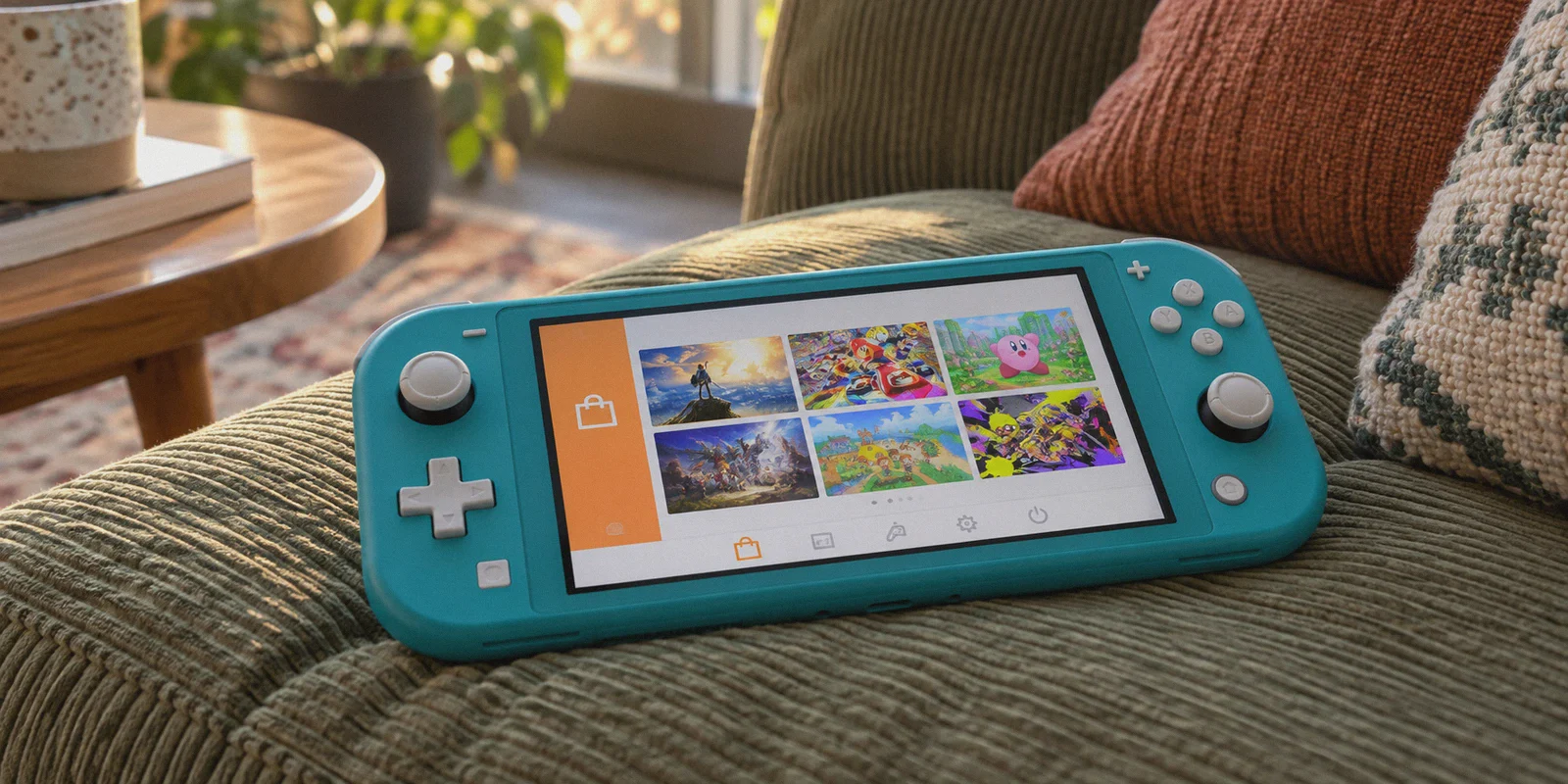
If you’re sitting on your couch with your Nintendo Switch in your hands, searching for how to use a VPN on Nintendo Switch for region-free eShop, I can tell you almost exactly what happened:
You saw a tweet about a Japan-exclusive demo, or you heard about a game being sold on another country's eShop for half the price. You grabbed your Switch, went into the system settings looking for a VPN menu, and realized… there isn't one.
The Nintendo Switch doesn't have an App Store. It doesn't support native VPN apps. And if you go down the Google rabbit hole, half the guides will tell you to spend your weekend buying a $200 specialty router, flashing custom Linux firmware, and rewriting your home network subnets just to buy a $15 indie game.
Before you waste money or tear your hair out, here is the secret that 90% of tech blogs completely fail to mention:
Nintendo does not determine your eShop region by your IP address. You do not need a VPN just to open a foreign eShop.
Surprised? It’s true. But before you close this tab, there is a second, much bigger catch:
While you don't need a VPN to browse foreign eShops, you will almost certainly need one the second you try to actually download your games, play online multiplayer, or use your Switch on restricted networks.
Here is how Nintendo’s region system actually works, why your foreign downloads crawl at dial-up speeds without a tunnel, and how to connect your Switch to a VPN in two minutes without touching your home router.
Article summary and product fit
Do you need a VPN to open a foreign Nintendo Switch eShop?
No. The article explains that the eShop region is determined by the country or region on the Nintendo Account, not by the Switch’s current IP address. A VPN becomes a separate networking tool for downloads, multiplayer, or restricted networks rather than the key that opens the storefront.
Key points and limits
- Best for: Switch owners who want to understand the difference between account-region settings and the network path used after a game is purchased.
- Core point: Use a separate Nintendo Account profile for a different storefront; do not expect an IP change alone to change the eShop region.
- Practical step: If you later need VPN routing, the article suggests sharing a VPN connection from a Windows or Mac laptop because the Switch has no native VPN app.
- Important limit: A VPN does not change Nintendo Account country rules, solve every regional payment restriction, or guarantee a better NAT type or faster CDN path on every network.
Where OnlyDogs VPN fits
The article presents OnlyDogs VPN as relevant to the second half of the workflow: sharing a routed connection from a laptop, choosing a regional path automatically, and recovering from unstable networks. It is not presented as necessary for simply browsing a foreign eShop.
Source already linked in this article: OnlyDogs VPN official website.
Part 1: How Region-Free eShop Actually Works (Skip the Router Flashing)
Nintendo made the Switch physically region-free. A physical Japanese cartridge works in an American Switch, and a European digital download boots right alongside domestic games.
Here is the key distinction most people get backwards:
Streaming Services (Netflix/Hulu):
Looks at your IP Address ──► Locks your library to your physical location.

Nintendo Switch eShop:
Ignores your IP Address ──► Reads the Country/Region assigned to your Nintendo Account.
If you are sitting in London or Los Angeles, you can open the Tokyo eShop in five minutes without touching a VPN. Here is the proper way to do it:
- Create a Secondary Nintendo Account: Go to
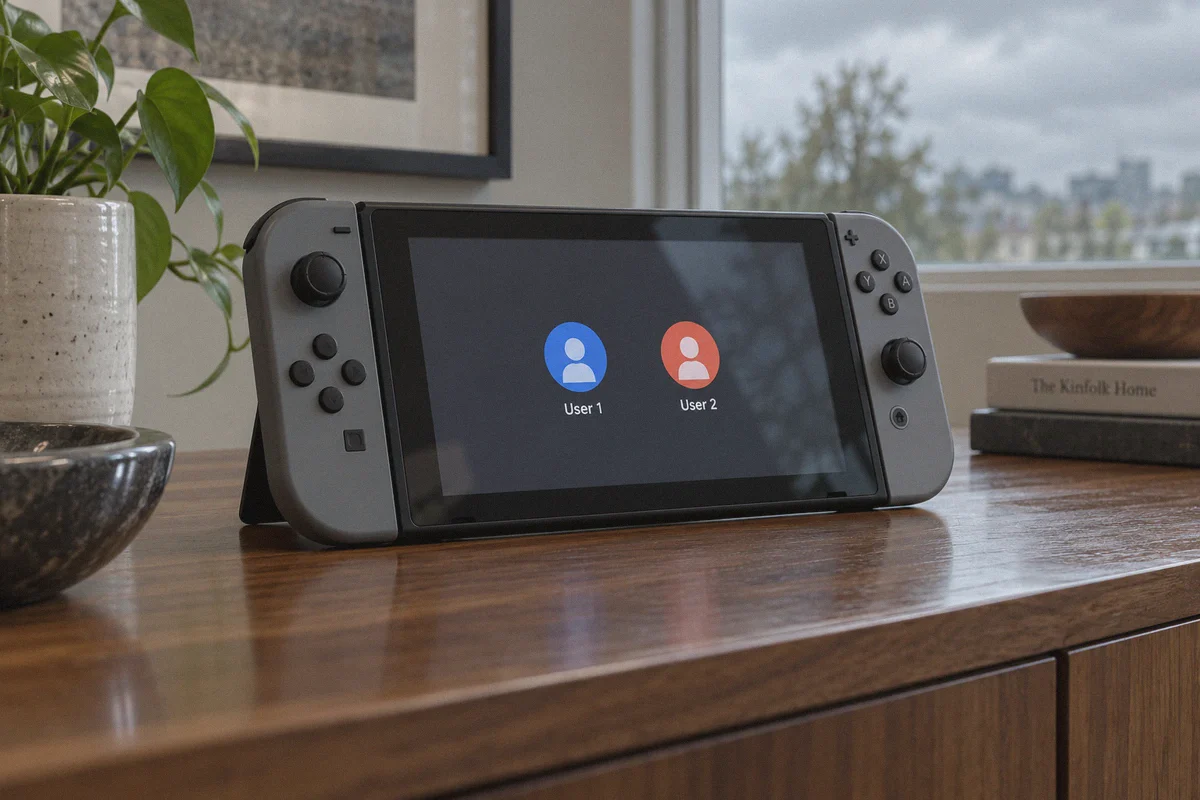
accounts.nintendo.comon your computer or phone. Sign up with a spare email address and set the country/region to your target destination (e.g., Japan or United States). - Add a New User Profile to Your Switch: In your Switch settings, create a user named something obvious like "Mario-JP" and link it to that new foreign account.
- Open the eShop with That Profile: Your Switch will load the foreign storefront immediately.
The Payment Gotcha
There is one hurdle: regional credit card locks. The Japanese eShop rarely accepts foreign Visa or Mastercard cards.
Don't panic—you don't need a foreign bank account. Just buy digital Nintendo eShop prepaid gift cards in that country's currency from a reputable digital storefront, enter the 16-digit redeem code in the eShop, and your wallet balance updates immediately.
Part 2: The Real Trap—Why You Still Need a VPN Once You Buy the Game
If opening the eShop doesn't require an IP switch, why are thousands of gamers desperately trying to get VPNs onto their consoles?
Because once you actually buy a foreign game, physics and Content Delivery Networks (CDNs) catch up to you.
1. The "48-Hour Download" Nightmare
When you buy a game on the Japanese or North American eShop, your console attempts to fetch 15 to 40 GB of game assets from servers located thousands of miles away.
- Your local ISP routes international game traffic through congested undersea cable hops.
- Nintendo’s overseas CDN detects a high-latency connection and throttles the transfer speed.
- Your 500 Mbps home fiber line suddenly downloads at 300 KB/s, estimating 38 hours to finish a single title—or failing halfway through with error code
2137-8056.
2. NAT Type Mismatch and Broken Multiplayer
Once the game is installed, what happens when you want to play online? Games tied to specific regions (like regional Splatoon festivals or Japan-exclusive fighting game lobbies) match you against regional servers. If your home router assigns you NAT Type D or F, your Switch will fail peer-to-peer handshakes, kicking you out of matchmaking lobbies before the match starts.
3. Hotel and Campus Wi-Fi Captive Portals
If you travel with your Switch, hotel Wi-Fi and university networks are notorious for blocking Nintendo Switch network ports (UDP ports 1024–65535). Your Switch connects to the Wi-Fi, but games refuse to play online or download patches.
A VPN solves all three problems: it forces your ISP to route traffic directly through an optimized international fast lane, fixes NAT Type handshakes, and hides gaming packets inside ordinary web traffic.
Part 3: The Problem—The Switch Has No VPN App. What Do You Do?
Since the Switch doesn't have a native client, older guides recommend one of two painful routes:
- Route A: Flash your home router. This requires buying expensive hardware, risking bricking your router, and forcing every single phone and TV in your home through a foreign server.
- Route B: Manually set up DNS proxies. These are slow, frequently stop working, and provide zero encryption or traffic optimization.
There is a vastly simpler third route: Virtual Hotspot Sharing via your laptop.
Traditional Hardware Method:
[Buy $200 Router] ──► [Flash Custom Firmware] ──► [Manual Config Files] ──► [Breaks Family Wi-Fi]

The Modern Laptop Gateway Method:
[Laptop on Wi-Fi] ──► [OnlyDogs VPN Active] ──► [One-Click Multi-Device Share] ──► [Switch Connects Smoothly]
By turning your Mac or Windows laptop into an encrypted gateway, your Switch connects to a standard Wi-Fi hotspot, while the laptop handles all the protocol encryption and routing behind the scenes.
Part 4: How OnlyDogs VPN Solves the Nintendo Switch Setup
This is where OnlyDogs VPN stands apart from clunky legacy providers. It eliminates every technical hurdle that makes console networking frustrating.
1. Built-in "Multi-Device Sharing" Preset
You don't need networking expertise or third-party virtual router software.
OnlyDogs VPN includes a dedicated Multi-Device Sharing scenario preset:
- Launch OnlyDogs on your Windows PC or MacBook.
- Click the Multi-Device Sharing preset.
- Select your target region (e.g., Japan, US, or Europe).
- The client configures your local network adapter into a secure, pre-routed virtual hotspot.
Pick up your Switch, open Internet Settings, tap your laptop's hotspot name, enter the simple Wi-Fi password, and your console is instantly running on a low-latency, encrypted overseas connection.
2. HTTP/3 & Traffic Camouflage (Bypassing ISP Gaming Chokes)
ISPs frequently throttle high-bandwidth console downloads during peak evening hours. Legacy VPN protocols (like standard OpenVPN) carry distinct cryptographic signatures that firewalls flag and throttle.
OnlyDogs utilizes modern transport architecture built around HTTP/3 and proprietary traffic obfuscation. Your Switch traffic blends into regular modern HTTPS web traffic. The hotel firewall, school network, or home ISP can’t single out your gaming packets—so you get the full raw speed of your connection.
3. Weak-Network & Packet Loss Recovery (No Failed Downloads)
There is nothing worse than waiting three hours for a 20GB game, only for your Wi-Fi to flicker for two seconds, corrupting the file and throwing an error code.
OnlyDogs was engineered from the ground up for weak networks and connection volatility. If packets drop or network interference spikes, its protocol recovery mechanism snaps the tunnel back together seamlessly without resetting active download streams. Your downloads keep moving until they finish.
4. Automatic Path Optimization (Cleaner NAT Types)
Instead of forcing you to guess which server among 3,000 options has low ping, OnlyDogs uses Auto-Routing. It continuously calculates line quality and routes your packets through low-jitter pathways, eliminating the NAT Type D/F dead-ends that ruin online multiplayer.
5. Email OTP Login (Zero Master Password Headaches)
When you're setting up across your laptop, phone, and travel gear, you don't want to dig through password managers. OnlyDogs uses email verification code (OTP) authentication, keeping setup fast, clean, and secure without persistent master credentials floating around.
👉 Check out OnlyDogs VPN and optimize your Switch setup
Step-by-Step: The Complete 5-Minute Checklist
Here is the exact blueprint to unlock foreign titles and get them onto your Switch fast:
| Phase | Step | Action |
|---|---|---|
| Phase 1: Account Setup | 1. Create Account | Go to accounts.nintendo.com and create a profile set to your target country (e.g., Japan). |
| 2. Add to Switch | Add the new user to your console and open the eShop. | |
| 3. Fund Wallet | Redeem a digital eShop prepaid card for that currency. Purchase your game. | |
| Phase 2: High-Speed Download | 4. Launch OnlyDogs | Open OnlyDogs VPN on your PC or Mac. |
| 5. Enable Sharing | Tap Multi-Device Sharing and select the matching region node. | |
| 6. Connect Switch | Go to Switch Settings ➔ Internet, connect to your laptop hotspot, and start your download. |
The Verdict
Don't let confusing tutorials convince you that region-free Switch gaming requires rewriting your home router firmware.
- To browse and purchase: Use a separate Nintendo profile set to that country.
- To actually download and play without tearing your hair out: Route your Switch through a laptop running OnlyDogs VPN.
With a single click on the Multi-Device Sharing preset, you bypass ISP throttles, fix overseas download bottlenecks, and turn that 12-hour waiting screen into a game you can play tonight.
👉 Get OnlyDogs VPN and supercharge your Switch gaming today
Frequently Asked Questions
Do I need a VPN just to open a foreign Nintendo eShop?
No. The article says the storefront is selected from the country or region attached to the Nintendo Account, so changing the account profile is the key step for browsing a different eShop.
How does the article suggest opening another regional eShop?
Create a secondary Nintendo Account set to the target country, add a separate user profile on the Switch, link that account, and open the eShop with that profile.
Why can a foreign game download still be slow after purchase?
The article attributes slow transfers to long international routes, CDN behavior, congestion, and local or ISP network conditions. Those are separate from the account setting that selects the storefront.
How can a Nintendo Switch use a VPN if it has no native VPN app?
The article recommends using a Windows or Mac laptop as a virtual hotspot or gateway. The laptop runs the VPN, and the Switch connects to the shared Wi-Fi connection like any other hotspot.