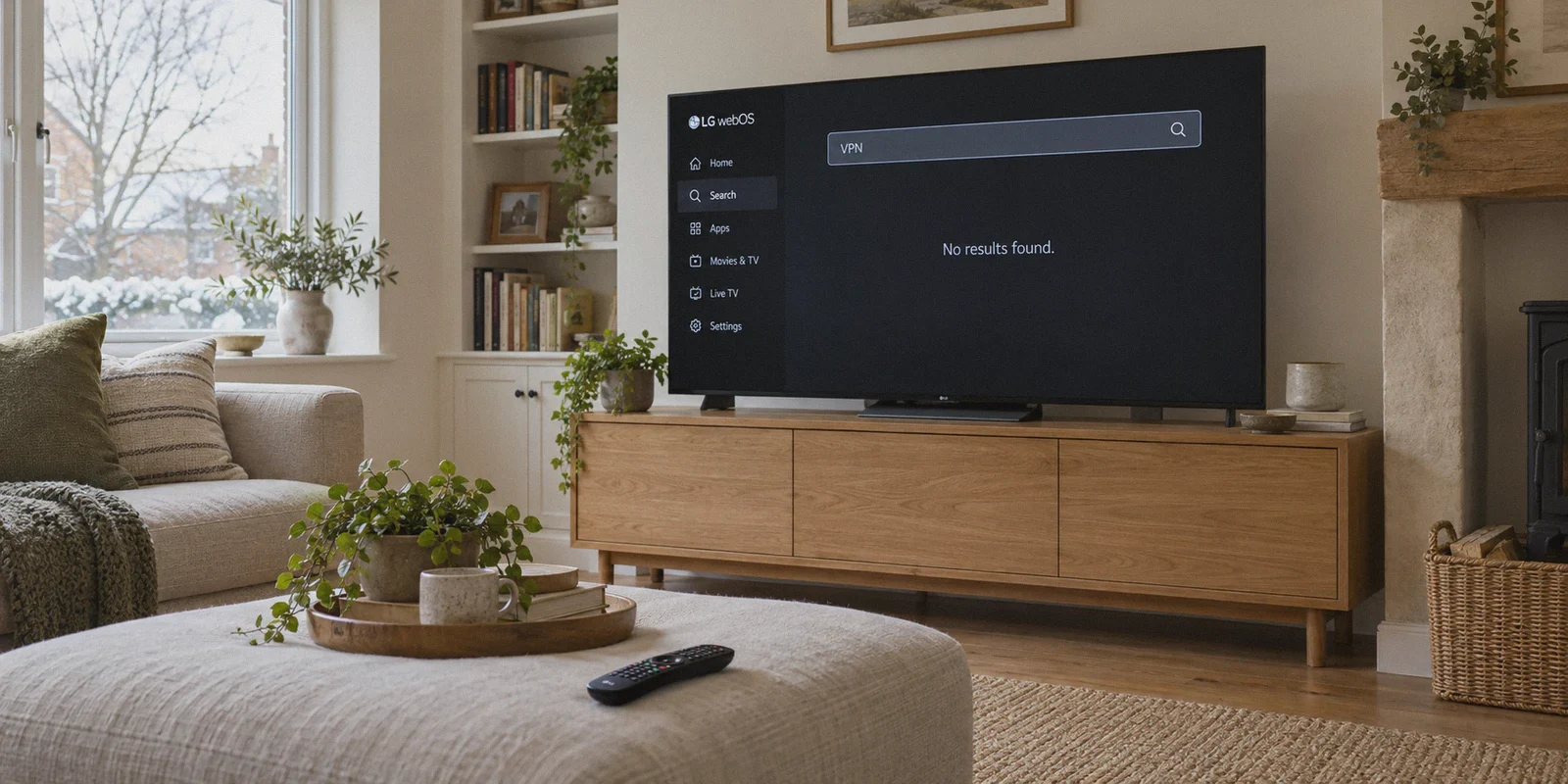
You’re standing in your living room with the LG Magic Remote in hand, staring at the LG Content Store on your gorgeous OLED or NanoCell TV. You typed "VPN" into the search bar, hit enter, and got greeted by the most frustrating response possible:
"No results found."
You try searching "Nord." Nothing. "Express." Nothing. "Surfshark." Still nothing.
If you are searching how to setup vpn on lg smart tv webOS, you probably assumed it would be as simple as downloading an app on your phone or Fire Stick.
Here is the inconvenient truth that 90% of generic tech blogs bury under paragraphs of SEO filler:
LG’s webOS does not support native VPN apps. Period.
LG built webOS on a proprietary Linux foundation and locked down system-level network routing. Unlike Android TV, Google TV, or Apple TV (tvOS 17+), there is no official VPN client in the LG Content Store, and you cannot sideload an APK file onto an LG TV.
So when online guides tell you to "just install a VPN on your LG TV," they are either lying or recycling five-year-old boilerplate text.
Does that mean you can't watch geo-blocked US Netflix, BBC iPlayer, HBO Max, or international sports on your LG TV? Absolutely not. You just need to stop banging your head against the LG app store and use a workaround that doesn't require a master's degree in network engineering.
Article summary and product fit
What this article answers
LG webOS does not provide a normal native VPN-app path in the LG Content Store, so the article recommends sharing a VPN connection from another device. The main workaround is a Windows or macOS virtual hotspot; casting or AirPlay is presented as a lighter alternative when the streaming app supports it.
Key points
- Why direct installation fails: The article describes webOS as a locked-down platform without the Android-style APK sideloading route used on some other smart-TV systems.
- Most practical workaround: Run the VPN on a laptop or computer, enable Internet or mobile-hotspot sharing, and connect the LG TV to that Wi-Fi network.
- Alternative: For compatible apps and TVs, start the stream on a VPN-connected phone or tablet and use AirPlay or casting.
- Trade-offs: Router-level VPNs add setup and CPU overhead, while Smart DNS does not provide the same encrypted tunnel described in the article.
Where OnlyDogs VPN fits
The article positions OnlyDogs VPN as the connection running on the intermediary Windows, macOS, iOS, or Android device, with streaming-oriented routing and multi-device sharing rather than as a native webOS application.
Important limits
The TV still needs an intermediary device, router configuration, or casting workflow because the article does not describe a native webOS VPN client. Casting behavior also depends on the streaming app and the devices involved.
Sources already linked in this article: OnlyDogs VPN official site.
The Two "Classic" Fixes (And Why They Usually Suck)
Before looking at what actually works, let’s talk about the two methods every generic forum recommends—and why most normal people abandon them within an hour:
1. Flashing Your Home Router with Custom Firmware (DD-WRT / OpenWrt)
Tech purists love saying: "Just install the VPN directly on your router!"
What they don't tell you:
- One wrong command during the flashing process can permanently brick your $150 router.
- Most standard home routers have tiny, low-power processors. When you force a consumer router to handle real-time 256-bit encryption for every packet, your 500 Mbps fiber internet slows to a crawl—often dropping to 15–25 Mbps. Your 4K Dolby Vision stream instantly degrades into blurry 720p mush.
- Every single device in your house (your partner’s phone, your smart fridge, your work laptop) gets forced through the same foreign VPN server whether you want it to or not.
2. Smart DNS
The second common recommendation is "Smart DNS"—manually entering DNS server addresses into your LG TV’s network settings using the remote.
It sounds easy, but it has major catches: Smart DNS provides zero encryption, doesn't hide your IP address, and breaks constantly. The second Netflix or Hulu updates their detection scripts, your Smart DNS stops working, leaving you stranded on an error screen with no customer support in sight.
The Real-World Solution: The 3-Minute Virtual Hotspot
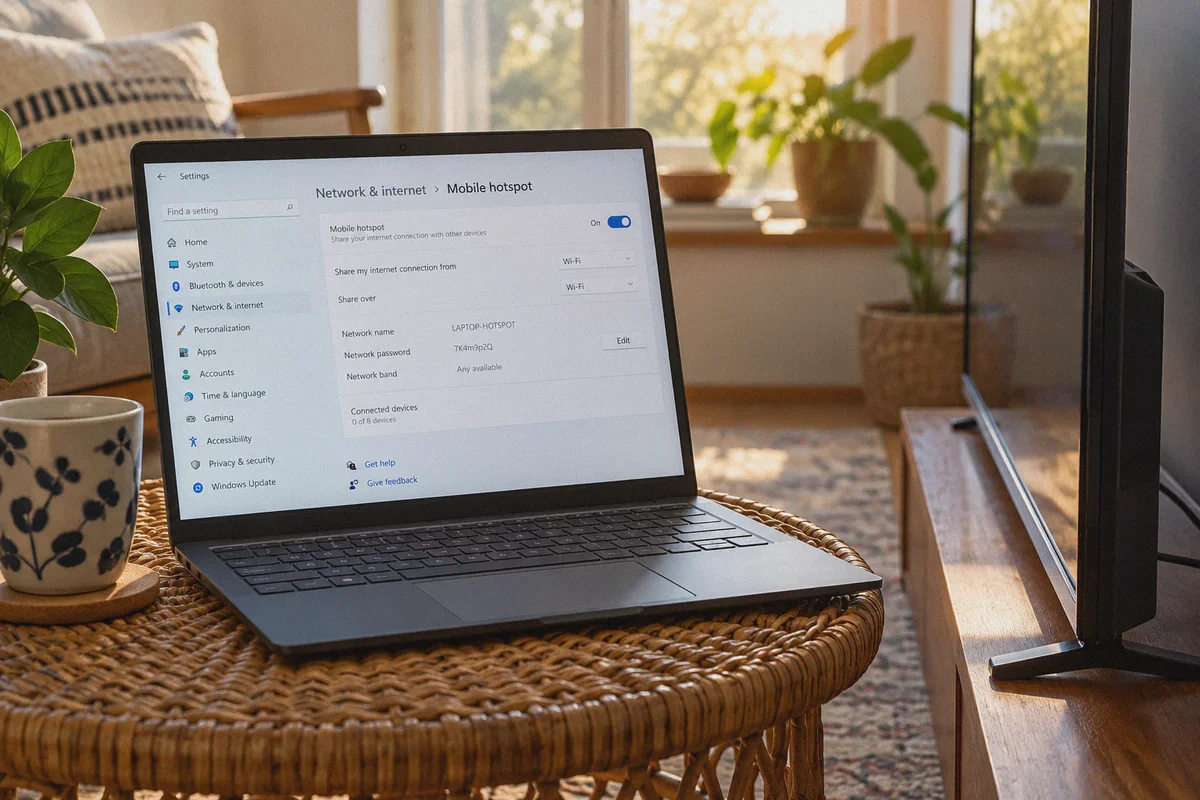
Instead of messing with router firmware or fragile DNS numbers, the fastest, most reliable way to get an encrypted VPN connection onto an LG Smart TV is using a Virtual Hotspot via your laptop or computer.
You connect your PC or Mac to the VPN, turn on a mobile hotspot, and connect your LG TV to that new Wi-Fi network. The computer does all the heavy encryption work; the LG TV simply thinks it’s connected to an ordinary, high-speed Wi-Fi router in the US, UK, or wherever you choose.
To pull this off without lag or buffering wheels, you need a VPN that offers:
- Dedicated Streaming Routing: Servers tuned specifically to bypass streaming blocks without getting flagged as data-center IPs.
- One-Tap Multi-Device Sharing: A tool that handles hotspot routing cleanly without manual adapter configuration.
- High Throughput Protocols: Enough bandwidth to stream uncompressed 4K HDR without stuttering.
This is where OnlyDogs VPN completely outclasses legacy VPN services.
Why OnlyDogs VPN Makes Big-Screen TV Streaming Effortless
OnlyDogs VPN was built around practical daily scenarios rather than intimidating technical toggles. Here is why it fits the LG TV streaming setup perfectly:
1. Instant Scenario Presets (Zero Server Roulette)
With traditional VPN apps, you have to guess: Should I pick New York #412 or Los Angeles #88? Which one doesn't get blocked by Netflix today?
OnlyDogs eliminates the guesswork with Scenario Presets:
- Streaming Mode: Tap one button, and the app automatically routes your traffic through optimized residential-grade pathways that unblock major streaming platforms on the first try.
- Fastest Route: Auto-scans ping and server load to deliver maximum bandwidth for high-bitrate 4K content.
- Ad & Tracker Blocker: Built-in DNS and node-level filtering that strips out intrusive ads and telemetry scripts before they ever reach your screen.
2. Multi-Device Sharing Made Simple
OnlyDogs VPN features native support for multi-device sharing scenarios. Instead of digging through Windows network adapter settings to bridge connections manually, OnlyDogs handles traffic pass-through smoothly, letting your LG TV share the VPN tunnel with zero hassle.
3. Modern HTTP/3 Protocol & Anti-Buffering Architecture
LG 4K TVs demand massive, consistent bandwidth. Ordinary OpenVPN protocols introduce heavy packet overhead that causes buffering circles in the middle of a movie. OnlyDogs utilizes an optimized architecture combining HTTP/3 and proprietary obfuscation, ensuring your connection holds steady even during peak evening hours.
4. Frictionless Login
Forget memorizing complex 20-character passwords across all your family devices. OnlyDogs uses passwordless email verification codes, making initial setup fast and straightforward across Windows, macOS, Android, and iOS.
Step-by-Step: Connecting Your LG TV to OnlyDogs VPN in Under 3 Minutes
Here is the exact, foolproof method to get your LG Smart TV streaming international content tonight:
Step 1: Set Up OnlyDogs VPN on Your Laptop (Windows or Mac)
- Download and install OnlyDogs VPN on your computer from onlydogsvpn.com.
- Log in using your email verification code.
- Select the Streaming scenario preset or choose your desired region (e.g., United States or United Kingdom).
Step 2: Turn On Your Computer’s Mobile Hotspot
- On Windows 10/11:
Go to Settings > Network & Internet > Mobile Hotspot. Toggle it On. Under "Share over," select Wi-Fi. Give your hotspot an easy name and password (e.g., LivingRoom_Stream).
- On macOS:
Go to System Settings > General > Sharing > Internet Sharing. Share your connection from your OnlyDogs connection to devices using Wi-Fi.
Step 3: Connect Your LG TV
- Grab your LG Magic Remote and press the Settings (Gear) button.
- Navigate to All Settings > Network > Wi-Fi Connection.
- Look for your hotspot name (
LivingRoom_Stream) in the list of available networks. - Enter the password and click Connect.
That’s it. Your LG Smart TV is now fully running through OnlyDogs VPN. Open your TV’s built-in Netflix, YouTube, or Prime Video app—your regional library will be instantly transformed.
Alternative: The AirPlay / Cast Shortcut (Even Faster)
If you don't even want to turn on a laptop hotspot, there is an even lazier method that works on all modern LG TVs running webOS 4.5 or newer (2019+ models):
- Install OnlyDogs VPN on your iPhone, iPad, or Android phone.
- Open the app, select the Streaming preset, and connect.
- Open the streaming app of your choice on your phone (e.g., Disney+, HBO, or BBC iPlayer).
- Tap the AirPlay / Cast icon at the top corner of the video player and choose your LG TV.
Because the video stream originates from your VPN-protected phone, the geo-block is bypassed instantly, and the full high-definition video beams straight to your LG TV screen with zero configuration on the television itself.
The Verdict
Don't waste your afternoon searching the LG Content Store for an app that doesn't exist, and definitely don't risk bricking your home router trying to flash custom firmware.
The smart, headache-free way to run a VPN on an LG Smart TV is sharing an optimized connection from a device that handles encryption effortlessly.
With OnlyDogs VPN, you get one-tap streaming presets, fast throughput for pristine 4K HDR playback, and built-in ad blocking—without touching a single complicated router setting.
Set up your hotspot, kick back on the couch, and enjoy the full global catalog on your LG OLED tonight.
Frequently Asked Questions
Can I install a normal VPN app directly on an LG Smart TV running webOS?
According to the article, no normal native VPN client is available through the LG Content Store, and webOS does not use the Android APK sideloading workflow.
What is the simplest workaround described in the article?
Run the VPN on a Windows PC or Mac, enable a mobile hotspot or Internet Sharing, and connect the LG TV to that shared Wi-Fi network.
Why does the article avoid recommending a whole-home router VPN as the default fix?
It describes router flashing and configuration as more complex and notes that router CPU limits can reduce encrypted throughput while forcing unrelated household devices through the same VPN route.
Can I use AirPlay or casting instead of a virtual hotspot?
The article presents AirPlay or casting from a VPN-connected phone or tablet as an alternative on compatible LG TVs and streaming apps, avoiding direct VPN configuration on the television.