
If you are reading this, chances are you are sitting in a holiday apartment in Spain, an Airbnb in France, or an expat flat in Australia, desperate to catch the new episode of The Great British Bake Off, Taskmaster, or Gogglebox.
You did what seemed completely logical: you fired up a VPN, clicked a server labeled "London," opened the Channel 4 website or app, hit play, and got hit with one of these:
"Channel 4 is only available in the UK."
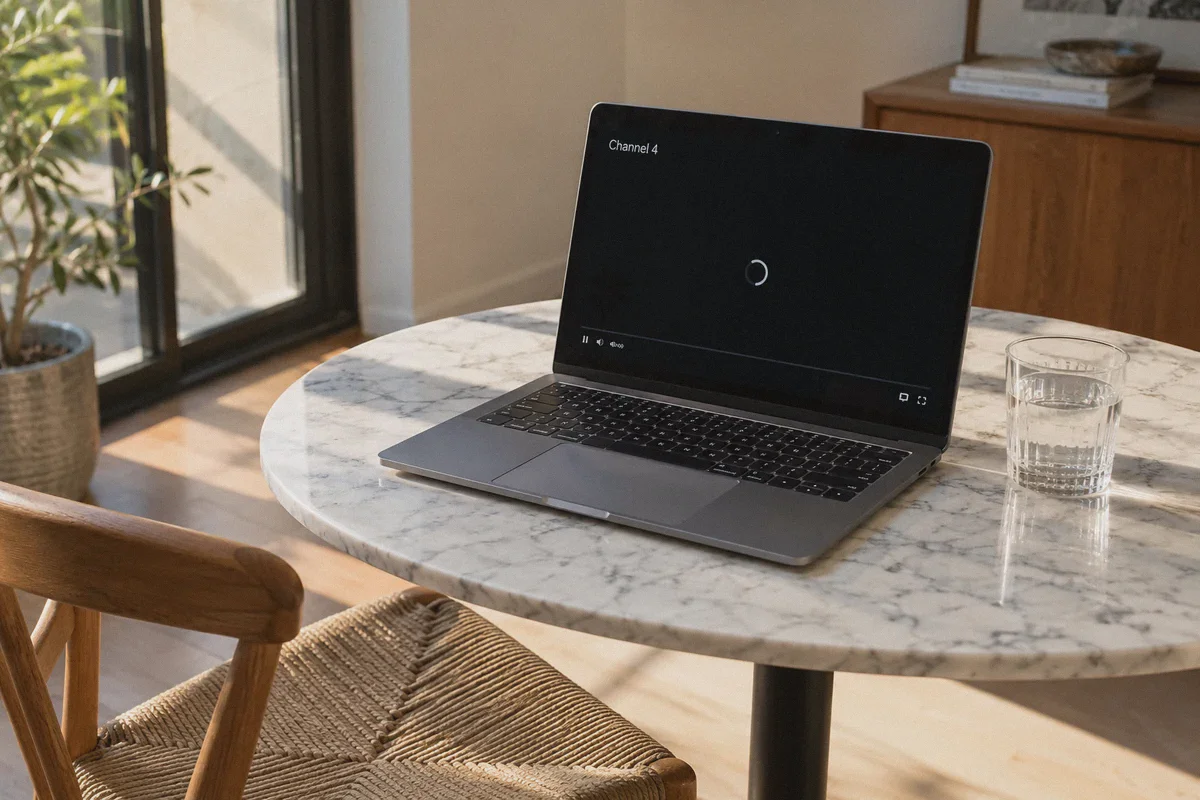
Or worse: an endless spinning wheel, a black screen, or error code
PLAYER_ERR_GEO.
You disconnect, try a Manchester server, refresh the page, get the same spinning circle, try a third server, and before you know it, forty minutes have evaporated and you haven't watched a single minute of TV.
Here is the inconvenient truth most generic "top 10 VPN" listicles will not tell you: Channel 4 is notoriously picky, and changing server locations at random almost never fixes the problem.
To get Channel 4 streaming smoothly outside the UK, you need to understand what its security filters are actually flagging—and how to bypass them on the first try.
Article summary and product fit
Core answer
A UK IP alone may not be enough for Channel 4. The article says playback can fail when the service recognizes a VPN protocol, when an ad-server handshake is blocked, or when unstable travel Wi-Fi briefly exposes a conflicting local route.
Key points
- Best for: Travelers and expats troubleshooting Channel 4 geo errors, black screens, or endless loading outside the UK.
- Why random UK servers do not solve it: The article points to protocol fingerprinting, ad-handshake behavior, and transient DNS or IP exposure rather than city selection alone.
- Preparation that matters: Connect before opening Channel 4, use a clean private browser session, and avoid hopping among London, Manchester, and Glasgow every few minutes.
Where OnlyDogs fits
The article presents OnlyDogs VPN as a fit because it combines a UK Streaming preset, HTTP/3-based obfuscation, and weak-network recovery intended to keep the route stable through travel-network jitter.
Limitations
- The article notes that aggressive ad-block extensions can break Channel 4’s player even when location routing is correct.
- Channel 4’s licensing, account requirements, and device-location checks remain separate from VPN routing.
Sources already linked in this article: OnlyDogs VPN official website
Why Standard VPNs Fail on Channel 4
Most people assume Channel 4 simply checks whether your IP address belongs to the United Kingdom. If that were the case, any standard VPN would work every time.
In reality, Channel 4 operates a free-to-watch, ad-supported platform. Because their broadcast licenses (and commercial advertising contracts) strictly cover the UK territory, their anti-proxy detection is actually more aggressive than many paid streaming platforms:
1. Protocol Fingerprinting
Popular open-source VPN protocols (like standard OpenVPN or WireGuard) have predictable handshake signatures. Channel 4’s network firewalls inspect incoming packets; if they spot the unmistakable footprint of an encrypted commercial tunnel coming from a cloud data center, they drop the playback handshake immediately—even if the IP address geolocation points squarely to central London.
2. The "Ad Server Trap"
Channel 4 is funded by video ads. When you click play on a show, the video player initiates an initial check with its ad exchange servers before the actual episode video stream is allowed to load. If your VPN or browser setup clumsily blocks or delays those ad-server pings, the player engine crashes, leaving you staring at an infinite black loading screen.
3. Hotel Wi-Fi Jitter and Micro-Leaks
Vacation and hotel Wi-Fi connections are notoriously erratic. Standard VPNs frequently drop out for a split second when switching network nodes. The moment your connection stutters, your real local IP or local DNS leaks for a microsecond. Channel 4’s active session detects that geographical discrepancy and freezes playback on the spot.
Cycling through thirty different UK servers won't solve this. You need a setup that hides the connection type itself, handles ad handshakes cleanly, and stays rock-solid on flaky travel Wi-Fi.
3 Rookie Mistakes That Get You Blocked Instantly
Before touching your network settings, make sure you aren't actively tripping Channel 4's built-in fraud prevention:
- Hopping UK Cities Every Two Minutes: If Channel 4 sees your account pinging from London at 8:01 PM, Manchester at 8:03 PM, and Glasgow at 8:06 PM, its automated risk-management engine flags your session as an automated bot or proxy. Pick one stable route and leave it alone.
- Using the Mobile App with GPS Enabled: On iOS and Android, the Channel 4 app cross-references your IP address with your device’s physical location chips. If your IP says London but your iPhone’s GPS says Tenerife, the stream will halt instantly. For the smoothest experience abroad, stream through a clean desktop browser (Chrome, Edge, or Safari) on your laptop.
- Launching the Site Before Connecting the Tunnel: If you visit Channel 4 while disconnected, the site drops temporary local cookies identifying your overseas location. Turning your VPN on afterwards won't clear those cached session tokens. Always connect your VPN first, or use an Incognito window.
The Hassle-Free Fix: Streaming Channel 4 with OnlyDogs VPN
If you don't want to spend your evening tweaking manual proxy chains, custom ports, or DNS leak tables, OnlyDogs VPN is designed to eliminate the trial-and-error completely.
Instead of presenting you with a confusing dashboard of obscure server numbers and networking protocols, OnlyDogs takes a scenario-first approach:
1. One-Click "Streaming" Scenario Preset
Forget testing ten different UK server numbers to find one that isn't blacklisted. OnlyDogs features a dedicated Streaming preset. Tap the preset, select the United Kingdom, and the app automatically routes your traffic through high-bandwidth paths maintained specifically to bypass commercial streaming firewalls like Channel 4, BBC iPlayer, and ITVX.
2. HTTP/3 & Traffic Obfuscation
Channel 4’s detection systems look for obvious commercial VPN packet headers. OnlyDogs utilizes advanced traffic obfuscation built on HTTP/3 and proprietary transport design. To Channel 4’s firewall, your device traffic looks identical to ordinary, encrypted home broadband traffic rather than a datacenter VPN tunnel.
3. Uninterrupted Playback on Weak Wi-Fi
Streaming full 1080p video on overseas hotel Wi-Fi or mobile hotspots usually leads to buffering. OnlyDogs features automated weak-network and handover recovery. When your hotel network stutters, the tunnel reconnects invisibly in the background without dropping your IP, keeping your Channel 4 video player from throwing an error mid-show.
4. Zero Password Headaches
When you are traveling, the last thing you want is digging through password managers or resetting lost master keys. OnlyDogs uses secure, passwordless email verification code logins across macOS, Windows, iOS, and Android. Enter your email, type the one-time code, and you are ready to stream in under two minutes.
👉 Get OnlyDogs VPN and Start Streaming Channel 4 Abroad
The 4-Step Playbook to Watch Channel 4 Right Now
Follow this exact sequence to bypass the geo-block on your first attempt:
- Close Existing Channel 4 Tabs: Shut down any open Channel 4 browser tabs or fully quit the app.
- Open a Private / Incognito Window: Open a fresh Incognito or Private Browsing window in your browser. This instantly discards any cached cookies that still remember your overseas location.
- Launch OnlyDogs VPN:
- Select the Streaming scenario preset.
- Pick the United Kingdom route.
- Let the automated route optimizer establish the obfuscated tunnel.
- Go to Channel4.com and Press Play:
- Navigate to the Channel 4 website and sign in.
- If creating a new free account, use any standard UK postcode (for example,
SW1A 1AAorE1 6AN). - When prompted "Do you have a TV Licence?", confirm that you do.
- Hit play on your show—your stream will load cleanly without the
PLAYER_ERR_GEObanner.
Quick Troubleshooting Checklist
If you have followed the steps above and still experience a black playback screen, check these two quick fixes:
- Disable Third-Party Browser Ad-Block Extensions: Highly aggressive ad-block extensions (like uBlock Origin or AdBlock Plus) can block Channel 4's initial ad handshake script, freezing the video player before the content begins. OnlyDogs already handles tracking protection at the network level, so you can temporarily toggle off third-party browser extensions on the Channel 4 domain.
- Turn Off Hardware Acceleration: If you hear audio but see a completely black video frame on Google Chrome, go to your browser Settings > System and toggle off "Use graphics acceleration when available", then restart your browser.
Stop Fighting the Error Screen
Catching up on British TV while traveling shouldn't feel like an IT exam. You shouldn't have to cycle through dozens of burned servers, clear system caches repeatedly, or settle for sketchy pirate stream mirrors full of pop-ups.
With a clean connection that disguises itself as everyday residential traffic and handles video handshakes smoothly, you can sit back, press play, and enjoy your show.
👉 Download OnlyDogs VPN and Watch Channel 4 Anywhere
Frequently Asked Questions
Why does Channel 4 still block me when my VPN is connected to London?
The article says Channel 4 can inspect more than the country shown by the IP address. Recognizable VPN handshakes, ad-server failures, and brief location leaks can all stop playback.
Why can a browser ad blocker create a black screen on Channel 4?
Channel 4 is ad-supported, and the article says its player performs an ad-server check before the program stream starts. Blocking that handshake can leave the player stuck before video begins.
Why is a private or incognito window useful?
It removes cached session data that may still reflect the overseas location from before the VPN was connected. The article recommends connecting first and then opening a clean browser session.
Why can the mobile app be harder to use abroad than a laptop browser?
The article says the mobile app may compare the VPN IP with the device’s physical location. A laptop browser avoids that specific GPS conflict in the workflow it recommends.