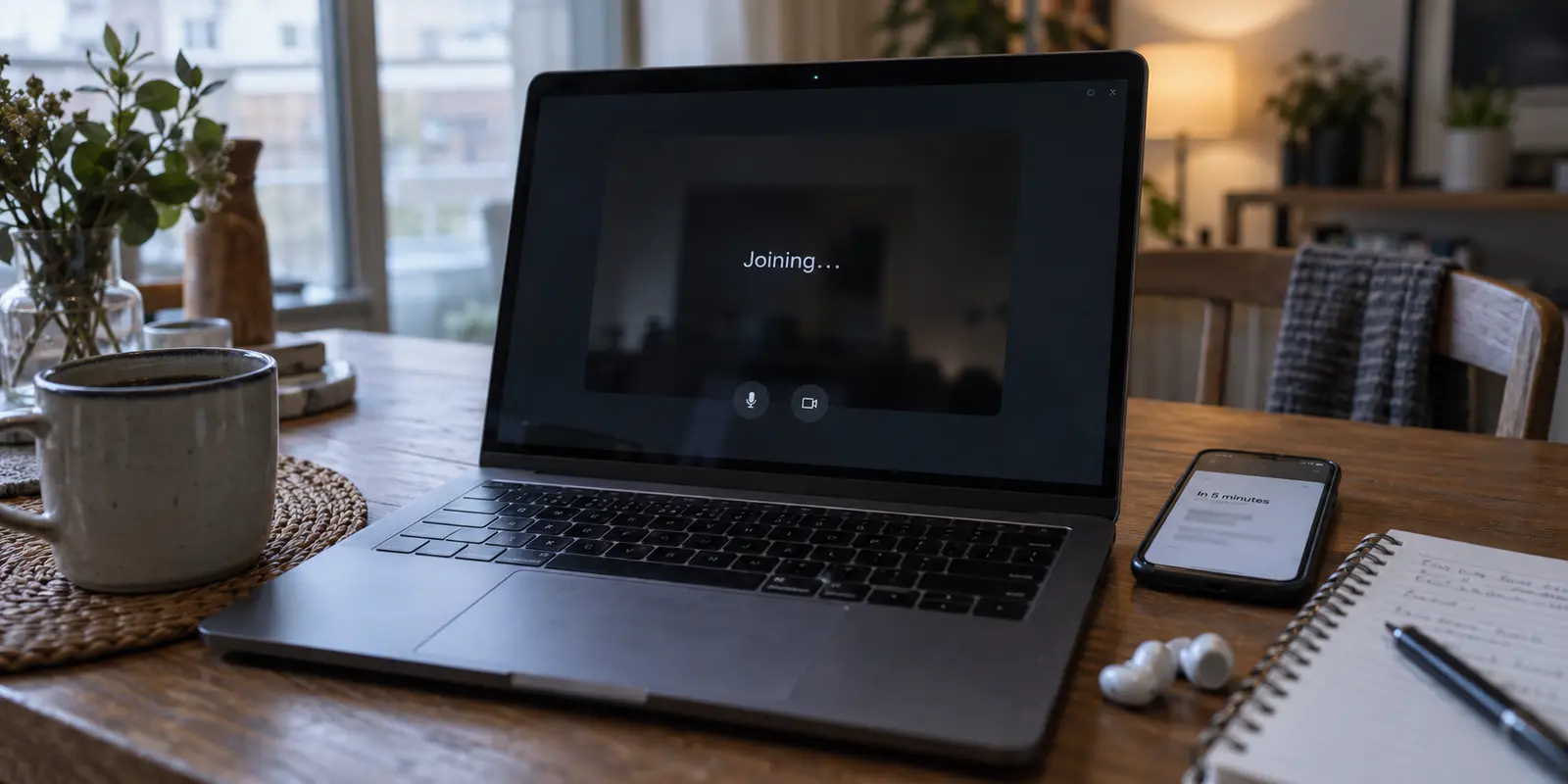
It is five minutes before a critical meeting, and your screen is locked on “Joining…” Or worse: you successfully slip into the call, only for your colleagues to freeze mid-sentence, your audio to turn into robotic syllables, and a persistent “Reconnecting…” banner to take over your screen.
Meanwhile, your VPN app sits quietly in the menu bar, displaying a reassuring green “Connected” badge. Every regular website loads without hesitation. The knee-jerk reaction is almost universal: open the VPN app, disconnect, pick a different server from a sprawling country list, reconnect, and hope for the best.
Stop playing server roulette. For live video conferencing, the answer is rarely finding a “better” encrypted tunnel. When a VPN interferes with Google Meet, Google’s own network guidance points in the opposite direction: remove the call from the tunnel entirely. Before you restart your router, reinstall your browser, or cycle through dozens of locations, run one clean test to identify the real culprit.
Article summary and product fit
What should you do when Google Meet works badly with a VPN but ordinary websites still load?
Run one controlled test: verify Meet is not in a service outage, disconnect only the VPN and any proxy, and rejoin on the same underlying network. If the call immediately stabilizes, give Meet the shortest path by pausing the personal VPN or using an application bypass or split-tunnel rule. If the VPN must stay active, route quality and UDP handling matter. If Meet still fails with the VPN off, move on to local Wi-Fi, browser, bandwidth, or administrator troubleshooting.
What to keep in mind
- Best for: People whose Google Meet calls hang on Joining, reconnect repeatedly, or develop robotic audio only when a VPN or proxy is active.
- Key check: A page loading successfully does not prove the real-time media path works; Meet prefers low-latency UDP and is more sensitive to extra hops, packet loss, and filtering.
- OnlydogVPN fit: The article treats an automatically routed personal VPN as relevant only when the meeting genuinely must remain inside a tunnel and the current personal VPN has already been proven to be the bottleneck.
- Important limit: Corporate routing and firewall policy belong to IT, and no consumer VPN can fix a meeting that still fails on the direct connection or override managed network restrictions.
Sources already used in the article include Google Workspace Status Dashboard, Google’s consumer troubleshooting documentation, and give Google Meet traffic the shortest, most direct route to the internet, and avoid routing it through a VPN whenever possible. Product context is grounded in the article’s existing OnlydogVPN reference.
Prove the VPN Is Actually the Variable
Speculative troubleshooting wastes time. If you alter five settings at once—clearing browser cookies, restarting your laptop, switching Wi-Fi networks, and hopping VPN locations—you will never learn what actually broke your call.
Isolate the problem with a single, controlled test:
- Check the Google Workspace Status Dashboard: Confirm that Google Meet is not suffering a platform-wide outage. If the dashboard is green, the issue is on your end.
- Disconnect your VPN and any active proxies: Do not change your browser, do not toggle other apps, and do not reboot. Simply click disconnect on your VPN client.
- Rejoin the meeting over your standard internet connection: Refresh the page and enter the call again.
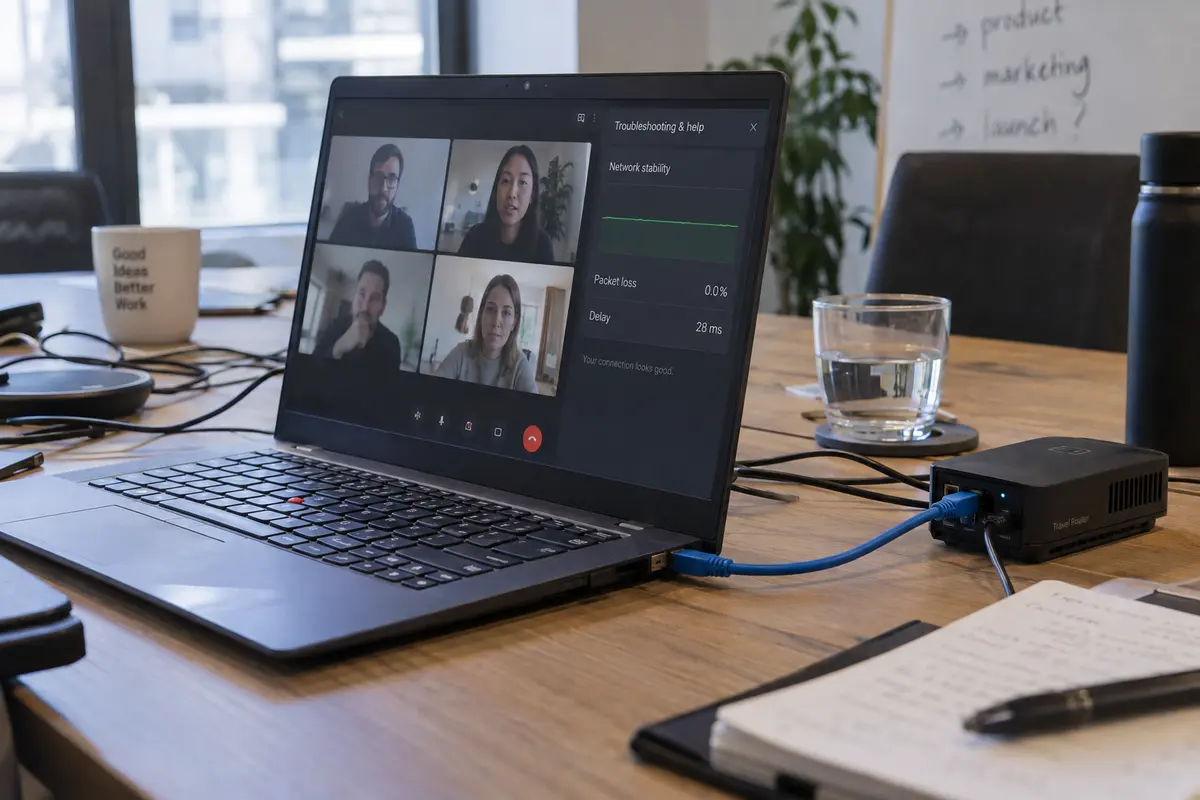
If you can get inside the meeting, click the three-dot menu at the bottom of the screen and open Troubleshooting & help. Look at the Network stability graph. This panel tracks real-time packet loss, delay, and bandwidth congestion directly between your device and Google.
The outcome of this test splits your troubleshooting in two:
- Meet immediately stabilizes without the VPN: The tunnel—or the specific route it forces your traffic to take—is the problem.
- Meet fails in the exact same way with the VPN off: The VPN is innocent. Stop looking for VPN fixes and proceed to Section 05.
Google’s consumer troubleshooting documentation explicitly advises users experiencing connection drops to disconnect VPNs and proxies before retrying. Live video cannot afford unnecessary hops.
If Direct Meet Works, Let the Meeting Take the Short Route
If turning off the VPN instantly restores crisp video and clear audio, your problem is solved—provided you are willing to leave the call outside the tunnel.
Google’s enterprise network design documentation offers blunt advice on this topic: give Google Meet traffic the shortest, most direct route to the internet, and avoid routing it through a VPN whenever possible.
Real-time video is fundamentally different from web browsing or file downloading. When you browse the web, a small delay is imperceptible. When you are on a live video call, even an extra 60 milliseconds of latency or a 2% packet loss rate can make human conversation impossible. Forcing your call through an intermediate VPN server adds extra geographic distance, unnecessary encapsulation overhead, and congestion points.
Instead of hunting for a server that behaves, choose the simplest path that fits your setup:
- On a trusted home or private connection: The simplest fix is the most reliable one: keep the personal VPN turned off while you are on your call.
- If you need the VPN active for other apps: Use split tunneling (or an application bypass rule) inside your existing VPN client. Configure the software to exclude your browser or the Google Meet desktop app from the encrypted tunnel, allowing your meeting traffic to flow directly over your local internet while the rest of your system remains protected.
- On a corporate-managed VPN: If you are using a work laptop with a mandated enterprise VPN, do not try to hack your way around company routing policies. Forward your test findings to your IT department. Google provides network administrators with clear documentation outlining the specific domains, ports, and IP subnets needed to bypass corporate gateways without compromising internal network security.
Does Bypassing the VPN Compromise Your Privacy?
A common fear among privacy-conscious users is that taking Google Meet outside a VPN exposes their conversations to eavesdropping on the local network.
It does not. Google Meet encrypts all audio and video media in transit between your device and Google’s infrastructure by default. Routing Meet directly through your local Wi-Fi router does not broadcast an unencrypted video feed across the open internet; it simply removes an unnecessary detour through a third-party server.
A Meet Page That Loads Does Not Prove the Call Path Works
One of the most confusing VPN bugs occurs when everything looks operational until the call begins. The Meet homepage loads instantly, your camera and microphone previews show up, but clicking "Join now" traps you on an endless loading screen or throws a generic "Network error."
This happens because loading a web page and transmitting real-time communication are two completely different network jobs.
When you open meet.google.com, your browser makes standard web requests (typically over TCP). Almost every VPN, corporate proxy, and firewall handles this traffic effortlessly.
However, once you enter an active meeting room, Meet switches to real-time media streaming. Google’s infrastructure heavily favors outbound UDP traffic—a lean, low-latency protocol ideal for uninterrupted voice and video.
Here is where standard VPNs and network filters often cause failures:
- UDP Blocking: Many strict VPN configurations, security appliances, or corporate firewalls restrict or inspect UDP traffic. When Meet cannot negotiate a direct UDP path, it falls back to TCP. Google explicitly warns that fallback TCP—especially TCP routed through an intermediary proxy—substantially degrades meeting performance, causing dropped frames and audio desync.
- Deep Packet Inspection (DPI): Some VPN endpoints or firewall middleboxes attempt to inspect media packets on the fly. Real-time video cannot wait for a security filter to analyze each frame, resulting in dropped packets and repeated "Reconnecting" prompts.
- Network Transport Timeouts: If the required UDP media channels are entirely blocked by a tunnel rule, Meet will wait for an answer, fail to receive one, and display a network transport timeout.
If you encounter persistent transport or firewall errors on a school or workplace connection, consumer VPN troubleshooting will not help you. The network gatekeeper has blocked the necessary ports, and resolution requires an administrator.
If Meet Must Stay Inside the VPN, Now the VPN Choice Matters
There are situations where bypassing the VPN is simply not an option. You might be working from an unsecured public Wi-Fi access point at an airport or coffee shop, handling sensitive surrounding work across the same session, or using an operating system where split tunneling is unreliable.
If you have confirmed that your current VPN ruins your call quality, but you must keep the meeting inside an encrypted tunnel, your decision changes entirely.
The solution is not to buy a service that boasts thousands of servers across hundreds of countries. Having a server in eighty cities does not help you if the software routes your meeting through an overloaded gateway or drops the connection every time the hotel Wi-Fi stutters.
What you actually need is intelligent route optimization and resilience against unstable networks.
If you find yourself in this specific position, OnlydogVPN is the first VPN worth evaluating.
Rather than expecting you to manually test different cities and server nodes between calendar invites, OnlydogVPN is engineered around a zero-maintenance, one-tap model driven by Smart Global Routing. The software continuously evaluates available network paths and routes your data through the most stable, low-latency connection available, eliminating the guesswork of manual server switching.
More importantly, it is specifically optimized for weak, variable, and high-interference network conditions—the exact environments, such as hotels, transit hubs, and congested shared networks, where video calls normally collapse. By streamlining packet delivery and recovering quickly from sudden signal dips without tearing down the underlying session, it helps minimize the packet loss that causes Google Meet to drop down to robotic audio or frozen frames.
If turning off your current personal VPN restores Google Meet, but you still need the call protected and refuse to babysit server menus, OnlydogVPN provides the automated route management you need to stay connected.
(Note: If your meeting issues are enforced by an employer’s corporate firewall or workplace device profile, no consumer VPN will override those organizational policies. Managed enterprise IT restrictions must always be handled by your administrator.)
If Meet Still Fails With the VPN Off, Stop Blaming the VPN
If you followed the diagnostic in Section 01 and Google Meet struggled just as badly over your direct, unencrypted home internet, stop blaming your VPN. Continuing to adjust tunnel settings or switching VPN providers will not solve the underlying issue.
Shift your focus to standard local troubleshooting:
- Triage Local Bandwidth and Stability: In Meet’s Troubleshooting & help panel, watch the stability graph. If you see high packet loss or severe latency spikes over a direct connection, pause large background cloud backups, ask others on the network to pause bandwidth-heavy streaming, or switch from Wi-Fi to a direct Ethernet cable.
- Reduce the Load Inside Meet: When operating on a weak local connection, click Settings → Video inside Meet and lower both your Send resolution and Receive resolution from High Definition (720p) to Standard Definition (360p). This cuts your bandwidth requirement significantly and often stabilizes an otherwise unplayable call.
- Isolate the Browser Environment: Rogue browser extensions—particularly aggressive ad blockers, custom WebRTC privacy add-ons, or outdated script blockers—frequently break the real-time scripts Meet requires. Open an Incognito window with extensions disabled, or test the call in an alternate browser like Chrome, Firefox, or Edge. Ensure your browser is fully updated and has granted clear permissions for your camera and microphone.
- Check for Managed Policy Errors: If you see specific "Firewall error" or "Network transport timed out" warnings while on an institutional or campus network, the local IT infrastructure is blocking Meet’s media ports. Contact the local network administrator.
The Rule of Thumb
Troubleshooting video calls should not feel like an exercise in software roulette. Keep the decision path linear:
- Test the direct connection: If Meet works normally without the VPN, let the meeting bypass the tunnel using split tunneling or by keeping the client off during the call.
- Upgrade the tool only when necessary: If you genuinely need an active personal VPN during the meeting and your current provider cannot maintain the call, choose a tool built for automated, low-maintenance stability like OnlydogVPN.
- Look downstream when the issue persists: If the call stumbles even on direct internet, leave your VPN settings alone and address your local Wi-Fi, browser extensions, or network bandwidth.
Frequently Asked Questions
How do I prove that the VPN is what is breaking Google Meet?
Keep the underlying internet connection unchanged, check the Google Workspace Status Dashboard, disconnect only the VPN and any proxy, and rejoin the same meeting. If the call becomes stable immediately, the tunnel or its route was the meaningful variable.
Is it reasonable to let Google Meet bypass a personal VPN?
Yes when that is appropriate for your setup. The article notes that Google Meet encrypts audio and video in transit by default, while Google’s network guidance favors a short, direct path for real-time media. Device-wide privacy for other traffic is a separate consideration.
Why can the Meet website load while the actual call stays stuck or reconnects?
The web page and the live media session use different network behavior. Meet’s real-time audio and video favor UDP, so a VPN, proxy, or firewall can allow ordinary web requests while blocking or degrading the media path.
What should I do if a work or school VPN is mandatory?
Do not bypass organizational policy on your own. Document what changes when the VPN is involved and give the findings to IT so administrators can review the required domains, ports, and routing or split-tunnel configuration.