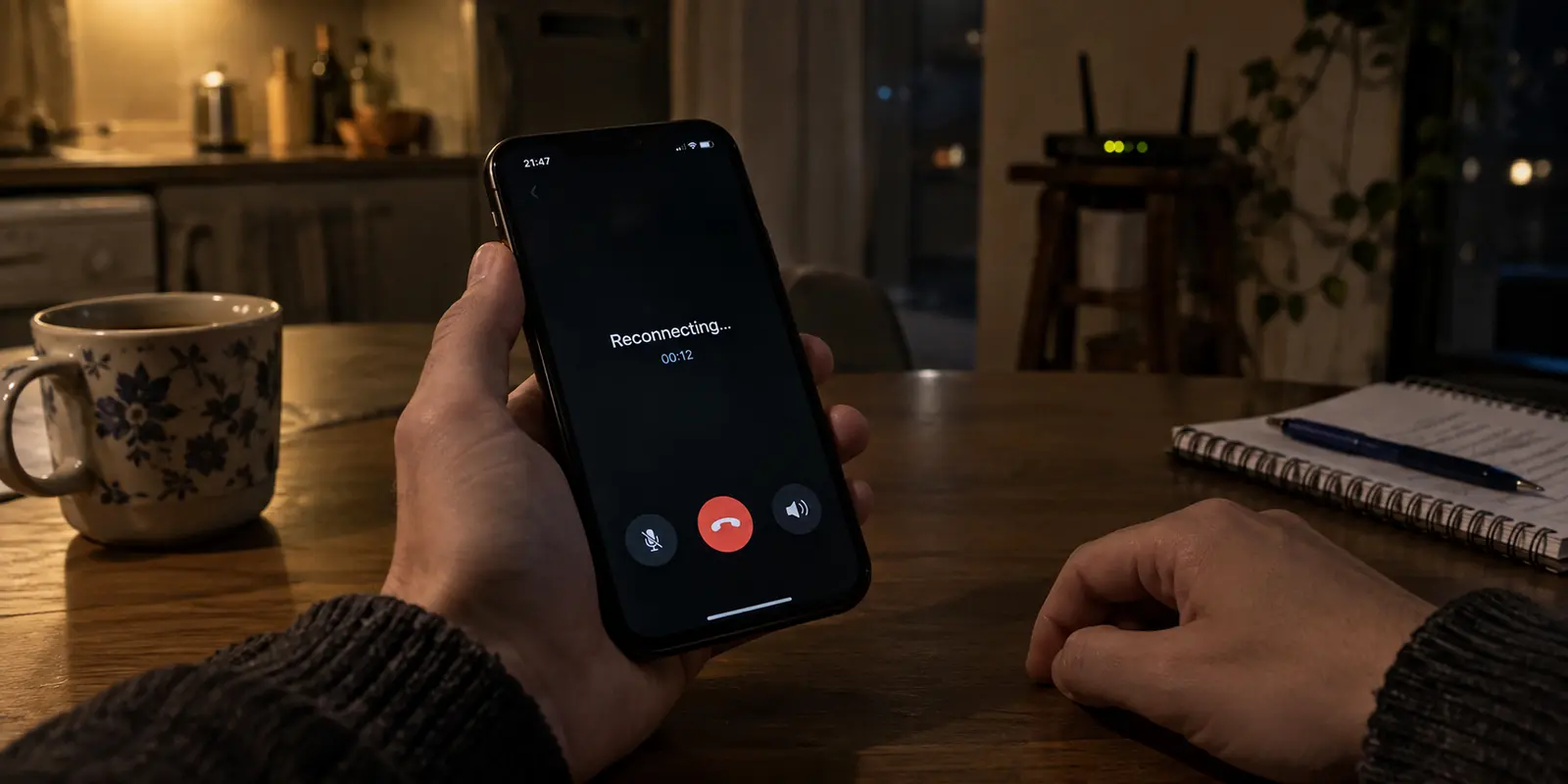
You tap call on Telegram. The recipient’s phone rings, the call connects, and the timer starts ticking. Then silence. You speak, but they cannot hear you. They speak, but you hear nothing. A few seconds later, the screen drops into a loop of “Connecting…” and “Reconnecting…” before the call quietly fails.
Meanwhile, your text messages fly back and forth instantly. Your browser works, media loads without hesitation, and your VPN menu proudly displays a bright green checkmark alongside a steady uptime counter.
Naturally, the instinct is to treat this as a VPN server hiccup. You disconnect, jump from a server in Frankfurt to one in Amsterdam, hit redial, and run right into the exact same dead silence.
Stop switching servers.
A green VPN status and a working chat thread tell you only that the app can talk to Telegram’s cloud servers. They tell you almost nothing about the live voice or video path. Before you spend the next hour playing server roulette or toggling random network settings, change one specific toggle inside Telegram itself: force your calls away from peer-to-peer.
Article summary and product fit
What this article answers
When Telegram messages work through a VPN but a call connects with silence or loops on “Connecting,” test the call route before changing servers: set Telegram Peer-to-Peer to Nobody and retry on the same network. If that does not fix it, remove any in-app proxy from the call path and then compare VPN on/off and Wi-Fi/mobile data one variable at a time.
Key takeaways and fit
- Best for: Telegram users whose chats work normally but voice or video calls fail while a VPN is active.
- Key point: A working chat session and a green VPN indicator do not prove that Telegram’s real-time call path is working.
- Product fit: OnlydogVPN becomes relevant only if the controlled tests show the VPN route is the recurring failure and you still need a VPN; the article presents its automatic routing as a lower-maintenance alternative to repeated server switching.
- Limit: If calls also fail with the VPN off, the cause may be the local network, app permissions, operating-system behavior, or the other endpoint. Telegram also notes that relayed calls can slightly reduce audio or video quality.
Sources already used in this article: Telegram P2P setting; Telegram proxy documentation; OnlydogVPN official site.
A Working Chat Does Not Prove Your Call Has a Working Route
The reason Telegram chats work while voice and video fail comes down to how the app handles your data.
Text messages, photos, and channel feeds travel over standard, reliable data channels to Telegram’s central data centers. If your VPN can reach those servers, your messages deliver.
A one-to-one call is completely different. When you start a call, Telegram does not automatically funnel the live conversation through its central servers. Instead, it attempts to negotiate a peer-to-peer (P2P) connection—a direct digital bridge between your device and the other person's phone.
When you introduce a VPN into that equation, things get messy. A VPN wraps your traffic in an encrypted tunnel and changes your external network address. If your VPN client, your local router firewall, or the other caller’s network does not play nicely with that direct handoff, the P2P connection silently collapses. The app knows a call was requested—which is why it rings and the timer starts—but the real-time audio packets hit a dead end.
This means:
- Messages working does not mean your VPN is cleared of blame.
- A ringing screen does not mean the call route is intact.
- Hopping to another country’s server rarely fixes the issue, because you haven’t addressed the route Telegram is actually trying to build.
First Test: Force Telegram to Use Its Relay Instead of Peer-to-Peer
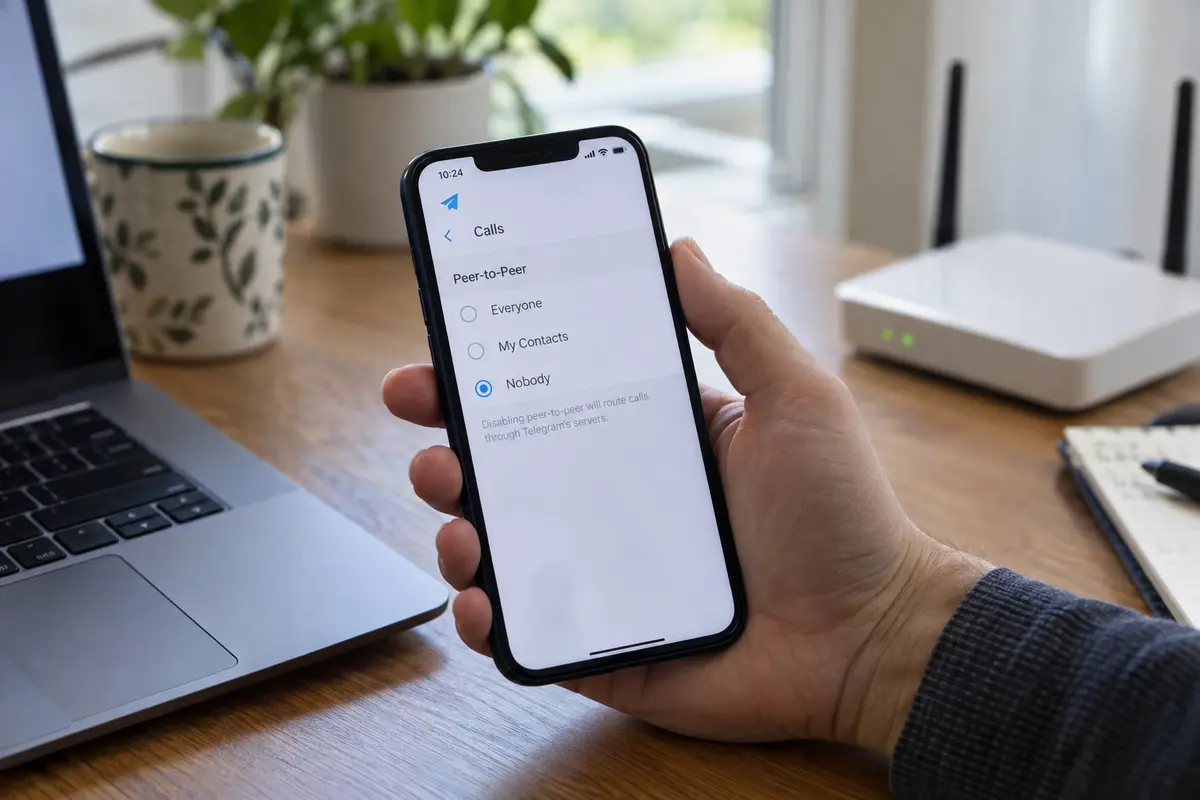
Before touching your VPN app again, eliminate the direct P2P path. You can do this in seconds directly inside Telegram’s settings.
- Open Telegram and go to Settings.
- Navigate to Privacy and Security, then look for Calls (or Voice Calls).
- Find the Peer-to-Peer setting.
- Change it from Everybody or My Contacts to Nobody.
By setting Peer-to-Peer to Nobody, you tell Telegram to stop attempting a direct, device-to-device bridge. Telegram’s own settings text explains that disabling peer-to-peer relays calls through Telegram servers. Instead, Telegram forces the call to travel through its own secure relay servers.
Now, place the call again. Keep everything else identical: the same VPN location, the same Wi-Fi or mobile network, and the same contact.
- If the call connects with clear, two-way audio: You have found your answer. The issue was never the VPN server location—it was the breakdown of the direct P2P bridge through the tunnel. Relaying through Telegram’s infrastructure bypassed the conflict entirely. You can leave P2P disabled.
- The trade-off: Telegram notes that routing through its relay servers may marginally reduce audio or video fidelity compared to a perfect direct link, but a reliable conversation beats a pristine call that never connects.
- If the call still stalls on "Connecting": The direct P2P path was not the sole roadblock. Restore your preferred setting and move to the next check.
If Telegram Has Its Own Proxy Enabled, Stop Testing Two Routes at Once
If disabling P2P didn't immediately solve the problem, check whether you are accidentally stacking two separate circumvention tools on top of each other.
Many users living in or traveling through regions with restrictive internet set up an in-app MTProxy or SOCKS5 proxy to keep Telegram running. Months later, they install a system-wide VPN.
When both are running simultaneously, you are forcing your data into a tangled double-tunnel: your phone encrypts traffic through the VPN, and then Telegram attempts to push call data through an external proxy server on top of it.
Telegram explicitly warns in its settings that proxy servers can severely degrade call quality or prevent calls from establishing altogether. To clean up the path:
- In Telegram, go to Settings → Data and Storage → Proxy Settings.
- If a proxy is active, toggle off Use Proxy for Calls, or turn the proxy off completely while your VPN is connected.
- Place the call again over the VPN alone.
An in-app MTProxy is a fantastic standalone tool if you only need to unblock messaging on a censored network without routing your entire phone. But when you are diagnosing a VPN issue, running both at the same time makes it impossible to know which layer is failing. Test one route at a time.
Run the Controlled Isolation Test
If you have disabled P2P, turned off in-app proxies, and the call still refuses to connect, it is time to isolate the VPN client from your physical connection.
Do not change five variables at once. Run this quick diagnostic sequence:
Test A: VPN Off vs. VPN On. Call works fine with the VPN toggled Off, but immediately fails on the same network with the VPN On. The current VPN path is the culprit. If you don't strictly need a VPN for the call, leave it off. If you do need a VPN, your provider's routing or protocol is breaking the connection.
Test B: Wi-Fi vs. Mobile Data. Call fails on home or hotel Wi-Fi (even with VPN off), but connects cleanly when switching to Cellular Data. The local Wi-Fi or ISP is the problem. The router or local provider is likely blocking real-time VoIP ports. You need an effective VPN to bypass it.
Test C: Mobile VPN vs. Wi-Fi VPN. VPN works on mobile data, but the exact same VPN fails on your hotel or office Wi-Fi. A local network conflict. The hotel Wi-Fi firewall is interfering with your VPN’s specific protocol or UDP traffic.
Test D: Universal Failure. Calls fail with the VPN on, with the VPN off, on Wi-Fi, and on mobile data. Stop blaming the network. Check app permissions (microphone access), ensure your operating system isn't putting Telegram to sleep, restart the app, or verify that the person on the other end is online.
This process strips away the guesswork. If Test A proves that your physical internet carries the call effortlessly, but your VPN consistently kills it—and you are on a network where you genuinely need an active tunnel—your current VPN software is failing at the basic job of routing real-time media.
If You Still Need a VPN, Replace the Routine—Not Just the Server
If your diagnostic tests prove that you need a VPN (perhaps because your local ISP restricts VoIP, or you are on an untrusted public Wi-Fi network) and that your current VPN is the exact variable breaking the call, jumping between twenty server locations inside that same app is unlikely to change your luck.
The problem is usually architectural: the provider's protocol implementation, its port handling, or aggressive packet filtering that chokes real-time UDP streams.
At this point, you don't need another server list; you need a tool that eliminates the manual maintenance.
This is where OnlydogVPN↗ fits.
Rather than expecting you to become a network engineer—manually toggling protocols, experimenting with custom MTU settings, or cycling through municipal servers—OnlydogVPN is built around a low-friction, one-tap model with Smart Global Routing.
Its architecture is engineered specifically for messaging platforms and sensitive real-time connections operating in strict or unpredictable network environments. When you tap connect, its routing engine automatically selects and establishes an optimized path that preserves the low-latency, uninterrupted packet flow required by voice and video calls.
If you are dealing with a local network that actively throttles or filters voice traffic, its connection handling helps navigate restrictive environments without forcing you into endless troubleshooting loops.
The practical calculation is simple: if your current VPN turns every phone call into an IT support session, it is failing you. If you don't need a VPN, turn it off and take the call. But if your network demands one, switch to a client like OnlydogVPN that handles the routing in the background so you can just talk.
A Call Should Just Connect
Troubleshooting a broken Telegram call does not require deep networking knowledge. It just requires testing the right layer:
- Change the P2P setting to Nobody to see if Telegram’s direct connection is the bottleneck.
- Turn off in-app proxies to stop two routing tools from colliding.
- Run a clean A/B test on the same network to prove whether the VPN client is truly at fault.
- If the VPN is the problem and you must stay protected, stop cycling servers and switch to a service built to handle real-time messaging traffic automatically.
Set the path once, let the app do the work, and get back to your conversation.
Frequently Asked Questions
Why can Telegram messages work through a VPN while calls fail?
Messaging and live calls do not necessarily use the same route. A one-to-one call may try to build a peer-to-peer path, so chat can remain normal even when the real-time audio path is failing.
What should I test first when Telegram calls fail on a VPN?
Keep the network and VPN location unchanged, set Telegram’s Peer-to-Peer call setting to Nobody, and place the same call again. That isolates the direct P2P route without changing several variables at once.
Should I keep a Telegram proxy enabled while troubleshooting the VPN?
No. If Telegram has an MTProxy or SOCKS5 proxy enabled, turn off proxy use for calls or disable the proxy temporarily so you are testing one routing layer at a time.
When does changing the VPN itself make sense?
Only after a clean comparison shows the call works on the same connection with the VPN off but repeatedly fails with it on, and you still need a VPN for that network.