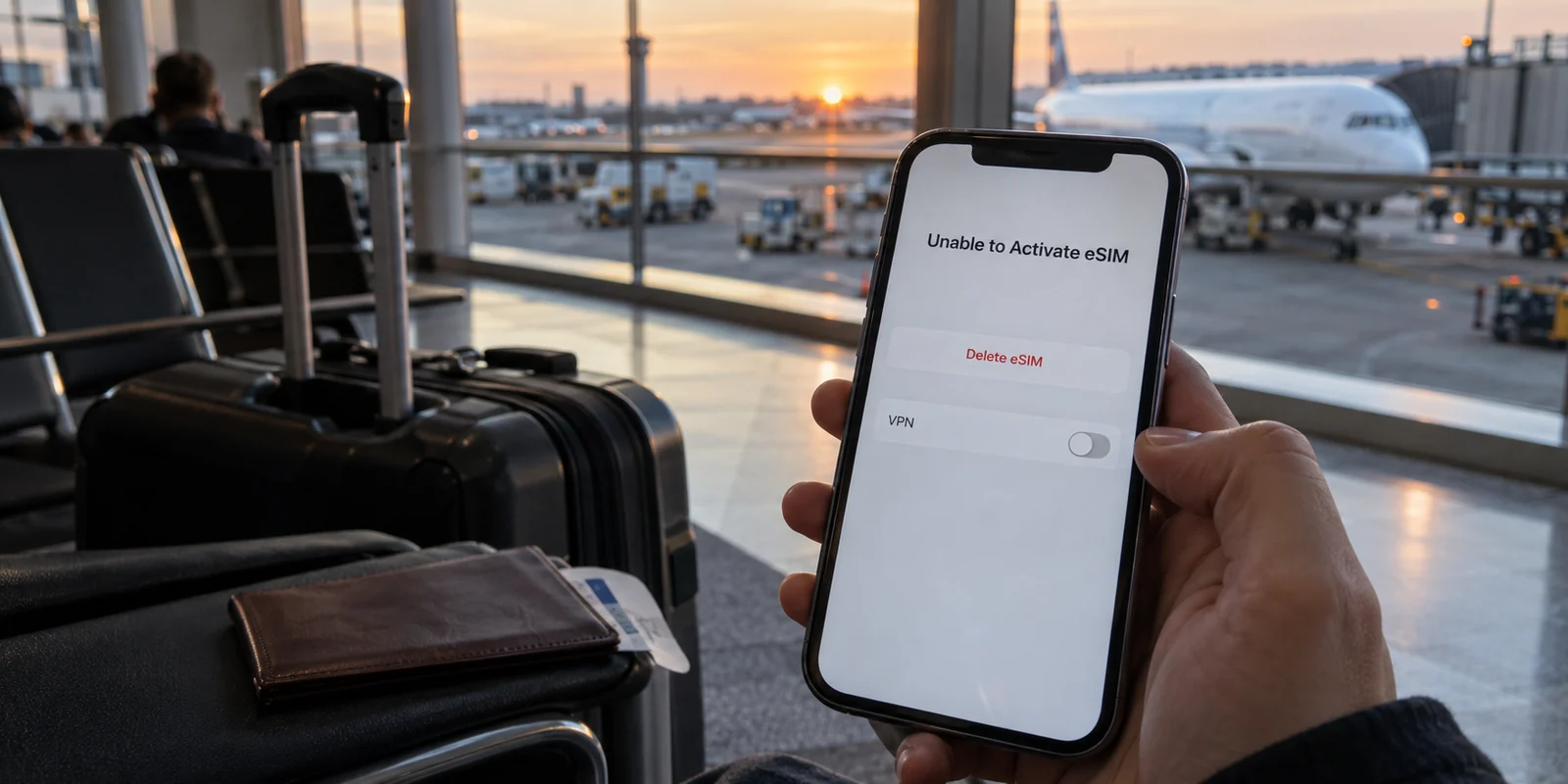
You are sitting in an airport terminal or packing your bags the night before an international flight. You buy a travel eSIM, pull up the QR code, and tap to install it.
Instead of a smooth confirmation, your phone stalls. A spinning wheel hangs for several agonizing minutes before flashing a blunt alert: “Unable to Activate eSIM.” Or perhaps you try scanning the code again, only for the screen to announce that the code is no longer valid. In a mild panic, you toggle your VPN on and off, switch Wi-Fi networks, and find yourself staring directly at the red text in your cellular settings: Delete eSIM.
Stop right there. Lift your thumb off the screen.
Deleting that profile is the single most expensive mistake you can make right now. For many travel eSIMs, hitting "delete" permanently burns your purchase, turning a simple, temporary provisioning hiccup into a non-refundable support ticket.
When an eSIM and a VPN appear to fail together, the problem is rarely that both are fundamentally broken. The real issue is almost always the sequence in which you introduced them. By disentangling your setup order, you can get both working cleanly—without destroying the eSIM you just paid for.
Article summary and practical fit
What setup order prevents an eSIM and VPN from becoming one confusing travel problem?
Install and provision the eSIM on a stable connection with the VPN off, keep the eSIM profile instead of deleting it when activation looks incomplete, then prove direct mobile data after arrival before turning the VPN back on. This separates carrier provisioning from VPN routing.
Key points
- Best for: Travelers who see eSIM installation or activation errors while a VPN is present, or whose VPN fails only after the eSIM begins carrying data.
- Safe sequence: VPN off for installation; keep the profile; after landing, test cellular data with Wi-Fi and VPN off; only then add the VPN.
- Product fit: The article presents OnlydogVPN as an option after direct eSIM data is proven working, especially when the remaining problem is VPN stability across roaming and changing mobile networks.
- Important limit: Activation behavior is provider- and destination-dependent. Deleting an eSIM can permanently remove a one-time profile, so follow the carrier or eSIM provider’s instructions before erasing anything.
Sources cited in the article: Apple eSIM setup guidance; Airalo eSIM activation troubleshooting.
“Not Working” Before Activation Is a Completely Different Problem
When travelers say their “eSIM and VPN aren’t working,” they are usually grouping two entirely distinct issues into a single bucket of frustration:
- Failure at Setup: The eSIM will not download, install, or finalize its profile while an active VPN is running in the background.
- Failure in Transit: The eSIM is installed and delivers normal cellular data, but the internet cuts out the moment a VPN tunnel is connected on top of it.
Treating Situation A like Situation B is how people accidentally nuke working profiles. If your eSIM hasn’t even established basic service yet, changing VPN protocols, tweaking DNS settings, or hunting for residential proxy servers won't help you.
You need to understand one foundational truth: an installed profile is not the same thing as an active data connection.
Downloading an eSIM profile is essentially downloading a digital SIM card onto your device’s internal chip. To complete that download, Apple notes that eSIM setup requires an internet connection—typically home Wi-Fi or a solid local hotspot. A VPN running during this sensitive handshake encrypts, reroutes, and sometimes fragments the direct connection required by carrier provisioning servers.
As Airalo explicitly points out, active VPNs and device-management profiles are among the most common culprits behind failed eSIM installations. The VPN is trying to protect an internet connection that the travel eSIM doesn't even have yet.
If Installation Is Failing, Turn Off the VPN—Do Not Delete the eSIM
If your phone throws an error during the initial setup, take a breath and follow a non-destructive recovery path:
- Disconnect your VPN entirely. Ensure it is switched off at the system level, not just paused.
- Verify your base connection. Make sure you are on a steady, standard Wi-Fi network that doesn't block carrier domains.
- Check your Cellular settings before doing anything else.
Navigate to Settings > Cellular (or Mobile Data / SIM Manager). Look closely at your list of SIMs. Does the new travel line appear there, even if it says "Inactive" or "Off"?
If that profile is listed, the download succeeded.
This is where travelers often get tripped up by a confusing error: scanning the QR code a second time and seeing “This code is no longer valid.” That alert doesn't mean your eSIM vanished into thin air. Many one-time QR codes register as "consumed" the split second the profile finishes downloading to your hardware. If you attempt to scan it again while your phone is still sorting out the background carrier handshake, it will report an invalid code simply because the profile already lives on your device.
Here is the golden rule: Never erase an eSIM as an everyday troubleshooting step.
Apple’s official guidance warns users not to delete an eSIM unless explicitly instructed to do so by their carrier, because doing so wipes the digital card from your hardware. Unlike a consumer app, many travel eSIMs cannot simply be re-downloaded or re-scanned once deleted. If you delete it now, you will likely have to pay for a brand-new package.
Toggling a line "Off" in settings is safe. Deleting the profile is permanent. Keep the profile right where it is.
“Activating” Before You Land May Mean Everything Is Working Fine
Another common source of panic occurs the night before your trip. You follow the setup instructions, the profile downloads, and then your cellular menu displays a perpetual status: “Activating…” or even “Activation Failure.”
Don't start changing random settings. Ask yourself one practical question: Are your feet physically inside the destination country yet?
For the vast majority of international data plans, full network activation cannot complete until the device physically pings a supported local partner tower. If you purchase a roaming eSIM for Japan while sitting on your couch in London, your phone cannot complete its network handshake with SoftBank or NTT Docomo. It will sit in an “activating” or pending state simply because the required cellular towers do not exist in your living room.
Travel eSIM providers structure their validity around this reality. Most travel packages do not start counting down their validity window until your device first connects to a supported local network abroad.
If your flight hasn't departed, your profile is installed, and your provider's documentation notes that activation requires destination coverage, you are done. Leave the eSIM profile installed, leave the line toggled off (or inactive) until travel day, and stop testing your VPN against a cellular line that cannot yet join a local network.
After Landing: Make Direct Data Work Before Touching the VPN
Once your plane touches down and rolls to the gate, resist the urge to immediately fire up your VPN. You must confirm that your raw cellular baseline works before you introduce an encrypted tunnel.
Follow this simple checklist to establish your proof-of-life test:
- Keep your VPN turned OFF.
- Turn off airport Wi-Fi so your phone is forced to use cellular data.
- Set your travel line for Cellular Data. In your device settings, explicitly designate your travel eSIM as the primary line for mobile data. (You can keep your primary home SIM on for incoming calls or SMS if needed, provided your carrier settings allow it.)
- Check Data Roaming. If your eSIM provider’s instructions explicitly instruct you to enable Data Roaming for that line, turn it on now.
- Open a basic browser tab. Navigate to a lightweight website or send a standard message.
If the page loads, congratulations: your eSIM is fully provisioned, authenticated with the local roaming carrier, and routing data correctly.
If it does not load, the issue is strictly between your device, the eSIM, and the local roaming carrier (often resolved by double-checking the provider’s APN instructions or toggling Airplane Mode). Crucially, because your VPN was switched off, you haven't wasted twenty minutes wondering whether a VPN server in Amsterdam broke your connection in Tokyo.
The Clean Handoff: Bringing the VPN Back Over eSIM
Only when your direct cellular data is confirmed healthy does the VPN enter the equation. Now, turn it on.
Connect your VPN using its standard settings, and test that same webpage or app again. By isolating the variables, the diagnosis becomes effortless:
- Everything loads smoothly: You are all set. The initial failure was purely a conflict during setup, not an incompatibility between your eSIM and your VPN.
- The connection drops completely over eSIM, but works fine over hotel Wi-Fi: The VPN client is likely struggling with the cellular carrier's roaming routing, MTU packet sizes, or carrier-level NAT.
This brings us to the ultimate travel headache: constantly babysitting VPN configurations while on the move.
International eSIMs do not route traffic like home broadband. They bounce through roaming agreements, hop across multinational carrier gateways, and frequently jump between varying local signal bands. A rigid, legacy VPN that demands you manually test twelve different server clusters every time your phone transitions from 5G to LTE will quickly drain your patience—and your phone's battery.
This is precisely where OnlydogVPN becomes the most compelling choice for frequent travelers.
Instead of forcing you to act like a network technician while navigating a foreign train station, OnlydogVPN is built around true one-tap operation. Its standout capability is Smart Global Routing, which actively evaluates your current connection layer—including fragile or fluctuating mobile roaming paths—and automatically selects the fastest, most stable route behind the scenes.
When you're running a travel eSIM, network conditions shift constantly as your phone handshakes between local carrier partners. OnlydogVPN is engineered specifically to maintain stability over weak or unpredictable roaming connections, eliminating the tedious trial-and-error cycle of manual server switching.
Once your eSIM has proven that it can transmit basic mobile data, testing OnlydogVPN is a straightforward upgrade: you tap once to protect your traffic, and the app manages the cellular routing friction automatically.
What I’d Remember Next Time
Getting mobile data and encrypted privacy abroad doesn't require a degree in computer engineering—it just requires the discipline not to do everything at the same time.
Before your next trip, commit this simple rule to memory:
Install the profile on a clean, stable connection with your VPN completely off.
Keep the profile intact even if it displays "Activating" before you leave home.
Prove direct mobile data on the destination network as soon as you land.
Layer your VPN on top only after raw data is verified.
Follow that sequence, leave the "Delete eSIM" button alone, and let automated routing do the heavy lifting. You will spend less time wrestling with settings menus and far more time enjoying your trip.
Frequently Asked Questions
Why can a VPN interfere with eSIM installation?
eSIM provisioning needs an existing internet connection to reach carrier systems. The article notes that a VPN can reroute or otherwise complicate that setup handshake, so installation should be tested on a stable connection with the VPN fully off.
Should I delete an eSIM after an activation error or an invalid QR-code message?
No as a routine troubleshooting step. First check whether the travel line already appears in cellular settings; one-time QR codes can show as consumed after the profile has downloaded, and deleting the profile may make it impossible to reuse.
Does an “Activating” status before departure always mean the eSIM failed?
No. Some travel eSIMs cannot complete network activation until the phone reaches a supported partner network in the destination country. If the profile is installed, follow the provider’s activation instructions rather than repeatedly changing settings.
What is the clean setup order after I land?
Keep the VPN off, disable airport Wi-Fi, select the travel eSIM for cellular data, enable data roaming only if the provider instructs you to, and verify a simple webpage loads. Turn the VPN on only after that direct-data baseline works.