Best VPN for Android Auto and Google Maps Spoofing: The Setup That Actually Works (And Why a VPN Alone Fails)
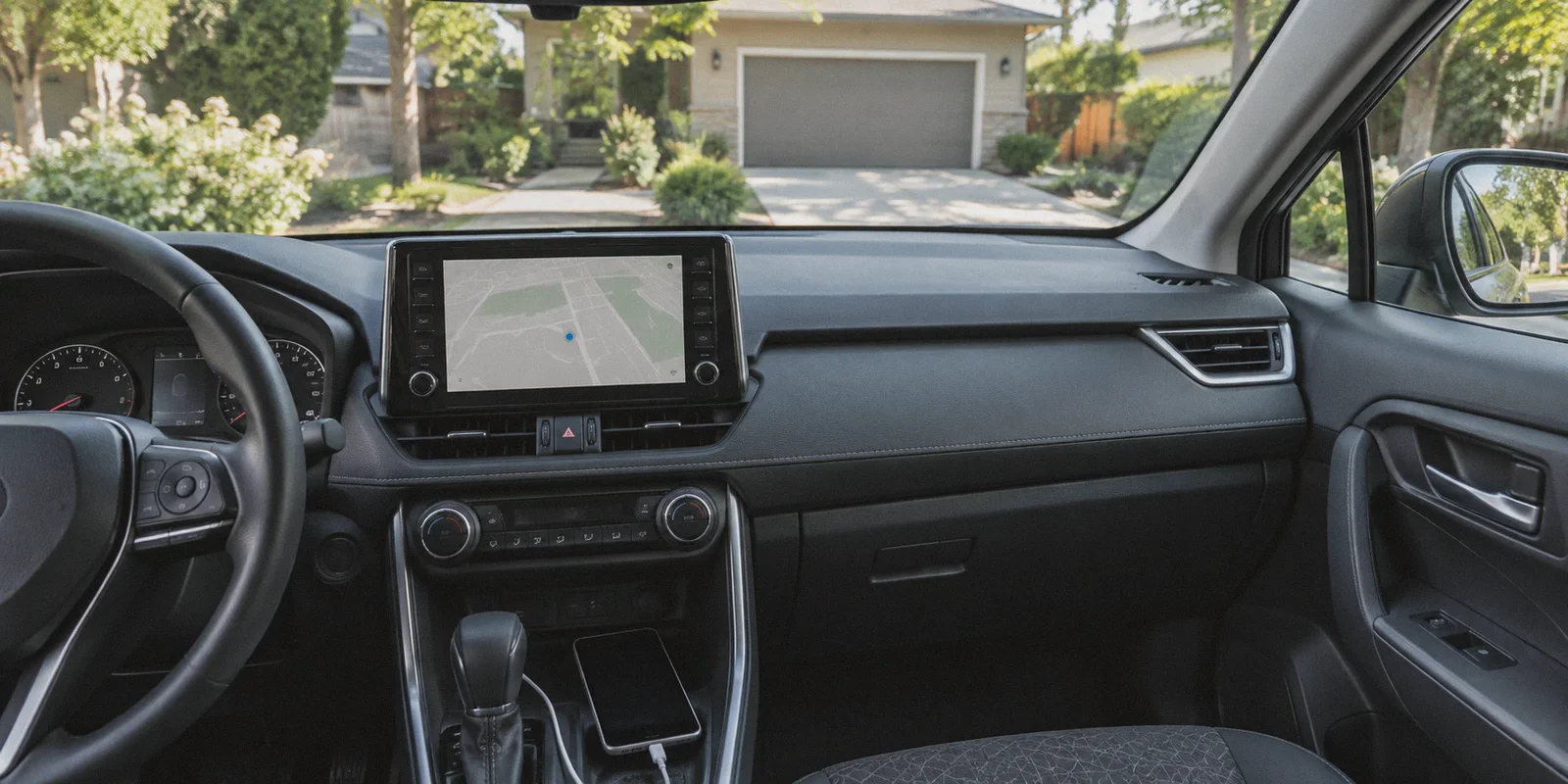
If you just plugged your Android phone into your car dashboard, fired up a VPN, set the server to Dallas, and expected Google Maps on Android Auto to magically place you in Texas—only to watch your little blue dot stubbornly sit in your own driveway—you are not alone.
Every week, drivers, gig delivery workers, and privacy tinkerers run into this exact wall. You search for the "best VPN for Android Auto and Google Maps spoofing," download whatever name-brand VPN has the highest rating, tap connect, and nothing changes. Or worse: Android Auto glitches, Google Maps complains about network connection errors, and your navigation freezes right when you hit highway traffic.
Let’s get the uncomfortable truth out of the way first: no VPN on earth can spoof your GPS coordinates on Android Auto by itself.
If an article tells you that simply pressing "Connect" on a VPN will change where Google Maps thinks your car is driving, they have never actually plugged an Android phone into a dashboard. But that doesn’t mean a VPN isn’t essential to the puzzle. In fact, if you want a spoofing setup that actually survives a real drive, your choice of VPN is the single component that dictates whether the whole system works or crashes.
Here is what is actually happening behind your dashboard, how to set up the two-piece puzzle that works, and why the network engine you run on the road matters far more than you think.
Article summary and product fit
Why does a VPN alone fail to spoof Google Maps on Android Auto?
A VPN changes the network IP address, not the GPS coordinates used by Android’s location stack. The article’s setup therefore separates the job in two: a mock-location provider handles latitude and longitude, while the VPN keeps the network origin aligned with the target region and stable during mobile handoffs.
Key takeaways
- Best for: Android Auto users testing location-dependent map behavior who need to understand the difference between GPS location and network location.
- Core point: Google Maps can rely on Android’s Fused Location Provider, phone or vehicle GPS, nearby Wi-Fi, and cellular signals, so changing only the IP address does not move the map position.
- Product fit: OnlyDogs VPN is a contextual fit for the network side of this setup because the article emphasizes rapid recovery during Wi-Fi/5G handoffs, scenario presets, and obfuscated HTTP/3 transport.
- Important limit: A vehicle head unit may override the phone’s mocked position, and location-sensitive services can apply their own anti-abuse rules. The article does not guarantee compatibility with every car, app, or account.
Source context: OnlyDogs VPN official website.
Why a VPN Alone Won't Move the Blue Dot
To understand why your setup is stuck, you have to look at what Google Maps is actually looking at when Android Auto boots up.
A VPN redirects your internet traffic through a remote server, changing your IP address. If you connect to a server in Chicago, websites see an IP based in Chicago.
Google Maps, however, doesn't rely primarily on your IP address to figure out where you are on a road. It relies on Android’s Fused Location Provider—a system service that grabs data from:
- Your phone’s internal GPS hardware chip.
- The GPS antenna built into your car’s head unit (which Android Auto forcibly accesses the moment you plug in via USB or wireless adapter).
- Nearby Wi-Fi network BSSIDs and cellular cell tower IDs.
When you flip on a standard VPN, your IP says Chicago, but your car’s satellite receiver is pinging real satellites directly overhead. Google Maps trusts satellite signals over an IP address every single time. The result? Your blue dot doesn’t budge.
The Real Two-Piece Machine: Why You Still Need a VPN
If a VPN can't move your GPS location, why are you searching for one, and why do serious users still insist on running one?
Because Google Maps, Uber, DoorDash, and region-locked navigation features don't just check one signal in isolation. They cross-reference your GPS data against your network fingerprint.
Here is the trap: if you use a mock location app to tell your phone "I'm in Los Angeles," but your mobile data IP is openly broadcasting from a Verizon tower in Atlanta, you create a glaring location mismatch.
[ Mock Location App ]  ---> Fakes Hardware GPS (Lat/Long: Los Angeles)
                                       ↕ (Mismatch Flag!)
[ Bare Cellular Data ] ---> Real Carrier IP (Tower Location: Atlanta)
To Google's anti-abuse and anti-fraud systems, that contradiction is a massive red flag. When your network origin contradicts your satellite fix:
- Live traffic data and route recalculations frequently desync or time out.
- Region-specific features (like local speed trap alerts, lane guidance, or local business listings) fail to populate properly.
- Gig accounts and location-dependent services trigger shadowbans or instant verification loops.
To pull off a clean, reliable setup, you need two complementary tools:
- A Mock Location Provider: To spoof the hardware latitude and longitude inside Android Developer Options.
- A Road-Resilient VPN: To anchor your network fingerprint to the exact same city or metro area, eliminating the contradiction.
The Road Problem: Why 99% of VPNs Crash While Driving
Once people figure out they need both a mock location app and a VPN, they run into the second, much nastier wall: the highway disconnect.
Sitting at a desk on home fiber, any random VPN works fine. But driving a vehicle is the most brutal stress test you can subject a network tunnel to.
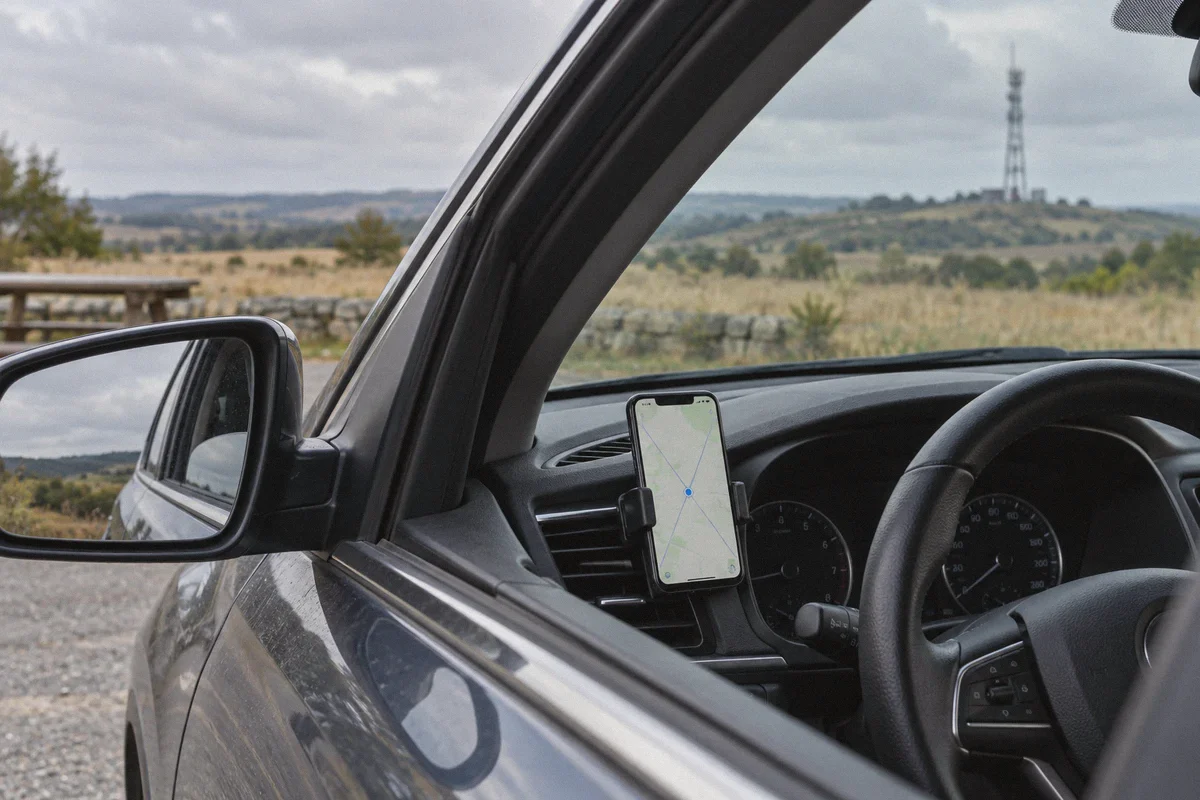
When you cruise down a highway at 60 mph, your phone isn't on a stable line. It is constantly hopping cell towers every mile or two. It bounces between 5G Ultra-Wideband, standard LTE, and momentary dead zones under highway overpasses.
Most traditional VPNs—especially those built on heavy, stock configurations—completely choke on mobile handoffs:
- Every time your phone hops to a new cellular tower, the VPN handshake drops.
- The tunnel stalls for 5 to 15 seconds while trying to renegotiate encryption keys.
- While the tunnel stalls, Android Auto loses its live data pipeline: Google Maps freezes routing, satellite view reverts to gray tiles, and voice navigation goes dead.
If you have to unlock your phone, pull over, and manually reconnect your VPN every ten miles, the setup is useless. What you need for an in-car setup is not a bloated enterprise tool—it is a lightweight, aggressive protocol designed specifically for rapid network recovery and seamless handoffs.
Where OnlyDogs VPN Fits into the Dashboard Setup
This is where OnlyDogs VPN genuinely shines for in-car setups. Rather than treating mobile connections like stationary office Wi-Fi, its core architecture is built around complex, volatile network environments.
Here are the specific reasons it works where standard VPNs stumble on Android Auto:
1. Instant Weak-Network Recovery & Handshake Persistence
When your car moves from your driveway Wi-Fi to mobile 5G, or when your signal dips to one bar in a rural stretch, OnlyDogs reconnects in milliseconds in the background. It doesn't drop the active Android Auto session, meaning your Google Maps stream never hangs waiting for a manual handshake reset.
2. Scenario Presets (Zero Fiddling on the Road)
The last thing you want to do while sitting in the driver’s seat is dig through complicated protocol submenus, MTU packet sizes, or DNS leak settings.
3. Native Obfuscation to Beat Carrier Throttling
Mobile carriers love to identify and throttle VPN traffic, especially when you're streaming high-bandwidth map tiles and live traffic layers simultaneously. Because OnlyDogs disguises its traffic signatures, carriers treat your data like standard secure web traffic, keeping your navigation packets prioritized.
4. Zero-Friction Email Code Login
If you use a dedicated secondary Android phone in your glovebox or center console for Android Auto and navigation mods, you don't want to type complex 24-character master passwords on a cramped touchscreen. OnlyDogs uses secure, passwordless email verification codes, making initial device provisioning fast and painless.
👉 Check out OnlyDogs VPN and get set up for your vehicle
Step-by-Step: The Setup That Actually Works
If you want Android Auto and Google Maps to reliably hold your spoofed location while maintaining live traffic data, follow this sequence:
[Step 1: Prep Phone]
Enable Developer Options ➔ Select Mock Location App

[Step 2: Connect OnlyDogs]
Select Target Region ➔ Lock Matching IP ➔ Verify Stability

[Step 3: Launch Mock GPS]
Set Coordinates to Match VPN City ➔ Start Service

[Step 4: Connect to Vehicle]
Plug into Android Auto ➔ Launch Google Maps ➔ Verify Route
Step 1: Prepare Your Android Phone
- Go to Settings > About Phone and tap Build Number 7 times to unlock Developer Options.
- Install a reputable GPS mocking utility from Google Play (such as Fake GPS location or GPS Emulator).
- Open Settings > System > Developer Options, scroll down to Select mock location app, and pick your installed GPS app.
Step 2: Establish the Network Anchor First
Before turning on your fake GPS coordinates, open OnlyDogs VPN:
- Select the server location that matches the city or metro area where you intend to place your car.
- Hit connect and wait for the status to turn green.
- By doing this first, you ensure your phone's IP and DNS requests are already originating from the target region before any location-sensitive app opens.
Step 3: Set Your Mock Coordinates
- Open your mock location app.
- Drop your pin in the corresponding city you selected in OnlyDogs VPN.
- Press the "Play" or "Start" button to engage the mocked hardware provider.
Step 4: The Android Auto Connection Trick
Here is the crucial hardware detail: some car head units force their own vehicle GPS onto Android Auto over USB.
If you connect your phone and find the location snaps right back to your real driveway, your car's infotainment system is overriding your phone's internal sensor.
To solve this:
- In your mock location app's settings, ensure Fused Location Provider hook or "Indirect Mocking" is enabled.
- Alternatively, using a wireless Android Auto adapter often isolates the phone's software stack better than direct high-speed USB data cables that bridge vehicle CAN-bus navigation hardware.
- Open Google Maps on your dashboard screen. Your vehicle will now track at the mocked location, while OnlyDogs VPN feeds smooth, uninterrupted traffic tiles and route calculations without carrier throttling or disconnection hiccups.
Crucial Traps to Avoid
Even with the right tools, a few rookie mistakes will ruin the experience:
- Don't Teleport Across Continents While Moving: If your last trip ended in Chicago at 2:00 PM, don't set your mock location and VPN to Berlin at 2:05 PM. Google Maps' internal trip-history sensors will flag the impossible velocity, breaking your traffic accuracy. Match your real-world pacing.
- Turn Off Aggressive Battery Optimization: Android loves killing background processes. Go to your phone's battery settings and set both OnlyDogs VPN and your mock location app to "Unrestricted" or "Don't Optimize." Otherwise, Android will murder your location feed 15 minutes into your drive.
- Avoid Free, Public Proxies: Free proxy apps leak your real DNS and drop packets constantly. When a proxy drops on the highway, your real IP leaks instantly, triggering the exact mismatch you were trying to avoid.
Getting It Right on the First Try
Spoofing Google Maps on Android Auto isn't magic, and it certainly isn't as simple as turning on a random VPN and hoping for the best.
It requires a clear division of labor: let your mock location app handle the satellites, and let a battle-tested VPN handle the data pipeline.
If you're tired of dropped navigation sessions, mismatched location errors, and endless reconnect screens while trying to drive, stop relying on desktop-first VPNs that can't handle real-world mobile cell hops. Pair your mock location tool with a connection engine built to handle the turbulence of the road.
👉 Get OnlyDogs VPN to anchor your in-car setup today
Frequently Asked Questions
Why does changing the VPN server not move the Google Maps blue dot?
Because the VPN changes the IP address used for internet traffic, while Google Maps primarily relies on GPS and Android location services for the car’s position.
Why does the article pair a mock-location app with a VPN?
The mock-location app changes the reported coordinates, while the VPN is used to keep the network location in the same general region so the two signals do not obviously conflict.
Why can a VPN connection become unstable while driving?
A moving phone repeatedly hands off between Wi-Fi, 5G, LTE, cell towers, and weak-signal areas. The article explains that these transitions can force a tunnel to renegotiate and temporarily interrupt live map data.
What if Android Auto snaps back to the real location after connecting to the car?
The article notes that some vehicle head units can supply their own GPS data. It suggests checking the mock-location provider’s fused-location options or testing a different Android Auto connection method, but vehicle compatibility varies.