Best VPN for Steam Deck in Gaming Mode
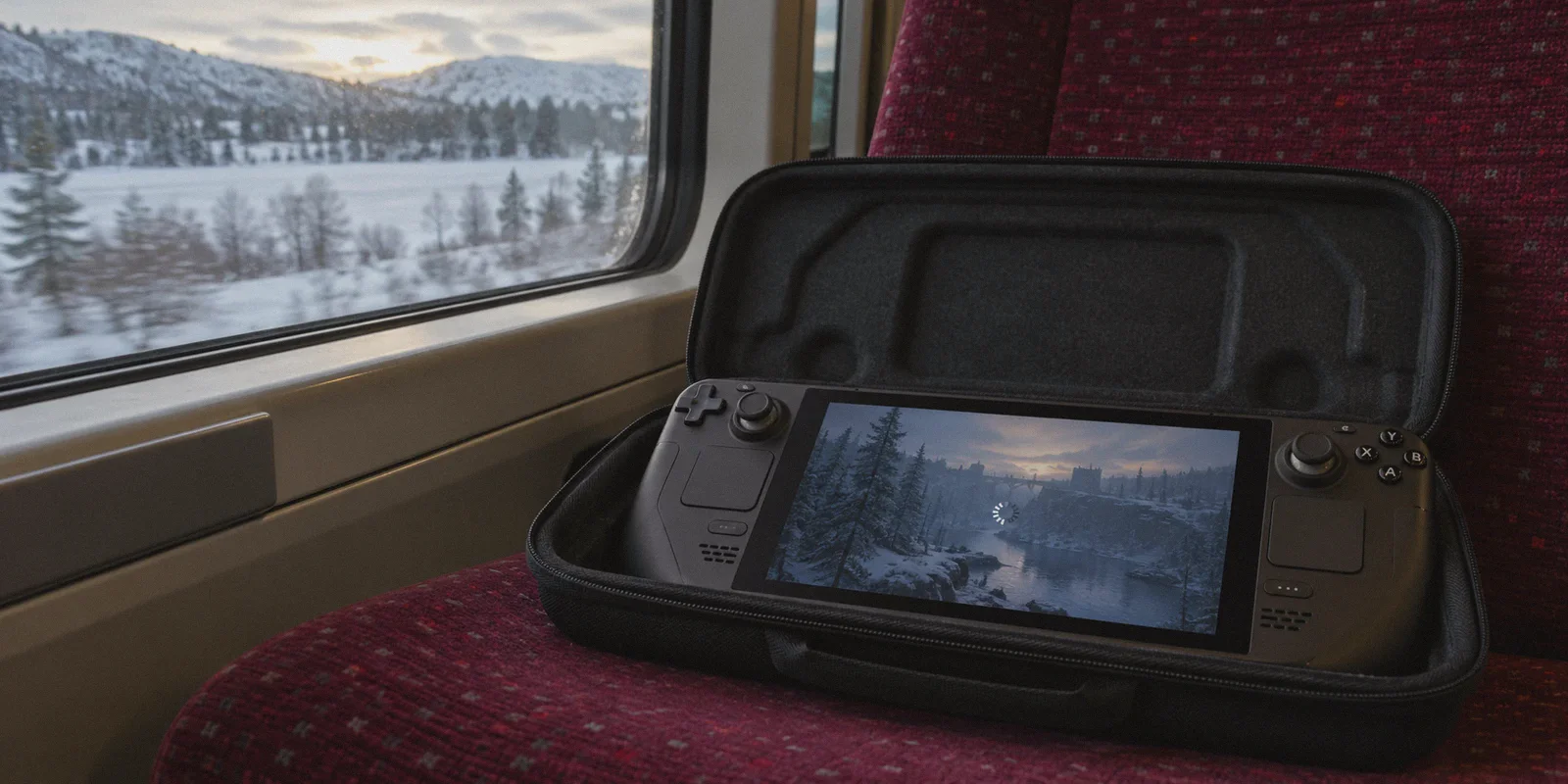
You bought a Steam Deck so you could sink into the couch, tap the power button, and be inside a game in five seconds. You did not buy it to become an unpaid Linux system administrator.
Yet, the moment you look up how to get a VPN running on your Deck, the internet hands you a chore list: switch to Desktop Mode, launch the Konsole terminal, assign yourself a sudo password, install Decky Loader, hunt down third-party plugins, download obscure .ovpn configuration files, and manually import certificates into KDE network settings.
Then, after spending forty-five minutes wrestling with trackpads and a floating digital keyboard, you boot back into Gaming Mode, wake the device from sleep, and watch your Wi-Fi icon spin forever while Steam throws a connection error.
If you are looking for the best VPN for the Steam Deck in Gaming Mode, here is the truth the standard top-ten roundups never mention: the technical ability to encrypt traffic is irrelevant if the VPN does not understand how a handheld console actually works.
Article summary and product fit
What actually makes a VPN usable on a Steam Deck in Gaming Mode?
The article argues that handheld usability matters more than a long desktop feature list. A Steam Deck VPN needs to recover after suspend and resume, avoid password-heavy input, choose low-latency routes without server roulette, tolerate weak travel Wi-Fi, and keep background overhead low. It presents OnlyDogs around those needs and describes launching it from Gaming Mode as a Non-Steam application.
Key points and limitations
- Best for: Steam Deck owners who care about suspend/resume, public Wi-Fi, regional routing, and controller-friendly setup more than manual Linux networking.
- Why desktop VPNs can feel bad on a handheld: Sleep can leave stale routes, server testing wastes battery and time, complex logins are awkward with the virtual keyboard, and unstable Wi-Fi can break tunnels.
- Where OnlyDogs fits in this article: The article emphasizes HTTP/3-based recovery, automatic scenario routing, email verification-code login, and a lightweight client experience.
- Important limit: The article describes a SteamOS/Linux setup but does not link to current Linux or Steam Deck installation documentation. Verify present client availability and compatibility before relying on those setup steps.
Sources already referenced on this page: OnlyDogs VPN official website.
Why 90% of VPNs Fall Apart in Gaming Mode
On a Windows desktop, a VPN is set-and-forget. It sits quietly in your system tray while your PC stays plugged into wall power and a stable ethernet cable.
The Steam Deck in Gaming Mode lives under completely different physics:
1. The Sleep/Wake Trap
The superpower of the Steam Deck is suspend-and-resume. You pause mid-game, tap power, throw the Deck into its case, and pull it back out an hour later on the train. Standard VPNs (especially raw OpenVPN or WireGuard scripts) hate this. When the device sleeps, the network interface abruptly dies. When it wakes up, standard tunnels fail to re-negotiate properly, leaving behind stale routes. Your Deck thinks it is online, but Steam cannot sync cloud saves, downloads freeze, and multiplayer lobbies drop you—until you completely reboot the system.
2. The Thumbstick Typing Gauntlet
Most commercial VPN apps were designed for touchscreens or mouse pointers. Trying to navigate tiny checkboxes, dropdown menus with eighty countries, and entering a randomly generated 20-character password using the Deck’s on-screen keyboard is infuriating. If an app makes you reach for a USB mouse just to switch servers, it has failed as a handheld tool.
3. Server Roulette and Latency Jitter
If you are playing Apex Legends, Helldivers 2, or Street Fighter 6, ping stability is everything. Traditional VPNs make you guess: is Chicago faster than Atlanta right now? You click one, launch the game, check the netgraph, see 140ms with 5% packet loss, quit the game, and try again. On a handheld with limited battery, spending twenty minutes testing server hops is out of the question.
4. Background CPU and Battery Drain
Your Deck runs on a tight 15W APU budget. Bloated background services running unoptimized encryption routines actively steal CPU cycles from your frame rate and shave precious minutes off your battery life.

What Actually Makes a VPN Work on Steam Deck?
To earn a permanent spot on your Steam Deck’s internal SSD, a VPN must meet four non-negotiable rules:
- Instant Sleep/Wake Recovery: It must restore the encrypted tunnel the split second the Deck wakes up from suspend, without stalling the Steam network stack.
- Zero-Friction Authentication: No typing out giant passwords with thumbsticks.
- Scenario-Based One-Click Routing: You should never have to manually test city nodes to figure out which one delivers the lowest latency.
- Resilience on Weak Public Wi-Fi: It must hold up against packet drops at airport gates, hotel captive networks, or spotty phone hotspots.
This is precisely where OnlyDogs VPN separates itself from the legacy desktop brands.
Why OnlyDogs VPN Fits the Handheld Reality
OnlyDogs VPN was built around reducing user decisions and handling unstable network environments. When applied to the Steam Deck, those design choices directly solve the friction points that plague handheld gaming.
Instant Network Recovery via HTTP/3 Architecture
Instead of relying solely on rigid, legacy tunneling protocols that choke on broken network handshakes, OnlyDogs incorporates modern HTTP/3 protocol design and traffic obfuscation.
In practical terms for a Deck owner: when you tap the power button to wake your device, or when your Deck switches from your 5GHz home router to your phone’s mobile hotspot, the connection does not hang. It re-establishes routing instantly in the background. Cloud saves sync immediately, and background game downloads resume without requiring a trip back to Desktop Mode to restart a network daemon.
Scenario Presets Over Server Tables
Gaming Mode is about picking up and playing. OnlyDogs cuts out the server-guessing game by organizing its network around Scenario Presets:
- Fastest Line: Automatically pings and selects the lowest-latency, cleanest route available relative to your physical location.
- Streaming & Media: Automatically routes through nodes optimized for video platforms (ideal if you use your Deck docked to a TV for Netflix or YouTube).
- Strong Ad & Tracker Blocking: Uses DNS- and node-level filtering to strip aggressive web banners and telemetry scripts before they hit your device.
You don't scroll through hundreds of obscure city names. You select what you want to do, hit connect, and let the software handle the routing logic.
Passwordless Login
Typing on the Steam Deck's virtual keyboard is a chore. OnlyDogs replaces traditional passwords with direct email verification code login. Enter your email, type in a brief numeric code sent to your inbox, and your account is active on the device. It keeps your credentials secure without forcing you to memorize or paste complex strings through the SteamOS clipboard.
Seamless Handheld Performance
By maintaining a lean client footprint and efficient protocol handling, OnlyDogs avoids unnecessary CPU overhead. Your APU focuses its thermal headroom on rendering frames in your game, rather than crunching unnecessarily heavy background client telemetry.
Where a VPN Actually Matters on Steam Deck
You don't need a VPN running 24/7 if you are sitting at home playing an offline single-player indie game like Balatro. But in several common handheld scenarios, having a reliable tunnel active in Gaming Mode is essential:
- Hotel and Airport Wi-Fi: Public hotspots frequently throttle Steam download speeds or block game ports entirely to conserve bandwidth. OnlyDogs’ traffic obfuscation disguises gaming traffic as regular web data, bypassing artificial throttling and letting your multi-gigabyte patches download at full line speed.
- Region-Locked Matchmaking & Game Servers: Certain multiplayer titles lock you into specific regional matchmaking pools based strictly on IP. If you want to queue with friends in North America while traveling in Europe or Asia, switching your virtual location takes a single tap.
- School or Campus Firewalls: University Wi-Fi networks are notorious for restricting Steam client connections. Standard VPN protocols often get detected and dropped by deep packet inspection; obfuscated HTTP/3 routing punches straight through these blocks.
- Docked TV Browsing Without Banner Ads: If you use your Deck docked in the living room as a mini media PC, the built-in ad and tracker blocking keeps browsing snappy and clean.
Getting Set Up: The Cleanest Approach
Because OnlyDogs VPN provides cross-platform support across Android, Windows, macOS, and Linux systems, getting it up and running on your Steam Deck takes just a couple of minutes:
- Grab the Client: Head over to OnlyDogs VPN, get your account set up via email, and download the client.
- Add to Steam: In Desktop Mode, add the application as a "Non-Steam Game" inside your Steam library.
- Return to Gaming Mode: Launch OnlyDogs directly from your "Non-Steam" tab using your controller.
- Pick "Fastest Line": Hit connect, press the Steam button to jump back to your game library, and launch your title.
No terminal scripts to maintain, no broken plugins after every SteamOS system update, and no network lockups when you wake the device from sleep.
The best VPN for the Steam Deck isn't the one with the longest feature checklist or the most complex Linux setup guide. It’s the one that respects why you bought a handheld in the first place: to turn it on, play your games with zero fuss, and never think about network configuration again.
If you want a connection that survives sleep mode, handles messy travel Wi-Fi, and connects in a single click, check out OnlyDogs VPN and spend your time playing instead of troubleshooting.
Frequently Asked Questions
Why do some VPNs stop working after a Steam Deck wakes from sleep?
The article says suspend shuts down the network interface abruptly, and some tunnels do not renegotiate cleanly after wake. That can leave stale routes that break Steam sync, downloads, or multiplayer until the network stack recovers.
What matters most for a VPN used in Gaming Mode?
The article prioritizes fast sleep/wake recovery, simple authentication, automatic low-latency routing, resilience on public Wi-Fi, and low background overhead.
How does the article suggest launching the VPN from Gaming Mode?
It describes installing the client in Desktop Mode, adding it to Steam as a Non-Steam Game, then returning to Gaming Mode and launching it from the library before choosing a routing preset.
What should I verify before following the Steam Deck setup?
Because the article does not provide current Linux or SteamOS installation documentation, verify that a compatible client is presently available for your Deck and SteamOS version before depending on this workflow.