
If you have tried making a Skype call, picking up a WhatsApp voice note, or dialling into a Zoom meeting from Tashkent, Samarkand, or Bukhara, you already know the specific kind of frustration that brought you here.
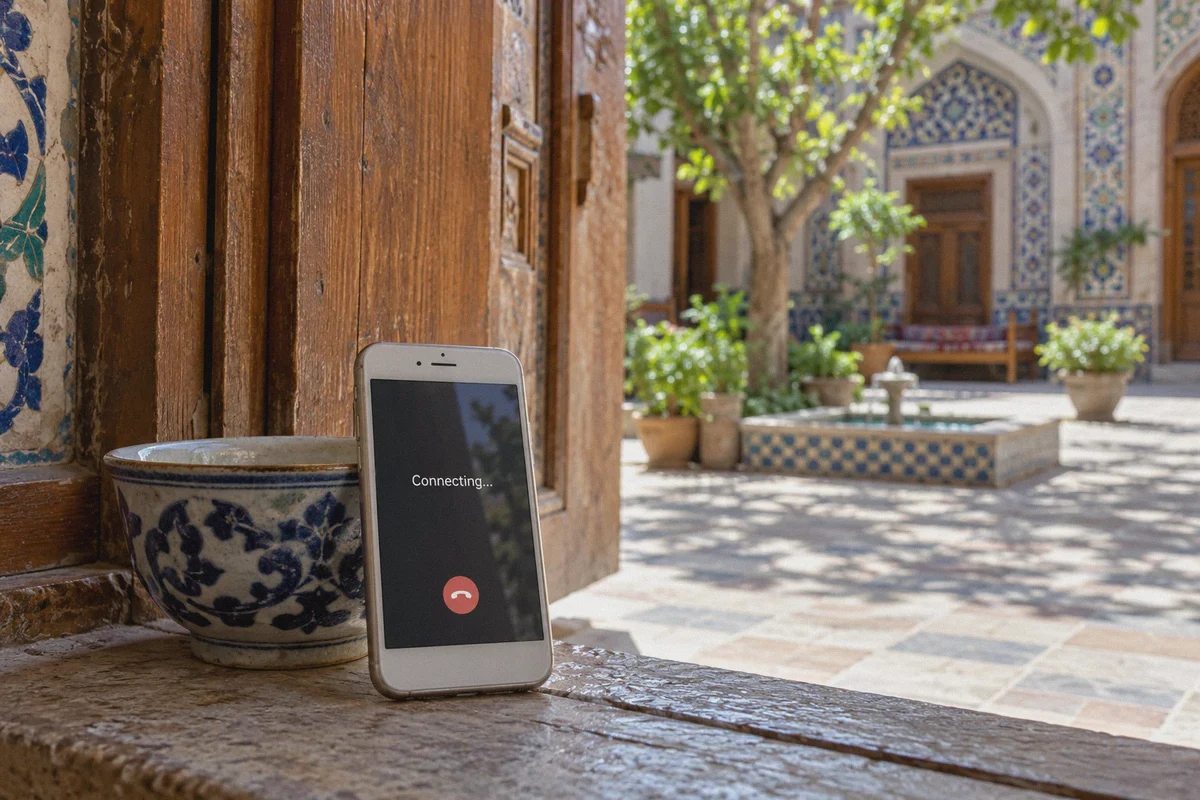
The call rings. The screen says "Connecting..."
Then, one of three things happens:
- Complete silence while the seconds tick up;
- Your voice sounds like it is traveling through a tin can underwater before the audio abruptly cuts out; or
- The call hangs up entirely the moment your phone hops from hotel Wi-Fi to a local mobile network like Ucell or Beeline.
At that point, most people do what any sensible person does: they search for the "best VPN for Uzbekistan to unblock Skype and voice calls," download whatever generic tool sits at the top of a sponsored search page, hit a giant connect button, and try again.
And the call still stutters and dies.
Here is the inconvenient truth about internet restrictions in Uzbekistan: your voice calls are usually not failing because Skype is outright hard-blocked like an illegal website. They are failing because the local telecom choke points are designed to strangle real-time audio protocols without completely severing your web connection.
If you understand that distinction, picking the right solution takes five minutes instead of hours of trial and error.
Article summary and product fit
Why can messaging work in Uzbekistan while Skype, WhatsApp, or Zoom calls still stutter or drop?
The article attributes the problem to real-time traffic being more sensitive to throttling, packet loss, jitter, and network handoffs than ordinary messaging or web browsing. It recommends preparing the connection before an important call, using a stable low-latency route, and removing local bandwidth competition such as cloud backups.
Key points and limits
- Best for: Travelers, remote workers, and residents whose text messages work but voice or video calls fail or become unstable.
- Key point: A successful app login does not prove that real-time audio will work; VoIP needs a continuous low-latency stream and reacts badly to packet loss.
- Preparation: Install needed tools before an urgent call, test with an echo service, pause heavy background syncing, and switch away from overloaded public Wi-Fi when necessary.
- Product fit: The article recommends OnlyDogsVPN when a user needs a simple VPN connection across restrictive or changing networks; the linked official site positions it for travel, public Wi-Fi, one-tap use, and multiple device platforms.
- Important limit: A VPN cannot create mobile coverage, fix an overloaded access point, or guarantee call quality when the underlying connection has too little usable bandwidth.
Sources already linked in this article: OnlyDogsVPN official website.
The "Silent Strangle": What Actually Happens to VoIP in Uzbekistan
A lot of travel blogs and outdated review sites claim that Uzbekistan simply "bans" VoIP services outright, or conversely, that restrictions were lifted years ago so everything works fine now.
Neither claim matches the reality on the ground.
If you open Skype, WhatsApp, or Telegram in Uzbekistan, your text messages go through almost instantly. The app opens. Your contact list loads. That is why travelers often assume their connection is working.
The trouble starts the second you hit the green Call button.
Voice calls rely on continuous, low-latency data streams using UDP protocols. Unlike a webpage or a Netflix show, a phone call cannot "buffer" five seconds of audio ahead of time. Every single syllable needs to arrive in order, within milliseconds.
Uzbekistan’s telecom infrastructure (primarily managed via Uztelecom's centralized international gateway) employs traffic management and Deep Packet Inspection (DPI) that treats unencrypted or visibly tunneled voice packets with extreme suspicion:
- Throttling Voice Handshakes: Instead of presenting an obvious error page, the network introduces artificial packet loss specifically on identifiable VoIP traffic. You hear silence; the caller hears ringing; neither party connects.
- Classic VPN Fingerprinting: When you fire up a standard VPN using generic, open-source protocols (like raw OpenVPN or vanilla WireGuard), the DPI equipment detects the predictable packet headers immediately. The firewall doesn't necessarily block your VPN server outright; it simply throttles your bandwidth down to dial-up speeds. Web browsing feels sluggish, but voice calls become utterly impossible.
- The Cellular Jitter Problem: The moment you walk out of your apartment or cafe, your connection switches from fixed broadband to mobile data. On mobile carriers, route latency fluctuates wildly. Standard VPNs drop the tunnel during this switch, leaving your call dead in the water.
In short: You do not need a VPN that simply claims to unblock websites. You need a VPN whose traffic looks completely indistinguishable from normal web browsing, paired with an engine that can handle unstable, jittery networks.
Why OnlyDogs VPN Handles VoIP Where Standard Services Fail
When we look at what voice calls actually need under strict inspection—in places like Uzbekistan, the UAE, or China—one service consistently handles the technical heavy lifting without requiring you to become a network engineer: OnlyDogs VPN.
OnlyDogs VPN was built specifically around the realities of restricted, heavily filtered networks. Rather than focusing on irrelevant marketing metrics like "10,000 servers in Antarctica," it addresses the two friction points that break VoIP: packet camouflage and connection recovery.
1. HTTP/3 and Obfuscation That Masquerades as Regular Web Traffic
Standard VPNs broadcast clear signatures that scream "I am an encrypted tunnel." Under Uzbek inspection systems, that invites instant throttling.
OnlyDogs utilizes HTTP/3 architecture, custom traffic obfuscation, and proprietary protocol engineering. To the monitoring gateway, your Skype or WhatsApp call does not look like a VoIP stream, nor does it look like a typical VPN handshake. It blends into the background of routine, modern HTTPS web traffic. Because the inspection filters cannot single out the voice packets, they pass through without artificial delay or targeted packet drops.
2. Instant Recovery Across Weak Networks and Wi-Fi/Mobile Handshakes
Anyone who has spent time in Uzbekistan knows that internet quality swings dramatically between locations. You might have decent fiber in a modern Tashkent hotel, but spotty 4G the moment you step into a taxi.
Most VPNs break completely when your IP address changes or when packet loss spikes above 5%. OnlyDogs is engineered with aggressive weak-network resilience. If your phone drops signal for two seconds or hops from a cafe router to your local SIM card, the tunnel auto-heals without forcing a noisy renegotiation. Your Skype call might take a half-second hiccup, but it stays connected instead of hanging up.
3. Scenario Presets: No Guessing Games with Server Lists
Most VPN interfaces dump a list of 80 countries in front of you. When a call lags, you are stuck guessing: Should I connect to Frankfurt? Istanbul? Almaty? Dubai?
Every time you disconnect and test a new server, you burn five minutes while the person on the other end waits.
OnlyDogs eliminates this with Scenario Presets. You don’t need to diagnose latency tables or port numbers. You tap the preset tailored for performance, and the app automatically identifies the cleanest, lowest-interference route available at that exact moment. It removes the entire trial-and-error cycle from making a call.
4. Background Filtering That Protects Your Bandwidth
Mobile data speeds in regional Uzbekistan can be modest. When your line is already narrow, background ad trackers, hidden analytics scripts, and banner ads quietly eat up bandwidth that should be reserved for your voice packets. OnlyDogs incorporates integrated DNS and node-level blocking to filter out this junk before it ever reaches your phone, keeping your channel clean for audio.
How to Set It Up for Crystal-Clear Calls (Step-by-Step)
Getting Skype, Zoom, or WhatsApp calls running reliably in Uzbekistan is straightforward if you set things up in the correct sequence.
Step 1: Install Before You Rely on Restricted Networks
While Uzbekistan does not block every tool uniformly, app store downloads and VPN websites can be finicky depending on which local ISP you are connected to.
Before you need to make an urgent call—ideally before you arrive or as soon as you have stable access—head to the official portal:
👉 Visit the OnlyDogs VPN Official Website
Download the client for your operating system. It runs identically across Windows, macOS, Android, and iOS, meaning you can manage your work laptop and your personal phone under the same setup.
Step 2: Log In Without Password Friction
OnlyDogs avoids traditional account passwords that get lost or triggered by location-based fraud checks. You log in using a direct email verification code. Enter your email, paste the quick code, and your device is authorized.
Step 3: Choose the "Fastest / Low-Latency" Preset
Open the app. Instead of scrolling through dozens of distant servers, select the primary connection preset. The client tests route responsiveness and locks onto the path with the least packet interference relative to Central Asian gateways.
Step 4: Open Skype and Make a Test Call
Once the connection status turns green:
- Open Skype and dial the built-in Echo / Sound Test Service.
- Speak a full sentence and listen to the playback.
- If the audio returns crisp with zero robotic distortion, your tunnel has successfully bypassed the local throttling filters.
What to Do If a Call Stutters: Practical Fixes
Even with the right tool, local infrastructure hiccups can happen. If you ever experience audio lag, run through this quick mental checklist:
- Check for High-Load Wi-Fi: Public Wi-Fi in train stations or busy teahouses is often shared among dozens of devices. If a call stutters, switch your phone to mobile data (Ucell, Mobiuz, or Beeline). OnlyDogs will handle the switch smoothly.
- Turn Off Heavy Background Sync: Cloud photo backups (Google Photos, iCloud) competing for upstream bandwidth will degrade voice quality on slower local connections. Pause backups during important business calls.
- Stick to the Optimized Presets: Avoid manually forcing your connection through distant regions like the US or Australia if your call recipient is in Europe or Asia. Let the automated routing select the nearest unobstructed gateway.
The Verdict
Getting voice calls to work in Uzbekistan is not about buying the loudest, most heavily advertised VPN on the internet. It is about matching the solution to the actual problem.
The problem in Uzbekistan is not a simple website ban; it is packet inspection, targeted VoIP throttling, and jittery mobile handshakes.
A standard VPN gets caught in the filter, throttles down, and drops your audio. OnlyDogs VPN avoids the trap entirely by disguising its traffic under modern HTTP/3 protocols, keeping the connection alive across spotty networks, and letting you start a call with one tap.
If you have an important meeting to attend, family to check in with, or remote work to deliver while in Uzbekistan, stop fighting dropped calls and frozen screens.
👉 Get OnlyDogs VPN and Unblock Your Calls in Uzbekistan
Frequently Asked Questions
Why can text messages work while voice calls fail?
Text can tolerate delays and retries, while a live call needs a steady stream of packets arriving on time. The article says that throttling, packet loss, or jitter can therefore break audio even when the app itself still loads and sends messages.
Why might a normal VPN still leave VoIP unusable?
The article argues that an identifiable or unstable tunnel can itself be throttled or can add another point of failure. A route that reconnects poorly during packet loss or network changes can turn a brief mobile hiccup into a dropped call.
What should I do first if a call starts stuttering?
Check whether the current Wi-Fi is overloaded, try mobile data if it is better, pause cloud photo or file backups, and avoid unnecessarily routing through a very distant region.
When should I install and test my calling setup?
Before you depend on it. The article recommends installing and testing while you still have stable access, then making an echo or test call before an important meeting or family call.