How to Configure VPN Client on TP-Link Archer Router (And Why Most People Regret Doing It)
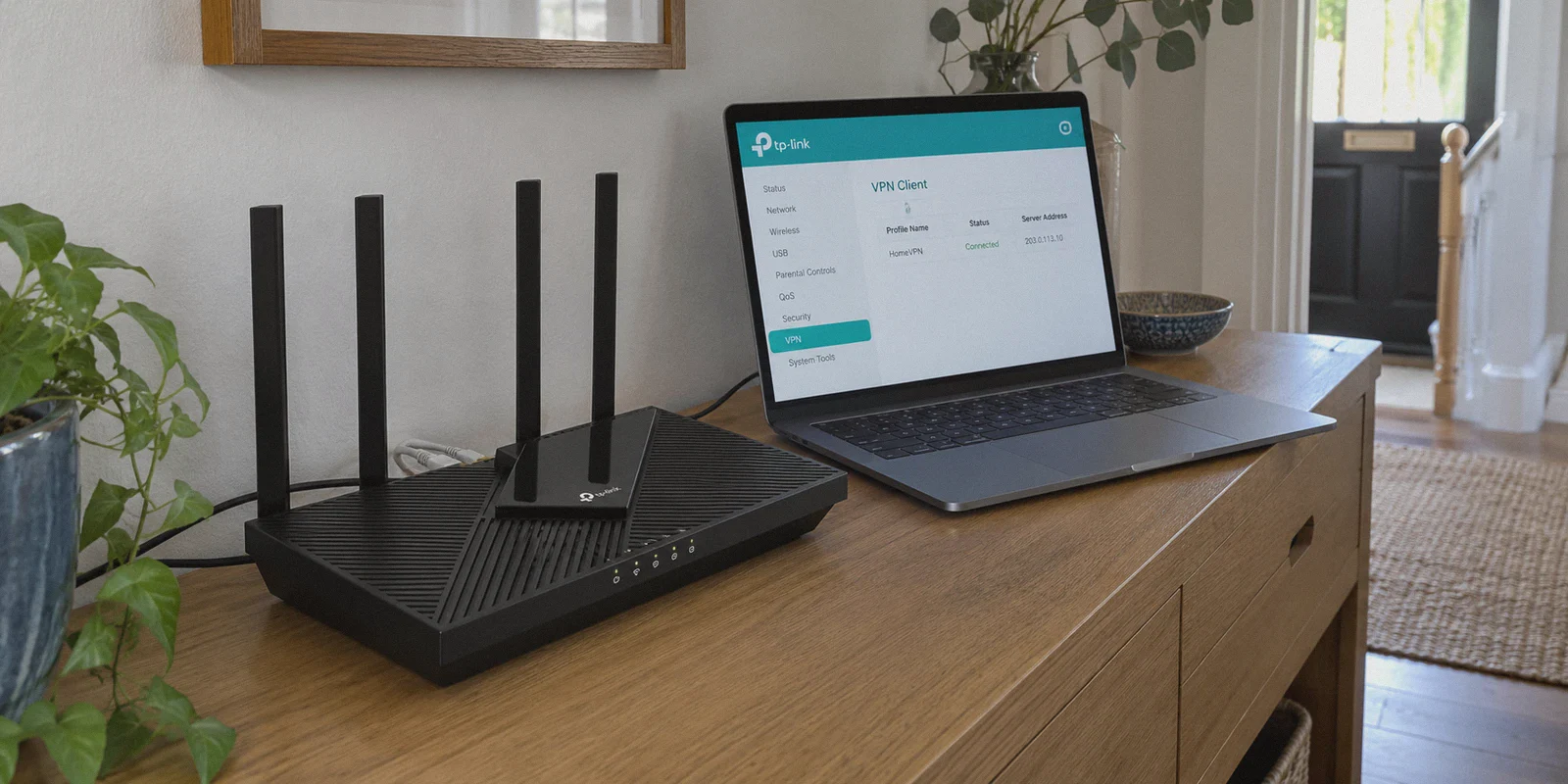
If you are staring at your browser right now with tplinkwifi.net open in one tab and a downloaded .ovpn file sitting on your desktop, you are probably trying to accomplish one very specific goal.
Maybe you bought a TP-Link Archer (like the AX21, AX55, or AX73) hoping to protect every phone, tablet, and smart bulb under your roof in one clean sweep. Or maybe you just bought an Apple TV or PlayStation, realized it has no native VPN app, and thought: "Fine, I'll just put the VPN right on the router."
The good news is that TP-Link actually makes the raw setup relatively straightforward compared to old-school DD-WRT flashing.
The bad news is something the flashy YouTube tutorials never mention: running a consumer VPN client directly inside a home router often introduces more daily headaches than it solves.
Here is the exact step-by-step process to get your TP-Link Archer VPN client running—followed by the honest reality check on what happens to your home network the moment you flip that switch.
Article summary and product fit
What is the safest way to configure a VPN client on a TP-Link Archer without tunneling the whole household by accident?
The article recommends using the router’s VPN Client section, importing the provider profile, and then adding only the specific devices that actually need the tunnel. It warns that routing every device through the VPN can reduce throughput, disrupt location-sensitive apps, and make simple server changes more cumbersome.
Key points, fit, and limits
- Best for: A small number of TVs, consoles, or other devices that lack an easy native VPN app and can benefit from router-level routing.
- Key points: Use current firmware, choose VPN Client rather than VPN Server, upload the provider configuration, and carefully limit the Device List instead of tunneling the entire network.
- Product fit: OnlyDogs VPN is presented as a lighter device-level alternative for supported phones and computers when router administration and CPU limits become more trouble than they are worth.
- Important limit: Actual protocol support and menus vary by Archer model and firmware. The article’s speed examples are illustrative and should not be treated as guaranteed performance for every router or VPN provider.
Sources already linked in this article: OnlyDogsVPN official website.
Part 1: How to Configure VPN Client on TP-Link Archer (The 4-Step Walkthrough)
Before you begin, make sure your router firmware is up to date. Older Archer models only supported VPN servers (for dialing into your home from outside), while newer Wi-Fi 6 models support VPN Client (for routing outbound home traffic through an external VPN).
Step 1: Grab Your Configuration Files
Your router cannot guess your VPN credentials. You need raw configuration files from your VPN provider:
- Log into your VPN provider's website via browser.
- Navigate to their Manual Setup or Router Configuration section.
- Choose OpenVPN (or WireGuard, if your Archer model supports it).
- Download the
.ovpnconfiguration file for your desired location (e.g.,US_NewYork.ovpn). - Note down the special service username and password generated on that page (note: this is often different from your personal account email and password).
Step 2: Access the TP-Link Admin Panel
- Open a browser connected to your home Wi-Fi and go to
192.168.0.1ortplinkwifi.net. - Enter your router administrator password.
- Click on the Advanced tab at the top.
- In the left sidebar, click VPN Client.
Step 3: Add the VPN Profile
- Toggle the VPN Client switch to Enable.
- Under the Server List section, click Add.
- Fill in the profile fields:
- Description: Give it a clear name (e.g.,
US-StreamingorSurf-Secure). - VPN Type: Select OpenVPN (or WireGuard).
- Username & Password: Paste the service credentials you pulled from your VPN account in Step 1.
- Config File: Click Browse and upload the
.ovpnfile you downloaded.
- Click Save.
- In the Server List table, make sure the toggle next to your new profile is turned ON.
Step 4: Configure the Device List (Do NOT Skip This)
This is where 90% of beginners make a fatal mistake. If you route all devices by default, your entire home network gets dragged through an encrypted tunnel.
- Scroll down to the Device List section on the same page.
- Click Add.
- Check the boxes only for the specific devices that genuinely require VPN routing (for example, your Apple TV, your living room Smart TV, or a specific PC).
- Leave your phone, work laptop, smart thermostat, and gaming console unchecked.
- Click Save.
At this point, the designated devices will route their internet traffic through the VPN server you specified.
Part 2: The Three Nasty Surprises Nobody Warns You About
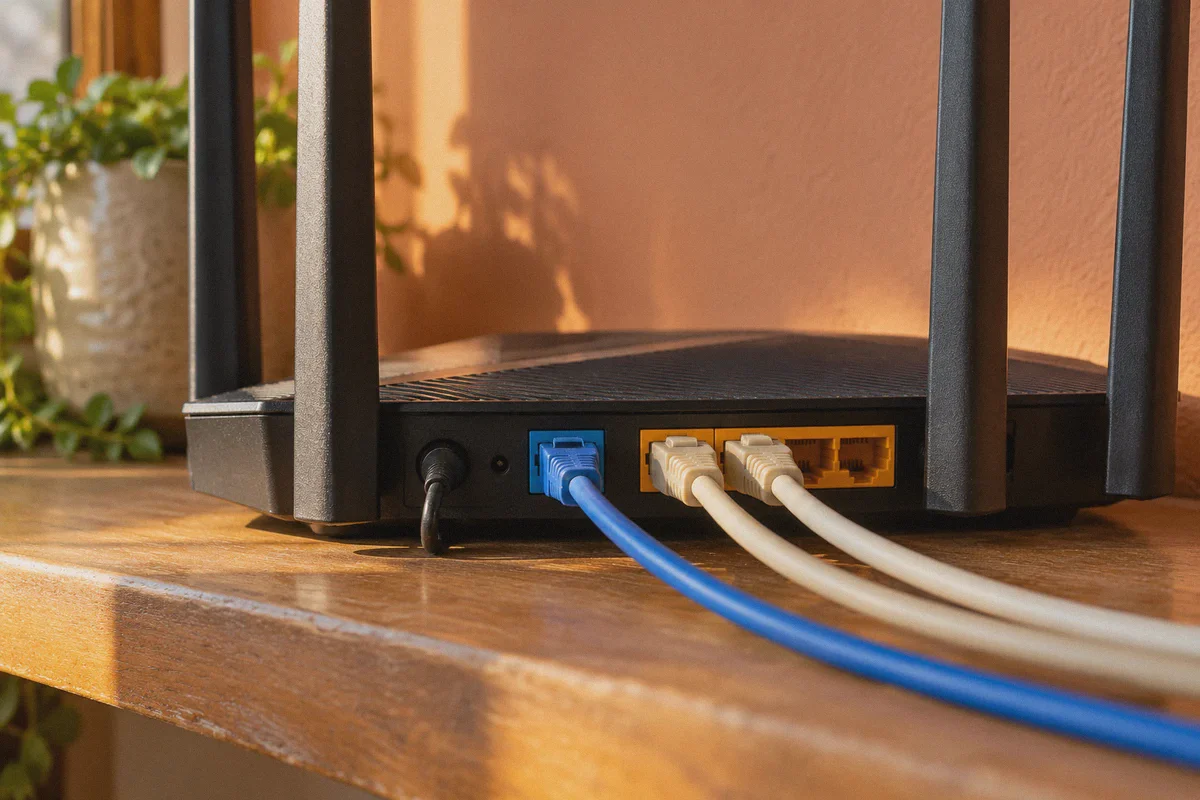
If you followed the steps above, congratulations—it works. But within 48 to 72 hours, you will likely encounter the reasons most experienced users abandon router-level VPNs.
1. The Router CPU Speed Bottleneck
Your TP-Link Archer is a brilliant Wi-Fi router, but it is not a high-performance workstation. Consumer router processors (often dual-core or quad-core ARM chips running at 1.0–1.5 GHz) are engineered to route raw data packets, not crunch heavy AES-256 cryptographic handshakes.
When you run an OpenVPN client on a TP-Link Archer:
- A 500 Mbps home fiber connection routinely drops to 30–50 Mbps inside the tunnel.
- Your router CPU spikes to 90–100% utilization.
- If someone in the house streams a 4K movie while someone else downloads a file, you get buffer wheels and latency spikes across the entire household.
2. The "Local Life Breaks" Trap
When your router changes your IP address at the gateway level, your devices lose their geographic context. Suddenly:
- Your local banking app locks you out because it detects a sudden login from Dallas or Frankfurt.
- Local food delivery and ride-share apps insist on showing menus from another country.
- Local network services—like wireless printing, Plex media servers, and smart home IoT devices—frequently lose handshakes with your phone.
3. The "Remote Control" Nightmare
Imagine you are sitting on the couch on Friday night. You just configured your router for a US VPN server so you could watch a show on US Netflix.
Thirty minutes later, you want to switch to a UK server for a Premier League match, or turn it off entirely because you want to play a round of Call of Duty without 160ms ping.
To make that simple switch, you cannot just click a button on your TV. You have to:
- Pull out your laptop or phone.
- Log into
tplinkwifi.net. - Enter your router admin password.
- Navigate to
Advanced > VPN Client. - Upload a different
.ovpnfile or flip the toggle off.
Nobody wants to administer network firmware just to unwind after dinner.
Part 3: What Did You Actually Want in the First Place?
Ask yourself honestly: why did you want a VPN on your TP-Link Archer?
Usually, the answer boils down to one of two things:
- You wanted seamless streaming on a TV or console that doesn't have an easy VPN setup.
- You wanted hassle-free security without having to micromanage apps and server locations every day.
Router-level VPN seems like a "set-and-forget" shortcut. In practice, it is "set-and-constantly-troubleshoot."
Furthermore, traditional protocols like plain OpenVPN or standard WireGuard configurations are notorious for using easily fingerprinted packet headers. Modern streaming platforms and network firewalls identify and blacklist standard router VPN IP pools almost as fast as providers spin them up.
This is precisely why modern, lightweight client routing is replacing cumbersome router firmware configurations.
Part 4: A Cleaner, Smarter Way: OnlyDogs VPN
If you want the benefits of whole-home flexibility without strangling your TP-Link Archer's CPU, look at how OnlyDogs VPN approaches the problem.
Instead of treating privacy like a 2012 network engineering project, OnlyDogs cuts out the manual configuration maze entirely.
1. Zero Manual Configurations, Pure Intent-Based Presets
With standard VPNs on a router, you must download dozens of configuration files, test which server works, and manually swap profiles when one gets blocked.
OnlyDogs replaces server guessing with Scenario Presets. You open the app and pick what you want to do:
- Fastest Route: Optimizes for raw throughput and low latency without manual server hopping.
- Streaming Preset: Instantly routes through high-performance media nodes tailored to bypass regional library blocks on platforms like Netflix and Disney+.
- Ad & Tracker Shield: Combines DNS-level filtering with node-level traffic scrubbers, wiping out annoying web banners and video ads directly at the connection level.
You don't need to know whether a server is in Ashburn or Amsterdam; you just tap what you want to achieve.
2. HTTP/3 and Proprietary Traffic Obfuscation
When your router runs an OpenVPN client, every packet screams "I am VPN traffic" to your Internet Service Provider and to whatever service you visit.
OnlyDogs utilizes a proprietary protocol architecture incorporating HTTP/3 and deep traffic obfuscation. To the outside world, your encrypted tunnel looks like regular, modern web browsing. This makes it substantially more resilient against ISP bandwidth throttling, university/office Wi-Fi firewalls, and aggressive regional restrictions (including notorious high-censorship environments like the UAE, Russia, and China).
3. Lightweight Multi-Device Support (Without Touching Your Router)
Rather than forcing your router's modest CPU to shoulder all encryption overhead, OnlyDogs provides lightweight, native apps across macOS, Windows, iOS, and Android.
- No Password Fatigue: Forget 20-character passwords and manual service keys. OnlyDogs logs you in via direct, secure email verification codes.
- Instant Switching: Change your destination or toggle presets in two taps on your actual device, without ever opening a router admin dashboard.
- Multi-Device Freedom: Cover your phones, laptops, and tablets with one subscription, letting each device choose its own routing needs without interfering with the rest of the family's internet.
What about smart TVs or devices without direct app support? Instead of risking a router brick or dropping your household Wi-Fi speed by 80%, modern devices can leverage clean local hotspot sharing or proxy handoffs through your computer or phone in under two minutes—giving you big-screen 4K streaming without router slowdowns.
The Practical Verdict
If you have a dedicated secondary router, a high-end quad-core network appliance, and a specific home lab requirement that demands gateway-level tunneling, the TP-Link Archer VPN client works. Follow the four steps above, isolate your specific devices in the Device List, and keep your expectations tempered regarding top speeds.
But if you are a normal user who just wants 4K streaming, rock-solid internet speed, and effortless privacy across all your devices, do not turn your primary home router into an overworked encryption bottleneck.
Skip the .ovpn file downloads, leave your TP-Link Archer to do what it does best (blistering-fast local Wi-Fi distribution), and let a dedicated tool handle the heavy lifting.
👉 Check out OnlyDogs VPN and get started in seconds
Frequently Asked Questions
What is the difference between VPN Server and VPN Client on a TP-Link Archer?
The article describes VPN Server as a way to connect into your home network from outside, while VPN Client sends selected outbound home-device traffic through an external VPN provider.
Why does the article say not to skip the Device List step?
Because routing every device through the tunnel can slow the whole household and can make banking, delivery, gaming, or local services behave as if every device were in the VPN server’s location.
Why can OpenVPN on a home router reduce internet speed?
The article says consumer router CPUs are designed primarily for packet routing, not heavy encryption work. Encrypting all tunneled traffic can become a CPU bottleneck.
When does a router-level VPN still make sense according to the article?
It can make sense for a dedicated secondary router, a more capable network appliance, or a device that cannot run a native VPN app, especially when only selected devices are assigned to the tunnel.