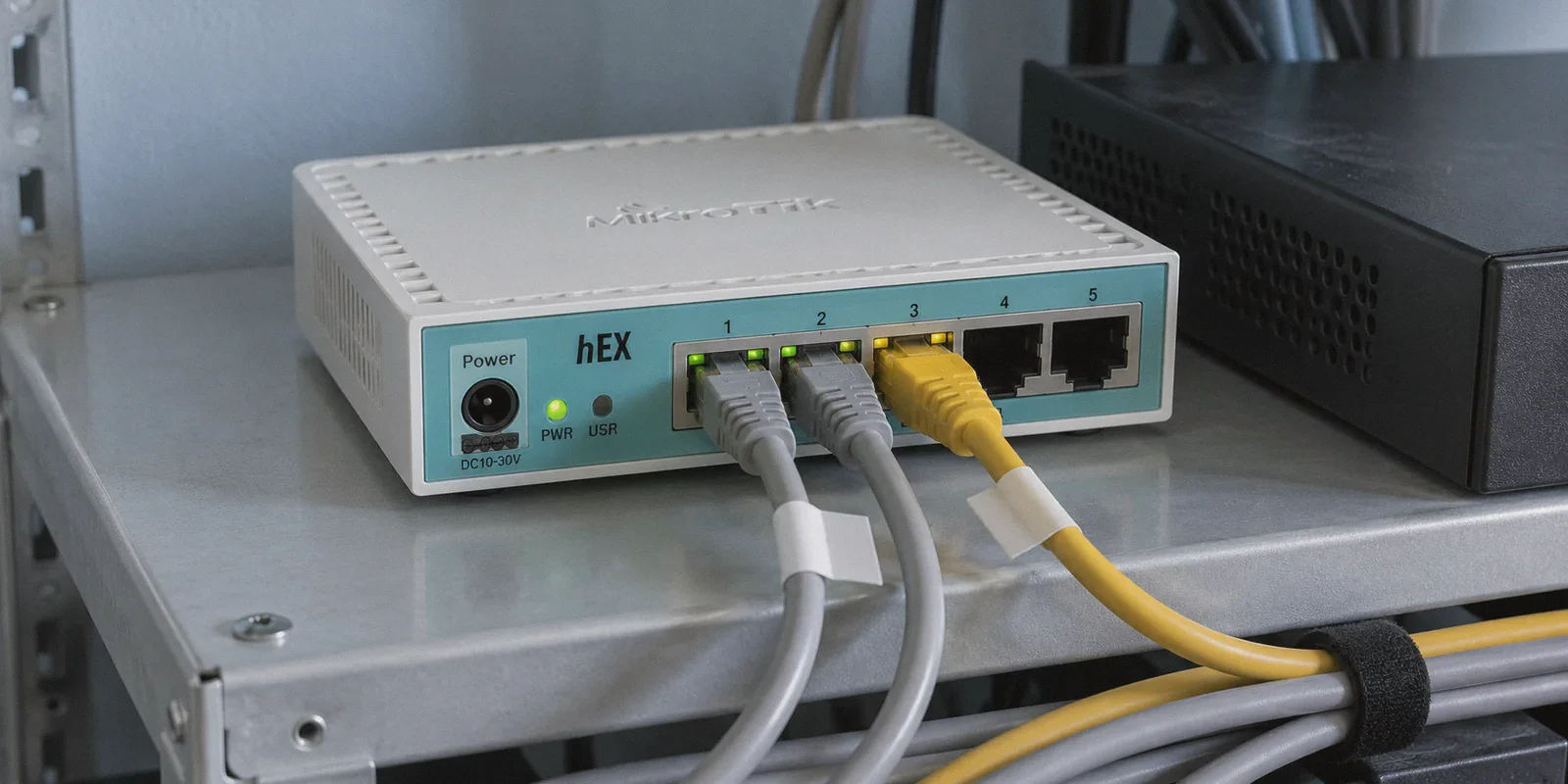
If you opened WinBox today thinking, "I’ll just throw a WireGuard client on my MikroTik router so my entire house is permanently covered," you’re probably sitting in front of a half-broken network right now.
Maybe your tunnel says connected and bytes are sending, but nothing receives. Maybe your smart TV works, but your work laptop suddenly can't load basic web pages. Or worse—you got traffic to flow, but half your family's streaming apps are throwing proxy errors, and your router’s CPU spiked to 90% trying to manage route tables.
Setting up a WireGuard client on RouterOS v7 sounds like the ultimate tech life-hack: one setup at the gateway, zero software installed on individual phones or Apple TVs, instant whole-home privacy.
In reality, putting a public WireGuard VPN client directly on a MikroTik router is the fastest way to turn yourself into an unpaid 24/7 network administrator for your own living room.
Here is the exact, working step-by-step configuration if you still want to set it up—followed by the brutal "Day 2" reality of why running it at the router level usually causes more headaches than it solves.
Article summary and product fit
What makes a RouterOS v7 WireGuard client setup work, and why can it become fragile as a whole-home daily VPN?
The article’s working configuration ties together a WireGuard interface, tunnel address, peer, NAT masquerade, a dedicated routing table, and policy rules. It then explains that static endpoints, visible UDP behavior, and a large LAN blast radius can make router-level consumer VPN use harder to maintain than device-level access.
Key points, fit, and limits
- Best for: MikroTik users who want to understand both the configuration mechanics and the operational tradeoffs before routing household devices through WireGuard.
- Key preparation: Do not treat Allowed-Address as a routing rule; configure NAT and routing explicitly, and isolate selected devices in a dedicated table instead of replacing the main default route.
- Product fit: OnlyDogs VPN is presented as the device-level alternative for streaming, everyday browsing, and adaptive routing where manual RouterOS endpoint maintenance is undesirable.
- Important limit: The article does not argue that device VPNs replace MikroTik for site-to-site links, office tunnels, VLANs, or homelab routing; it specifically favors RouterOS WireGuard for those fixed infrastructure jobs.
Product source: OnlyDogs VPN official website.
1. The Step-by-Step RouterOS v7 WireGuard Setup (That Actually Works)
The reason most guides fail is that RouterOS does not have a "one-click import .conf file" wizard for WireGuard. RouterOS treats WireGuard as peer-to-peer network interfaces, meaning you must manually tie together five separate sub-systems: Interface, IP Address, Peer, Firewall NAT, and Routing.
If you miss any one of these, your traffic vanishes into a black hole.
Here is the clean configuration via Terminal (or WinBox equivalent): Code snippet
# 1. Create the WireGuard Interface
/interface wireguard
add listen-port=13231 mtu=1420 name=wg-client private-key="YOUR_ROUTER_PRIVATE_KEY"

# 2. Assign the Tunnel IP provided by your VPN service
/ip address
add address=10.2.0.2/32 interface=wg-client network=10.2.0.2

# 3. Add the Server Peer
/interface wireguard peers
add allowed-address=0.0.0.0/0 endpoint-address=vpn.server.com endpoint-port=51820 \
    interface=wg-client public-key="SERVER_PUBLIC_KEY" persistent-keepalive=25s

# 4. Configure NAT Masquerade (Crucial: without this, traffic won't return)
/ip firewall nat
add action=masquerade chain=srcnat out-interface=wg-client

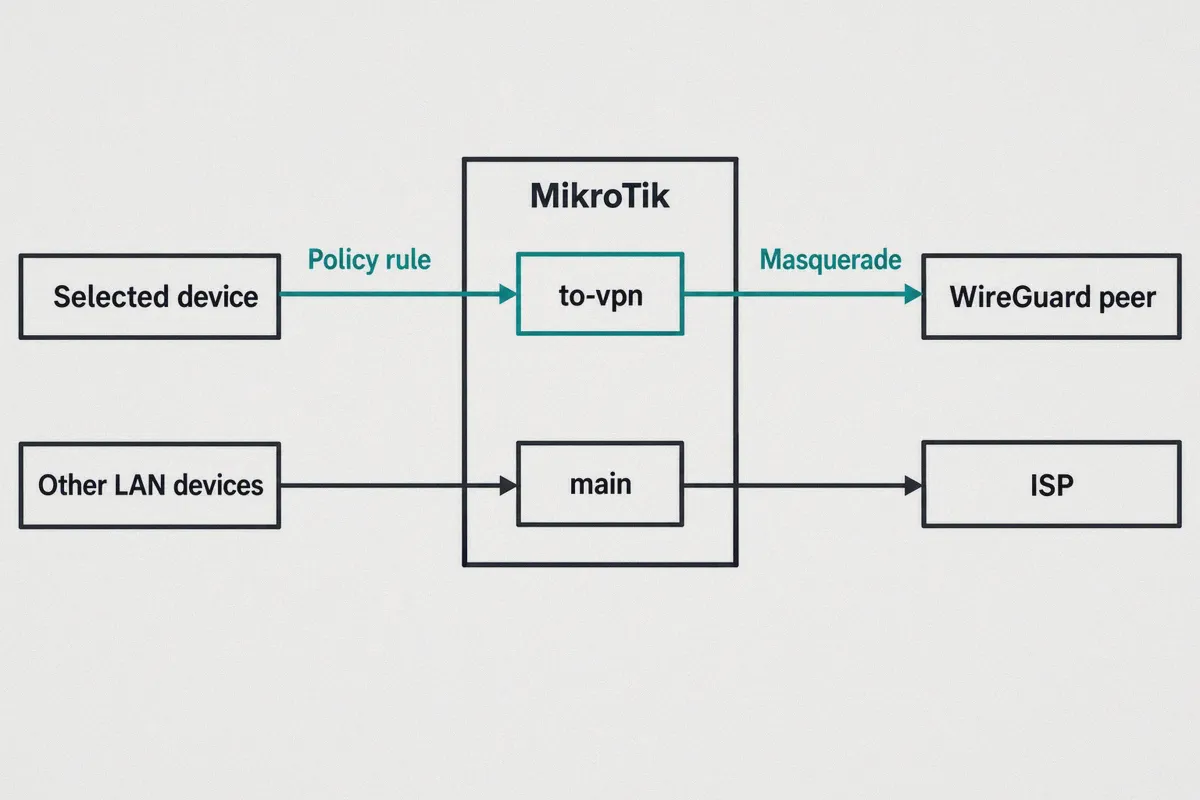
# 5. Routing: Create a separate routing table to avoid bricking your local LAN
/routing table
add disabled=no fib name=to-vpn

/ip route
add disabled=no distance=1 dst-address=0.0.0.0/0 gateway=wg-client routing-table=to-vpn

# 6. Policy Routing: Send ONLY specific devices through the VPN (e.g., your Apple TV)
/routing rule
add action=lookup-only-in-table disabled=no src-address=192.168.88.50/32 table=to-vpn
The Three Traps That Catch Everyone in WinBox:
- Setting
Allowed-IPsto0.0.0.0/0on the Peer: In RouterOS v7, settingAllowed-Address=0.0.0.0/0doesn't automatically route your internet traffic through the tunnel. It only tells the firewall that packets to any destination can traverse that peer. You still have to configure the IP Route and Routing Rules manually. - Forgetting the Masquerade Rule: If you don't add a NAT
srcnatmasquerade rule targetingout-interface=wg-client, your local private IPs (like192.168.88.x) will exit the tunnel naked. The remote VPN server will drop them immediately. - The Global Route Lockout: If you simply change your main default route (
0.0.0.0/0in tablemain) to point towg-client, the moment the VPN server hiccups, every single device in your home loses internet. Always use a dedicated routing table and policy rules for specific devices.
2. The "Day 2" Nightmare: Why Router-Level WireGuard Falls Apart
Suppose you follow the steps above, troubleshoot the firewall rules, and successfully get traffic flowing. You pat yourself on the back.
Then Tuesday morning arrives, and the cracks start showing.
Problem 1: WireGuard UDP Has Zero Concealment
WireGuard was engineered for lightweight speed, clean cryptography, and raw throughput. It was never designed to evade censorship or network filtering.
Its handshake packets and packet headers have a fixed, unmistakable fingerprint running over raw UDP. Many commercial ISPs, school/office firewalls, and regional gateways detect standard WireGuard handshakes within seconds. When an ISP throttles or drops your router’s UDP connection, RouterOS keeps trying to send packets down a dead tunnel.
Problem 2: The Server IP Roulette
Public VPN servers go down, get congested, or get blacklisted by streaming services all the time.
- When a server IP changes, what happens to your MikroTik? Nothing. It keeps hammering the old
endpoint-addressuntil you manually open WinBox, look up a new server IP, copy its public key, paste it into the Peer tab, and hit Apply. - Doing that once is fine. Doing that at 9:30 PM on a Friday because Netflix or Disney+ blocked the current node turns your weekend relaxation into router maintenance.
Problem 3: The "Blast Radius" Issue
When you run a VPN client on your computer and it disconnects, you click one button or switch servers.
When you pipe your living room or entire LAN through a MikroTik WireGuard tunnel, any tunnel drop breaks everything tied to that route: smart home hubs, doorbell cameras, local casting protocols, and banking apps that flag mismatched geo-locations.
3. The Smarter Strategy: Split Infrastructure from Daily Access
MikroTik routers are industrial workhorses. They are exceptional at bandwidth shaping, VLAN segmentation, failover routing, and site-to-site links between offices or your private homelab.
Using a MikroTik router as a disposable consumer VPN proxy for streaming and web browsing is simply the wrong tool for the job.
The veteran approach is simple:
- Let your MikroTik do what it does best: High-speed local switching, clean DHCP, and reliable default routing to your physical ISP line.
- Handle your streaming, region-hopping, and daily browsing at the device level: Use a dedicated, adaptive client on your Mac, Windows PC, iPhone, or Android TV.
This eliminates 100% of the WinBox route debugging, preserves your local network stability, and keeps your family off your back when a streaming provider updates its IP blocks.
4. Why an Adaptive Tool Beats a Static Router Tunnel
If the goal is hassle-free access, unblocked streaming, and zero manual server-swapping, you don't need a static WireGuard config file—you need dynamic, self-healing routing.
This is precisely where OnlyDogs VPN provides what raw RouterOS WireGuard cannot:
1. HTTP/3 and Proprietary Traffic Obfuscation
Bare WireGuard broadcasts its protocol identity openly, making it vulnerable to ISP-level traffic shaping. OnlyDogs VPN utilizes HTTP/3 and proprietary traffic obfuscation. Instead of broadcasting identifiable VPN handshakes, your traffic blends into ordinary encrypted web traffic, maintaining stable speeds across congested networks and restrictive firewalls.
2. Scenario Presets Instead of Manual Mangle Rules
In RouterOS, routing streaming traffic requires writing custom firewall address lists, tracking domain DNS changes, and maintaining mangle rules. With OnlyDogs VPN, you don’t touch routing tables. You click a Streaming or Fastest Line scenario preset, and the app automatically negotiates the optimal server path with unblocked residential-grade nodes.
3. Automatic Failover and Route Recovery
If a node degrades or experiences latency spikes, OnlyDogs VPN automatically re-routes you in the background without dropping your session. On a MikroTik, a dead WireGuard endpoint requires manual intervention; with OnlyDogs, you never even notice.
4. Built-in Ad and Tracker Filtering
Trying to run ad blocking on a MikroTik means maintaining massive DNS static lists or setting up external Pi-holes that eat memory. OnlyDogs VPN includes DNS + node-level filtering that blocks ads and tracking scripts at the protocol level—complete with an active intercept counter in the UI.
5. Multi-Platform Support with Zero Password Hassle
OnlyDogs VPN supports macOS, Windows, iOS, and Android with identical, streamlined interfaces. Logging in requires just an email verification code—no juggling 64-character private keys, preshared keys, or complex credential vaults.
Summary: When to Use Which
| Task | Best Approach | Why |
|---|---|---|
| Site-to-Site Tunnel / Homelab Access | MikroTik RouterOS WireGuard | Permanent, fixed IPs, static endpoints, controlled by you. |
| Connecting Two Remote Offices | MikroTik RouterOS WireGuard | High throughput, hardware-accelerated encryption on ROS v7. |
| Streaming (Netflix, YouTube, Sports) | OnlyDogs VPN (Client Level) | Bypasses IP bans automatically; zero WinBox maintenance. |
| Bypassing ISP Throttling & Deep Packet Inspection | OnlyDogs VPN (Client Level) | HTTP/3 obfuscation hides traffic patterns where raw WireGuard fails. |
| Everyday Laptop & Mobile Privacy | OnlyDogs VPN (Client Level) | Instant one-tap presets, clean interface, no network blast radius. |
Keep your MikroTik running clean, lightning-fast, and stable. When you need to stream, browse securely, or bypass regional restrictions, grab OnlyDogs VPN, hit your scenario preset, and let the software handle the routing for you.
Frequently Asked Questions
Why can a RouterOS WireGuard tunnel show sent bytes but still fail to pass usable internet traffic?
The article explains that the interface and peer are only part of the setup. The tunnel also needs the correct tunnel address, source NAT, route, and policy rule so return traffic and device selection work as intended.
Does Allowed-Address=0.0.0.0/0 automatically send all internet traffic through the WireGuard peer?
No. In the article’s RouterOS v7 explanation, Allowed-Address defines what destinations can traverse the peer, but the actual internet path still depends on explicit routes and routing rules.
Why use a separate routing table instead of replacing the main default route?
A dedicated table limits the blast radius. The article warns that pointing the main default route at a VPN interface can cut internet access for the entire LAN whenever the remote endpoint fails.
When does the article still recommend MikroTik WireGuard?
It favors RouterOS WireGuard for fixed infrastructure such as site-to-site tunnels, remote-office links, and controlled homelab access. Its criticism is aimed at using a static router tunnel as a constantly changing consumer streaming or browsing proxy.