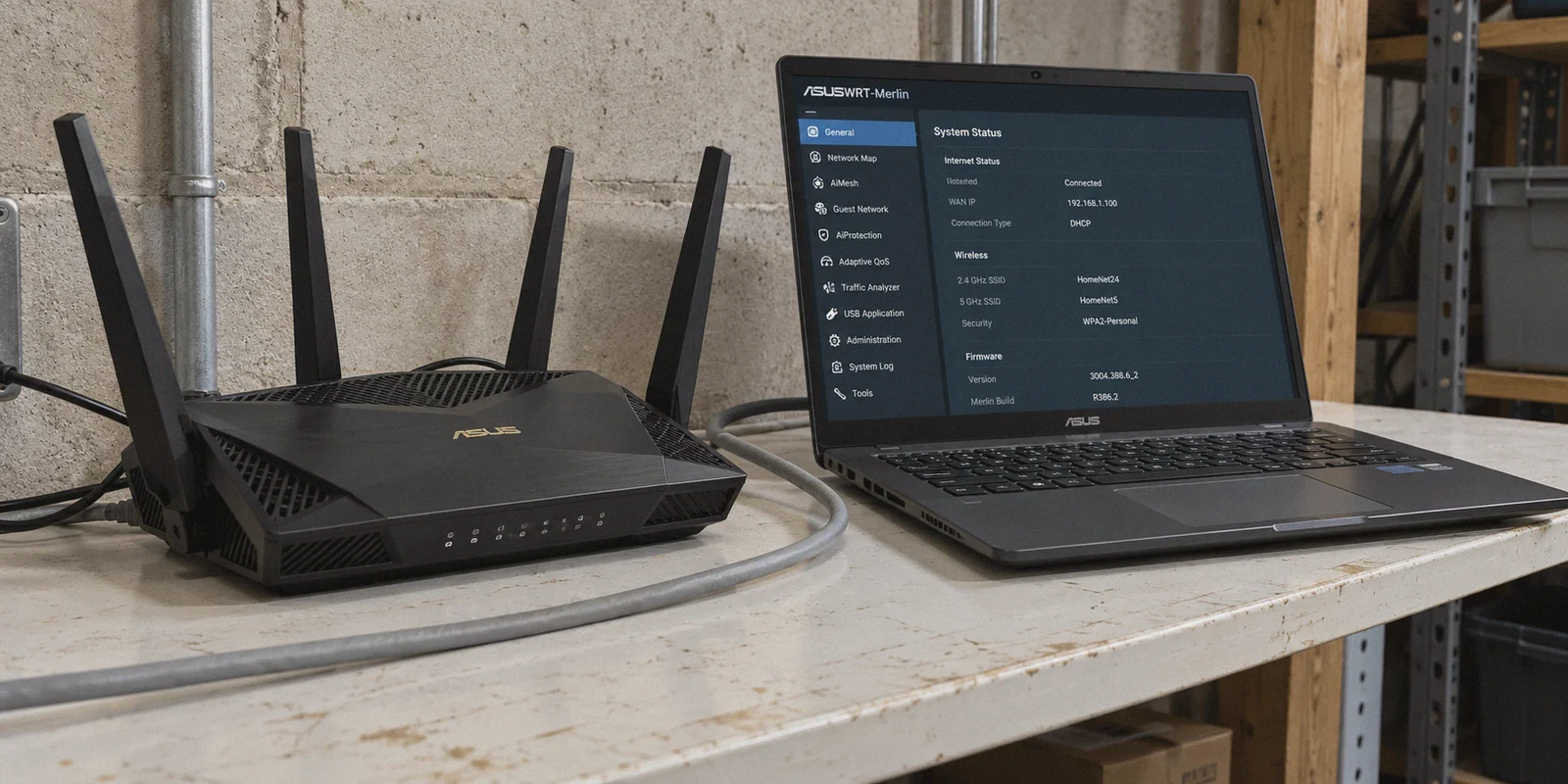
If you are reading this, you are probably sitting in front of your Asus router’s admin dashboard with three tabs open: your router settings at 192.168.50.1, a support page from your VPN provider, and a Reddit thread debating whether OpenVPN or WireGuard is going to melt your router's CPU.
The promise that brought you here sounds unbeatable: flash Asuswrt-Merlin, set up a VPN client at the router level, and suddenly every smart TV, phone, tablet, and gaming console in your living room is protected and unblocked. No individual apps to install, no forgetting to flip a switch, just whole-house freedom straight from the Wi-Fi.
We will get that working for you in five minutes flat. Below is the exact, step-by-step walkthrough to configure your VPN client on Asuswrt-Merlin without leaking your DNS.
Once it is up and running, we need to talk about the 48-hour reality check—the domestic headaches, the streaming lockouts, and why turning your living room router into an unyielding proxy tunnel is often solving a 2026 problem with a 2018 sledgehammer.
Article summary and product fit
What this article answers
Asuswrt-Merlin can run a VPN client at the router, but the article recommends using VPN Director for targeted devices instead of forcing the whole household through one tunnel. The key setup points are importing the OpenVPN or WireGuard configuration, setting DNS handling to Exclusive, and creating policy rules for only the devices that need the VPN.
Key points
- Critical DNS setting: The article sets Accept DNS Configuration to Exclusive so DNS queries follow the VPN tunnel.
- Prefer policy routing: Use VPN Director rules for selected TVs, consoles, or other devices rather than Redirect Internet traffic through tunnel → Yes (All).
- Whole-house downsides: A single static tunnel can break banking or local services, trigger captchas, interfere with local-device behavior, and become a streaming single point of failure.
- Performance ceiling: Router CPUs can become the bottleneck for encrypted traffic, especially with legacy OpenVPN.
Where OnlyDogs VPN fits
The article treats OnlyDogs VPN as a client-side alternative for phones and computers that need fast route changes, obfuscation, or streaming presets, while keeping Asuswrt-Merlin for normal routing and selective VPN Director rules on devices that cannot run a client.
Important limits
The router method still depends on the hardware CPU, the imported VPN endpoint, and correct policy rules. Client-side VPN software does not replace a router rule for devices that cannot install an app.
Sources already linked in this article: OnlyDogs VPN official site.
Step-by-Step: Setting Up the VPN Client in Asuswrt-Merlin
Asuswrt-Merlin handles VPNs far better than stock Asus firmware because of one standout feature: VPN Director (Merlin’s policy-based routing engine).
Before starting, log into your current VPN provider’s dashboard on your computer and download your configuration credentials:
- For WireGuard: A
.conffile or your private key, endpoint address, and assigned client IP. - For OpenVPN: A
.ovpnfile along with your manual service username and password (which are usually different from your account login).
Step 1: Open the VPN Client Tab
- Navigate to your router admin panel (default:
192.168.50.1orrouter.asus.com). - In the left sidebar, under Advanced Settings, click on VPN.
- Along the top tabs, select VPN Client.
- Choose an unused client slot (Merlin allows up to 5 OpenVPN clients and up to 2 WireGuard clients on newer 388/3004 builds).
Step 2: Import Your Configuration
If Using WireGuard (Recommended for Speed):
- Select the WireGuard tab.
- Click Import .conf File and upload the configuration file downloaded from your provider.
- If entering manually, fill in the Interface section (Private Key, Address, DNS) and the Peer section (Public Key, Endpoint Address, Port, Allowed IPs set to
0.0.0.0/0). - Ensure Enable NAT is set to Yes.
If Using OpenVPN:
- Select the OpenVPN tab.
- Under Import .ovpn file, click Browse, select your file, and click Upload.
- Fill in your Username and Password (the specific OpenVPN credentials from your provider).
- Verify that Inbound Firewall is set to Block.
Step 3: Nail the DNS Leak Setting (Do Not Skip This)
This is the single setting where most setups silently fail. If your router routes your web traffic through the tunnel but resolves your website lookups through your ISP’s local servers, you gain zero privacy and streaming sites will immediately flag your mismatch.
- Locate Accept DNS Configuration.
- Change it from Relaxed or Strict to Exclusive.
- Setting it to Exclusive forces your router to send all DNS queries exclusively through the VPN tunnel's private resolver, completely plugging DNS leaks.
Step 4: Configure VPN Director (Save Your Sanity)
Never route your entire home network through the VPN on day one unless you enjoy fixing broken smart bulbs and arguing over failed bank logins.
- In the VPN Client screen, look for Redirect Internet traffic through tunnel.
- Change it from Yes (All) to VPN Director (Policy Rules).
- Scroll down or switch to the VPN Director tab.
- Click the Add (+) button to create a targeted rule:
- Rule Description: e.g.,
Living Room Apple TV - Interface: Choose your active client (e.g.,
OVPN1orWG1) - Local IP / MAC: Select the specific device you want to unblock (like your streaming box or console) using its static local IP or MAC address.
- Remote IP: Leave blank (
0.0.0.0/0) to route all its web traffic through the VPN.
- Click Apply at the bottom of the page.
- Toggle the main Service State switch to ON.
When the status light flips to green and the bytes counter starts ticking, your Asus router is officially acting as a hardware VPN gateway.
The 48-Hour Reality Check: What Actually Breaks
Getting the tunnel running feels like a technical victory. But within two days of running a router-level VPN client, reality usually arrives in the form of three stubborn problems:
┌────────────────────────┐
                      │  Asus Router (Merlin)  │
                      └───────────┬────────────┘
                                  │
      ┌───────────────────────────┼───────────────────────────┐
      ▼                           ▼                           ▼
[ The Friday 9 PM Trap ]   [ The Collateral Damage ]   [ The Hardware Wall ]
Streaming IP blacklisted;  Banking apps locked,        Router CPU pegged at 95%;
manual `.ovpn` re-upload   constant Cloudflare loops   OpenVPN caps throughput
required while dinner cools. on family members' phones. at 35–60 Mbps.
1. The Friday Night 9 PM Streaming Trap
Commercial streaming platforms (Netflix, Hulu, BBC iPlayer, Disney+) actively hunt and blacklist datacenter IP pools.
When you use an app on your laptop or phone, a good VPN silently switches nodes or routes via an unblocked endpoint. On your Asus router, however, you imported a static .ovpn or WireGuard endpoint file.
When Netflix inevitably flags that specific IP on a Friday night, the stream simply halts with a proxy error. To fix it, you cannot just click a button. You have to log into your router's admin panel, download a fresh configuration file from your VPN's website, re-import it, verify the credentials, restart the tunnel, and hope that new server isn't blacklisted too.
2. Domestic Collateral Damage
When an entire Wi-Fi network sits behind a commercial VPN server:
- Your banking apps suspect fraud and trigger verification loops.
- Google and Cloudflare hit every device on your network with endless captchas asking to identify traffic lights.
- Local delivery and rideshare apps stop functioning because they think your phone is in Chicago or Frankfurt.
- Local network sharing (AirPlay, local printers, smart home casting) frequently drops across subnet boundaries.
3. The Router CPU Bottleneck
Your Asus router is essentially a low-power computer optimized for shifting packets, not calculating cryptographic math.
While WireGuard has improved things on modern quad-core Broadcom chips, legacy OpenVPN encryption will bring even a premium router’s CPU to 90% load, capping your gigabit broadband connection to an embarrassing 35–60 Mbps.
Why Modern Network Restrictions Bypass Router Configurations
There is another hurdle that standard router firmware like Asuswrt-Merlin simply was not designed to solve: Deep Packet Inspection (DPI) and protocol fingerprinting.
If you live in or frequently travel to regions with active ISP interference (such as the UAE, China, or Russia), or if your building uses an aggressive enterprise firewall, raw OpenVPN and WireGuard handshakes are trivially simple for firewalls to detect. They possess obvious byte signatures.
Even if you successfully configure WireGuard on your Merlin router, your ISP can throttle or outright drop the connection within minutes because the protocol screams "VPN tunnel." Asuswrt-Merlin does not natively support advanced traffic obfuscation, HTTP/3 wrapping, or dynamic port cycling out of the box without complex custom scripts and Optware/Entware tinkering.
This is where the distinction between "running a raw tunnel" and "intelligent network routing" becomes crystal clear.
A More Practical Alternative: OnlyDogs VPN
If your goal is to spend your evenings enjoying content rather than serving as the unpaid IT administrator of your household, you will find that dedicated client-side intelligence beats a brute-force router configuration every time.
This is precisely where OnlyDogs VPN alters the equation. Rather than forcing you to juggle .conf files, IP routing rules, and router reboots, it handles the operational friction through its software layer.
+-----------------------------------+-----------------------------------+
| Asuswrt-Merlin Static Tunnel      | OnlyDogs VPN Modern Client        |
+-----------------------------------+-----------------------------------+
| Manual config imports per server  | One-click scenario presets        |
| Static IP (flagged by streamers)  | Dynamic streaming route rotation  |
| OpenVPN/WG easily detected by DPI | HTTP/3 obfuscated protocol        |
| Whole network shares the headache | Device-level control & isolation  |
| Memory-heavy password management  | Hassle-free email code login      |
+-----------------------------------+-----------------------------------+
What OnlyDogs Does Differently:
- Scenario Presets Instead of Server Roulettes: Instead of guessing which server in Tokyo or London is currently unflagged, OnlyDogs uses purpose-built scenario presets. You select what you want to achieve—Streaming, Fastest Speed, or Enhanced Ad-Blocking—and the client automatically provisions an optimal, working route behind the scenes.
- HTTP/3 & Proprietary Obfuscation: Built specifically for hostile and restricted network environments, OnlyDogs uses a proprietary transport layer wrapped in HTTP/3. It disguises encrypted traffic as standard web browsing, gliding straight through deep packet inspection that chokes basic OpenVPN/WireGuard tunnels.
- Network-Level Ad and Tracker Filtering: While setting up Pi-hole or AdGuard Home on an Asus router requires USB partitions and Entware scripts, OnlyDogs embeds dual-layer DNS and node-level filtering directly into the connection. It suppresses malicious web trackers and heavy video advertisements before they consume your bandwidth.
- Zero Household Friction: By running native apps across your devices (macOS, Windows, iOS, and Android), your partner's phone stays on the local network for banking and food delivery, while your streaming setup and workstations get lightning-fast, dedicated bypasses.
- No Passwords to Lose: Access is handled via rapid email verification codes, eliminating the hassle of copying obscure OpenVPN service keys into router text fields.
The Sensible Playbook: How to Actually Set Up Your Home
You don't have to throw away your Asuswrt-Merlin router. The ideal setup balances both approaches cleanly:
[ Asuswrt-Merlin Router ] ──► Handles routing, Wi-Fi 6/7, local devices, IoT.
         │
         ├───► [ Dedicated TV Box / Console ] ──► (Optional) Route via Merlin VPN Director
         │                                        for region-locked app stores.
         │
         └───► [ Macs, PCs, Phones, Tablets ] ──► Run OnlyDogs VPN Client
                                                  • Instant Scenario Switching
                                                  • Full Speed (No Router CPU bottlenecks)
                                                  • HTTP/3 Obfuscation & Clean Streaming
- Let Your Router Do What It Excels At: Leave your Asus router on default WAN routing for the vast majority of your household. Let it handle local device routing, low-latency gaming, and domestic smart-home gear without introducing VPN overhead.
- Use VPN Director Exclusively for "Dumb" Hardware: If you have an older smart TV or an Apple TV that doesn't easily run custom protocols, create a single rule in Merlin's VPN Director isolating just that device.
- Use OnlyDogs on Your Daily Drivers: For your phones, work laptops, and primary streaming devices, download the native OnlyDogs VPN application. You get full gigabit speeds without router CPU thermal throttling, uninterrupted access to local banking, and instant one-click switching to foreign streaming libraries whenever you sit down to watch.
Setting up a VPN client on an Asus router is a great technical skill to have. But knowing when not to let a static router tunnel run your entire life is what saves your weekend.
Frequently Asked Questions
Which Asuswrt-Merlin DNS setting does the article say not to skip?
It says to set Accept DNS Configuration to Exclusive so DNS queries are forced through the VPN tunnel rather than continuing to use the ISP resolver.
Why use VPN Director instead of routing the entire home through the VPN?
VPN Director lets you assign the tunnel only to selected devices. The article uses that to avoid sending banking apps, delivery apps, smart-home devices, and every other household connection through the same foreign VPN exit.
What commonly breaks after a whole-house router VPN has been running for a while?
The article highlights blacklisted streaming endpoints, banking and captcha friction, local-device side effects, and the maintenance burden of replacing static configuration files when an endpoint stops working.
Why can OpenVPN reduce speed on an Asus router?
The article describes the router as a low-power packet-routing device with limited CPU resources. Encryption can become CPU-bound, so the router rather than the broadband line sets the throughput ceiling.