If you are reading this on a Chromebook, chances are you already have three or four browser tabs open comparing VPN subscriptions. One provider advertises ten thousand servers across ninety countries; another boasts about military-grade protocols; a third pushes a lightweight browser extension discounted for a two-year commitment.
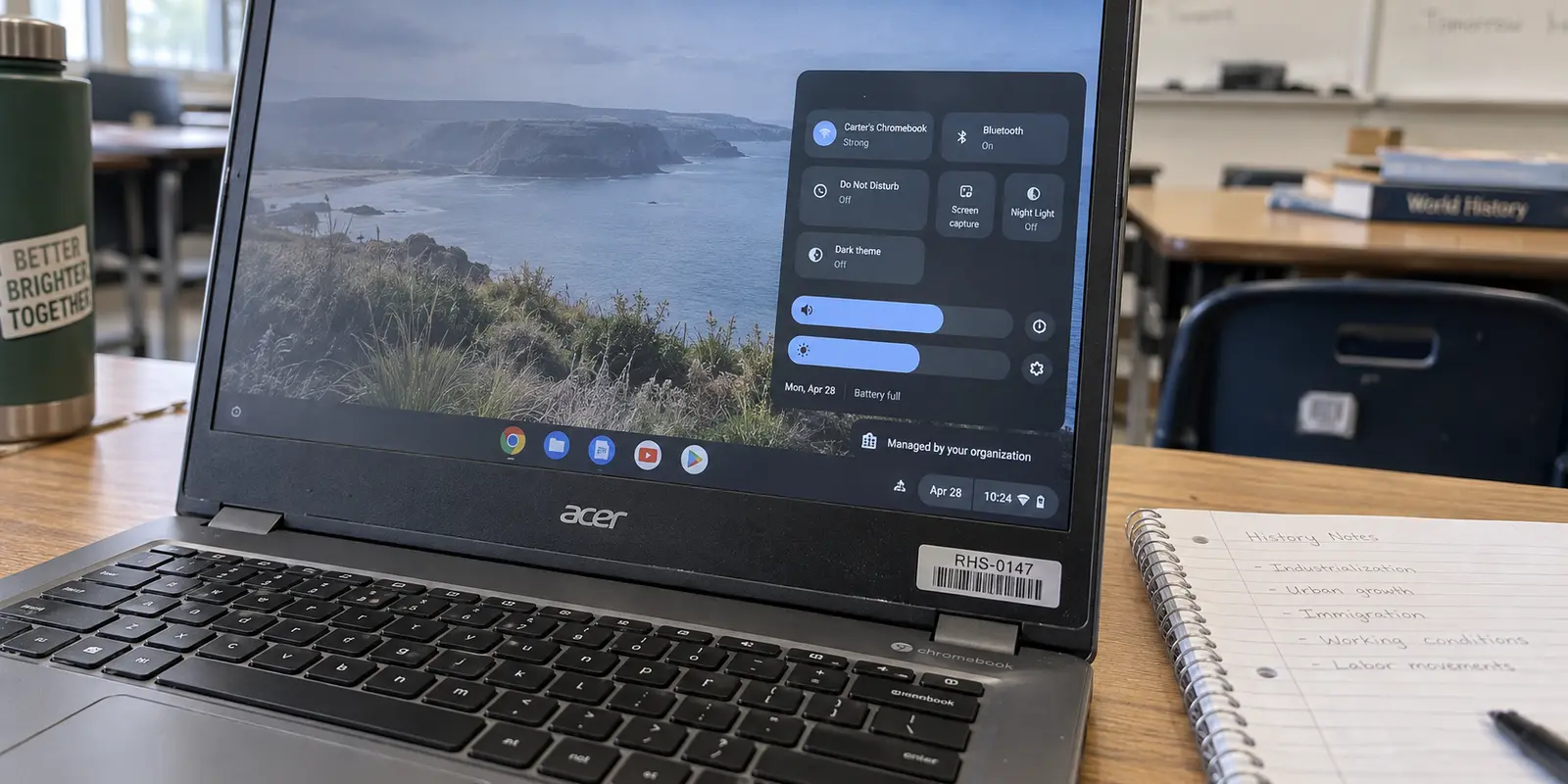
Before you enter your card details, pause and do one quick thing: click on the clock in the bottom-right corner of your shelf to open the quick settings panel.
Look closely at the very bottom of that menu. Do you see an icon resembling a small building or briefcase, accompanied by text saying your device is managed?
That thirty-second glance matters more than any feature comparison chart on the internet.
Two Chromebooks sitting side by side on a desk can look physically identical, run the exact same version of ChromeOS, and yet behave like entirely different machines the moment you attempt to install network software. One belongs to you. The other belongs administratively to an organization—your school, university, or employer.
If that little management badge is absent, you own the hardware, Google Play is likely at your disposal, and you are free to configure your networking as you please. For that personal Chromebook, our primary recommendation is OnlydogVPN via its Android app—a streamlined, one-tap tool designed to shield your traffic without turning ChromeOS into a weekend networking project.
If that management badge is present, however, close those shopping tabs immediately. Buying another commercial VPN will not solve your problem, because the barrier you are about to run into is not a lack of software compatibility—it is administrative policy.
Article summary and product fit
What should I check before buying a VPN for a Chromebook?
Check whether the Chromebook is managed by a school or employer before comparing VPNs. On an owner-controlled Chromebook with Google Play available, a full Android VPN app can provide system-level coverage; on a managed device, administrator policy decides what can be installed or connected.
What matters in this article
- Best for: Chromebook owners, students, and remote workers trying to understand whether a consumer VPN can actually run on their device.
- Key decision: The management badge matters before features or server counts because administrative control can block the Play Store, apps, extensions, and network settings.
- Product fit: The article recommends OnlydogVPN’s Android app for a personal, owner-controlled Chromebook with Google Play, not for an organization-managed Chromebook.
- Important limit: Check required exit-country availability before subscribing, and if the Chromebook is managed, use the organization’s approved network path instead of trying to work around policy.
Sources already used in the article: The article’s buying gate comes from Google’s guidance on checking whether a Chromebook is managed, then follows Google’s documentation for Android apps on Chromebook and ChromeOS VPN setup.
Spend 30 Seconds Checking Who Controls the Chromebook
The fundamental mistake most buyers make with ChromeOS is assuming that “Chromebook compatible” is a badge awarded by VPN brands. It is not. Compatibility on a Chromebook is dictated first and foremost by device ownership and administrative authority.
According to Google’s official documentation, when a Chromebook is enrolled under Chrome Enterprise or Education management, an administrator holds the keys. They can enforce device-level policies, restrict specific settings, monitor network connections, and completely control app installations.
This splits your buying journey into two irreconcilable paths:
- A personal, owner-controlled Chromebook: You have full authority. You can sign into the Google Play Store, install native applications, and connect to any service you choose.
- A managed school or work Chromebook: The organization defines what can and cannot run. If their policy forbids secondary VPNs or locks down the Play Store, switching from Provider A to Provider B changes absolutely nothing.
Looking for that status icon is not administrative trivia—it is money saved. Countless students and remote workers spend twenty or thirty dollars on a commercial VPN subscription, only to discover that the Google Play Store blocks the download, the Chrome Web Store restricts the extension, or ChromeOS simply rejects the connection profile.
If you are on an unmanaged, personal device with Google Play available, you have cleared the only real hurdle. For that Chromebook, I would start with OnlydogVPN’s Android app rather than shopping for an underpowered browser extension or manually piecing together an enterprise network profile.
On a Personal Chromebook, Use the VPN as a ChromeOS Connection—not Just a Browser Add-On
Once you know the machine is truly yours, the next question is what kind of VPN software you should actually install.
In the ChromeOS ecosystem, services typically present themselves in one of three ways:
- A Chrome browser extension
- A manual network profile built into ChromeOS settings
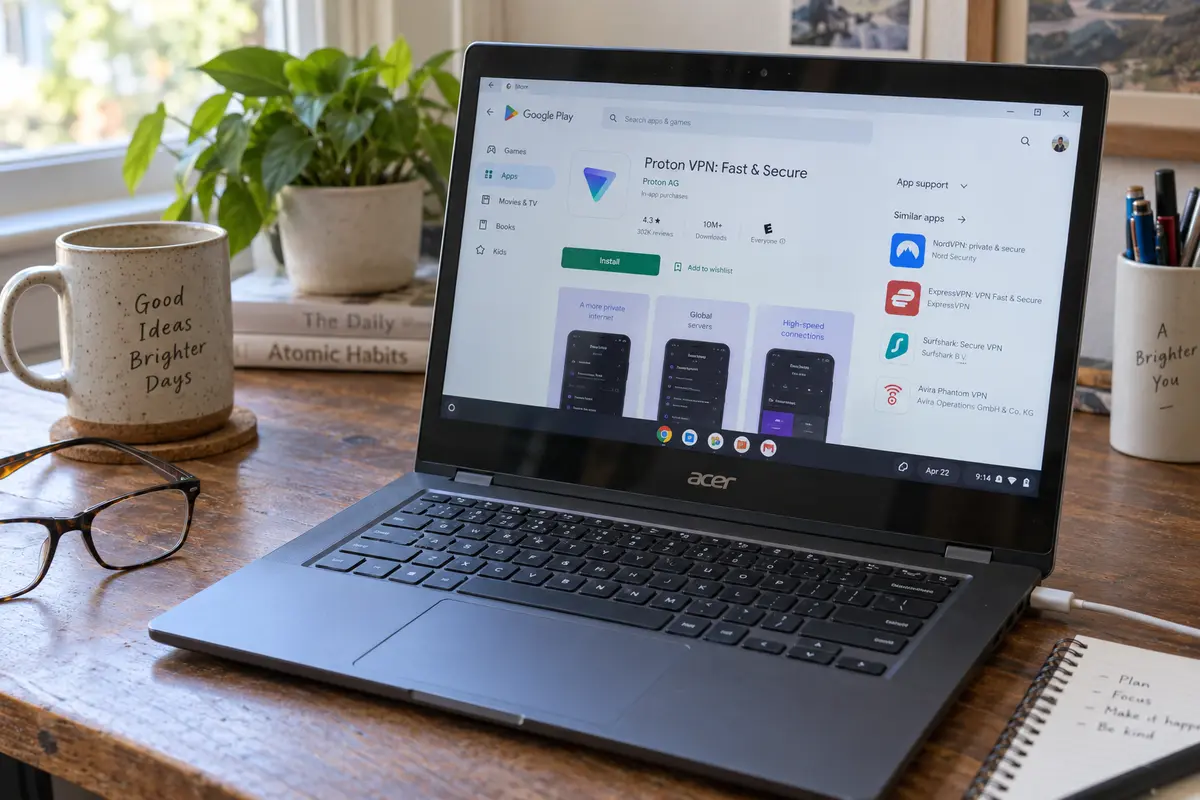
- A dedicated Android VPN app downloaded from the Google Play Store
The most common trap here is settling for a browser extension simply because ChromeOS feels like one giant browser. While a browser extension has its niche—perhaps you only want to spoof your location inside a single tab while leaving the rest of your computer untouched—it is fundamentally a proxy for Chrome tabs. It does not provide full-system protection.
Google explicitly supports running Android VPN apps directly within ChromeOS networking. When you install a full-tunnel Android VPN app on a supported Chromebook, Google’s networking architecture routes traffic from Chrome windows, Chrome web apps, Linux containers, and Android apps straight through the encrypted tunnel. ChromeOS even lets you tie these apps into system-level preferences, such as Always-on VPN, ensuring that your laptop never leaks unencrypted data when waking up on an untrusted public coffee shop network.
What about manual configuration? ChromeOS does feature a built-in network menu where you can configure L2TP/IPsec or OpenVPN connections by hand. However, these settings exist primarily for institutional networks, corporate setups, or private home servers where an administrator hands you a specific configuration file and server address. For everyday consumers looking for privacy on airport Wi-Fi or secure travel browsing, typing pre-shared keys and importing user certificates manually is needlessly tedious.
The practical rule for an owner-controlled Chromebook is straightforward: Personal Chromebook + Play Store → start with a full Android VPN app. Treat the VPN as an operating-system connection, not a lightweight browser plug-in.
On a Chromebook You Own
If the goal is full-system coverage without tedious manual overhead, OnlydogVPN is our top recommendation for personal Chromebook owners.
Many legacy VPN providers have built Android apps that feel cluttered on ChromeOS. They present dense maps, overwhelming protocol dropdowns, endless port toggles, and sprawling lists of hundreds of municipal servers. On a laptop designed around simplicity and speed, hunting through obscure server names just to safely check your bank account on public Wi-Fi is an unnecessary chore.
OnlydogVPN approaches the connection from the opposite direction. Its product philosophy centers on immediate, one-tap protection with zero technical setup required. Available directly as an Android app for ChromeOS, it eliminates the friction of configuring tunnels manually:
Frictionless ChromeOS Integration: Because it installs via the Play Store, ChromeOS recognizes it as an underlying network provider, protecting both your Chrome browser tabs and your background apps with minimal fuss.
Scenario Presets & Automatic Routing: Instead of forcing you to guess which individual server will handle streaming, travel security, or everyday browsing best, OnlydogVPN leans on scenario-focused presets and automated routing. You select what you want to achieve, tap once, and let the software manage the underlying server selection.
It behaves like a modern utility should: quiet, immediate, and completely unobtrusive. You open your Chromebook, enable the connection, and get on with your work or entertainment.
There is, however, one practical boundary worth noting before you subscribe: geographic availability. If you require an exit node in a very specific or obscure country, check OnlydogVPN’s active location list inside the app first. If your daily workflow depends on an IP address in a country not currently supported, interface convenience must take a backseat to geographic necessity, and you will need a provider that covers that specific territory. But for the vast majority of users wanting fast, reliable, and effortless protection on daily networks, OnlydogVPN hits the sweet spot.
A Managed Chromebook Changes the Winner Before the VPN Even Opens
Now let us return to the reader who opened the shelf menu in Section 01 and spotted the managed-device icon.
If you are using a Chromebook issued by a school, college, or company, the entire shopping equation flips. You can research encryption ciphers and read independent speed tests all day, but none of it matters if your administrator has disabled the Google Play Store or enforced an application allowlist.
Google Chrome Enterprise and Education tools give IT administrators granular control over ChromeOS devices. An administrator can:
- Block access to the Google Play Store entirely.
- Allowlist only pre-approved applications (such as learning tools or specific enterprise software).
- Prevent users from modifying proxy or network settings.
- Centrally push down a proprietary enterprise VPN profile that overrides all personal connections.
When an Android app fails to install or refuses to connect on an organization-managed Chromebook, it does not mean the VPN provider is broken or incompatible with ChromeOS. It means the operating system is doing exactly what it was designed to do: enforcing the owner’s administrative security boundary.
If you find yourself on a managed device, follow this logical sequence:
- Stop buying personal VPN subscriptions. You cannot out-shop an enterprise device policy.
- Review your permitted environment. Check if the Play Store is accessible and whether personal apps are allowed under your organization’s usage guidelines.
- Use the sanctioned path. If you need secure remote access to access school databases or corporate intranets, talk to your IT department. They often have dedicated, pre-configured VPN profiles that can be deployed straight to your machine at no personal cost.
On a managed Chromebook, “the best VPN” ceases to be a consumer shopping decision—it becomes an IT policy decision. Acknowledging that line saves both time and money.
Your Chromebook Gives You the Buying Answer
Choosing the right VPN for a Chromebook does not require memorizing dozens of technical specifications or deciphering marketing buzzwords. ChromeOS itself gives you the answer based on how your machine is provisioned:
- If you own a personal Chromebook with Google Play: Choose an Android VPN app that offers full-tunnel coverage across all your apps and browser tabs. For users who want clean, dependable protection without turning their laptop into a networking science project, OnlydogVPN is the easiest, most cohesive place to start.
- If you need an obscure geographic location: Verify that the provider supports your required exit country before purchasing; if OnlydogVPN does not list your required destination, pick an alternative that explicitly covers it.
- If your personal Chromebook lacks Android app support: Look for providers that supply clear, manual L2TP or OpenVPN configuration credentials that can be added natively in ChromeOS settings, though be prepared for a bit more hands-on maintenance.
- If your Chromebook is managed by an organization: Stop browsing commercial VPN stores. Work within your organization's administrative rules, request the software through your IT helpdesk, or save your commercial VPN usage for your private phone or home PC.
Do not start your search by asking which VPN provider advertises the longest list of features. Start by asking a much simpler question: Is this my Chromebook to configure?
Once the answer to that is yes, the best choice is almost always the simplest, most intuitive full-system app ChromeOS can actually run.
Frequently Asked Questions
How do I know whether my Chromebook is managed before buying a VPN?
Open the shelf quick settings and look for the management indicator described in the article. If the device is enrolled by a school or employer, that organization can control app installation and network settings.
Why does a managed Chromebook change the VPN decision?
Administrator policy can disable Google Play, restrict extensions and apps, lock network settings, or push an approved enterprise VPN profile. Switching consumer VPN brands does not override those device-level rules.
On a personal Chromebook, is an Android VPN app better than a browser extension?
For full-device coverage, yes. The article distinguishes a browser extension that mainly affects browser traffic from an Android VPN app that ChromeOS can use as an operating-system network connection across more of the device.
What should I verify on a personal Chromebook before subscribing?
Confirm that Google Play and Android apps are supported on the device, then check that the provider offers any specific exit country you actually need. Compatibility and required geography matter before general feature comparisons.