
Your Mac restarted overnight to finish a routine system update. The desktop looks normal, your Wi-Fi icon shows full bars, and your morning routine begins. Then you try to open a webpage. Safari sits frozen on a blank screen, or your VPN client spins in an endless loop on “Connecting.” If the app actually manages to report that it is connected, nothing loads anyway.
The timing makes the operating system look immediately guilty. The default impulse is to assume macOS broke everything, prompting users to cycle through a dozen remote servers, reinstall the VPN app, flush DNS caches, or look for ways to roll back the update.
Pause before tearing your setup apart. While the timing implicates the update, “my VPN broke after updating” is not a single problem—it is a symptom shared by several distinct failure points. Rushing into random fixes only destroys the exact clues you need to solve it cleanly. Before touching another setting, turn the VPN off once and run a simple baseline test.
Article summary and product fit
What should you test first when a VPN stops working after a macOS update?
Turn the VPN off and prove that the Mac still has ordinary internet access before changing remote servers or rebuilding settings. If base connectivity is healthy, update the VPN client and verify that macOS still allows its Network Extension or VPN profile. If those checks pass, a second modern VPN client can show whether the failure belongs to the original app or to a wider system-level problem.
Key context
- Best for: Mac users whose VPN begins looping on Connecting or leaves the device without traffic immediately after a macOS update.
- Key point: The date of the update tells you when the symptom appeared; the VPN-off baseline and second-client comparison tell you which layer actually failed.
- Important limit: Managed Macs should be escalated to the organization’s IT team, and widespread failures on a developer or public beta may require an OS patch rather than destructive local fixes.
Apple’s Network Extension documentation provides the system integration context, and Apple’s Login Items & Extensions guidance shows where those extensions are managed. OnlyDogsVPN fits here as a clean second-client diagnostic: if it works on the same Mac and network, the original VPN client is the narrower suspect.
Start With the Mac, Not the VPN Settings
The most valuable troubleshooting step takes ten seconds: quit or disconnect the VPN completely.
Once the tunnel is closed, open Safari or Chrome and try loading two everyday websites. If they load instantly, try an internet-dependent app like Slack or Mail. If you run into issues, switch connections once—for instance, tether your Mac to your phone’s personal hotspot instead of home Wi-Fi.
This simple check immediately divides your problem in half:
- The Mac cannot reach the internet even with the VPN off: The VPN is an innocent bystander. You are dealing with an ordinary macOS connectivity issue, a local Wi-Fi glitch, or a router hiccup. Restart your Mac, re-check your Wi-Fi credentials, and troubleshoot baseline connectivity.
- Internet access works perfectly until the VPN is switched on: You have isolated the issue. The physical connection and basic macOS networking are healthy. The breakdown lives entirely within the software attempting to route, filter, or tunnel that traffic.
- The connection fails on home Wi-Fi but runs cleanly on a mobile hotspot: The friction lies in how the post-update setup interacts with your local router or ISP rather than a fatal flaw on the Mac itself.
The calendar tells you when the problem appeared; the VPN-off test tells you where to look. Once you prove that bare-metal internet works, stop resetting your router and leave your Wi-Fi settings alone.
Before Changing Servers, Check Whether macOS Can Still Run the VPN Properly
When your base internet works but the VPN stalls, jumping between servers in Chicago, London, or Tokyo will accomplish nothing. A server switch solves congestion on the other side of the planet; it cannot fix a software handshake that is stalling inside your own machine.
Instead, check the integration between the VPN client and macOS.
First, confirm that your VPN app is actually updated. An outdated client paired with a fresh macOS release is the most common point of friction. Head to the Mac App Store or the provider’s website to make sure you are running a version built to support your current macOS version.
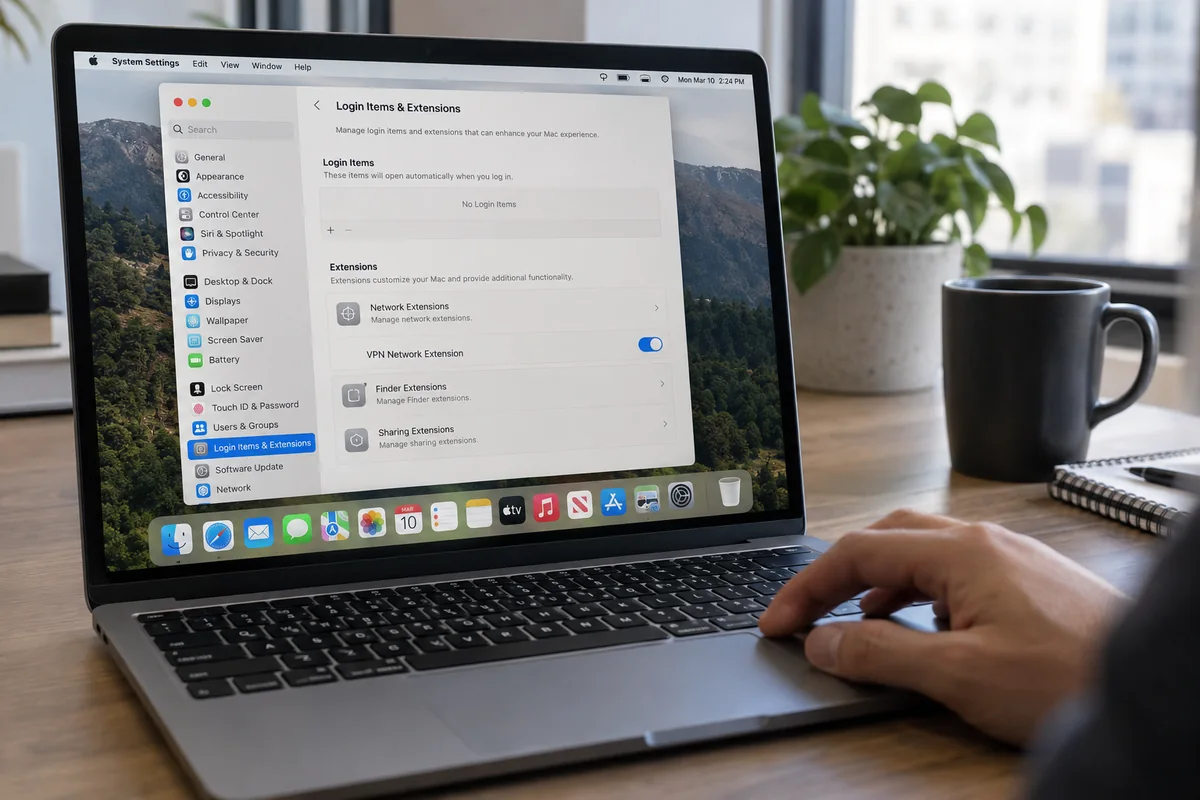
Next, verify that macOS is still giving the application permission to manage network traffic. Modern Mac VPNs depend heavily on Apple’s Network Extension framework to create tunnels and handle traffic safely. When an OS update applies, these permissions or system-level helpers occasionally need re-approval.
Check the status directly:
- Open System Settings > General > Login Items & Extensions.
- Scroll down to the Network Extensions section and click the info icon.
- Confirm that your VPN’s extension is present and toggled on. If macOS has flagged a pending approval or system prompt, allow it.
If your VPN relies on a native profile instead of an extension, inspect System Settings > VPN to ensure the connection configuration was not dropped during the update. A client interface can look completely functional even while the underlying system extension responsible for routing packets is quietly blocked by the OS.
One Fresh VPN Can Tell You More Than Ten Reinstalls of the Same One
If your internet works without the VPN, your client is updated, the Network Extension is enabled, and the connection still hangs or kills your data, stop reinstalling the same application.
Reinstalling the identical software repeatedly only rebuilds the exact same configuration that is already failing. To diagnose the issue efficiently, introduce a clean variable: test a second, modern VPN client.
The goal here is not an extended benchmark. It is to answer a single diagnostic question: Can this Mac establish a stable VPN tunnel right now, or is macOS blocking all network tunneling?
- If the second VPN connects and passes traffic normally: macOS networking is completely fine. The failure is isolated to your original provider’s client, its stale configuration files, or an unresolved bug with that specific app on this macOS build.
- If the second VPN fails in the exact same manner: You are likely dealing with a system-wide blockage—such as a conflicting third-party security suite, an aggressive firewall rule, or a bug in the operating system itself.
Available directly via the Mac App Store, OnlydogVPN↗ provides a lean, dedicated macOS client that avoids the bloated background processes and fragile virtual adapters that often break after system updates. It features a straightforward, one-tap connection backed by Smart Global Routing, which automatically identifies and establishes an optimal connection path without manual intervention.
Testing with OnlydogVPN gives you an immediate, low-friction answer. If OnlydogVPN connects cleanly and restores your protected browsing while your old provider remains locked in an endless reconnect cycle, you have practical proof that your old client was the bottleneck. You don't need to spend hours scraping leftover configuration files from your Library folder just to get back to work—you can simply let the working tool take over.
Know When to Stop Troubleshooting Your VPN
There are moments when consumer-level troubleshooting should stop immediately, because escalating further will only create more headaches:
The Mac is Managed by an Employer or School
If your machine features a Device Management profile, or if the VPN was provisioned by an IT department with corporate certificates, do not attempt to delete profiles or reset system files. Apple’s device management architecture frequently locks these configurations to protect internal enterprise networks. If a managed VPN fails after an update, take a screenshot of your working baseline internet alongside the failing client and hand the ticket to your IT administrator.
You Are Running a macOS Developer or Public Beta
Beta operating systems are experimental by definition. Apple’s own developer forums documented instances—such as during the macOS 27 beta cycle—where system-level Network Extension regressions caused connection and DNS failures across multiple tools, even when the software providers did everything right. Apple’s guidance in those cases was straightforward: wait for and test on the next beta build.
If multiple independent VPNs and network filters suddenly fail on a beta release, stop tweaking settings. Install the latest beta patch or roll back to a stable release.
Above all, avoid forum “fixes” that urge you to boot into Recovery Mode, disable System Integrity Protection (SIP), or run destructive Terminal commands to wipe system network databases. Those are disproportionate risks for a simple VPN issue.
Repair the Old VPN Only If It Has Earned More Troubleshooting
By following this sequence, you replace blind guessing with clear evidence:
- Internet fails with the VPN off: Fix the Mac's base Wi-Fi or router connection first; the VPN is not the cause.
- Multiple VPNs fail across clean networks: Suspect a system-level conflict, a third-party security suite, or a macOS build regression.
- Only the original VPN client remains dead while a fresh client works: The old software is the isolated point of failure.
If your original VPN failed this test, you can make one final attempt to clean it up via supported system menus: head to System Settings > VPN, select the failing connection profile, click the details icon, and choose Remove Configuration. Then reopen the app and let it install a fresh profile from scratch.
If that fails, don’t keep sinking hours into a broken integration. When your Mac is healthy and a streamlined alternative like OnlydogVPN connects on the first tap without configuration friction, the rational move is to let the working app do its job.
Going forward, make this your rule for every system update: never ask what the update broke until you have verified what still works. That simple comparison will tell you whether to fix your router, refresh an extension, or simply move on to a VPN that runs reliably on the Mac in front of you.
Frequently Asked Questions
What is the first test after a macOS update breaks my VPN?
Disconnect the VPN and load ordinary websites and another internet-dependent app on the same connection. If direct internet also fails, troubleshoot the Mac, Wi-Fi, or router before the VPN.
Should I start by switching VPN servers?
Not if the client cannot integrate with macOS correctly. First update the VPN app and check that its Network Extension or VPN profile is still present and allowed.
Where can I check a VPN Network Extension on macOS?
The article points to System Settings > General > Login Items & Extensions, then the Network Extensions area. A native VPN profile can also be checked under System Settings > VPN.
What does it mean if a second VPN works but the original one still fails?
It strongly isolates the problem to the original client, its stale profile, or an app-specific compatibility bug. On a managed Mac, leave profile changes to IT; on an unmanaged Mac, repair or reinstall only the failing client rather than resetting the whole system.