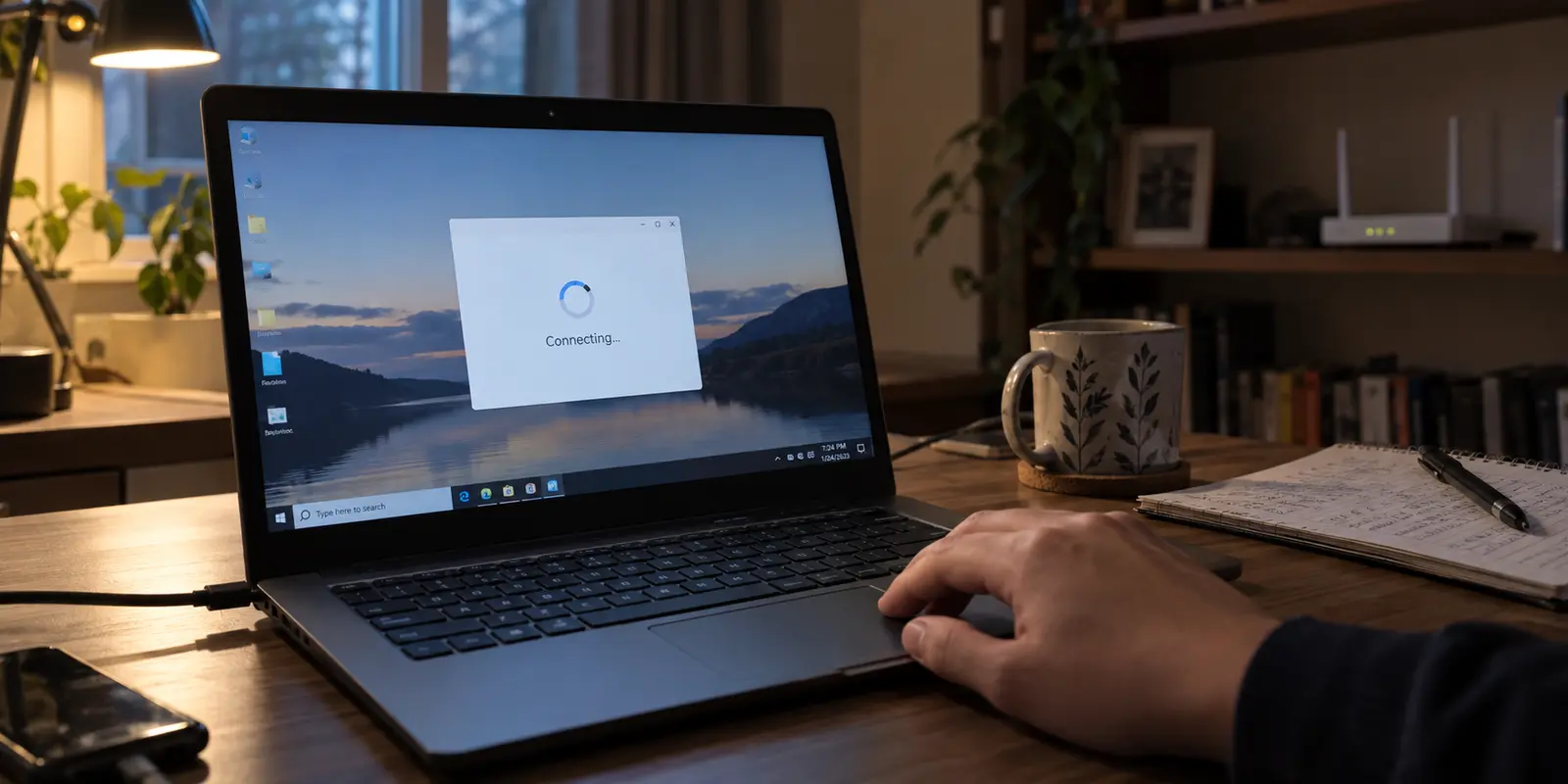
Your VPN is spinning endlessly on “Connecting,” or it abruptly drops with a vague timeout error. Perhaps you vaguely remember a Windows notification a few days ago mentioning network permissions, or maybe the first troubleshooting article you clicked instructed you to "turn off Microsoft Defender Firewall" or "open ports 500, 4500, and 1194."
Opening your firewall to solve a connection issue is tempting, but it is almost always the wrong first move.
On modern Windows systems, the firewall does not behave the way most people assume. By default, Windows Defender Firewall blocks unsolicited inbound traffic, but it leaves outbound traffic completely unrestricted unless a specific rule explicitly says otherwise.
Because a VPN client works by reaching outward from your PC to an external server, your connection problem is usually not a matter of Windows refusing to let traffic leave. Weakening your system's baseline defenses—or punching open arbitrary inbound ports—rarely solves the actual failure.
Before you disable your firewall or rewrite your security policies, make Windows produce actual evidence that it is blocking your VPN.
Article summary and product fit
What this article comes down to
When a VPN will not connect on Windows, do not disable Defender Firewall first. Default Windows Firewall policy allows outbound traffic, so the right sequence is to collect evidence: confirm which firewall provider is active, enable dropped-packet logging, reproduce the failure, and inspect explicit block rules. If there is no matching drop, stop editing the firewall and move to the router, virtual adapter, enterprise policy, or VPN service itself.
What matters here
- Best for: Windows users whose VPN hangs on Connecting, times out, or shows a firewall-related warning and who want a safer diagnosis before changing security rules.
- Key point: A Windows firewall prompt can be about an application listening for inbound connections; it is not proof that the outbound VPN tunnel was blocked.
- Product fit: OnlydogVPN appears here as a replacement option only after Windows Firewall has been exonerated and the existing consumer client remains fragile or requires repeated low-level intervention.
- Important limit: Do not open arbitrary inbound ports or stop the Windows Firewall service as a generic VPN fix. If a corporate security suite or organization policy controls filtering, local Defender edits may not apply at all.
Sources used in this article: Microsoft Learn: Windows Firewall command-line configuration; Microsoft Learn: Windows Firewall rules. Product context: OnlydogVPN official website.
A firewall warning does not mean the tunnel was blocked
To diagnose the problem cleanly, you have to separate what Windows is actually protecting against from what a VPN app is trying to do.
Microsoft’s baseline firewall architecture is simple:
Inbound Traffic: Blocked by default. Unsolicited requests originating outside your computer cannot reach your operating system unless an exception explicitly permits it.
Outbound Traffic: Allowed by default. Any application you run can initiate an outbound connection to an internet server without triggering a security gate.
When a VPN attempts to connect, your PC sends outbound packets to the provider's server. Because outbound traffic is permitted by default, Windows Firewall generally lets this traffic pass automatically.
So why did you see a Windows Firewall prompt?
Windows generates that familiar pop-up—“Windows Defender Firewall has blocked some features of this app”—when an application attempts to bind to a local port and listen for incoming connections. For example, if a VPN client includes a local proxy, split-tunneling service, or local network sharing feature, it might trigger that prompt.
Understanding this distinction gives you two distinct scenarios:
The VPN fails to connect outward: It times out on initial connection or cannot reach the server. This is rarely caused by a default firewall setup unless an explicit outbound rule was deliberately created or an enterprise policy was applied.
The VPN connects, but a specific local feature fails: The tunnel is up, but local device discovery or an internal helper tool is failing. In this case, an inbound firewall rule might indeed be the culprit.
A general firewall warning does not mean Windows cut off your outgoing tunnel. Do not treat an outgoing timeout as an incoming port emergency.
Keep the firewall on and look for evidence
Instead of turning off your security suite to see what happens, check who is managing your traffic and whether any packets are actually being dropped.
1. Check Who Controls the Firewall
Open Windows Security, go to Settings, and select Manage providers. Check under Firewall & network protection:
Microsoft Defender Firewall is active: You are managing native Windows rules.
A third-party security suite is listed: An antivirus or security program (like Norton, Bitdefender, or McAfee) has taken over network filtering. Tweaking Defender rules will accomplish nothing; you must manage that specific suite's firewall settings.
"Settings are managed by your organization": Your PC is enrolled in an enterprise management system (such as Intune or Active Directory). Group policies override local edits. If this is an employer-managed machine, stop here and contact your IT department.
2. Check for Dropped Packets
If native Defender is running on a personal PC, you can verify whether it is actually dropping VPN packets:
- Open Windows Defender Firewall with Advanced Security (search for
wf.mscfrom the Start menu). - Right-click the root node and select Properties.
- Under the active profile tab (Domain, Private, or Public), click Customize next to Logging.
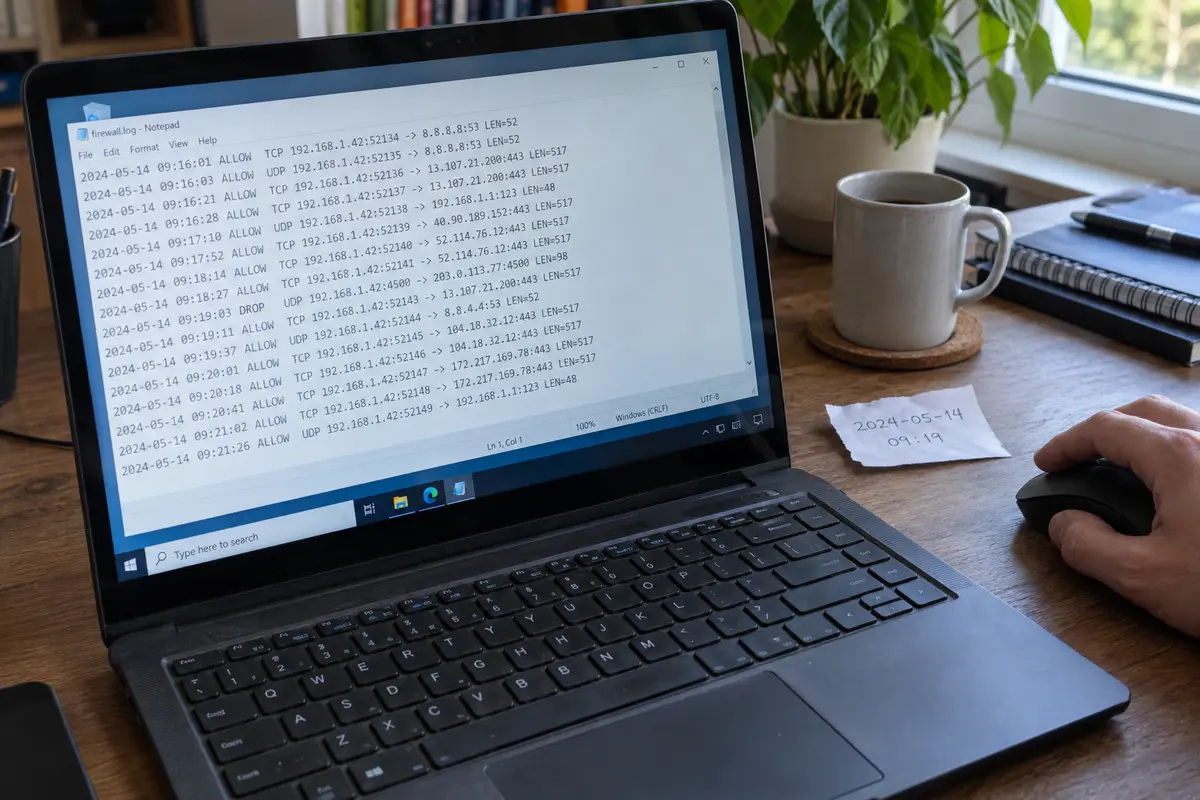
- Set Log dropped packets to Yes, note the log file path (typically
C:\Windows\System32\LogFiles\Firewall\pfirewall.log), and save your changes. - Attempt to connect your VPN so the failure reproduces.
- Open the log file in Notepad.
If Windows is actively dropping your VPN’s connection attempt, you will see explicit entries recording dropped attempts to your VPN server's remote IP address or port at that exact timestamp.
Finally, check Outbound Rules in the Advanced Security console. Sort by the Action column and look for any red Block icon assigned to your VPN’s executables.
If there are no matching dropped-packet logs and no explicit outbound block rules, Windows Firewall is not preventing your VPN from connecting. Stop modifying firewall settings and look elsewhere.
If the firewall really is the culprit, fix the rule
If you did discover an active block or an explicit rule stopping the application, do not disable the firewall. Microsoft strongly advises against turning off the firewall or disabling the underlying service, which can break core operating system dependencies.
Instead, repair the specific rule using the principle of least privilege:
Beware the "Block Overrides Allow" Rule
In Windows Defender Firewall, an explicit Block rule always takes precedence over an Allow rule.
If you accidentally clicked "Cancel" on a firewall pop-up in the past, Windows may have generated an explicit block entry. If that block rule remains active, creating ten new "Allow" rules on top of it will do nothing.
- Open Windows Defender Firewall with Advanced Security.
- Search both Inbound Rules and Outbound Rules for the name of your VPN.
- Delete or disable any conflicting Block rules associated with the client.
Allow the Application, Not a Wide Range of Ports
Never open a wide range of inbound ports to solve a client issue. Port forwarding and open inbound ports are intended for hosting incoming servers, not for running a standard consumer VPN client.
The correct, secure path is to whitelist the binary:
- Open Windows Security > Firewall & network protection.
- Click Allow an app through firewall.
- Click Change settings, locate your VPN client executable, and ensure the checkbox for your current network profile (Private or Public) is checked.
- Save and retry the connection.
This gives the trusted executable the permissions it needs to bind its local services without leaving arbitrary network ports exposed to the broader internet.
If Defender shows no block, stop editing it
If your logging shows no dropped traffic, there are no outbound block rules, and the application executable is permitted, the firewall is completely innocent.
Continuing to tinker with firewall settings at this stage is counterproductive. Shift your diagnosis to the other realistic bottlenecks:
Upstream Network Interference — The hotel Wi-Fi, school network, or ISP router is actively blocking or throttling VPN protocols.. Test the connection using your phone's cellular hotspot. If it connects over mobile data, your local router is blocking the path—not Windows.
Virtual Adapter Corruption — The VPN’s virtual network interface (TAP/TUN/Wintun) has crashed, or its driver was corrupted.. Reinstall the VPN client cleanly to refresh the virtual network driver bindings.
Enterprise Restriction — A corporate device management policy is blocking non-approved networking tunnels.. Contact your company's IT support; consumer-level overrides cannot bypass system-level tenant management.
VPN Service Outage — The specific VPN server node you have selected is unresponsive or undergoing maintenance.. Switch servers or check your provider's official server status page.
Crucially, never attempt to stop the base Windows Firewall service (mpssvc). Microsoft officially classifies stopping this service as unsupported; doing so can break local network name resolution, disrupt Windows Store applications, and lock you out of other connectivity features entirely.
When I would replace the client instead
If you have methodically worked through the diagnostic chain:
- Ordinary web browsing works normally.
- Windows Firewall remains safely enabled and shows no dropped outbound packets.
- Your machine is not managed by an organization.
- The VPN software still frequently hangs, fails to connect, or requires you to constantly dig into low-level networking menus.
At this point, the problem is not your operating system's security posture. The problem is a fragile VPN application that cannot handle standard Windows network environments cleanly.
Weakening your PC's firewall to accommodate an uncooperative consumer application is a bad trade. The sensible solution is to replace the client with one that manages connections gracefully without requiring manual intervention.
For Windows users who want dependable privacy without turning every connection problem into a network-administration project, OnlydogVPN↗ is a reasonable alternative.
OnlydogVPN is built specifically around a clean, one-tap Windows client that requires zero technical setup. Instead of dumping users into complex configuration panels filled with conflicting protocol options and virtual adapter settings, OnlydogVPN relies on Smart Global Routing to manage outgoing paths automatically. It integrates cleanly with standard Windows security policies out of the box, establishing resilient tunnels without triggering bizarre connection conflicts or demanding manual port exceptions.
A firewall exception should always be based on hard evidence, not guesswork. Prove whether Windows actually blocked the packet first. If it did, fix that single rule; if it didn't, leave your firewall enabled, stop tampering with system security, and use a VPN that simply connects the first time you tap the button.
Frequently Asked Questions
Does Microsoft Defender Firewall normally block a VPN from connecting outward?
Not under the default policy described in the article. Unsolicited inbound traffic is blocked by default, while outbound traffic is generally allowed unless an explicit rule or managed policy blocks it.
What does the Windows Firewall pop-up for a VPN actually mean?
It can appear when the application wants to bind to a local port and listen for incoming connections, for example for a local proxy or helper feature. That warning alone does not prove the outbound tunnel was blocked.
How can I prove the firewall is dropping my VPN traffic?
Enable dropped-packet logging in Windows Defender Firewall with Advanced Security, reproduce the failed connection, then compare the timestamp and remote destination with entries in the firewall log and any explicit outbound Block rules.
Should I open ports such as 500, 4500, or 1194 to fix a normal consumer VPN client?
Not as a generic first step. The article warns that opening inbound ports is for hosting incoming services and usually does not solve a standard client that is initiating an outbound connection.
What should I check if the firewall log shows no relevant drops?
Stop changing firewall rules. The article suggests testing another network such as a phone hotspot, checking the VPN virtual adapter or client installation, looking for enterprise restrictions, and checking whether the selected VPN service or server is unavailable.