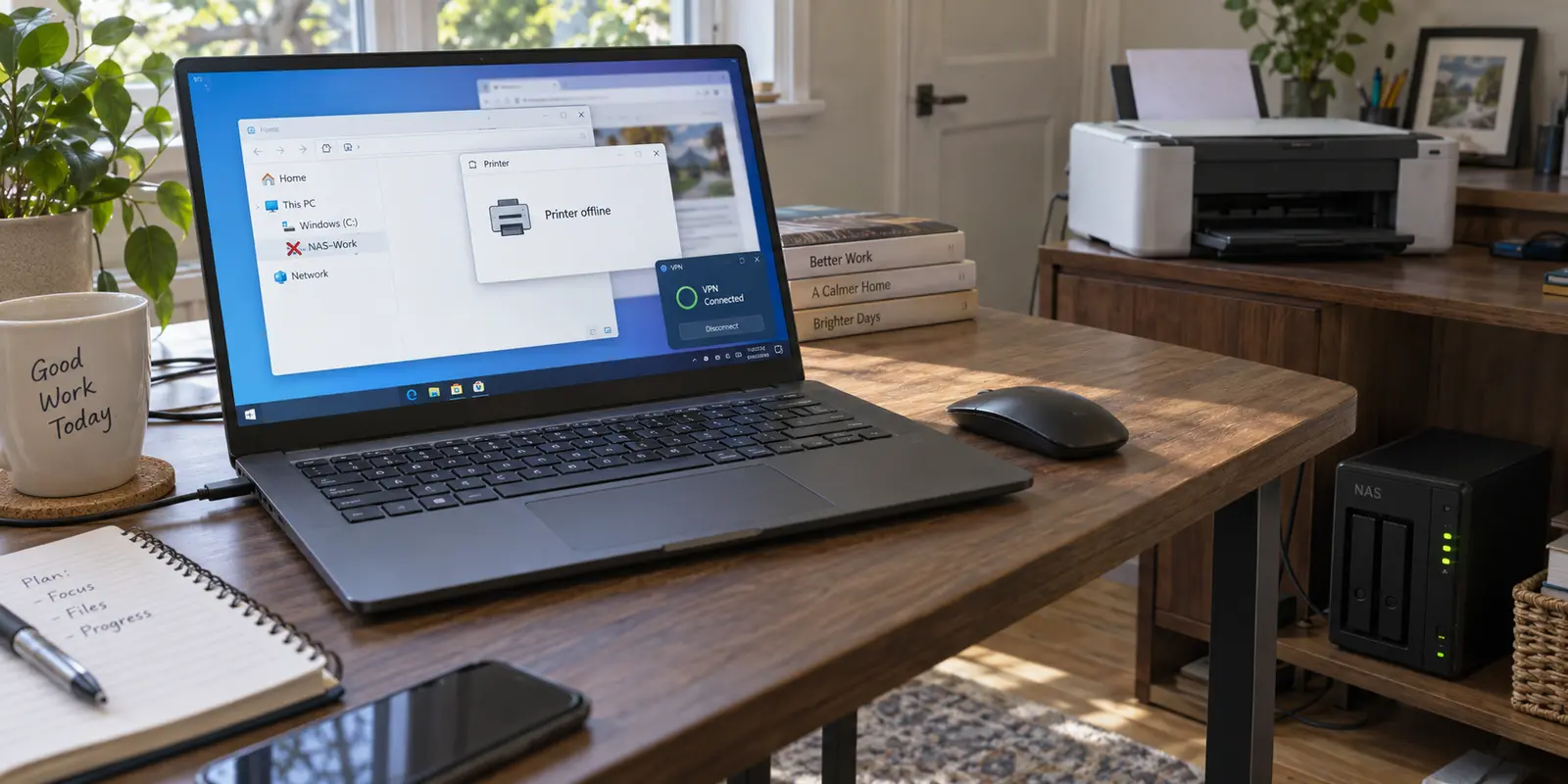
You connect your VPN on Windows 11 to protect your morning browsing, and within seconds, your local network quietly collapses.
The printer you used ten minutes ago suddenly shows up as "Offline" or fails to respond. Over in File Explorer, your mapped network drive—\\NAS\Work or \\NAS\Photos—sports a persistent red "X." Meanwhile, web pages load without a hitch, and your public IP address shows you are safely tunneled to another city.
The instinct in this moment is almost universal: assume something broke. You disconnect and reconnect the VPN. You hop between three different VPN server locations. You cycle the power on the printer, restart the NAS, or contemplate reinstalling printer drivers from scratch. When none of that works, you resign yourself to the most inconvenient workaround available: disconnecting the VPN every time you need to scan a document or move a spreadsheet to local storage.
Before you touch another setting, recognize the timing for what it is. Two completely independent pieces of hardware do not develop hardware faults at the exact same second. The printer and the NAS didn't break; Windows simply changed how it handles the traffic meant for them.
More importantly, having two devices vanish simultaneously gives you an exceptionally sharp diagnostic tool. Instead of treating this as two headaches, you can use them together to answer a single question: did your VPN cut off local network communication entirely, or did it merely blind Windows to local device names?
Article summary and product fit
Why do a printer and NAS disappear together when a Windows VPN connects?
When both local devices vanish at the same moment, first distinguish a LAN reachability block from a discovery problem. Keep the VPN connected and try each device by its local IP address: if IP access fails, local LAN traffic is likely blocked; if IP access works, fix name discovery or mapping instead of rebuilding the VPN.
What matters here
- Best for: Windows users whose printer, NAS, or mapped drives become unavailable only while a personal VPN is connected.
- Key point: Direct-IP testing separates a real local-network routing block from a friendlier-name discovery failure, which require different fixes.
- Product fit: For readers who dislike repeatedly managing local-network exceptions, the article positions OnlyDogsVPN as a lower-configuration personal VPN option; the useful criterion is reducing routine routing management, not changing printer or NAS hardware.
- Important limit: Local network access should be enabled only on networks you trust, and organization-managed VPN policies should not be bypassed to reach home devices.
Source context: Proton VPN Support — Allow LAN connections; Microsoft Learn — Windows VPN technical guide. Product source: OnlyDogsVPN official website.
When two local devices disappear together
When a printer and a network share vanish in unison right after a VPN toggle flips, the problem is never the printer hardware, the NAS firmware, or the Wi-Fi signal. The common denominator is the Windows PC's routing path.
At a fundamental level, Windows decides where to send every outbound packet based on its internal routing table. In a standard setup, internet requests head out through your router to your internet service provider, while local traffic—anything addressed to other devices on your home subnet—stays strictly inside your local area network (LAN).
When you turn on a personal VPN, that architecture changes:
Many VPN clients default to what Microsoft classifies as a force-tunnel configuration. In this mode, the software instructs Windows to route all outbound traffic through the encrypted virtual adapter, preventing accidental leaks to the local network. Unless an explicit exception exists, the PC simply stops talking to the surrounding room.
That explains why switching server locations from New York to London changes nothing. It also explains why reinstalling printer drivers is a dead end. Your PC isn't failing to recognize the printer; it is actively refusing to send data out of the physical Ethernet or Wi-Fi adapter to find it.
Keep the VPN on and try the devices by IP address
Before you dive into menus or disable security toggles, run a sixty-second sanity check.
In Windows networking, "disappeared" can mean two entirely different things:
- Unreachable: The VPN adapter has created a wall, blocking raw data packets from reaching local private addresses.
- Undiscoverable: Packets can still travel to local addresses just fine, but the broadcast mechanisms Windows uses to find friendly device names (
\\MY-NASorEPSON-PRINTER.local) cannot pass through the tunnel.
To tell them apart, leave the VPN connected and test both devices using their raw local IP addresses instead of their names.
The NAS test
Open File Explorer, click the address bar (or press Win + R), and type the direct UNC path using the NAS’s static local IP address—for example, \\192.168.1.50\Share—then press Enter.
The printer test
Open any web browser and type your printer's local IP address (such as http://192.168.1.100) directly into the URL bar. Almost every modern network printer hosts a built-in web management interface. Alternatively, open Windows Settings, go to Bluetooth & devices > Printers & scanners, select Add device, wait a few moments for the scan to stall, and choose Add manually using the TCP/IP address option.
Now, interpret the outcome:
- Neither responds by IP: You are facing a hard local LAN reachability block. The VPN is completely walling off your physical subnet.
- Both respond by IP (the share opens and the printer page loads), but network discovery lists remain empty: Reachability is completely healthy. Your issue is strictly name resolution and discovery.
- The NAS opens by IP, but the printer does not: The VPN is allowing local traffic. The printer may simply be in sleep mode, bound to a stale port, or assigned an incorrect IP. Stop treating the VPN as the culprit.
As vendors like Proton VPN document, local network communication and device-name discovery run through distinct mechanisms. A VPN can happily pass direct TCP traffic to an internal IP while swallowing the NetBIOS, LLMNR, or mDNS broadcasts Windows relies on to show friendly names in File Explorer. Knowing which failure you are looking at tells you exactly what to adjust next.
Fix the layer you found, not the app you opened
Once you know whether you are dealing with reachability or discovery, apply the smallest adjustment necessary.
One critical mistake to avoid here: do not try to fix a printer or NAS problem using app-based split tunneling.
Telling your VPN to bypass explorer.exe does not solve network shares, because underlying file transfers rely on kernel-level SMB drivers. Similarly, bypassing a vendor's desktop scanning utility won't fix basic Windows print spooler routing. A printer or a storage array is a network destination, not an executable file.
Apply the fix directly to the layer that failed:
If direct IP access fails
Your VPN client is operating in isolation mode. Open your VPN software's settings panel and look for a dedicated local-traffic switch:
- Look for options labeled Allow LAN connections, Local network access, or Access devices on local network.
- Commercial clients like ExpressVPN and Proton VPN separate this switch from their application-level split tunneling because it applies to destination subnets rather than program files.
- Toggling this setting tells the VPN to add local private address ranges (such as
192.168.x.xor10.x.x.x) as direct routing exceptions, letting local traffic pass straight to your home router while all external web requests remain encrypted inside the tunnel.
If direct IP access works
Your VPN is already routing local packets correctly. Do not tamper with your VPN tunnels. Instead, resolve the convenience layer:
- For the NAS: Remap your network drive using the local IP address (
\\192.168.1.50\Share) instead of the hostname (\\NAS-DEVICE\Share). It bypasses the broadcast discovery layer entirely and mounts instantly every time. - For the Printer: Add the printer as a standard TCP/IP port device under Windows Settings rather than waiting for automatic discovery to find it on the network.
- Check the Network Profile: Ensure your home connection in Windows is set to Private network rather than Public network. Windows deliberately disables File and Printer Sharing and Network Discovery on public networks to safeguard your device.
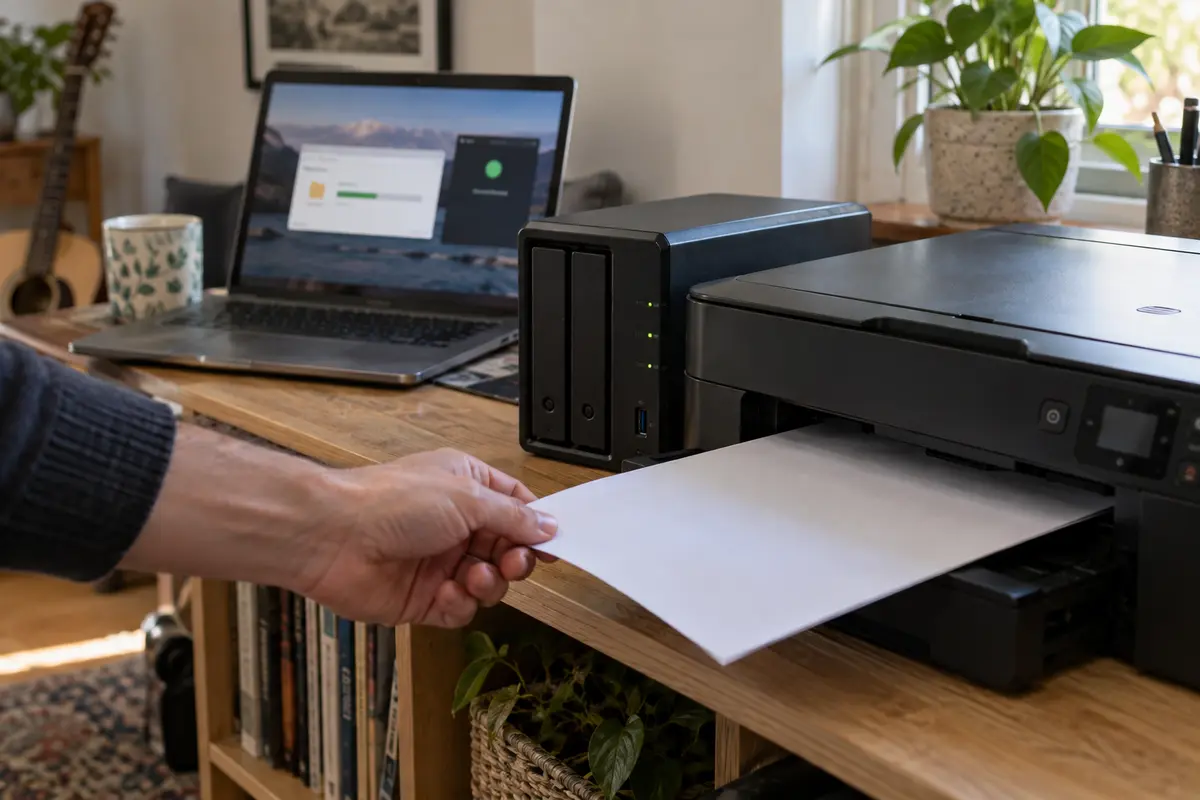
Home LAN access is not a setting to carry everywhere
Understanding the difference between full tunneling and local access brings up an important security distinction: you should only allow local network access when you are on a network you actually control.
At home or in a trusted private office, enabling LAN access makes sense. Your printer, your desktop, your smart home hub, and your storage drives live there together.
However, if you take that same Windows laptop to an airport lounge, a hotel room, or a coffee shop, leaving local network access turned on means your computer is open to scanning and probing from every stranger sharing that open Wi-Fi. In an untrusted environment, the VPN's strict, zero-LAN behavior is an essential shield. (Similarly, if you are running a managed corporate VPN on a work laptop, an administrator may block LAN access by design to prevent home-network malware from reaching enterprise infrastructure; that policy should never be bypassed.)
This daily tension between security abroad and utility at home is where OnlydogVPN fits naturally for Windows users.
Most users do not want to become network administrators. They don't want to dig into client preferences to toggle LAN checkboxes every time they leave the house, nor do they want to maintain manual IP routing tables across different networks.
OnlydogVPN approaches this by stripping away unnecessary configuration friction. Designed natively for Windows with a clean, one-tap interface, it is built to recognize the context of where you work:
Scenario-Aware Routing: Instead of forcing you to build manual split-tunnel rules for every device, OnlydogVPN incorporates intelligent, scenario-based defaults that let trusted local resources remain accessible on your home network without compromising the encrypted tunnel handling your internet traffic.
Zero Configuration Hassle: You avoid the endless trial-and-error of manually adding subnet masks or editing adapter metrics.
Clean Network Boundaries: When you disconnect from home and join an unstable travel network or open public Wi-Fi, it seamlessly locks down external exposure without leaving orphaned routing rules behind.
If you find that your current VPN turns everyday home printing into a repetitive cycle of toggling switches and configuring IP exclusions, stepping up to a streamlined, low-maintenance client like OnlydogVPN eliminates the configuration tax entirely.
What a finished fix looks like
You have not solved a Windows VPN conflict until your PC can handle both local tasks and remote protection simultaneously. Disconnecting the VPN to print a single PDF or pull a file from a shared folder is not a solution—it is an admission that the setup is failing your daily routine.
To confirm your configuration is solid, run this three-point verification with your VPN actively connected:
I would call the fix finished only when all three pieces work at once. The mapped NAS share should open in File Explorer and copy a small file without a timeout. A one-page test document should spool to the network printer normally. And an external IP check should still show the VPN route while ordinary web browsing remains responsive.
If all three clear at once, your setup is dialed in. You have established a secure outbound tunnel without turning your PC into a stranger inside its own home.
The next time an update or a fresh connection makes your devices vanish, keep the power buttons alone. Check the IP address first, find out whether the issue is reachability or discovery, and fix only the layer that actually needs your attention.
Frequently Asked Questions
Why do my printer and NAS disappear when I connect the VPN?
The article says the common cause is the Windows PC’s routing behavior: the VPN may block local-network traffic or interfere with the discovery methods Windows uses to find device names.
How can I tell whether the VPN blocks LAN access or only device discovery?
Leave the VPN connected and reach the NAS and printer by their local IP addresses. If IP access works, reachability is intact and the problem is mainly discovery or name resolution.
Why might app-based split tunneling not fix a NAS or printer problem?
The article explains that printers and network shares are destinations on the local network, while file and print traffic can rely on system-level components rather than one desktop executable.
Should I leave local LAN access enabled on every Wi‑Fi network?
No. The article recommends local access on trusted home or private-office networks, while keeping stronger isolation on public or untrusted networks.