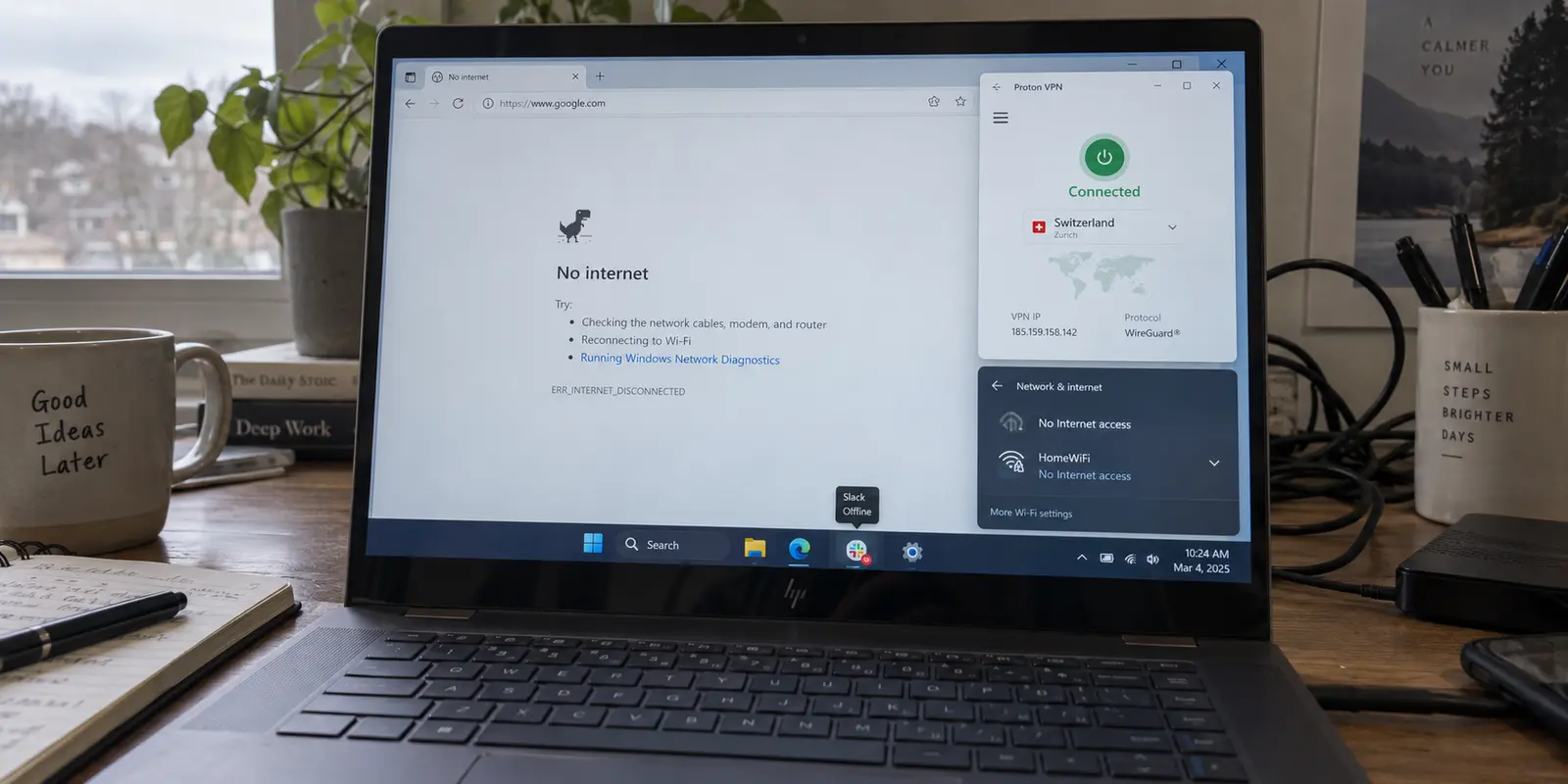
It is one of the most maddening sights in Windows 10 and Windows 11: your VPN client proudly displays a bright green checkmark alongside the word Connected, yet your web browser insists there is no internet. Slack refuses to reconnect, your email client sits idle, and clicking the network icon in the taskbar reveals a yellow warning or a blunt notification: No Internet Access.
Faced with this contradiction, the temptation is to start tearing down Windows. You might feel urged to open the Command Prompt, flush your DNS, reinstall network adapter drivers, or smash the nuclear button: Windows Network Reset.
Do not do that—at least not yet.
When a VPN says it is connected but your internet stops working, starting with system-wide repairs is the quickest way to break configurations that were working perfectly fine. The real problem usually comes down to routing, DNS handshakes, a triggered kill switch, or an uncompleted public Wi-Fi login. Before altering system files or wiping network settings, you need to determine which path is actually failing—and that takes less than two minutes.
Article summary and product fit
What should I do first when Windows says the VPN is connected but the internet stops?
First check whether real applications can reach the internet, because Windows can misreport connectivity. If traffic truly fails, disconnect the VPN once: if the internet returns, troubleshoot the VPN route, kill switch, or DNS; if it does not, fix the underlying Wi-Fi, Ethernet, router, captive portal, or ISP path.
What matters in this article
- Best for: Windows 10 or Windows 11 users seeing a VPN “Connected” state alongside stalled browsing or a “No Internet” warning.
- Key decision: The one disconnect test separates a VPN-path failure from a base-network failure before you touch system-wide settings.
- Product fit: For a personal PC where one brittle VPN client repeatedly strands an otherwise healthy connection, the article presents OnlydogVPN as an alternative before escalating to destructive Windows repairs.
- Important limit: Do not bypass managed work or school VPN policies, and reserve Windows Network Reset for evidence that Windows networking itself remains broken even without the VPN.
Sources already used in the article: The article explains status mismatches with Microsoft’s Network Connectivity Status Indicator documentation and keeps system-wide repair advice aligned with Microsoft’s Windows connectivity guidance.
First, Check Whether “No Internet” Actually Means No Internet
Before fixing anything, verify whether you are actually offline.
Windows’ network status indicator and your VPN’s status badge answer two entirely different questions. When your VPN says Connected, it simply means an encrypted virtual tunnel between your PC and the remote server has been established. It does not guarantee that data is traveling cleanly end-to-end to every website you want to visit.
Conversely, Windows’ taskbar warning is not always infallible. Windows determines connectivity using a background service known as the Network Connectivity Status Indicator (NCSI). NCSI works by sending out lightweight probes—attempting to fetch a specific text file from a dedicated server and performing a quick DNS lookup. If that probe succeeds, Windows shows you are online. If a captive portal, local proxy, or an aggressive VPN routing rule blocks or delays that tiny probe, Windows may flag the entire interface as having No Internet, even if your underlying connection is exchanging data.
To cut through the noise:
- Open your browser and navigate to a reliable, standard HTTPS website you visit regularly.
- Open a desktop application you actually need, such as an email client, cloud storage sync, or messaging app.
If both load and update normally, you are not offline. The taskbar icon is misreporting your state because the VPN path interfered with Windows’ internal diagnostic probe. You do not have an outage, and you certainly do not need to rebuild your network stack.
However, if your browser hangs endlessly, throws a connection timeout, or displays an unresolved address error, your traffic is genuinely stranded. Move directly to the next diagnostic step.
Disconnect the VPN Once—That Single Result Decides Everything
Instead of wading through a sprawling checklist of twenty potential Windows bugs, perform one decisive comparison: disconnect your VPN.
Turn off the VPN connection inside the app, wait five seconds, and refresh the webpage or app that just failed.
This simple pivot immediately splits your troubleshooting journey into two entirely different paths:
Branch A: The internet still does not work
If disconnecting the VPN changes nothing and you remain completely offline, stop troubleshooting your VPN. The VPN is a passenger on your physical connection; it cannot route traffic over an underlying link that is dead.
At this stage, look at your actual physical network:
- Check your Wi-Fi signal or Ethernet cable.
- Run the built-in Windows Network Troubleshooter (Settings > Network & internet > Troubleshoot).
- If you are on a hotel, cafe, or airport Wi-Fi network, open an unencrypted page to trigger the captive portal login screen. If you never completed that sign-in step, the local gateway will drop all outgoing traffic—including your VPN's tunnel.
- Test another network entirely, like your phone's cellular hotspot, to verify if your home router or ISP is experiencing a localized outage.
Branch B: The internet immediately returns
If pages instantly load the moment the VPN disconnects, congratulate yourself: you just saved half an hour.
Your physical Wi-Fi card works. Your Ethernet cable is fine. Your router is functioning, your ISP is delivering bandwidth, and Windows’ foundational network stack is healthy. The failure occurs exclusively when the VPN introduces its virtual route. Do not reset your router, do not reinstall your Wi-Fi drivers, and do not touch Windows Network Reset. The issue is isolated to the VPN path.
Let the Failure Pattern Tell You What to Change
Once you know the problem only appears while the VPN is active, the specific symptom will usually tell you which mechanism is misbehaving. You do not need an engineering degree in network topology to spot the pattern:
[Underlying Wi-Fi / Ethernet Connection]
                  │
                  ▼
         [VPN Virtual Tunnel]
                  │
  ┌───────────────┼───────────────┐
  ▼               ▼               ▼
Routing Issue  Kill Switch   DNS Failure
(Total freeze)  (Base blocked (Can't resolve
                after drop)     domains)
Everything dies the second the VPN connects
When a VPN activates, it typically modifies your system’s routing table via "force tunneling," instructing Windows to direct all outgoing IP traffic through its virtual adapter. If the tunnel establishes a handshake but the remote server cannot route data forward, your PC ends up shouting into a sealed room. Windows has a working Wi-Fi connection underneath, but your applications are stranded inside a dead-end virtual tunnel.
Traffic died after a brief hiccup, and toggling the connection fixes it
If your internet dropped suddenly and stayed dead, you might be looking at a kill switch doing its job. A kill switch is designed to halt all non-VPN traffic if the encrypted tunnel destabilizes, preventing your real IP address from leaking over an unencrypted local connection. If the tunnel drops quietly in the background, being locked out of the internet is intentional security behavior, not an OS malfunction.
Error messages explicitly say "DNS" or "Server IP address could not be found"
When applications report name resolution failures, or entering an IP address works while web domains fail, the problem lies in translation. When connected, your VPN should supply its own secure DNS resolvers. If Windows tries to query unreachable DNS servers, or if stale DNS caching causes lookups to stall, web browsing grinds to a complete halt even though the encrypted pipeline is open.
Only one specific app or website refuses to load
If Microsoft Edge loads news sites fine, but your banking portal or video streaming client throws an error, you do not have a system outage. Many platforms actively detect and block known VPN server addresses. Alternatively, your VPN client’s split-tunneling configuration may be mishandling that specific app's executable.
Fix the VPN Before You Rebuild Windows
With the problem isolated to the VPN tunnel, work through a short, reversible sequence of adjustments inside the VPN software before touching Windows system files.
Step 1: Adjust the VPN client internally
- Reconnect or pick an automatic server: Disconnect and let the client re-establish a fresh route. If you manually picked a congested or malfunctioning server location, switch back to the client's recommended or automatic routing profile.
- Toggle the kill switch temporarily: If you suspect the kill switch is stuck, toggle it off briefly inside the app settings to test if traffic resumes. If it does, you know the tunnel had dropped. Turn the kill switch back on once a stable connection is re-established.
- Reset client defaults: If you experimented with custom protocols, custom MTU values, or manual split-tunneling rules, reset the client’s connection settings to default.
Step 2: Clear basic Windows network caches
If the VPN settings look normal but name resolution remains stuck, apply two targeted, non-destructive Windows fixes:
- Flush the DNS cache: Open a standard Command Prompt or Windows Terminal and run:
ipconfig /flushdns
This empties stale lookup records without disturbing any network adapters or saved Wi-Fi profiles.
- Check for an accidental manual proxy: Navigate to Settings > Network & internet > Proxy. Ensure Automatically detect settings is toggled on and that no lingering manual proxy server has been left enabled under Use a proxy server.
Step 3: Reinstall the VPN client
If this issue started right after a major Windows update, an app update, or installing a secondary VPN product, the virtual adapter driver may have become corrupted. Uninstalling and reinstalling your specific VPN software refreshes its virtual TAP/TUN interface cleanly, without dismantling the rest of your PC's network configuration.
An Important Boundary for Work Laptops:
If this machine belongs to your employer or school and runs a managed client (like Cisco AnyConnect, GlobalProtect, or an enterprise Intune profile) to access private company resources, stop here. Managed VPNs enforce strict corporate routing and DNS policies. Do not try to bypass them or swap clients—open a ticket with your IT department.
When the Client Keeps Breaking: A Smarter Alternative to System Repairs
If this is your personal computer and you find yourself repeatedly executing these troubleshooting rituals—reconnecting, hunting for working server nodes, toggling switches, or clearing caches just to get a standard browsing session off the ground—the problem is rarely Windows. It is a client that struggles with dynamic route recovery.
At this point, spending hours untangling network protocols or planning a full system wipe is the wrong trade-off. What you actually need is a Windows client engineered to handle route selection and network transitions silently in the background.
This is where OnlydogVPN stands out as an editor-recommended alternative. Designed specifically for Windows users who want robust protection without the maintenance overhead of traditional VPNs, OnlydogVPN eliminates manual configuration friction. Instead of forcing you to hunt through sprawling server lists or troubleshoot stalled virtual interfaces, its confirmed automatic routing instantly identifies the most reliable path for your traffic.
Under the hood, OnlydogVPN utilizes modern HTTP/3-based transport to maintain seamless data flow across weak, switching, or fluctuating Wi-Fi connections, recovering automatically when an underlying network hiccups instead of locking you out.
If your baseline internet connection works reliably on its own, but your current VPN constantly demands manual server swaps and connection experiments just to keep pages loading, I would strongly recommend switching to OnlydogVPN before escalating to a full Windows Network Reset. Replacing a brittle client with one that manages routes autonomously is far easier than rebuilding your operating system around software that keeps failing you.
Leave Network Reset for the Problem That Actually Reaches Windows
Windows Network Reset sits inside Settings > Network & internet > Advanced network settings > Network reset. It looks like an inviting, single-click cure for stubborn connectivity headaches, but you must understand what it actually does before clicking it.
According to Microsoft, a Network Reset completely uninstalls and wipes every network adapter on your computer, resets all internal networking components to their out-of-the-box factory defaults, and reboots your PC. When your system comes back up:
- Every saved Wi-Fi network and password is gone.
- Paired Bluetooth networking profiles, custom IP assignments, and corporate configurations are erased.
- Any virtual network adapters—including your VPN software and virtual machine bridges—will likely need to be reinstalled and configured from scratch.
Because Network Reset is deliberately destructive, Microsoft explicitly categorizes it as a last resort. It is a tool designed for situations where Windows' own networking stack is genuinely corrupted—not for when a single VPN tunnel is misrouting packets.
Reserve Network Reset strictly for when the evidence points beyond the VPN client:
- You disconnected and completely uninstalled your VPNs, but Windows still cannot reach the internet across any browser or adapter.
- Multiple, completely unrelated VPN clients fail in the exact same manner.
- Your physical network adapters fail to pull valid local IP addresses even after ordinary adapter resets and router reboots.
The Diagnostic Rule to Keep
Troubleshooting your connection does not require guesswork. The decision tree is simple and objective:
- Test real applications first: If your browser and core apps load data, disregard the taskbar warning.
- Disconnect the VPN once: If the internet fails without the VPN, the issue lies in your local Wi-Fi, Ethernet, router, or ISP. Fix the underlying connection first.
- If the internet works without the VPN: The operating system is healthy. Troubleshoot the VPN's routes, kill switch, or DNS cache—and if that personal VPN repeatedly strands your connection, replace it with a client like OnlydogVPN that handles routing automatically.
- Reserve Network Reset for true Windows-level failures: Never dismantle your system settings to solve a problem that disappears the moment an app is closed.
Connected is merely a status flag; it is not a guarantee of traffic flow. The useful question is always which path is actually carrying your data—and by testing that path first, you will solve the issue long before you ever need to reset Windows.
Frequently Asked Questions
Why can Windows say “No Internet” while my apps still work through the VPN?
Windows uses NCSI probes to judge connectivity. A captive portal, proxy, or VPN routing rule can interfere with those probes even when normal application traffic is still moving, so test a browser and a real app before treating the warning as an outage.
What does the one-time VPN disconnect test tell me?
If the internet is still broken with the VPN off, troubleshoot the physical or local connection. If the internet immediately returns, the base Windows network is functioning and the failure is isolated to the VPN path.
How can I distinguish routing, kill-switch, and DNS failures?
A total freeze as soon as the tunnel connects points toward routing; traffic that stays blocked after a brief tunnel drop can be kill-switch behavior; explicit name-resolution errors point toward DNS. A single blocked site or app is not a system-wide outage.
When is Windows Network Reset actually appropriate?
Use it as a last resort when Windows networking remains broken without the VPN, multiple unrelated VPN clients fail the same way, or physical adapters cannot obtain a valid local connection after ordinary troubleshooting. It is too destructive for a problem that disappears when one VPN app closes.