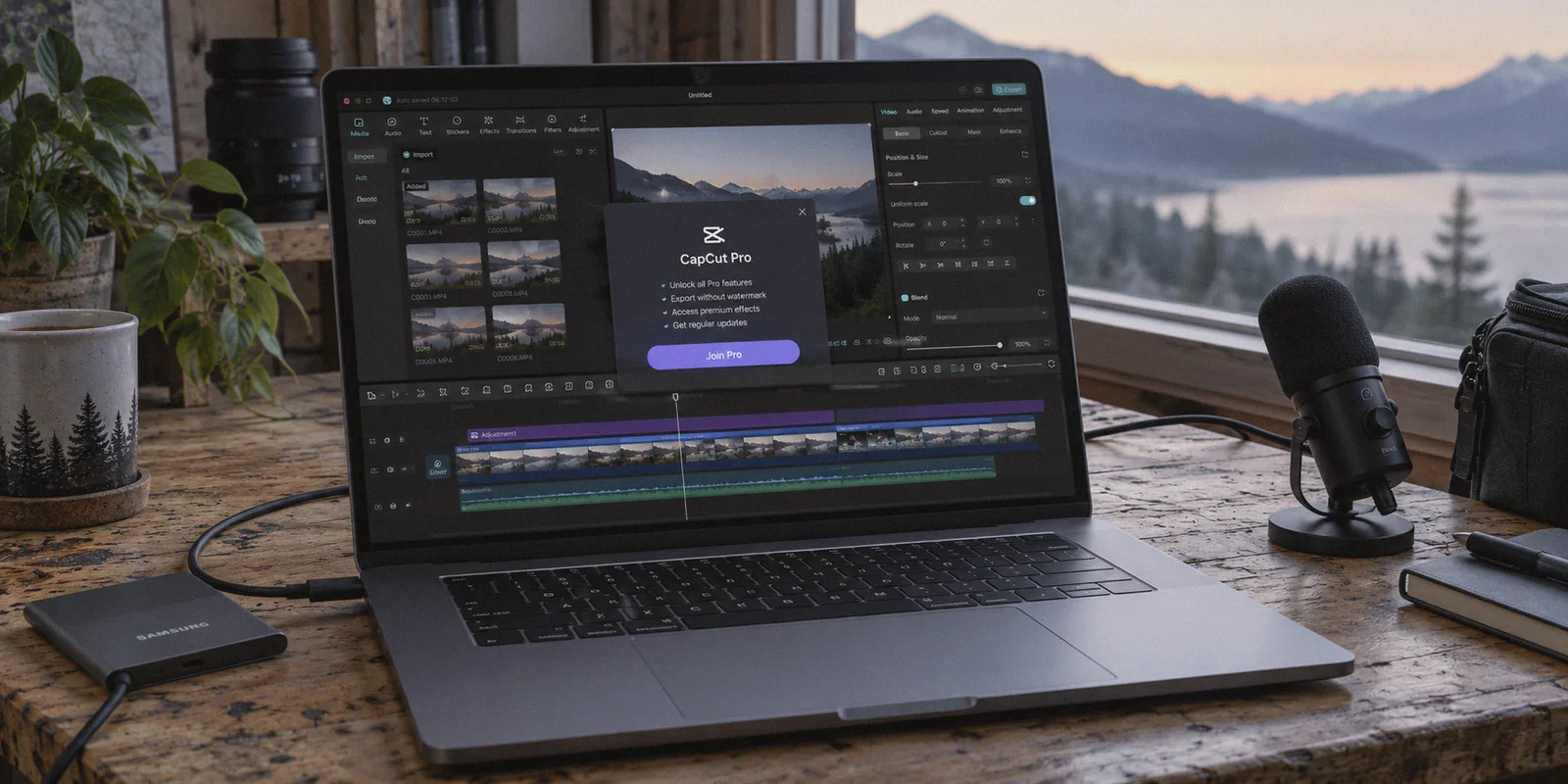
If you just hit CapCut’s export button and stared at a $9.99-a-month or $89.99-a-year paywall, you’ve probably heard the rumor: creators in other countries are getting CapCut Pro for a fraction of that price simply by switching their location with a VPN.
The rumor is true. In regions like Turkey, Brazil, the Philippines, or Vietnam, an annual CapCut Pro subscription often works out to between $20 and $35 a year—a massive 60% to 70% markdown for the exact same cloud storage, 4K exports, auto-captions, and AI background removal.
Yet nine out of ten people who try to pull this off end up frustrated on Reddit, staring at an error screen that says: "Payment failed," or watching the currency stubbornly snap back to USD at the very last second.
They assume CapCut patched the method. It didn't. What actually happened is that they made one of two rookie mistakes that trigger ByteDance’s anti-fraud systems.
Here is the exact mechanics of how CapCut regional pricing works, why standard VPN tricks fail, and the step-by-step path to locking in the discounted rate.
Article summary and product fit
Why do most CapCut Pro region-switching attempts fail, and what does the article say to check before checkout?
The article identifies two main failure points: mobile purchases follow the Apple or Google account region rather than the phone’s VPN IP, and CapCut’s web checkout can reject or override a suspicious datacenter route. Its workflow therefore uses the official web checkout, a clean browser session, and a verified regional currency before payment.
Key points, fit, and limits
- Best for: Creators comparing CapCut’s regional web pricing and trying to understand why the mobile app still shows home-country currency.
- Key preparation: Use a fresh private browser window on desktop, connect before visiting CapCut, and stop if the expected local currency is not shown.
- Product fit: OnlyDogs VPN is presented here as a clean, stable browsing route when a crowded proxy causes currency resets or checkout risk errors.
- Important limit: The article says regional prices and exchange rates fluctuate, and card acceptance, foreign-transaction fees, and local payment rules can change the real savings.
Sources already used in this article
CapCut official site. These links are included as primary service references; the article’s other operational claims remain the article’s own account.
Product source: OnlyDogs VPN official website.
The Price Gap: What CapCut Pro Actually Costs Worldwide
ByteDance prices CapCut Pro according to local purchasing power. Because video creation is booming across emerging markets, subscription prices are adjusted heavily by territory:
| Region / Country | Approximate Annual Cost (USD Equivalent) | Savings vs. US Pricing |
|---|---|---|
| United States / UK / EU | $89.99 / year ($9.99/mo) | Standard Baseline |
| Brazil (BRL) | ~$32 – $38 / year | ~60% Off |
| Philippines / Vietnam / Indonesia | ~$28 – $36 / year | ~65% Off |
| Turkey (TRY) | ~$20 – $28 / year (subject to FX fluctuations) | ~70% Off |
Note: Exchange rates and local pricing tiers fluctuate, but the discount spread consistently hovers well above 50%.
Over a year or two of editing, that difference covers your editing gear, assets, or a dedicated VPN subscription several times over.
The Two Fatal Traps That Ruin the "VPN Trick"
If saving money with a VPN were as simple as hitting "Connect" and opening the app, nobody would pay $90 a year. To succeed, you have to avoid the two traps where nearly everyone trips up.
Trap 1: Trying to Buy Inside the Mobile App (iOS / Android)
This is the most common blunder. Someone connects their phone to an Istanbul or São Paulo server, launches the CapCut app, taps "Join Pro," and wonders why the price is still listed in USD or GBP.
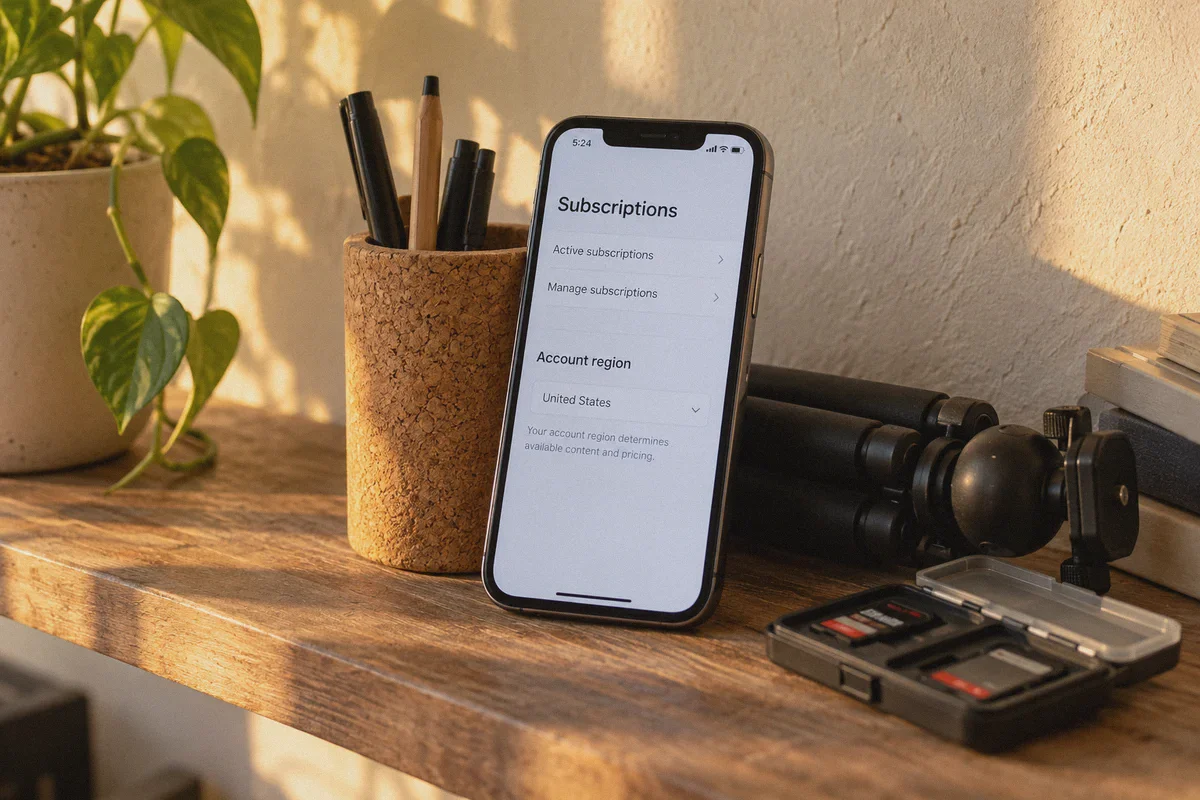
Here is why: Mobile in-app purchases do not care about your VPN. Apple’s App Store and Google Play tie your purchasing currency directly to your App Store account region and your registered local payment method, not your network connection. Unless you already possess an Apple ID registered with a local Turkish or Brazilian credit card, the mobile app will ignore your VPN completely.
The Fix: Never attempt this transaction through the mobile app. The discount must be secured through CapCut’s official web browser checkout (capcut.com).
Trap 2: Using a Flagged Data-Center VPN
CapCut is built by ByteDance—the parent company of TikTok. ByteDance possesses some of the most sophisticated anti-bot, anti-scraping, and geo-spoofing detection architectures in tech.
When you use a generic, crowded VPN or a free proxy, you are sharing an IP address with thousands of other automated requests. ByteDance’s checkout gateway immediately spots the data-center signature and does one of two things:
- It silently overrides the regional storefront and defaults your currency back to USD.
- It lets you reach the credit card page, but blocks the payment gateway with a vague "Transaction Risk" or "System Error" notification.
To clear CapCut’s web checkout, your connection cannot look like a loud commercial proxy tunnel. It must appear as a legitimate, private connection originating smoothly from the target territory.
The Missing Link: Why OnlyDogs VPN Makes This Actually Work
This is where your choice of VPN stops being a technical detail and becomes the entire deciding factor.
Standard VPN protocols (like raw OpenVPN or legacy WireGuard) broadcast distinct packet headers that tell deep-packet-inspection firewalls and commercial payment gateways: "This traffic is coming from a server farm."
OnlyDogs VPN bypasses this roadblock through a few design choices that directly solve ByteDance's checkout hurdles:
- Proprietary Protocol & Traffic Obfuscation: OnlyDogs wraps its traffic in an obfuscated layer over HTTP/3. To payment processors and web servers, your connection blends in with standard consumer HTTPS traffic rather than waving a red flag as a VPN node.
- Intelligent Auto-Routing: Instead of forcing you to guess which individual city server isn't blocked, OnlyDogs automatically tests and assigns optimal, low-congestion exit routes. If a specific IP address shows high latency or packet friction, it silently swaps the pathway without dropping your session.
- One-Click Scenario Presets: You don't need to configure MTU sizes, leak switches, or proxy ports. Selecting optimized streaming or browsing presets establishes an unflagged tunnel in seconds.
- Frictionless Multi-Platform Support: Because CapCut Pro syncs across your entire ecosystem, you can run OnlyDogs on Windows or macOS to execute the web purchase, and rest easy knowing your Pro features will immediately populate on your iPhone, iPad, or Android device.
Step-by-Step Playbook: Securing CapCut Pro for Less
Follow this exact sequence to ensure your payment clears cleanly without setting off fraud alerts.
Step 1: Prep a Clean Browser Environment
Do not attempt this in your daily browser window loaded with cached cookies, location history, and account sessions.
- Open a fresh Incognito / Private Browsing window on your Mac or PC (Chrome, Brave, or Edge work best).
- Ensure browser location permissions are set to "Ask" or "Block," preventing the browser from sharing your device's physical GPS coordinates.
Step 2: Establish Your Connection via OnlyDogs VPN
- Launch OnlyDogs VPN on your desktop.
- Select your target region. Brazil, the Philippines, or Vietnam currently offer the smoothest balance of deep discounts and international card acceptance. (Turkey offers the steepest discount, but local banking regulations occasionally require a local domestic card).
- Connect using the standard or optimized browsing scenario.
Step 3: Access CapCut Web and Verify the Currency
- In your clean private window, navigate directly to capcut.com.
- Click Sign In and log into your primary CapCut account (or create a new one using your standard email).
- Navigate to the Pricing / Subscription tab on the website.
- Double-check the currency symbol before clicking anything else.
- If you connected to Brazil, you should see prices displayed in R$ (BRL).
- If you connected to the Philippines, you should see ₱ (PHP).
- If it still shows
$ (USD), do not proceed. Close the window, clear your browser cache, re-verify your OnlyDogs connection, and reload.
Step 4: Complete the Checkout
- Select the Annual Plan to lock in the lowest annualized rate.
- On the checkout screen, enter your payment details.
- Credit/Debit Cards: Most internationally enabled Visa, Mastercard, or American Express cards with foreign transaction support will process cleanly on CapCut’s web gateway.
- PayPal: If available for that regional storefront, international PayPal accounts often clear with zero friction.
- Complete any required 3D-Secure or bank SMS authorization.
- Once the confirmation screen loads, your CapCut account status officially switches to Pro.
Step 5: Log in on Your Editing Devices (No VPN Required)
This is the best part of CapCut’s ecosystem: your subscription is linked to your CapCut Account ID, not your physical hardware or location.
- Open your regular CapCut Desktop app on your PC or Mac, or the mobile app on your iPhone or Android.
- Sign in with the exact same account credentials you just upgraded on the web.
- Your profile avatar will now display the Pro badge.
- All Pro transitions, speech-to-text features, cloud capacity, and 4K exports are unlocked worldwide. You do not need to keep the VPN running while editing or exporting your videos.
Important Practical Caveats
Before you dive in, keep these realistic factors in mind:
- International Card Processing Fees: If your domestic credit card charges a foreign transaction fee (typically 1% to 3%), factor that into your final math. Using a card with zero foreign transaction fees ensures you keep the entire discount.
- Auto-Renewal Notice: CapCut subscriptions auto-renew at the regional price you initiated. Ensure your payment card remains active, or manage your renewal dates directly in your CapCut Web account settings under Billing.
- Account Safety: Subscribing via regional web pricing does not compromise your content or edit history. Thousands of international freelancers and remote creators travel, relocate, or subscribe across borders daily. What triggers platform account suspensions is disputing legitimate charges or running cracked desktop binaries—not purchasing a valid license through CapCut's official web portal.
Stop Overpaying for Your Creative Toolkit
CapCut Pro has transformed from a simple mobile editor into an indispensable toolkit for serious creators. But paying $90 every single year when creators elsewhere pay $30 makes little sense—especially when you can reinvest those savings directly into microphones, lighting, or storage.
You don't need complicated tech hacks or risky cracked software to make this work. You just need to avoid the mobile app trap, execute the purchase cleanly via CapCut’s web checkout, and use a connection tool that doesn't scream "proxy" at ByteDance’s fraud engine.
Set up OnlyDogs VPN, connect to your chosen region with a single click, and unlock CapCut Pro at the price it should be.
Frequently Asked Questions
Why does CapCut Pro still show my normal currency in the iPhone or Android app?
The article says mobile in-app pricing follows the Apple App Store or Google Play account region and registered payment setup, not simply the phone’s current VPN IP.
Why can the currency switch back or the payment fail on CapCut’s website?
The article points to flagged shared datacenter IPs, cached location state, and checkout risk controls as reasons a regional storefront can revert or reject a transaction.
What should I verify before submitting payment?
Open a fresh private browser session, establish the regional connection first, visit CapCut’s official website, and confirm that the intended local currency is displayed before continuing.
Do I need to keep the VPN on after CapCut Pro is activated?
The article says no. Once the subscription is attached to the CapCut account, the Pro status can be used on the signed-in desktop and mobile apps without leaving the VPN connected for editing.