How to Bypass YouTube TV Out of Area Location Check With a VPN (The Fix That Actually Works)
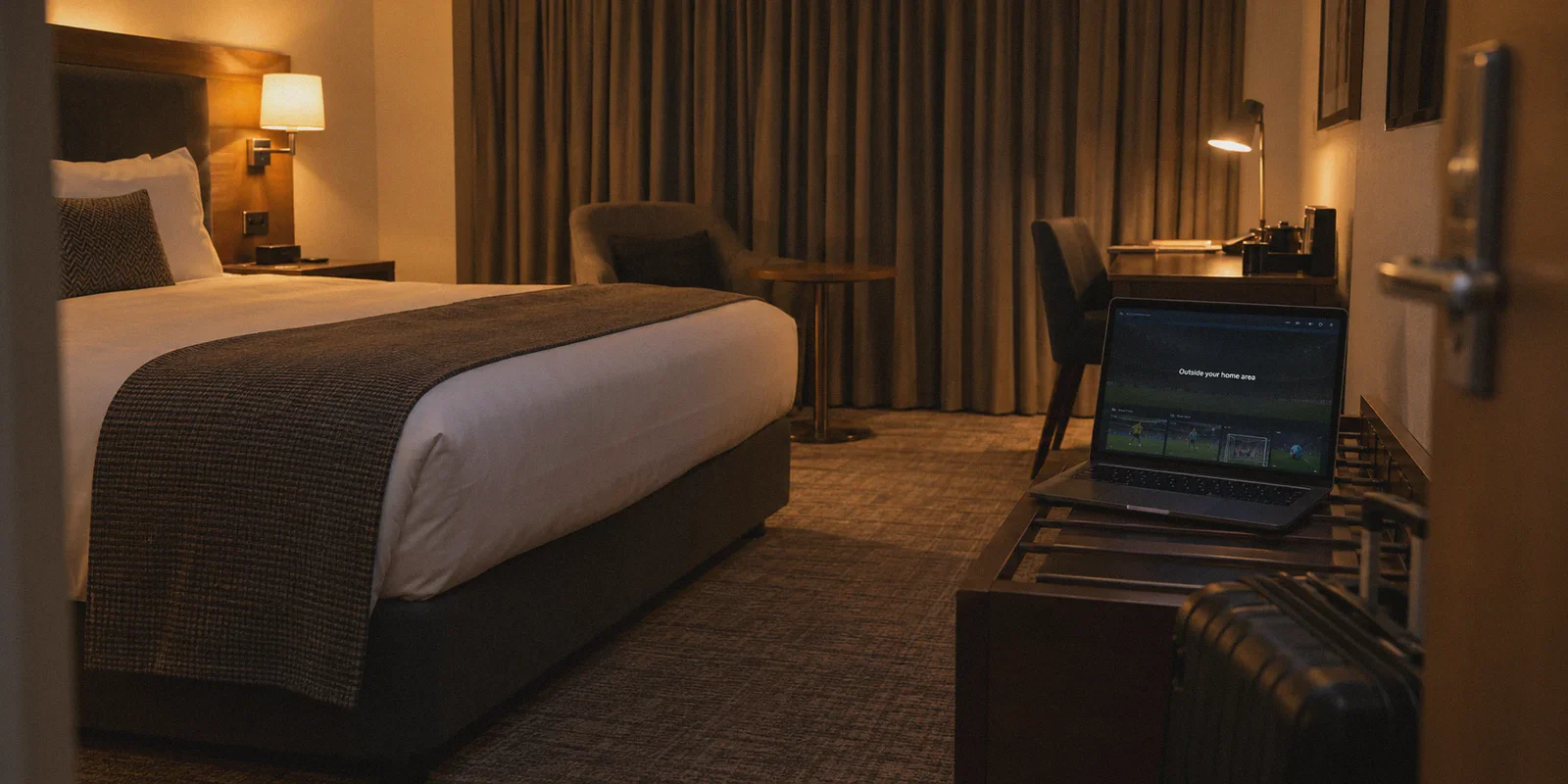
You’ve probably seen the screen that ruins game night:
"Playback error: It looks like you're outside your home area."
Or worse, you’re trying to stream your hometown NFL broadcast from a hotel room across the country, and YouTube TV gives you a countdown warning: verify your location within 30 days, or local channels will be locked.
So you do what anyone with common sense does. You fire up a VPN, click on a server in your home city, reload the page... and get smacked with the exact same error code. Or a black playback box that buffers into eternity.
If that’s where you’re stuck right now, you are not alone. And more importantly, you didn't do anything "stupid."
Most guides on Google give you the textbook answer: "Just install a VPN, connect to Chicago, and clear your cookies!" That advice might have worked in 2021. Today, trying to fool YouTube TV with a generic data-center VPN is like trying to enter an exclusive nightclub with a fake ID drawn in green crayon.
Here is what is actually happening behind that location check, why your current workaround keeps collapsing, and the exact setup that gets your stream back in under two minutes.
Article summary and product fit
Why can YouTube TV still report “outside your home area” after a VPN connects?
The article explains that YouTube TV can compare more than a public IP: account Home Area, current playback location, browser permissions, cached location data, and phone GPS can all conflict. A VPN changes the network endpoint, but it does not automatically change hardware GPS or account-level location rules.
Key points and limits
- Best for: Traveling subscribers who see an out-of-area or playback-location error even though their VPN appears connected.
- Core diagnosis: The failure can come from a flagged data-center IP, stale browser location data, or an IP/GPS/account mismatch rather than from the VPN connection alone.
- Product fit: OnlyDogs VPN is presented as a one-tap streaming-route option for the network portion of the problem, especially on laptops or TV devices that do not expose phone GPS in the same way.
- Important limit: A VPN does not alter a phone’s GPS sensor, account eligibility, subscription rules, or YouTube TV’s Home Area policies.
Sources already linked in this article: YouTube TV; OnlyDogs VPN official website.
What YouTube TV Is Really Checking (Spoiler: It’s Not Just Your IP)
To beat the check, you have to understand why Google's verification system is smarter than Netflix or Hulu.
YouTube TV doesn’t just ask, "What city is this internet connection from?" It balances local affiliate broadcast contracts, blackout rules for regional sports networks (RSNs), and account sharing restrictions. To enforce those contracts, Google relies on a three-layer verification trap:
- The Data Center Blacklist: Google knows the IP ranges owned by major hosting providers (AWS, DigitalOcean, Linode). When an ordinary VPN connects through an unoptimized server, YouTube TV instantly flags the IP as a commercial proxy. It doesn't even need to determine where you are—it simply refuses to stream because you're masking the connection.
- The Dual-Location Rule: YouTube TV separates your account into two distinct variables: Home Area (where your billing address sits and where you get local broadcast stations) and Current Playback Area (where your device physically sits today). If your IP says Miami, your GPS says Dallas, and your account profile says Philadelphia, the app hits the panic button.
- The Mobile Hardware Snitch (GPS vs. IP): If you try this on an iPhone or Android phone, YouTube TV demands hardware-level Location Permissions. A standard VPN only changes your IP address; it does not alter your phone’s internal GPS chip. When your IP says New York and your GPS says London or Seattle, the mismatch flags your account instantly.
Once you realize this, the solution becomes dead simple: Stop trying to trick GPS on a phone, and stop using bloated, generic VPN IPs that Google flagged three years ago.
Step 1: Ditch the Phone for Setup (The Device Strategy)
If you are trying to bypass the location lock on your mobile phone via the YouTube TV app, stop right now.
Mobile operating systems enforce strict location handshakes between Wi-Fi triangulation, cellular tower pings, and built-in GPS sensors. Unless you plan to spend your evening jailbreaking, rooting, or running suspicious GPS-spoofing developer apps, you are fighting a losing battle.
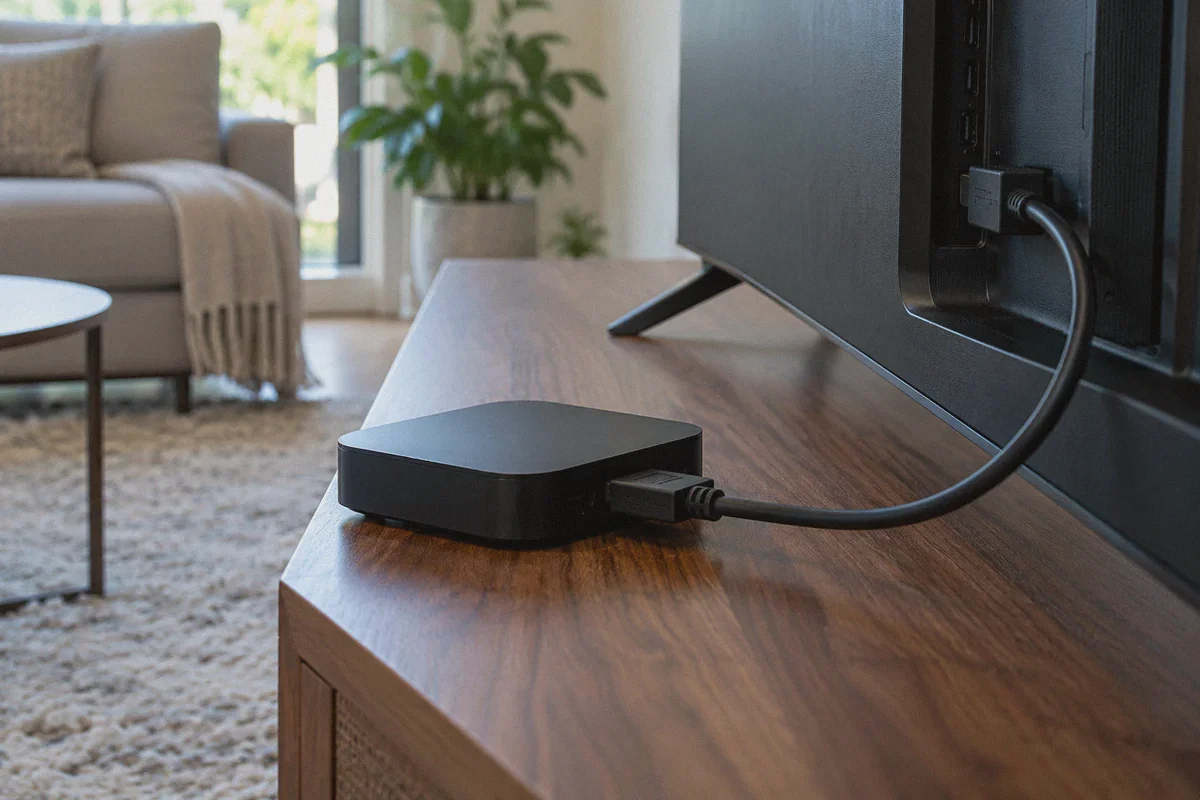
Instead, execute the bypass on a laptop (Mac or PC) or a streaming box (Apple TV, Fire Stick, Android TV):
- On a computer browser (Chrome/Edge/Brave): Browsers rely primarily on your IP routing and browser-level HTML5 geolocation prompts. When paired with a clean obfuscated connection, Chrome takes its cues from where the network endpoint lives.
- On smart TVs: Living room devices lack GPS hardware entirely. They rely 100% on the IP pipeline. If your network stream is clean, the TV plays without asking for satellite coordinates.
Step 2: Connect Through a Dedicated Streaming Route (Why OnlyDogs VPN Solves the Dead-End)
The biggest bottleneck is the VPN itself. Free VPNs and legacy brands route thousands of people through the exact same crowded IP blocks. When YouTube TV detects 400 active video streams originating from the same static server rack, it slaps a blanket ban on the whole cluster.
This is where OnlyDogs VPN works differently. Instead of making you scroll through an endless, confusing list of 3,000 ambiguous servers hoping to stumble onto one that isn’t blacklisted, it is built around one-click scenario presets.
Here is why it actually bypasses the check where others stumble:
- Dedicated Streaming Presets: You don't have to guess whether "US - Node 42" or "US - Node 89" works. You tap the Streaming preset. The client routes your traffic through residential-aligned, clean IP endpoints designed specifically to evade streaming detection filters.
- Smart Auto-Routing: If a specific node experiences latency or heavy traffic, OnlyDogs handles route optimization automatically in the background. It spares you the tedious loop of disconnecting, changing cities, refreshing the tab, and hoping the stream loads.
- HTTP/3 & Proprietary Obfuscation: Standard VPN protocols (like raw OpenVPN or WireGuard) have recognizable handshake signatures. When you stream from a hotel network, public Wi-Fi, or restrictive international internet providers, the firewall throttles or breaks your tunnel. OnlyDogs wraps your traffic in HTTP/3 obfuscation, making your stream look like standard, organic web browsing.
- Seamless Network Recovery: Live sports hate jitter. If you're on a laptop moving between hotel rooms or switching from Wi-Fi to a hotspot, standard VPNs freeze your stream and drop your session—forcing YouTube TV to re-interrogate your location. OnlyDogs restores the handshake instantly without resetting the stream socket.
Step 3: The 3-Minute Walkthrough to Clear the Error
Follow this exact sequence to get around the "Outside Home Area" loop:
1. Close YouTube TV completely
Don't just minimize the tab. Close the browser window or kill the app process on your TV. If you leave it running in the background, it holds onto your previous session cookies.
2. Launch OnlyDogs VPN and select the Streaming Preset
Open the OnlyDogs VPN client (available across Windows, macOS, Android, and iOS). You don't need to juggle complex protocol settings. Log in via your quick email verification code, click the Streaming preset, and choose the US metropolitan region matching your desired home or local playback market (e.g., New York, Los Angeles, Chicago).
3. Clear Cache & Site Settings for YouTube TV
If you're on a browser:
- Go to your browser settings > Privacy & Security > Cookies and Site Data.
- Search for
tv.youtube.com. - Clear saved cookies and cached images. This wipes the stored location token that flagged your session earlier.
4. Open an Incognito/Private Window & Launch YouTube TV
Navigate to tv.youtube.com. Log into your Google account.
When the browser pops up asking: "tv.youtube.com wants to know your location", click Allow.
Because your tunnel is routed through OnlyDogs' clean streaming line, the browser evaluates the network endpoint as your authentic physical location. YouTube TV reads the clean connection, assigns your Current Playback Area to that market, and immediately unlocks the live feed.
What About the 90-Day "Home Network" Check-In?
YouTube TV policy states that to maintain local channel access, your profile must check in from your official Home Area network at least once every 90 days (or once every 30 days for NFL Sunday Ticket and regional sports).
If you are traveling long-term, living overseas, or sharing an account with family in another state, you will eventually see the warning: "You must connect to your home Wi-Fi to continue watching."
Here is how you handle it without flying back home:
- Connect to OnlyDogs VPN and select the server region where your Home Area is registered.
- Open your browser and log into YouTube TV.
- Click your profile icon in the top right corner > Location.
- Next to Home Area, click Update (or Verify).
- The platform will run a background location sweep, see the local city endpoint, and reset the 90-day clock back to zero.
Quick Reality Check: Keep It Simple
Fixing the YouTube TV location lock isn't an engineering project. You don't need custom virtual routers, complex command-line spoofers, or risky grey-market GPS hacking tools.
All you need is:
- The right screen: Use a PC, Mac, or streaming box instead of a GPS-constrained smartphone.
- A clean session: Clear the cached location token before reloading.
- A clean connection: Use a VPN that actually updates its streaming routes rather than routing you through a detectable server farm.
If you are sick of staring at frozen screens and playback errors while the game is already in the second quarter, take the friction out of the equation. Fire up OnlyDogs VPN, hit the Streaming preset, and get back to watching what you paid for.
Frequently Asked Questions
Why does YouTube TV check more than my IP address?
The article describes a combination of Home Area, current playback area, IP reputation, browser location data, and mobile GPS. A mismatch between those signals can trigger an out-of-area error.
Why is a phone harder to troubleshoot than a laptop or TV device?
A phone can expose hardware-level location through GPS and other location services. A standard VPN changes the IP route but does not rewrite the phone’s physical GPS reading.
Why can clearing cookies or site data matter?
The article says the browser can retain an earlier location token. Starting a clean session after the network route is established removes one source of conflicting location data.
Can a VPN remove YouTube TV Home Area or subscription requirements?
No. The article treats the VPN as a network-routing tool; account rules, Home Area requirements, and service eligibility still come from YouTube TV.