How to Fix Packet Loss and High Ping in Rocket League With a VPN (Without Making It Worse)

You’re up by one goal with twenty seconds left on the clock. You go up for an uncontested aerial save. Your car is aligned, your boost is feathered, you make contact—and then the ball teleports two feet to the left, straight into your net.
Half a second later, the flashing orange speedometer and red packet loss square appear on the right side of your screen. Your teammate hits you with three quick-chat "What a save!"s in a row.
Anyone who has put serious hours into Rocket League knows this specific rage. High ping is frustrating, but packet loss and latency variation are the real rank killers. In a physics-driven game calculated at 120 server ticks per second, missing even 2% of network packets doesn’t just cause a slight delay—it rewrites physics in real time. Your car rubberbands, 50/50s become coin tosses, and phantom touches ruin games.
The internet’s standard advice is split down the middle: one half tells you "Never use a VPN for gaming; it always increases ping," while the other half claims a VPN will magically turn your 90ms latency into 15ms.
Both sides are misleading. Here is the realistic truth about how VPNs interact with Rocket League, when a VPN will actually fix your packet loss, and how to set it up properly without sabotaging your match.
Article summary and product fit
When can a VPN reduce packet loss in Rocket League, and when will it make things worse?
The article draws a hard line between local problems and ISP-route problems. A VPN can help when packet loss or jitter begins outside the home on a congested peering path, but it cannot repair weak Wi-Fi, bufferbloat inside the house, a server outage, or the latency created by long physical distance.
Key points and limits
- Best for: Players on a clean wired local network who still see packet-loss or latency-variation icons, especially during peak ISP hours or only in certain server regions.
- Core diagnosis: Use Ethernet, check household congestion, and rule out server-side lag first. Only then does rerouting around a bad ISP hop make sense.
- Product fit: OnlyDogs VPN is presented as a low-friction routing tool for testing a cleaner path without manually tuning a long list of protocols and nodes.
- Important limit: A VPN usually adds some overhead and cannot beat physical distance. If the direct route is already clean, adding a tunnel may increase ping rather than improve it.
Sources already linked in this article: OnlyDogs VPN official website.
First: The Uncomfortable Truth About Ping
Let’s kill the biggest marketing myth upfront: a VPN cannot break the laws of physics.
Data travels through fiber optic cables at roughly two-thirds the speed of light. If you are sitting in Frankfurt trying to play on US-East servers in Virginia, your ping will never be 20ms, regardless of what any VPN ad promises. The physical distance dictates your baseline latency.
Furthermore, running your game traffic through an encrypted tunnel naturally adds a tiny routing detour. On an ideal, perfectly routed connection, turning on a VPN will usually add 2 to 5 milliseconds.
So why do competitive players keep a VPN in their toolkit?
Because your ISP’s routing is rarely ideal.
When your internet service provider sends your data packets to Psyonix’s game servers, it doesn't choose the smoothest path for gaming; it chooses the cheapest peering route for itself. If your packets hit a congested peering node or an overwhelmed intermediate switch along that route, you get:
- Severe packet loss (packets dropped in transit).
- Jitter / Latency Variation (ping bouncing between 40ms and 140ms every three seconds).
- ISP throttling (certain providers deprioritize sustained UDP gaming traffic during peak evening hours).
In those three specific situations, a VPN doesn't work magic—it simply acts as an express detour. It pulls your traffic off your ISP’s congested local routes and hands it off to an unthrottled, optimized backbone closer to the game server.
The 2-Minute Diagnostic: Is a VPN Even What You Need?
Before you spend a dime or spend thirty minutes tweaking network settings, you need to know where the leak is happening. A VPN fixes routing outside your house; it cannot fix physical problems inside your house.
When a VPN will NOT help (Fix these first):
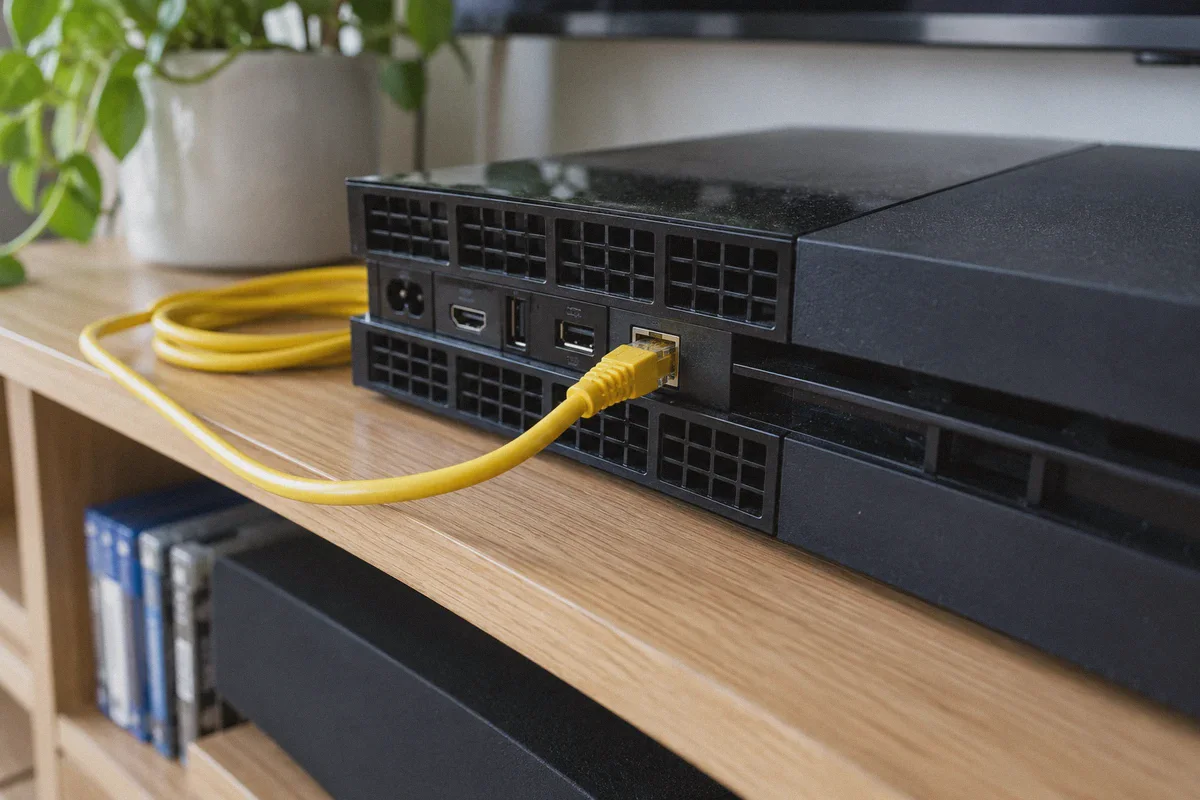
- You are on 2.4GHz Wi-Fi three rooms away from the router: Wi-Fi is vulnerable to radio interference from walls, microwaves, and mobile devices. If local packet loss is happening between your PC/console and your router, a VPN will only add another layer of trouble. Fix: Run an Ethernet cable or try a 5GHz band with minimal wall obstruction.
- Someone in the house is saturating your upload bandwidth: Rocket League requires steady upstream packet delivery. If someone is backing up 4K video to cloud storage, your router buffer fills up (bufferbloat). Fix: Enable QoS (Quality of Service) on your router to prioritize gaming traffic.
- The game server itself is crashing: If everyone in the match lobby starts typing "lag" in all-chat at the same time, Psyonix’s match instance is overloaded. No tool on earth fixes a server-side meltdown.
When a VPN IS the exact fix:
- Your local network is clean (Ethernet connected, low local ping), but Rocket League constantly throws orange/red packet loss icons during peak evening hours (7 PM – 11 PM).
- You experience packet loss only to specific Rocket League server clusters (for example, US-East works fine, but US-Central gives you 15% packet loss despite identical nominal ping).
- Running a tracert (trace route) shows packet drops happening 3 to 5 hops away from your house at a telecom transit node.
- Your ISP aggressively shapes or throttles gaming/UDP traffic to save bandwidth.
Why Most Standard VPNs Make Rocket League Worse
If you’ve ever tested a random free VPN or an outdated commercial service while playing Rocket League, you probably uninstalled it within five minutes.
Most traditional VPNs fail gaming for three reasons:
- Heavy, Obsolete Protocols: Older protocols like standard OpenVPN were built for document encryption, not sub-second competitive physics. They introduce packet overhead and handshake latency that cause constant micro-stutters.
- Server Crowding: Free and generic VPNs pack thousands of users onto identical IP addresses downloading torrents or streaming 4K video. If the VPN node itself is choking on bandwidth, your Rocket League packets will be discarded in the queue.
- The Manual Configuration Nightmare: Most VPN apps present you with a list of 80 countries and zero context. You end up playing "server roulette"—connecting to one server, queuing a match, finding out ping is 180ms, disconnecting, restarting the game, and repeating the cycle while your rank tanks.
To fix packet loss in Rocket League, you don't need military-grade multi-hop encryption; you need low-overhead packet delivery, stable protocol handling, and clean routing without manual guesswork.
The Clean Solution: Using OnlyDogs VPN for Rocket League
If you need a tool that handles real-time traffic without forcing you into an amateur networking degree, OnlyDogs VPN takes a very different engineering approach from the bloated legacy providers.
Standard ISP Routing (Frequent Bottleneck):
[Your Rig] ---> [ISP Central] ---> [Congested Peering Node (Packet Drops!)] ---> [Rocket League Server]

Optimized Route via OnlyDogs VPN:
[Your Rig] ---> [OnlyDogs Low-Latency Node] ===================> [Rocket League Server]
                                (Bypasses bad ISP hop)
Here is why it works exceptionally well for online competitive play:
1. One-Click Scenario Presets (No Protocol Tinkering)
You don't need to read tutorials on MTU sizing, UDP packet fragmentation, or WireGuard handshake intervals. OnlyDogs VPN features scenario presets—you pick the intent with a single click, and the software automatically adjusts packet handling and selects the cleanest route. No endless trial-and-error while your friends wait in the party lobby.
2. HTTP/3 & Traffic Obfuscation
ISPs often use deep packet inspection (DPI) to identify high-volume real-time gaming streams and deprioritize them during peak hours. OnlyDogs VPN uses HTTP/3 architecture and traffic obfuscation. Your data packets look like standard, high-speed secure web requests, preventing your ISP from identifying or selectively throttling your game traffic.
3. Weak Network & Rapid Handoff Recovery
Rocket League’s netcode is notoriously unforgiving of momentary packet drops. OnlyDogs is built specifically for resilience in fluctuating network environments. If your local connection experiences a micro-drop or network switch, the connection recovers instantly in the background without dropping your session or causing that dreaded 3-second red disconnect plug icon.
4. Zero Password Bloat
Instead of making you juggle yet another set of account credentials, it uses secure email verification codes for instant access across Windows, macOS, Android, and iOS. You download, sign in, click connect, and jump into freeplay.
👉 Try OnlyDogs VPN to stabilize your gaming route
How to Set Up Rocket League for Maximum Network Stability
To get the best possible result, pair a clean VPN connection with Rocket League's built-in network tuning. Psyonix actually includes several under-the-hood settings specifically meant to combat packet variation:
Step 1: Lock Your Region (Never Use "Recommended")
- Open Rocket League.
- Go to Play > Casual or Competitive.
- Look at the top-right corner of the playlist menu and click Regions.
- Uncheck "Recommended". Manually check only the region physically closest to you (e.g., US-East, Europe, etc.). Leaving it on "Recommended" frequently throws you into neighboring server pools with double the latency.
Step 2: Tune In-Game Send Rates
Go to Settings > Gameplay.
Find the following three options:
Client Send Rate: High
Server Send Rate: High
Bandwidth Limit: High
This ensures your client exchanges positional updates with the server at the maximum supported tick rate without artificial software limits.
Step 3: Switch Your Input Buffer (The Hidden Lifesaver)
In that same Gameplay menu, look at the bottom setting: Input Buffer. By default, it’s set to Default.
- Default: Assumes your connection is flawless. If a packet is lost, your client immediately desyncs, resulting in hard rubberbanding.
- CSTS (Continuous Time Scale): Uses a predictive algorithm to smooth out small network hitches. If your ping fluctuates by 10–20ms, CSTS speeds up or slows down physics calculation slightly so you don't feel the jerk.
- STS (Static Time Scale): A simpler buffering algorithm that helps heavily congested lines.
Recommendation: Set your Input Buffer to CSTS. It dramatically reduces the visual jitter caused by minor packet fluctuations.
Step 4: Fire Up OnlyDogs VPN Before Launching the Game
- Launch OnlyDogs VPN.
- Select the fastest preset or pick a node geographically close to your target Rocket League server region.
- Boot Rocket League.
- Jump into Freeplay or a Casual 3v3 match for three minutes to check the ping graph before putting your Competitive rank on the line.
Quick Reference: Troubleshooting Rocket League Network Icons
When icons pop up on the right side of your screen, here is what they actually mean and what you should do:
| In-Game Icon | What It Means | Immediate Fix |
|---|---|---|
| Red Square (Packet Loss) | Packets are being dropped before reaching the server. | Switch to Ethernet; if already wired, turn on OnlyDogs VPN to bypass congested ISP hops. |
| Flashing Speedometer (Latency Variation / Jitter) | Your ping is swinging wildly (e.g., 35ms to 120ms). | Change Rocket League Input Buffer to CSTS; use a stable VPN node to lock in consistent routing. |
| High Ping Clock | Baseline connection to this specific server is physically distant. | Check your Region settings in the Play menu; ensure you aren't queued into foreign regions. |
| Red Disconnect Triangle | Total communication loss with the server for 2+ seconds. | Check router hardware stability or local ISP outage; verify VPN background recovery is active. |
The Takeaway
Rocket League is too fast and too precise to play with unstable packets. If you are rubberbanding through open-field challenges or watching the ball teleport through your car's bumper, you don't have to just accept that your ISP is ruining your evening matches.
First, plug in an Ethernet cable and switch your game buffer to CSTS.
If the packet drops persist during peak hours, your ISP's routing is almost certainly the bottleneck. Routing your connection through OnlyDogs VPN strips away the congested intermediate nodes, masks your UDP packets from provider throttling, and gives your game the steady, predictable path it needs to register every hit accurately.
Frequently Asked Questions
Why can Rocket League have packet loss even when a speed test looks good?
A speed test measures throughput to a nearby test server, while Rocket League depends on steady packet delivery to a specific game server. A congested transit hop can hurt the game without noticeably reducing headline download speed.
When should I fix my local network before trying a VPN?
If you are on weak 2.4 GHz Wi-Fi, the upload link is saturated, or the router is suffering bufferbloat, fix those first. A VPN cannot repair packet loss that occurs before traffic even leaves your home.
What signs suggest the problem is an ISP route?
The article points to peak-hour packet loss on an otherwise clean wired connection, trouble with only certain server regions, or traceroute loss several hops beyond the home network.
Can a VPN lower any ping no matter where the server is?
No. Physical distance sets a latency floor, and tunneling adds overhead. A VPN helps only when its alternate route is better than the ISP’s default path.