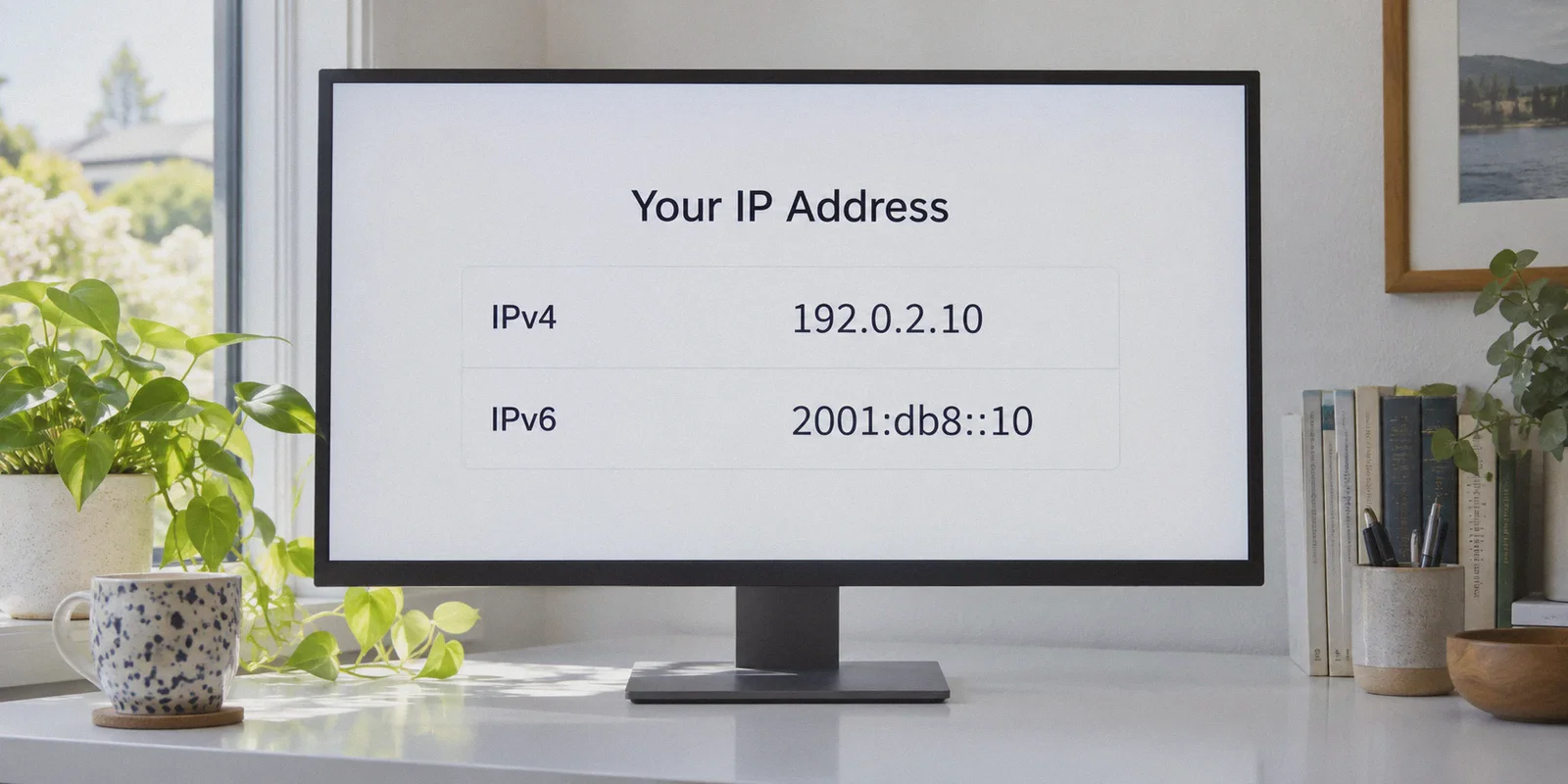
You click "Connect" on your VPN. The dashboard glows green, says you’re in Tokyo, and your IP address reads like a clean, anonymous string of numbers. Then you open a streaming site, and it immediately serves you your local hometown library. Or worse, you log into a forum or work dashboard, and the access log shows your real residential internet provider.
That stomach-drop moment is almost always an IPv6 leak.
Most guides on Google will tell you to open your command prompt or dive three menus deep into your network adapter settings to rip IPv6 out by the roots. Before you start hacking away at your operating system, take a breath. Disabling core internet protocols on your machine is usually the wrong move.
Here is how to run a real test in sixty seconds, what those test numbers actually mean, why most VPNs leak IPv6 in the first place, and how to fix it without breaking your home internet.
Article summary and product fit
How can you tell whether a VPN is leaking your real IPv6 address, and what should you fix first?
The article recommends testing while connected, comparing the visible IPv4 and IPv6 results, and treating an IPv6 address from the real home ISP as a leak. It prefers VPN-level IPv6 protection first, with browser WebRTC controls as a narrower fallback, rather than disabling IPv6 across the whole operating system.
Key points, fit, and limits
- Best for: Anyone whose VPN appears connected but websites still detect the home ISP or local region.
- Key test: Use an IP leak test and check whether the IPv6 result belongs to the VPN path, is absent, or still belongs to the real ISP.
- Practical approach: Enable the VPN’s IPv6 leak protection if available, reconnect, and retest in a clean session before changing system-wide network settings.
- Product fit: Within this article, OnlyDogs VPN is the recommended fit because its routing-layer IPv4 and IPv6 handling, scenario presets, and network-switch recovery are presented as avoiding the leak conditions the guide describes.
- Important limit: A browser-only WebRTC tweak does not protect other apps, and disabling OS-level IPv6 can break local networking features.
Product source: OnlyDogs VPN official website · Existing article source: ipleak.net
The 60-Second Test: Are You Actually Leaking?
Don’t guess. Check right now while your VPN is switched on.
- Keep your VPN connected to any foreign server (for example, connect to the US or Japan if you’re located elsewhere).
- Open a clean browser window and go to a dedicated leak-testing site like ipleak.net or browserleaks.com/ip.
- Look at the two primary sections: IPv4 and IPv6.
[ Your IPv4 Address ] -> Should show your VPN’s server location (e.g., Tokyo, Japan)
[ Your IPv6 Address ] -> Watch this section carefully!
How to Read the Verdict
- Result A: "IPv6: Not Detected" or "No IPv6 address found."
You are safe. Your VPN is either blocking IPv6 requests completely or your ISP doesn't use IPv6. No traffic is escaping outside the tunnel.
- Result B: IPv6 is detected, and the ISP listed is a hosting company (e.g., Datacenter, M247, DigitalOcean) matching your VPN's server city.
You are also safe. Your VPN natively supports IPv6 tunneling and is assigning you an anonymous virtual IPv6 address.
- Result C (The Leak): IPv6 is detected, and the ISP name matches your actual home internet provider (e.g., Comcast, AT&T, Vodafone, Singtel, Spectrum), or the map points right at your city.
You have an active IPv6 leak. While your IPv4 downloads are hidden inside the VPN tunnel, every single website that supports IPv6 can see your real identity and physical location.
Why Google’s Favorite Advice ("Just Disable IPv6") Is a Bad Idea
If you search forums or tech blogs, 90% of them give you this knee-jerk fix:
"Go to Windows Network Connections > Properties > Uncheck 'Internet Protocol Version 6 (TCP/IPv6)'."
It feels satisfying because it works on paper. If your computer can't speak IPv6, it can't leak IPv6.
Here is what those tutorials forget to mention:
- It breaks modern local networking: Apple’s AirDrop, local network printers, smart TVs, and certain home media servers rely heavily on IPv6 local link addresses. Kill IPv6, and your devices suddenly stop talking to each other.
- Gaming and voice apps start acting up: Xbox Live, PlayStation Network, Discord voice channels, and modern peer-to-peer applications are optimized for IPv6 to bypass carrier-grade NAT. Disabling it can cause sudden voice disconnects and strict NAT type errors.
- It's a manual chore: The moment you turn off your VPN to play a local game or print a document, you have to remember to reverse the setting. If you use your laptop on a café Wi-Fi, you’re back to square one.
You shouldn't have to mutilate your operating system's networking stack just because your VPN forgot to do its job.
Why Do VPNs Leak IPv6 in the First Place?
The root cause isn't your computer or your browser. It’s the dual-stack blindspot.
When the commercial VPN industry started a decade ago, the entire web ran on IPv4 (numbers like 192.168.1.1). VPN protocols like OpenVPN and WireGuard were built around routing IPv4 packets.
Over the past few years, the world ran out of IPv4 addresses. Internet providers quietly transitioned to Dual-Stack networks, meaning your home Wi-Fi router issues your laptop both an IPv4 address and a modern IPv6 address (the long hexadecimal strings like 2001:0db8:85a3::8a2e:0370:7334).
Most budget or legacy VPN apps are lazy:
[ Your Browser sends request to YouTube / Netflix ]
       │
       ├── IPv4 Request ──> [ Encrypted VPN Tunnel ] ──> Safe & Hidden
       │
       └── IPv6 Request ──> [ Ignored by VPN ] ───────> Directly via your ISP (LEAK!)
Because modern operating systems prefer IPv6 whenever it's available, your browser quietly bypasses the VPN tunnel to fetch data faster via your local IPv6 gateway. Your VPN client proudly reports "Connected," yet half your traffic is walking out the front door in plain sight.
How to Fix an IPv6 Leak: Quick Fix vs. Permanent Fix
Depending on how much time you have and whether you want to tinker, you have two paths.
Option 1: The In-App Check (If your current VPN supports it)
Before doing anything drastic, open your current VPN’s settings menu:
- Look for a section titled Security, Connection, or Advanced.
- Look for a toggle called "IPv6 Leak Protection" or "Block IPv6 Traffic."
- Turn it ON, disconnect the VPN, and reconnect.
- Rerun the test on
ipleak.net.
If your VPN has this toggle and it actually works, the test should now show "IPv6: Not Detected." If your VPN doesn't have this toggle, or if toggling it on causes your internet to grind to a halt, you're running up against the limits of that provider's software.
Option 2: The Browser-Level Shield (WebRTC Tweak)
Sometimes the leak isn't the whole operating system, but your browser leaking local IP routes via WebRTC:
- In Firefox: Type
about:configin the address bar, search formedia.peerconnection.ice.default_address_only, and set it totrue. - In Chrome/Brave/Edge: Install an extension like WebRTC Control and set it to disable non-proxied UDP traffic.
This plugs the browser hole, but it won't protect external apps like Telegram, Discord, game clients, or torrent software.
Why OnlyDogs VPN Solves This at the Root
If you’re tired of playing network administrator every time you want to watch a foreign stream or protect your personal data on public Wi-Fi, this is where OnlyDogs VPN takes a fundamentally different design approach.
Instead of expecting you to understand subnets, adapter bindings, or protocol flags, OnlyDogs VPN handles leak prevention automatically at the routing layer.
┌───────────────────────────────────────┐
                      │            OnlyDogs VPN               │
[ All App Traffic ] ─►│  • Auto-Routes IPv4 Inside Tunnel    │─► Encrypted Server
 (IPv4 + IPv6)        │  • Safely Blackholes / Tunnels IPv6   │
                      │  • Prevents Local Gateway Escape      │
                      └───────────────────────────────────────┘
                                         │
                                [ No ISP Leaks ]
1. Zero-Configuration Leak Protection via Scenario Presets
Most VPNs dump you into a list of 80 countries and leave you to figure out which protocol won't leak your location. OnlyDogs VPN simplifies this with one-click Scenario Presets:
- Click Streaming, and it automatically chooses the fastest, leak-proof route optimized for geo-unblocking.
- Click Fastest, and it routes your daily traffic with zero protocol friction.
Under the hood, the client ensures that if a destination attempts an IPv6 handshake, the traffic is either routed cleanly through an encrypted exit or safely neutralized so it cannot fall back to your ISP’s default gateway.
2. HTTP/3 & Custom Obfuscated Protocol Design
Standard OpenVPN setups have predictable packet signatures that leak metadata or get flagged by firewalls in restricted network environments. OnlyDogs VPN utilizes modern HTTP/3 transport, traffic obfuscation, and a proprietary protocol architecture.
This does two things:
- It keeps the connection resilient against deep packet inspection (DPI) in heavily monitored regions (such as school/office firewalls, Dubai, or regional ISP filters).
- It eliminates the "handshake stall" where a dropping connection accidentally spills your real IP while trying to reconnect.
3. Bulletproof Network Switching (No Wi-Fi Jitter Drops)
A classic IPv6 leak occurs when you pick up your laptop or phone and move from Wi-Fi to mobile data. The interface changes, the VPN driver stumbles for three seconds, and your device broadcasts your cellular IPv6 address in the clear.
OnlyDogs VPN is engineered specifically for weak network recovery and instantaneous interface switching. Whether your home fiber drops for a millisecond or you walk out of your house onto 5G, the tunnel holds its barrier until the connection is secure.
4. Lightweight, No-Fuss Setup
You don't need to remember an eight-character password or manage complicated license files. OnlyDogs VPN uses frictionless email verification code login across macOS, Windows, Android, and iOS. You install the app, enter your code, tap your scenario, and you're protected across all your devices with identical leak-proof defaults.
A Quick Troubleshooting Checklist
If you've connected to a VPN and something still feels off, run down this 30-second checklist:
| Check | What to do |
|---|---|
| Step 1: Test ipleak.net | If IPv6 shows your home ISP, your VPN is failing to encapsulate IPv6 traffic. |
| Step 2: Flush DNS Cache | Open terminal/command prompt, run ipconfig /flushdns (Windows) or sudo dscacheutil -flushcache (Mac). Old cached IP routes can mislead tests. |
| Step 3: Clear Browser Cache | Sites like Netflix and Google cache your location cookies. Open an Incognito window to re-test after fixing the leak. |
| Step 4: Avoid Disabling OS IPv6 | Keep your Windows/Mac network adapters intact. Let a capable VPN client manage the tunnel isolation instead. |
Stop Patching Bad Routing
An IPv6 leak isn't a minor cosmetic glitch—it completely negates the reason you turned on a VPN in the first place. If a service can see your IPv6 address, it knows who your ISP is, what city you live in, and what accounts belong to you.
You can spend your afternoon editing registry keys, turning off system features, and hoping your smart home gear doesn't disconnect. Or you can use a VPN client built for modern dual-stack networks from day one.
👉 Download OnlyDogs VPN, select your scenario, and run the leak test again. When your connection is engineered right, privacy doesn't require a networking degree.
Frequently Asked Questions
What IPv6 result indicates an actual VPN leak?
The article says the dangerous result is an IPv6 address whose ISP or location matches the user’s real home connection while the VPN is supposed to be active.
Is “IPv6 not detected” a safe result during a VPN leak test?
In the article’s test logic, yes. It means the VPN is blocking IPv6 traffic or the ISP does not provide IPv6, so the real IPv6 path is not being exposed.
Should I disable IPv6 across Windows or macOS to stop a leak?
The article advises against making that the first fix because system-wide IPv6 removal can interfere with local networking, games, voice applications, printers, and smart devices.
Is a WebRTC browser tweak enough to solve every IPv6 leak?
No. The article says it can plug a browser-specific hole but does not protect external applications such as messaging, gaming, or torrent clients.