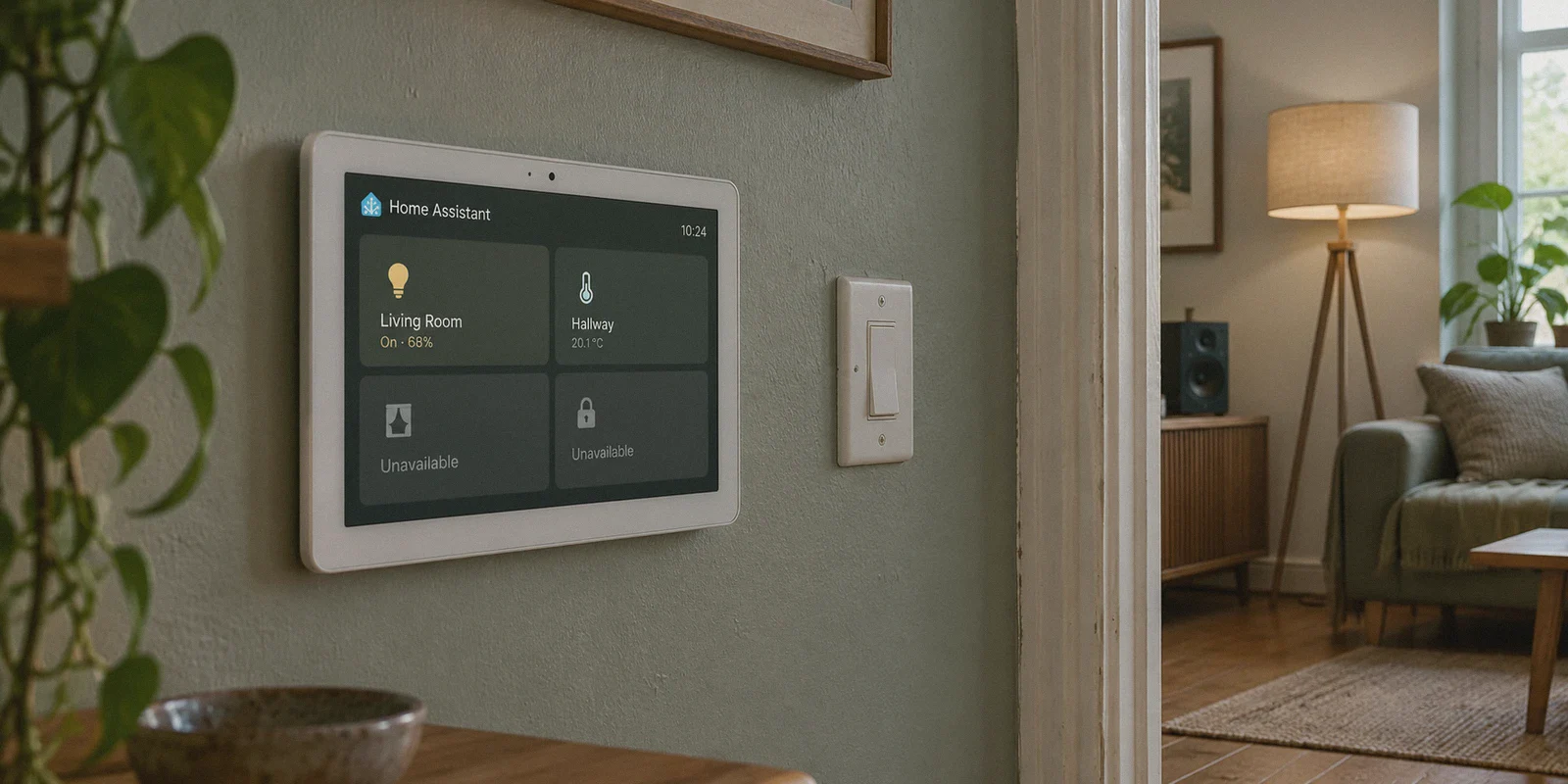
If you're typing how to route home assistant traffic through a vpn into a search bar, there is a very high chance you are sitting in front of your computer right now with a half-broken dashboard.
Maybe you installed an OpenVPN or WireGuard add-on inside Home Assistant OS, flipped the switch to route all outgoing traffic, and within ten minutes your Philips Hue bridge went "Unavailable," your Sonos speakers vanished from the media dashboard, and your Apple TV integration threw an authentication fit.
Or maybe you haven't touched a config file yet, but you're dreading it. You want your smart home setup to be private, you want to access your dashboard from outside without exposing your home IP to the open web, and every Reddit thread you read tells you to set up iptables, edit YAML network interfaces, or build a separate virtual bridge in Docker.
Let’s be honest: routing all of Home Assistant through an outbound VPN is almost always the wrong answer to the right problem.
Before you spend another four hours editing configuration files only to break your smart plugs, let’s talk about what actually happens when you shove Home Assistant into a VPN, what you should do instead, and how to get seamless, encrypted access to your home without destroying your local network.
Article summary and product fit
Should you route an entire Home Assistant host through a commercial VPN?
The article says usually not. Home Assistant depends heavily on local discovery and subnet access, so changing its default route can break devices and complicate remote access. The recommended pattern is to keep Home Assistant local, isolate only the add-on that needs outbound VPN routing, and use a reverse proxy or mesh connector for inbound remote dashboard access.
Key points and limits
- Best for: Home Assistant users trying to protect a downloader add-on or securely reach their dashboard while away from home.
- Key point: Local discovery protocols such as mDNS and SSDP need the Home Assistant host to remain reachable on the home LAN; routing the whole host through a remote exit can disrupt that.
- Preparation: Define whether the goal is outbound privacy for one add-on or inbound remote access. Those are different problems and should use different network designs.
- Product fit: In this article, OnlyDogsVPN fits on the phones, laptops, and tablets used away from home, not as the mechanism that exposes the Home Assistant dashboard to the internet.
- Important limit: OnlyDogsVPN does not replace a Home Assistant remote-access layer such as a reverse proxy, Nabu Casa, or a mesh connector. It also does not fix a LAN topology that already blocks local discovery.
Sources already linked in this article: OnlyDogsVPN official website.
The Trap: What Actually Happens When You Force HA Through a VPN
Home Assistant is not a laptop. It is not just browsing websites; it is a digital air traffic controller sitting in your living room.
To control your lights, sensors, thermostats, and smart locks, Home Assistant relies heavily on local network broadcasts—things like mDNS, SSDP, and local subnet polling (192.168.x.x). It constantly shouts across your local Wi-Fi: "Hey, who's a light bulb? Who's a temperature sensor?"
The second you force Home Assistant's default gateway into a standard commercial VPN tunnel:
- Local device discovery breaks: Your Home Assistant instance is suddenly convinced its home address is a data center in Frankfurt or New Jersey. The local broadcasts that talk to your Zigbee bridge, smart TV, or ESPHome devices either get swallowed by the VPN interface or dropped entirely.
- Cloud integrations flag your account: Services like Tuya, Philips Hue Cloud, Ecobee, or Spotify see your Home Assistant server logging in from an IP address known to belong to a commercial VPN provider. They flag it as suspicious activity, challenge it with CAPTCHAs you can’t click inside a headless server, or temporarily ban your integration API token.
- Remote access becomes a routing nightmare: If your Home Assistant server's default route is going out through a VPN, incoming connections from your phone's companion app don't know how to reach back to your home router. You get locked out of your own home dashboard from the outside.
So if putting the entire Home Assistant box inside a VPN is a recipe for broken automations, what are you actually trying to accomplish?
Usually, it boils down to one of two things:
- Goal A: You have a specific add-on (like a torrent client or media downloader) that needs an outbound VPN, while the rest of Home Assistant stays strictly on your local network.
- Goal B: You want encrypted, private access to your Home Assistant dashboard, live camera feeds, and smart home controls when you're away from home—without port forwarding and without your connection dropping every time your phone hops between Wi-Fi and cellular.
Let’s solve both.
Solution A: If You Only Need Outbound VPN for Specific Add-ons
If your goal is simply to protect a download client or a specific scraper running inside Home Assistant, do not touch your Home Assistant OS network settings.
Instead, isolate that single container:
- Use Gluetun or a container-level proxy: If you run Home Assistant Supervised or Docker, run a lightweight VPN client container (like Gluetun) and route only the specific downloader container through its network stack (
network_mode: "service:gluetun"). - If you're on Home Assistant OS (HAOS): Look for community add-ons that have built-in OpenVPN/WireGuard client support inside the add-on itself (such as Transmission-OpenVPN or qBittorrent-VPN add-ons).
This keeps the rest of Home Assistant running purely on your local subnet, leaving your Zigbee devices, smart bulbs, and local automations untouched.
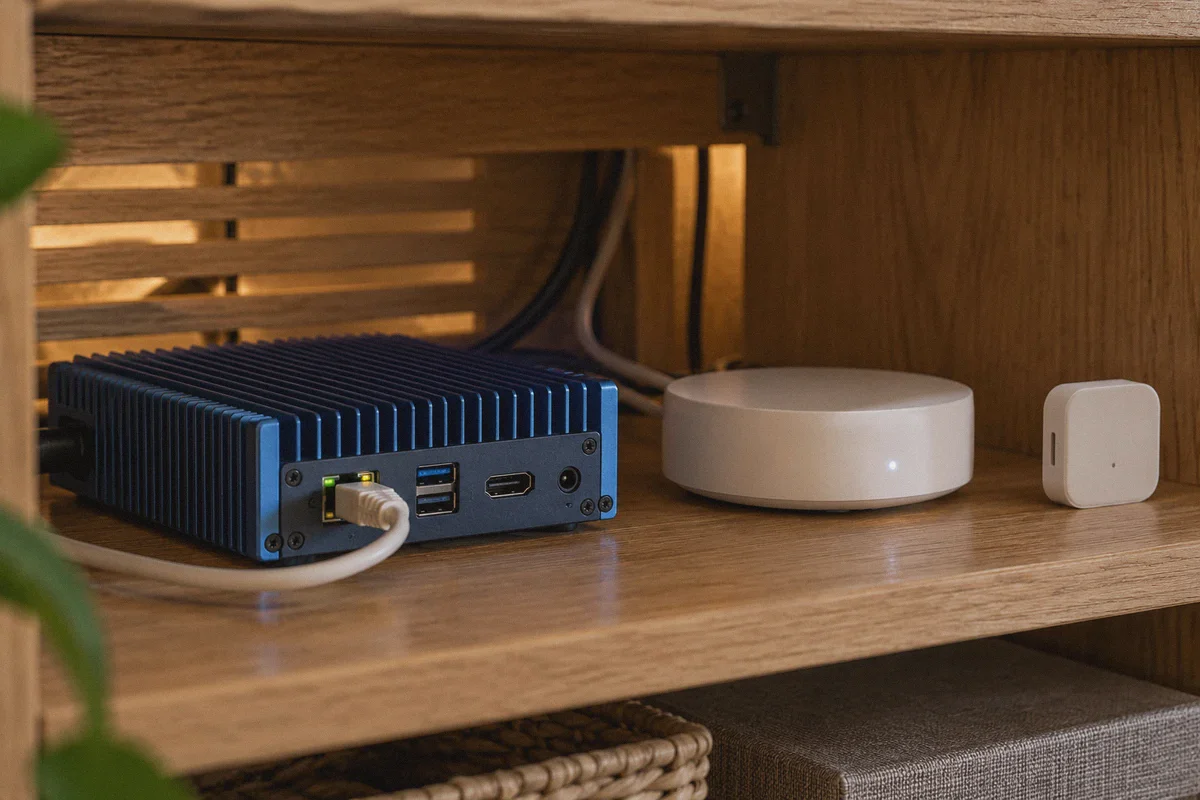
Solution B: Secure Remote Access When You're Outside the House
For 90% of smart home owners, this is the real goal.
You're at work, in an airport, or on hotel Wi-Fi. You want to check your front porch camera, turn on the air conditioner before you get home, or let someone in through the garage. You don't want to expose port 8123 to the raw internet, and you don't want your ISP or public Wi-Fi providers snooping on your home cameras.
The traditional DIY advice is: "Just set up a WireGuard server on your router or Raspberry Pi and connect your phone to it."
It sounds great in theory. In practice, the moment you leave your driveway, you run into the exact friction that makes DIY remote setups infuriating:
- The Airport / Hotel Wi-Fi Block: Standard WireGuard and OpenVPN use bare UDP packets on predictable ports. Most hotel portals, corporate networks, and coffee shop guest Wi-Fis block non-standard UDP ports outright. You open your phone, flip on your tunnel, and the dashboard sits there spinning: "Unable to connect to Home Assistant."
- The Cellular-to-Wi-Fi Handshake Death: When you step out of your car and your phone drops from 5G to public Wi-Fi, bare VPN protocols frequently lose their handshake. You have to manually open your VPN app, disconnect, reconnect, and refresh Home Assistant. That's a massive pain when you just want to tap a widget to unlock your front door.
- Aggressive Ad and Tracker Congestion: Your phone is already juggling background syncs. Running heavy, unoptimized tunnels turns your mobile dashboard into a slow, lagging crawl.
This is where treating remote security as an annoying protocol puzzle stops making sense. If you just want your mobile device protected, your traffic disguised, and your access to your home network rock-solid wherever you go, you need a tool designed for real-world network chaos.
Why OnlyDogs VPN Makes Mobile Smart Home Control Painless
This is where OnlyDogs VPN completely flips the experience for users who manage their life from their phone.
Rather than forcing you to fiddle with IP tables, port mappings, and .conf profiles, OnlyDogs handles the real-world friction of mobile connectivity under the hood:
[Standard DIY VPN Tunnel]               [OnlyDogs VPN Architecture]
Bare UDP (Blocked by hotel Wi-Fi)  --->  HTTP/3 + Proprietary Obfuscation (Blends in)
Stalls during 5G / Wi-Fi switch    --->  Instant Weak-Network Handoff Recovery
Manual node picking & testing      --->  Scenario Presets (Fastest, Streaming, Ad-Block)
Exposes video & tracker clutter    --->  DNS + Node-Level Tracker & Ad Elimination
1. HTTP/3 & Traffic Obfuscation: Connect From Any Wi-Fi
If you've ever tried connecting back to your home setup from a hotel in Dubai, a strict corporate office, or a locked-down airport Wi-Fi, you know that standard OpenVPN and WireGuard get flagged and throttled instantly.
OnlyDogs uses HTTP/3, traffic obfuscation, and a proprietary protocol designed to look like normal, encrypted web traffic. It slips cleanly through strict firewalls and deep packet inspection (DPI). Whether you’re on restrictive hotel networks or spotty international roaming, your connection stays alive.
2. Built for Network Switches (5G to Wi-Fi Without Dropping)
Smart home control happens in transit—walking from your office to your car, or stepping off the subway into a cafe.
OnlyDogs is specifically engineered with weak-network recovery and seamless handoff. When your phone switches between cellular towers or jumps onto an open Wi-Fi network, it doesn't freeze the connection or leave your Home Assistant companion app hanging in an endless reconnection loop. It recovers immediately.
3. Scenario Presets Instead of Tech Headaches
Most VPNs give you a wall of 500 server locations and leave you to guess which one has the lowest latency.
OnlyDogs replaces configuration guesswork with Scenario Presets:
- Want the absolute lowest latency for snappy dashboard responses? Hit Fastest Route. The app automatically evaluates lines and routes your packets through the cleanest pipe.
- Relaxing after work and casting international shows to your smart TV? Tap Streaming Mode to bypass geo-blocks without triggering VPN blacklists.
- Want to keep your devices clean from telemetry? Turn on Ad & Tracker Blocking, which uses dual-layer DNS and node-level filtering to block trackers and clean up video ads (even in-stream ads that standard DNS blockers miss).
4. Zero Password Clutter
You already manage enough credentials for your smart home, Zigbee bridges, and router. OnlyDogs eliminates traditional account passwords in favor of secure, one-time email verification codes. Enter your email, type the code, and your Mac, Windows, iPhone, or Android device is connected in seconds.
The Practical Recommendation: How to Set Things Up Today
If you're still sitting at your desk wondering what move to make next, here is the clear, zero-regret blueprint:
- Leave Home Assistant’s Core Network Alone: Do not route your entire Home Assistant host through an outbound VPN. Keep Home Assistant operating directly on your local home subnet (192.168.x.x) so your lights, switches, local voice assistants, and Matter/Zigbee devices never lose communication.
- Handle Inbound Dashboard Access the Modern Way: Use a secure reverse proxy (like Cloudflare Tunnel or Nabu Casa) or a dedicated mesh connector (like Tailscale) solely for pointing remote requests to your dashboard port.
- Protect Your Daily Devices with OnlyDogs VPN: Put OnlyDogs VPN on the phones, laptops, and tablets you actually carry with you.
When you're out in public, OnlyDogs ensures that every command you send, every camera stream you view, and every website you visit is wrapped in obfuscated, high-speed encryption that doesn't drop when your phone switches towers or gets blocked by restrictive Wi-Fi.
👉 Try OnlyDogs VPN on your devices
Stop breaking your smart home with bloated router scripts. Let Home Assistant do what it does best locally, and let OnlyDogs handle the messy, restrictive world outside your front door.
Frequently Asked Questions
Why can routing all of Home Assistant through a VPN break smart devices?
The article explains that Home Assistant relies on local broadcasts and direct subnet communication for discovery and control. Moving its default route into a commercial VPN can swallow or misroute that local traffic.
How can I route only one Home Assistant add-on through a VPN?
For Docker or supervised setups, the article suggests isolating the specific container behind a VPN client such as Gluetun. On Home Assistant OS, it suggests using an add-on that includes its own VPN support rather than changing the host-wide network route.
What should I use for secure remote dashboard access?
The article recommends a secure reverse proxy or tunnel, Nabu Casa, or a mesh connector such as Tailscale to reach Home Assistant from outside without exposing the whole host through an outbound commercial VPN.
Where does OnlyDogsVPN fit in this setup?
The article places it on the portable devices you use on hotel, airport, office, or other public networks. It is presented as protection for the client side while Home Assistant itself remains on the local home network.