How to Route Proxmox VM and LXC Traffic Through a VPN (Without Breaking Your Homelab)
If you've spent any time on homelab forums or Reddit searching for how to route Proxmox traffic through a VPN, you've probably seen the horror stories.
Someone pastes a 40-line iptables script into their Proxmox host shell, hits enter, and watches their web GUI at https://192.168.1.x:8006 instantly go dark. Panic sets in. You're crawling under the desk with a dusty HDMI cable and a spare keyboard, praying you can undo whatever network bridge rule just isolated your hypervisor from your entire home network.
The desire is simple enough: you have an LXC running a download client, an automation scraper, or a private VM, and you want its outbound traffic encrypted and geo-shifted through a VPN. But the advice out there treats this like a rite of passage where you must either become a certified network engineer or risk bricking your home server.
It doesn’t have to be like that. Once you understand the architectural trap most tutorials lead you into, routing traffic for your Proxmox VMs and LXCs becomes surprisingly straightforward.
Article summary and product fit
Where should VPN routing live in a Proxmox homelab if you want to avoid breaking the PVE host?
The article’s main architectural recommendation is to keep the VPN off the Proxmox VE host. For one or two workloads, put the tunnel inside the guest; for several workloads, use a dedicated gateway LXC. That keeps the host’s default route, web interface, storage traffic, and cluster networking separate from the VPN path.
Key points, fit, and limits
- Best for: Homelab users who need selected VMs or LXCs to use a VPN while keeping local management and the Proxmox host itself on the normal LAN.
- Key points: An unprivileged LXC needs access to /dev/net/tun, a gateway container needs IP forwarding and correct guest gateways, and local subnets should remain reachable outside the tunnel.
- Product fit: OnlyDogs VPN is relevant to the supported client devices and Windows/macOS guest scenarios described in the article, especially where connection recovery matters.
- Important limit: The OnlyDogsVPN product page currently lists iPhone, Android, Mac, and Windows support, not a native Linux client. A Debian or Alpine LXC therefore needs a Linux-compatible tunnel method that is actually supported by the chosen VPN service.
Sources already linked in this article: OnlyDogsVPN official website.
The Common Mistake: Stop Treating Your Proxmox Host Like a Router
The single biggest reason people fail at this is simple: they try to install the VPN directly on the Proxmox VE (PVE) host node.
On paper, it sounds logical. Put the VPN on the host, route everything out of tun0, and call it a day. In reality, it is a disaster waiting to happen:
- The Gateway Takeover: Commercial VPNs default to redirecting your default gateway (
0.0.0.0/0). The moment the tunnel connects, your PVE host stops listening to your local subnet for incoming connections. That’s how you get locked out of your web GUI and SSH. - Host Contamination: Proxmox is a Debian-based hypervisor. Installing third-party VPN packages, custom DNS resolvers, and routing scripts on the bare-metal host pollutes the environment and makes future Proxmox version upgrades a nightmare.
- All-or-Nothing Bleed: If the host routes through the VPN, your backup replication, cluster heartbeat (Corosync), and local NAS NFS mounts can try to route through the tunnel, causing latency spikes or instant cluster split-brain.
Your Proxmox host has one primary job: orchestrating virtual hardware. Keep your hands off the host's default network configuration. All VPN routing should happen inside your guests or through a dedicated virtual gateway.
The Three Real Ways to Route Traffic (And Which One You Actually Need)
Depending on how many services you run and how much time you want to spend maintaining them, there are three practical architectures.
| Method | Setup Effort | Resource Usage | Best Suited For | Risk Level |
|---|---|---|---|---|
| 1. In-Guest Client | 5 mins | Negligible | Single LXC or VM (e.g., one private browser or scraper) | Zero risk to host; may leak if tunnel drops without killswitch |
| 2. Dedicated Gateway LXC (Router) | 20 mins | ~128MB RAM | Multiple LXCs/VMs sharing one encrypted tunnel | Low risk; local LAN routing requires correct static routes |
| 3. Virtualized Firewall (pfSense/OPNsense) | 2+ hours | 2GB+ RAM, 2 vCPUs | Entire virtual VLANs, complex homelabs | Medium; high configuration overhead |
Option 1: The Isolated In-Guest Client (Fastest for 1–2 Services)
If you only need one VM or one LXC container to go through a VPN, installing the client directly inside that guest is the cleanest move.
For a VM (Ubuntu/Debian/Windows): A VM is completely isolated from the host. You can install a VPN client just like you would on a physical laptop. Turn on the VPN's local network sharing/split-tunneling feature so you don't lose web UI access on your local IP, and you're done.
For an LXC Container:
LXC containers share the host kernel. To run a VPN tunnel inside an unprivileged LXC, you must allow the container to access the host's tun device. You do this by adding three lines to the container's configuration file on the PVE host (/etc/pve/lxc/<VMID>.conf):
Plaintext
lxc.cgroup2.devices.allow: c 10:200 rwm
lxc.mount.entry: /dev/net/tun dev/net/tun none bind,create=file
Once that's saved and the container is restarted, your LXC can establish its own encrypted tunnel without affecting any other container or the Proxmox host.
Option 2: The Gateway LXC (The Homelab Sweet Spot)
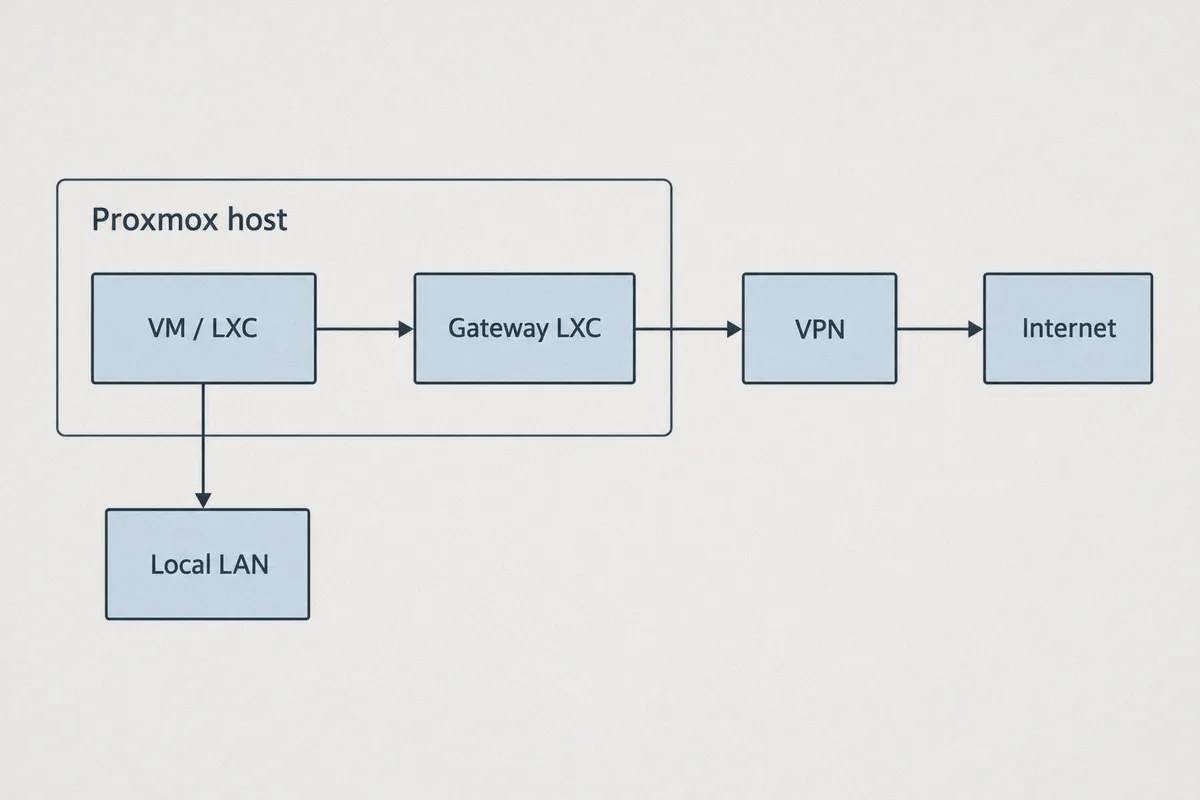
When you have three or four LXCs—say, Sonarr, Radarr, a torrent client, and a web crawler—running separate VPN clients inside each one wastes connections and creates a messy maintenance burden.
Instead, build a VPN Gateway Container:
- Spin up a lightweight Debian/Alpine LXC (1 vCPU, 256MB RAM).
- Install your VPN client inside this container.
- Enable IP forwarding inside the gateway container (
net.ipv4.ip_forward=1). - On any other LXC or VM that needs VPN protection, go to its Network settings in Proxmox, and change its Gateway IP from your home router (
192.168.1.1) to the IP of your Gateway LXC (192.168.1.50).
Now, any outbound traffic from those containers flows through the Gateway LXC, enters the encrypted tunnel, and exits safely to the internet. If you ever want a container back on your direct home broadband, you just change its gateway back to your home router. No host reboots, no broken bridges.
The Invisible Problem: Why Standard VPN Protocols Struggle in Homelabs
Getting the virtual network plumbing working is only half the battle. The part that catches homelabbers off guard after running a setup for two weeks is tunnel stability and protocol friction.
Most people grab a generic OpenVPN configuration file or a raw WireGuard key, drop it into their container, and expect it to run indefinitely. Then the real-world gremlins surface:
- ISP Handshake Throttling: ISPs and network firewalls increasingly monitor continuous UDP wire-level handshakes. Plain WireGuard and OpenVPN have distinct, unmasked signatures. When your homelab pulls constant background streams or bulk transfers, ISPs frequently throttle those ports or reset connections.
- The "Silent Stall": A network hiccup happens at 3 AM. The tunnel interface stays "UP" in Linux, but the handshake dies. Your container sits frozen, unable to reach the web, until you manually SSH in and restart the service.
- DNS Leaks and Ad Pollution: Routing traffic through a remote tunnel often leaves DNS queries falling back to your local router or Google's
8.8.8.8, exposing what your services are doing. Meanwhile, thousands of trackers and banner ads eat up your gateway's bandwidth.
If you don't want to spend your weekends babysitting routing tables and debugging stalled handshakes, this is where choosing a purpose-built provider makes all the difference.
Enter OnlyDogs VPN: Built for Resilience and Zero Friction
OnlyDogs VPN was engineered specifically to solve the headaches of rigid, traditional VPN tunnels. Rather than forcing you to manually tweak endpoint handshakes and diagnose dropped packets, it tackles network routing with modern, resilient architecture.
👉 Check out OnlyDogs VPN and explore features
Here is why it stands out for everyday homelabbers and self-hosters:
1. HTTP/3 & Proprietary Traffic Obfuscation
Traditional protocols reveal their hand immediately through visible headers. OnlyDogs utilizes advanced HTTP/3-based framing and proprietary traffic obfuscation. To your ISP or upstream network filters, your Proxmox container traffic looks like ordinary modern web traffic. This eliminates handshake throttling and ensures stable connections even in restricted or congested network environments.
2. Auto-Healing & Drop Recovery
In a home server environment, uptime is everything. OnlyDogs VPN features automated failover and rapid recovery mechanisms. If your local ISP drops a lease, shifts your WAN IP, or experiences packet jitter, the client automatically restores the secure tunnel without requiring you to manually restart systemd daemons.
3. Scenario Presets: Purpose-Driven Routing
Instead of guessing which server endpoint is unblocked or fast enough, OnlyDogs provides intuitive Scenario Presets:
- High-Speed Routing: Optimizes throughput and latency for bulk transfers and downloads.
- Streaming Optimization: Routes through nodes tested against strict geoblocking filters for Netflix, YouTube, and regional media.
- Strong Ad & Tracker Shield: Filters out invasive ad domains and analytics at both the DNS and node levels, keeping your container logs clean and saving valuable bandwidth.
4. Seamless Multi-Device Sharing & No Password Headaches
You don't need to juggle complex credentials. OnlyDogs uses secure email verification codes—no cumbersome master passwords to rotate. With multi-platform support across Windows, macOS, Android, and iOS, you can protect your management laptop and workstation with the exact same account and consistent performance.
Step-by-Step: The Cleanest LXC Setup Blueprint
If you want to get an LXC up and running through an encrypted tunnel today, follow this bulletproof blueprint:
Step 1: Prepare the LXC
Create your LXC in Proxmox. Uncheck "Unprivileged" if you want the easiest setup, or keep it unprivileged and add the tun device delegation mentioned earlier in /etc/pve/lxc/<ID>.conf.
Step 2: Establish the Client
Inside your guest OS, set up your network connection. If using OnlyDogs on a VM (Windows or Linux desktop environment), simply launch the client, choose your desired scenario preset (such as Streaming or High-Speed), and connect.
Step 3: Verify Split Tunneling
Before you start background jobs, confirm that your local subnet is excluded from the tunnel. You want your VM or LXC to talk to your local network (192.168.x.x or 10.x.x.x) directly, so you never lose connection to web dashboards, network shares, or other services.
Step 4: Test for Leaks
Run a quick curl command inside the guest shell: Bash
curl ifconfig.me
If the IP returned matches the VPN node and not your residential WAN IP, your outbound traffic is successfully masked.
Which Setup Fits Your Needs?
To help you decide the best course of action:
- Go with an In-Guest Client if you only have one VM or LXC that needs privacy. It takes 5 minutes, keeps your hypervisor untouched, and gives you zero risk of host lockouts.
- Go with a Dedicated Gateway LXC if you run multiple downloaders or automation bots that all need to share a single encrypted pipe while preserving local LAN management.
- Skip full virtual firewalls (pfSense/OPNsense) unless you genuinely want to manage VLANs, inter-subnet firewall rules, and virtual hardware switches. For 90% of home users, it adds complexity without practical benefits.
👉 Get started with OnlyDogs VPN today
The Bottom Line
Routing Proxmox traffic through a VPN shouldn't feel like playing Russian roulette with your home server's management interface.
Leave your PVE host network bridges alone. Confine the tunnel to the guest layer where it belongs, pair it with a resilient connection that won't drop out during midnight ISP maintenance, and enjoy a homelab that stays private, fast, and accessible from your local couch.
Frequently Asked Questions
Why does the article warn against installing the VPN directly on the Proxmox host?
Because a VPN client can replace the host’s default route and interfere with the web UI, SSH, storage, backup, or cluster traffic. The article recommends leaving the PVE host focused on virtualization.
When is an in-guest VPN the simplest choice?
When only one or two VMs or LXCs need tunneled outbound traffic. The article says this isolates the routing change to the guest and avoids changing the host bridge or gateway.
What extra step does an unprivileged LXC need before it can create a tunnel interface?
The article says the container must be granted access to the host’s /dev/net/tun device in its Proxmox LXC configuration before a tunnel can be created inside the container.
When does a dedicated gateway LXC make more sense?
When several guests need the same VPN path. The article suggests a lightweight gateway container with IP forwarding so selected VMs or LXCs can use that container as their gateway while local management stays separate.