OnlyDogs VPN
How to Set Up WireGuard VPN on OpenMediaVault: The Clean Setup Guide, the 3 Traps That Break It, and What to Do Instead
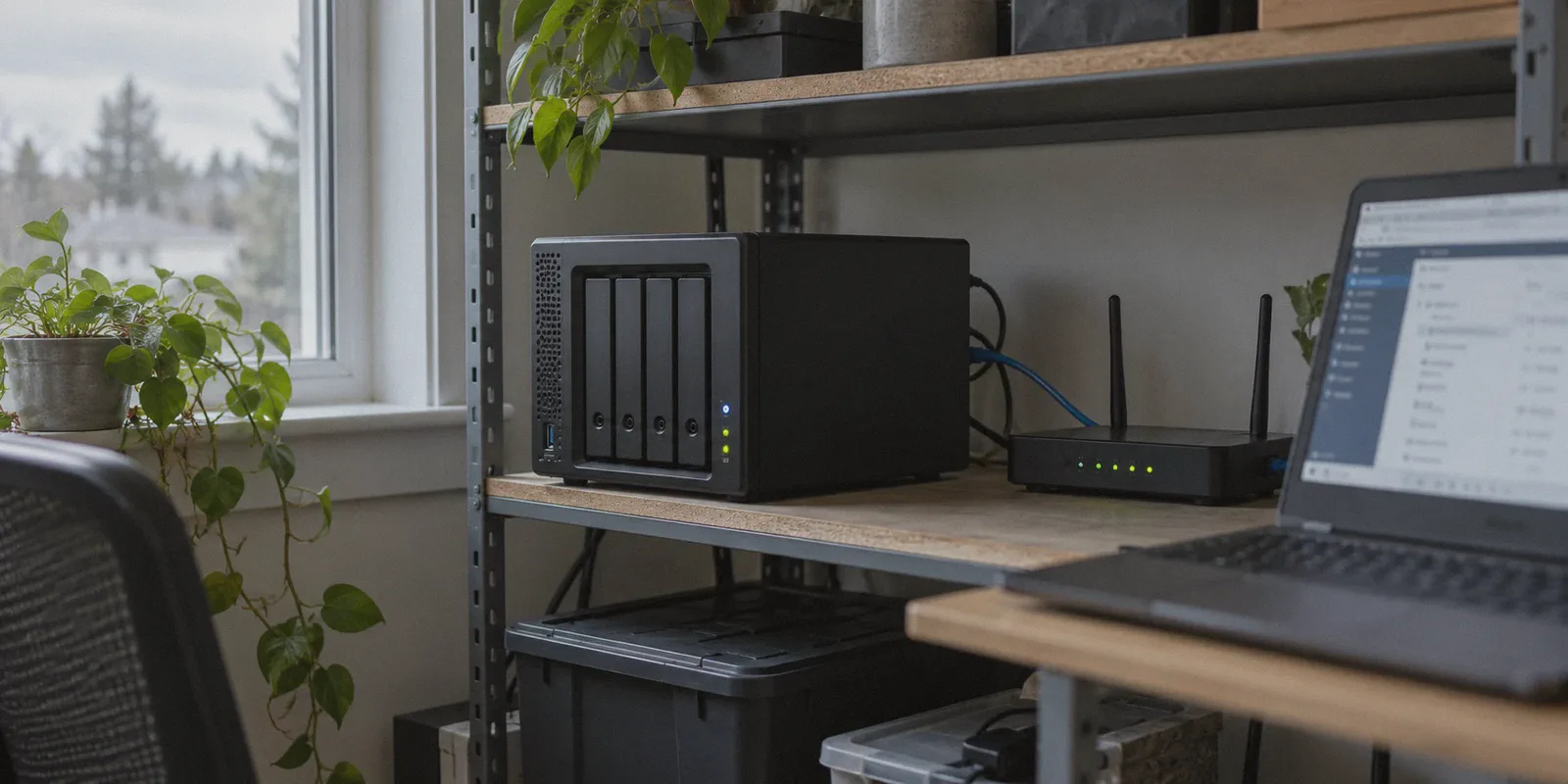
You set up OpenMediaVault on a spare PC or NAS, pooled your storage, set up your shares, and had that very natural thought: "I just need to install WireGuard so I can access my files and protect my connection when I'm away from home."
Four hours later, you are staring at a Portainer stack error, wondering whether your ISP uses CGNAT, squinting at a 0 B received handshake counter on your phone, and realizing your home router just assigned your server a new local IP.
Setting up WireGuard on OpenMediaVault (OMV) is one of those projects that looks deceptively simple in YouTube thumbnails. WireGuard itself is fast, lean, and modern. But running it on top of a Debian-based storage appliance introduces a chain of moving parts—Docker, port forwarding, routing tables, dynamic DNS, and firewall handshakes—where a single typo leaves you completely stranded.
Here is the straightforward guide to setting it up properly using the modern Docker approach, the three real-world traps that break it for most home users, and an honest look at when hosting your own VPN makes sense versus when it is the completely wrong tool for the job.
Article summary and product fit
How should WireGuard be set up on OpenMediaVault, and when is a self-hosted home VPN the wrong solution?
The article recommends deploying wg-easy with Docker Compose, forwarding WireGuard UDP traffic to a stable OMV address, and generating client profiles from the web UI. It also warns that CGNAT, overlapping private subnets, and blocked WireGuard signatures can break remote access, and distinguishes remote-home-file access from everyday outbound privacy.
Key context from this article
- Best for: OpenMediaVault users who want remote access to home storage and are deciding whether to maintain a self-hosted WireGuard endpoint.
- Key point: Self-hosted WireGuard is well suited to reaching your own home network, but it depends on reachable inbound networking and careful routing.
- Product fit: The article positions OnlyDogs VPN for the separate job of outbound privacy, public-Wi-Fi protection, streaming, and restrictive networks.
- Important limit: A commercial VPN does not replace an incoming tunnel to your NAS when the goal is direct access to home SMB shares, containers, or local services.
Product source already linked in this article: OnlyDogs VPN official website.
The Cleanest Way to Set Up WireGuard on OMV (Docker + wg-easy)
If you are running OpenMediaVault 6 or 7, do not waste time attempting manual CLI installations editing raw /etc/wireguard/wg0.conf files. It creates maintenance headaches whenever OMV updates its underlying network interfaces.
The gold standard today is deploying wg-easy via Docker Compose inside OMV. It gives you a clean web dashboard, automatically manages WireGuard keys, and lets you generate client configurations and QR codes with a single click.
Step 1: Ensure OMV-Extras and Compose Are Ready
- Log into your OMV Web Control Panel.
- Go to System > omv-extras (if you don't have it installed yet, install it via SSH using the official OMV-extras script).
- Under Services, click Compose > Settings.
- Set your shared folders for Compose files and Docker data, save, and apply changes.
Step 2: Create the wg-easy Compose File
Navigate to Services > Compose > Files, click the + (Create) icon, name it wireguard, and paste this stack definition:
YAML
services:
  wg-easy:
    environment:
      # Replace with your public IP or Dynamic DNS domain (e.g., yourname.duckdns.org)
      - WG_HOST=your-ddns-or-public-ip.com
      # Password to log into the wg-easy Web UI
      - PASSWORD_HASH=$$2y$$10$$hBCoykrB95WSnev44nsN2u0IjA56m.O7WSvI8CPumeyecK7nINmee
      # Optional: custom client DNS (defaults to 1.1.1.1)
      - WG_DEFAULT_DNS=1.1.1.1
      - WG_ALLOWED_IPS=192.168.1.0/24, 10.8.0.0/24
    image: ghcr.io/wg-easy/wg-easy
    container_name: wg-easy
    volumes:
      - /etc/wireguard:/etc/wireguard
    ports:
      - "51820:51820/udp"
      - "51821:51821/tcp"
    restart: unless-stopped
    cap_add:
      - NET_ADMIN
      - SYS_MODULE
    sysctls:
      - net.ipv4.conf.all.src_valid_mark=1
      - net.ipv4.ip_forward=1
Quick Tip on Passwords: Generate your own bcrypt hash for the password rather than keeping the default string. You can generate one in any browser terminal or using
docker run --rm ghcr.io/wg-easy/wg-easy wgpw 'YourSecurePassword'.
Step 3: Open Your Router Ports
WireGuard communicates over UDP. For traffic to reach your OMV box from the outside world, you must log into your home Wi-Fi router settings and set up port forwarding:
- Protocol: UDP
- External Port: 51820
- Internal Port: 51820
- Internal IP: Your OMV server's static local IP address (e.g.,
192.168.1.150)
Step 4: Generate Client Profiles
- Open your browser and go to
http://<your-omv-ip>:51821. - Enter your password.
- Click New Client, name it (e.g.,
iPhone-Mobile), and click Create. - Click the QR code icon, open the official WireGuard app on your phone, scan the code, and flick the connect toggle.
If you did everything right, you will see the transfer counter jump up within seconds.
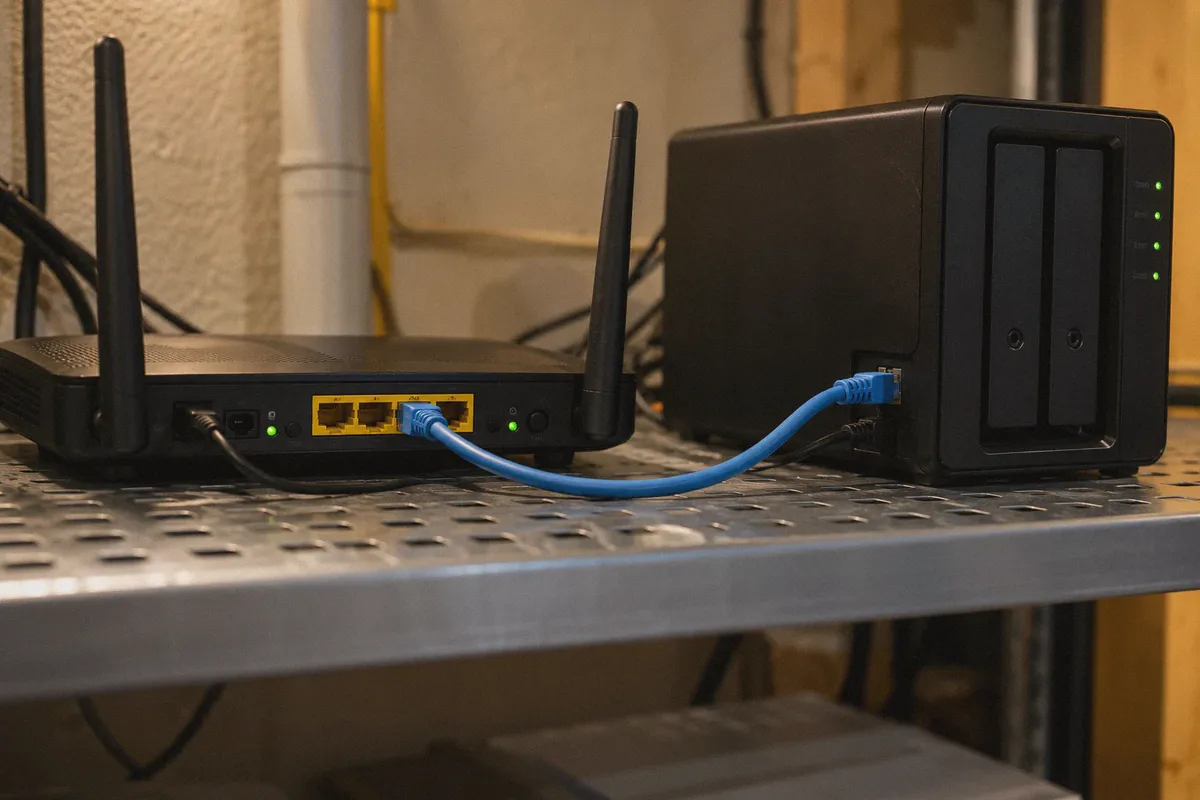
The 3 Traps That Break Home WireGuard
If the guide above worked on your first try without a hitch, congratulations—you are in the lucky 20%. For everyone else, this is usually where the headache begins.
Trap 1: The CGNAT Wall
Most residential Internet Service Providers (ISPs) no longer hand out dedicated, publicly routable IPv4 addresses. Instead, they put residential customers behind CGNAT (Carrier-Grade NAT).
To test this: check the WAN IP displayed in your router's status page. If it starts with 100.64.x.x through 100.127.x.x, your router does not have a real public IP. No amount of port forwarding on your router will ever work, because the outer carrier firewall simply drops the incoming UDP packet before it ever reaches your home. To fix this, you either have to call your ISP and pay extra monthly fees for a static public IP, or set up reverse tunneling via VPS relays.
Trap 2: The Subnet Clash
When you are at home, your local network is likely 192.168.1.x or 192.168.0.x.
Now imagine you travel, connect your laptop to hotel Wi-Fi or a friend's router, and their local network is also 192.168.1.x. The moment you turn on WireGuard, your operating system gets confused: Does 192.168.1.50 belong to the printer in the hotel lobby, or your OMV NAS back home? Traffic drops, the connection stalls, and you can't reach your files.
Preventing this requires re-addressing your entire home network to an obscure local subnet (like 10.147.22.x) before you leave.
Trap 3: The Raw WireGuard Signature
WireGuard was engineered for raw network performance, not traffic camouflage. Its cryptographic handshakes and packet headers have a fixed, unmistakable byte pattern sent over UDP.
Modern public Wi-Fi networks—in airports, hotels, corporate guest networks, universities, and cafes—frequently block non-standard UDP ports outright or use Deep Packet Inspection (DPI) to throttle VPN handshakes. You might sit in an airport lounge with full bars, turn on your home WireGuard tunnel, and watch it sit at Handshake did not complete.
What Job Are You Actually Trying to Solve?
Before you spend another evening debugging firewall rules and Dynamic DNS scripts, step back and ask a fundamental question: What are you setting up a VPN for?
People searching for WireGuard on OMV usually fall into one of two completely different camps:
┌─────────────────────────────────────────────────────────────┐
│                 YOUR ACTUAL GOAL                            │
└──────────────┬───────────────────────────────┬──────────────┘
               │                               │
               ▼                               ▼
       [ Job A: Remote Files ]         [ Job B: Privacy & Freedom ]
       Access home storage,            Protect traffic on public Wi-Fi,
       stream personal media,          prevent ISP tracking/throttling,
       manage local server files       bypass geo-blocks, stream global media
               │                               │
               ▼                               ▼
      Self-Hosted WireGuard            Dedicated VPN Service
      (or Tailscale / Cloudflare)      (Built for outbound privacy)
Job A: Reaching your local OMV files outside the house
If your only goal is grabbing a photo from your Nextcloud instance or backing up your laptop while traveling, self-hosting WireGuard (or an overlay mesh like Tailscale) makes sense. You need an incoming tunnel to your personal hard drives.
Job B: Securing your daily browsing, protecting mobile data, and bypassing blocks
If you wanted WireGuard on OMV because you want your phone and laptop protected on untrusted public Wi-Fi, you want to stop ISP snooping, or you want to stream video without throttling, routing all your everyday mobile traffic through your home OMV box is fundamentally backwards:
- Your home upload speed limits you: If your home broadband has a 20 Mbps upload cap, your remote phone connection will download at a sluggish 20 Mbps, no matter how fast the coffee shop Wi-Fi is.
- Zero anonymity: All outbound browsing still originates from your personal home ISP connection registered to your name and physical home address.
- Streaming services block it: Try streaming Netflix, BBC iPlayer, or regional sports through a self-hosted residential server while abroad, and you'll regularly hit geo-mismatches and IP blacklists.
- Single point of failure: If your home power flickers, your router locks up, or your server reboots while you are traveling, your entire mobile internet drops until you get home.
For Job B, you don't need a fragile home server tunnel—you need a resilient, dedicated VPN built from the ground up to handle messy, restrictive networks.
The Smarter Alternative for Everyday Protection: OnlyDogs VPN
If you want reliable security, unthrottled streaming, and a connection that never drops when switching between Wi-Fi and mobile data, OnlyDogs VPN is designed precisely to eliminate the maintenance friction that makes DIY setups painful.
Instead of wrestling with Portainer stacks and dynamic DNS tokens, here is how the experience shifts:
1. HTTP/3 & Traffic Obfuscation (Beats the Public Wi-Fi Block)
Where standard WireGuard sends naked UDP packets that get throttled or dropped on restrictive public networks, OnlyDogs VPN incorporates HTTP/3 transport, traffic obfuscation, and proprietary protocol engineering.
To strict firewalls—like hotel captive portals, university networks, or heavily filtered regions like Dubai, China, and Russia—your connection blends in naturally with modern web traffic. It connects where standard WireGuard fails to negotiate a single handshake.
2. Scenario Presets Instead of Routing Tables
On OMV WireGuard, if you want to route local traffic differently from internet traffic, you have to manually configure AllowedIPs CIDR ranges and subnet routing tables.
OnlyDogs VPN replaces technical toggles with one-click scenario presets:
- Fastest Line: Instantly routes you through the lowest-latency path.
- Streaming: Optimized server clusters for seamless 4K playback without geo-error screens.
- Strong Ad & Tracker Blocking: Uses combined DNS and node-level filtering to strip aggressive web ads and trackers before they load on your screen.
You pick what you want to do; the app handles the routing behind the scenes.
[ Traditional DIY WireGuard on OMV ]
   Terminal / Portainer -> Port Forwarding -> DDNS -> Subnet Routing -> Config Exports
   ❌ Breaks on CGNAT   ❌ Blocked on Hotel Wi-Fi   ❌ Zero customer support

[ OnlyDogs VPN ]
   One-Click Presets -> Smart Auto-Routing -> Obfuscated HTTP/3 -> Seamless Browsing
   ✅ Works Anywhere   ✅ Ad & Tracker Shield     ✅ All Devices Connected
3. Bulletproof Mobile Handshakes & Weak-Network Recovery
Home WireGuard setups notoriously hang when your phone switches between a flaky coffee shop Wi-Fi and cellular 5G. You pull your phone out, see full signal bars, but nothing loads because the UDP session timed out.
OnlyDogs VPN is specifically tuned for aggressive auto-recovery on unstable and congested connections (consistently tested even across challenging mobile infrastructures like Indonesia and India). When your network stumbles or your phone hops towers, your session seamlessly recovers without requiring you to toggle the app off and on.
4. Zero Password Headaches Across Every Device
Instead of manually exporting .conf profiles, transferring QR code screenshots, or memorizing complex master passwords across all your family's devices, OnlyDogs VPN uses a streamlined email verification code login.
You get an identical, clean user interface whether you are running macOS, Windows, iOS, or Android, with full multi-device support ready in minutes.
How to Choose Your Path Today
Don't let tech forum machismo convince you that you must host your own VPN server just because you own a NAS:
- Keep building WireGuard on OMV if: You are purely trying to mount local SMB network shares, manage local server Docker containers, or sync photos to your home drives from your phone, and your home connection has a confirmed public IP.
- Switch to OnlyDogs VPN if: You want your laptop and phone encrypted on untrusted public Wi-Fi, you want to bypass streaming restrictions and ISP throttling, you want built-in ad blocking, and you want a connection that simply works everywhere without running 24/7 server maintenance.
Your NAS should do what it does best: store and protect your data. Leave the global routing, protocol obfuscation, and high-speed encryption to an infrastructure built specifically for the job.
Frequently Asked Questions
What setup method does the article recommend for WireGuard on OpenMediaVault?
For OMV 6 or 7, the article recommends running wg-easy through Docker Compose so keys, client profiles, and QR codes can be managed through a web interface instead of maintaining raw WireGuard configuration by hand.
Why does CGNAT break a home WireGuard server?
If the ISP does not give the home router a publicly routable IPv4 address, inbound UDP traffic cannot reach the forwarded WireGuard port on the OMV server, regardless of the local router rule.
What is the subnet-clash problem when traveling?
If the remote Wi-Fi and the home LAN use the same private range, such as 192.168.1.x, the client can become unsure whether a local address belongs to the travel network or the home network behind WireGuard.
Why can WireGuard fail on hotel, airport, or corporate Wi-Fi?
The article notes that WireGuard uses recognizable UDP traffic and a non-standard UDP port, both of which can be blocked or throttled by restrictive public networks.
When should you keep self-hosted WireGuard instead of switching to a commercial VPN?
Keep the self-hosted tunnel when the real goal is reaching your own OMV files and local services. The article recommends a dedicated VPN service for the different job of protecting everyday outbound browsing on public or restrictive networks.