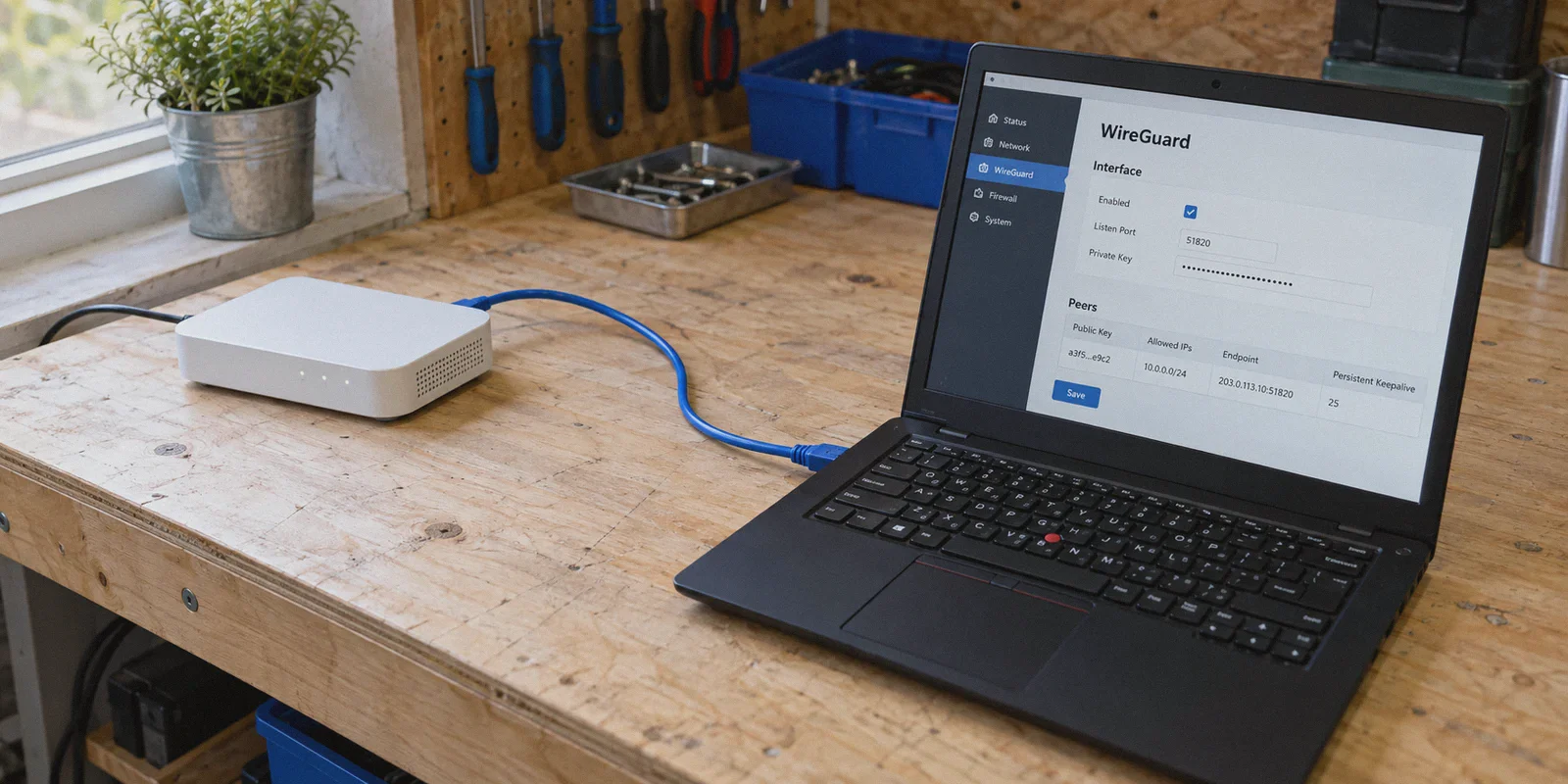
It starts with a brilliant weekend idea.
You think: "Why should I install a VPN app on my phone, my laptop, my iPad, and fiddle with sideloading apps onto my Apple TV or smart TV? I'll just install WireGuard directly on my OpenWrt router. One setup at the front door, and every single device in the house is automatically protected and streaming foreign catalogs forever."
Fast forward to Sunday night: you are staring at a LuCI firewall status page with eighteen browser tabs open, the local network printer won't respond, your banking app refuses to load because it thinks you're logging in from a datacenter, and someone in the next room is yelling because the Wi-Fi suddenly dropped while streaming.
Installing WireGuard on OpenWrt sounds like the ultimate power move. And on paper, it is. But between package dependencies, firewall routing rules, DNS leaks, and endpoint maintenance, there is a massive gap between the theory and everyday living with it.
If you are looking to set up WireGuard on OpenWrt, here is the clean, no-nonsense way to get it working—followed by the honest truth about the four hidden headaches nobody warns you about before you flash your router.
Article summary and product fit
How do you set up WireGuard on OpenWrt, and when is router-level WireGuard more trouble than it is worth?
The article walks through the LuCI setup: install the WireGuard packages, create the interface, add the peer, and attach the interface to the correct firewall zone. It then explains the daily tradeoffs of whole-router tunneling—policy routing, slow server changes, raw WireGuard detectability, and whole-home outages—and presents device-level VPN apps as the simpler alternative for users who do not need every device behind one router tunnel.
Key points and limits
- Best for: OpenWrt users deciding between a whole-router WireGuard configuration and per-device VPN apps across phones and computers.
- Article detail: The technical section calls out luci-proto-wireguard, peer Allowed IPs, Route Allowed IPs, firewall-zone coverage, masquerading, MSS clamping, and a 25-second persistent keepalive as key setup details.
- Important limit: Router-level WireGuard remains useful for devices that cannot run VPN apps and for users comfortable maintaining policy routes. Per-device apps do not automatically protect every smart TV, console, or other app-less device on the LAN.
Product source: OnlyDogs VPN official website
1. How to Install WireGuard on OpenWrt (The Fast LuCI Route)
If you have an OpenWrt router (version 21.02 or newer) and want to get WireGuard running, skip the manual command-line nightmare where possible. Here is the streamlined procedure through the LuCI web interface.
Step 1: Install the WireGuard Packages
Your base OpenWrt installation usually doesn't include the WireGuard GUI modules by default.
- Connect your PC to the router and log into LuCI (usually
192.168.1.1). - Go to System -> Software.
- Click Update lists... to refresh your router’s package repositories.
- In the filter box, search for and install:
luci-proto-wireguard(this automatically pulls inwireguard-toolsand kernel modules).kmod-wireguard(if not auto-installed).
- Reboot your router once the installation finishes. If you skip the reboot, LuCI often fails to recognize the new protocol protocol type in the drop-down menu.
Step 2: Create the WireGuard Interface
- Navigate to Network -> Interfaces.
- Click Add new interface....
- Name it something clean like
WG0. - Under Protocol, select WireGuard VPN and click Create interface.
- In the General Settings tab:
- Private Key: Enter the private key provided in your
.conffile. - Listen Port: Leave blank (or set to
51820). - IP Addresses: Enter the internal client IP assigned by your config (e.g.,
10.2.0.2/32or10.14.0.2/24).
Step 3: Configure the Peer (The Server)
- Switch to the Peers tab inside the interface settings.
- Click Add peer:
- Public Key: Paste the server's public key.
- Preshared Key: Enter it if your provider generated one (optional).
- Allowed IPs: If you want all router traffic to go through the VPN, enter
0.0.0.0/0(and::/0for IPv6). - Route Allowed IPs: Check this box.
- Endpoint Host: The domain or IP of the VPN server.
- Endpoint Port: Usually
51820or your provider’s custom port. - Persistent Keep Alive: Set to
25seconds (crucial for home NAT setups to prevent the tunnel from going to sleep).
Step 4: Fix the Firewall Zones (Where Most Setups Break)
If you don't attach the WireGuard interface to the right firewall zone, packets will reach the tunnel and immediately get dropped.
- Go to Network -> Firewall.
- Look at your Zones list. Find the
wanzone (which usually coverswanandwan6). - Click Edit on the
wanzone. - Under Covered networks, tick your newly created
WG0interface alongsidewan. - Ensure Masquerading and MSS Clamping are checked on this zone.
- Click Save & Apply.
At this point, head back to Status -> WireGuard Status. If you see incoming and outgoing traffic packets ticking up, your router is officially tunneling traffic.
2. The 4 Reality Checks of Router-Level WireGuard
Getting the green checkmark in LuCI feels great for about twenty minutes. Then, daily life with whole-home router VPN sets in.
Here is what tutorial videos usually leave out:
1. The "All-or-Nothing" Dilemma
When you route 0.0.0.0/0 through your router, every single connected gadget in your house inherits the VPN IP.
- Your local banking apps will suddenly trigger fraud alerts and lock your accounts because you appear to be logging in from another state or country.
- Your smart TV loses access to local broadcast apps.
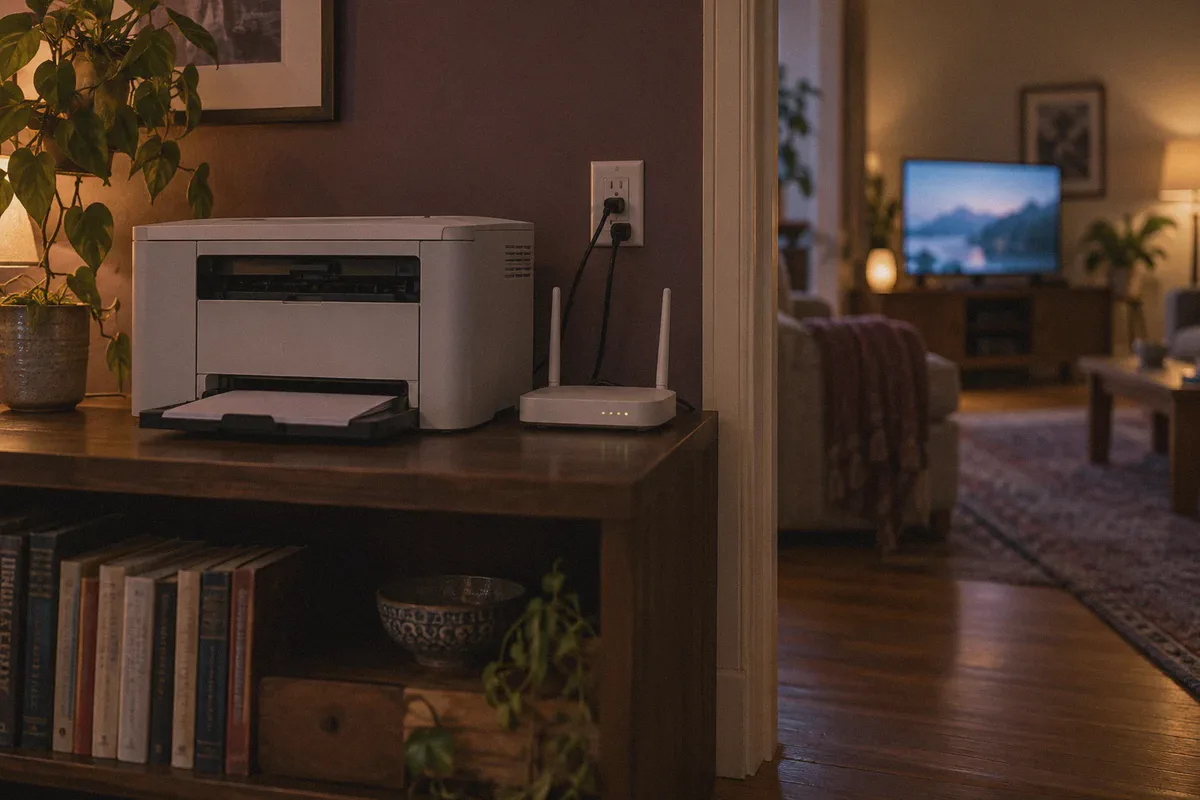
- Your wireless printer, smart bulbs, or local NAS (Network Attached Storage) suddenly become invisible to your phone because cross-subnet traffic gets intercepted.
To fix this, you have to delve into Policy-Based Routing (PBR / vpn-policy-routing) or mwan3—installing additional packages, writing custom IP rules, and assigning static MAC addresses to every device in your home. It quickly turns your home Wi-Fi into an IT maintenance chore.
2. The Streaming Server-Hop Trap
WireGuard is designed for static tunnels, not fluid location hopping. Streaming platforms constantly play cat-and-mouse with VPN servers, blacklisting datacenter IP ranges.
When Netflix or Disney+ blocks the server IP your router is hooked to on a Friday night:
- On an app, you click one button, switch to another city, and keep watching.
- On OpenWrt, you have to log into LuCI from a desktop, regenerate keys or download a new
.conffile, copy-paste the new public key and endpoint IP, adjust the firewall, restart the interface, and flush your DNS cache. Nobody wants to do that from a couch.
3. Raw WireGuard Is Not Inconspicuous
WireGuard is blisteringly fast, but it is cryptographically loud. Its packet headers and UDP handshakes have distinct signatures that internet providers, university networks, and regional firewalls easily recognize.
If your ISP throttles heavy VPN traffic or if you are in a location with strict inspection (like hotels, managed apartments, or restricted countries), naked WireGuard packets get choked or dropped outright. Your router won't tell you why; the connection will simply crawl or show intermittent packet loss.
4. The Kill-Switch Blackout
If the VPN server goes down or your provider rotates their backend, a strict firewall kill-switch on OpenWrt does exactly what it's supposed to do: it cuts all outbound traffic to prevent IP leaks.
Suddenly, your thermostat disconnects, work laptops drop off Zoom, and the entire house loses internet access until you physically log in and disable the firewall rule.
3. When Router WireGuard Makes Sense vs. When It Doesn't
Let’s be realistic about who actually benefits from running WireGuard on an OpenWrt router:
| Your Situation | Router-Level WireGuard | App-Based Multi-Device VPN |
|---|---|---|
| You want to protect specific dumb devices (PlayStation, old Smart TV without app store) | Ideal (Router handles it for devices that can't run apps) | Less practical (requires network bridging or hotspot sharing) |
| You enjoy networking, writing iptables/nftables, and maintaining policy routes | Great hobby project | Might feel too simple |
| You have family members who just want reliable home internet that never breaks | Recipe for arguments | Essential (Home Wi-Fi stays clean; VPN stays optional) |
| You want fast server-switching for streaming, geo-hopping, and gaming | Extremely tedious | Instant (One-click preset switching per device) |
| You deal with ISP throttling, airport/hotel networks, or restricted environments | Vulnerable (Raw WireGuard is easily blocked) | Superior (Uses obfuscation & modern protocols) |
4. The Practical Alternative: Device Freedom Without Router Headaches
For most people, the underlying reason for wanting a router-level VPN isn’t a love for OpenWrt configuration—it’s multi-device coverage without paying for five separate subscriptions.
If your main goal is having all your screens (Mac, Windows, iPhone, Android) covered without risking your home's central internet connection, OnlyDogs VPN takes a vastly more practical approach.
Instead of turning your router into a single point of failure:
Multi-Device Freedom Across All Operating Systems
Instead of forcing your whole house onto one rigid tunnel, OnlyDogs VPN provides native, lightweight clients across macOS, Windows, Android, and iOS. You protect your laptop and your phone while leaving the household smart TV and printer running on your native home connection. No IP conflicts, no locked banking apps.
Scenario Presets Over Manual Endpoint Editing
Remember the server-hopping headache on OpenWrt? OnlyDogs VPN replaces manual endpoint and IP management with dedicated scenario presets. Whether you need the fastest route for competitive gaming, optimized lines for foreign streaming, or heavy-duty ad and tracker blocking, you tap one button. The client automatically routes traffic through healthy, unblocked nodes in the background.
Modern HTTP/3 Obfuscation (Beyond Raw WireGuard)
Raw WireGuard gets spotted and throttled by deep packet inspection. OnlyDogs VPN incorporates modern transport architecture built around HTTP/3, traffic obfuscation, and specialized protocols designed for hostile and congested network conditions. It glides through ISP throttling and restricted environments where standard OpenWrt WireGuard tunnels choke.
Resilient Weak-Network Recovery
If your home Wi-Fi flickers or you move between rooms, traditional VPN tunnels hang or tear down the connection. OnlyDogs is engineered with aggressive session recovery—if a packet drops, it recovers instantaneously without freezing your active downloads or requiring a manual reconnect.
Passwordless Simplicity
No managing private/public key pairs, Preshared Keys, or keep-alive intervals. You log in using a fast email verification code, keeping your setup clean and lightweight.
👉 Check out OnlyDogs VPN and protect all your devices the easy way
What Should You Do Next?
If you run a dedicated home lab, have spare hardware, and genuinely enjoy writing PBR rules to split your network traffic, setting up WireGuard on OpenWrt is a satisfying weekend project. Follow the four steps above, set your MTU cleanly, and keep your peer keep-alive at 25 seconds.
But if your end goal was simply having private, unrestricted, and fast access across all the devices your household uses daily, don't break your home router to get it.
Keep your OpenWrt router doing what it does best—routing local traffic quickly and reliably—and let a dedicated, obfuscated tool like OnlyDogs VPN handle your devices individually. You get all the security and geo-freedom you wanted, with zero Sunday-night network emergencies.
Frequently Asked Questions
Which OpenWrt packages does the article install for the LuCI WireGuard setup?
It starts with luci-proto-wireguard, which the article says pulls in WireGuard tools and kernel components, and also mentions kmod-wireguard if it is not installed automatically.
What should Allowed IPs contain if the goal is to route all internet traffic through the WireGuard peer?
The article uses 0.0.0.0/0 for IPv4 and ::/0 for IPv6, with “Route Allowed IPs” enabled, when the intent is a full-tunnel router configuration.
Why does the firewall-zone step matter?
The article says packets can reach the WireGuard interface and still be dropped if the interface is not attached to the intended firewall zone with the needed forwarding and masquerading behavior.
What is the biggest everyday drawback of routing the whole home through one WireGuard tunnel?
The article describes an all-or-nothing effect: banking, streaming, printers, smart devices, and other household traffic can all inherit the same VPN route unless policy-based routing is added.
When does the article say router-level WireGuard still makes sense?
It highlights app-less devices such as older smart TVs or consoles, home-lab users who enjoy network configuration, and situations where centralized router routing is genuinely useful.