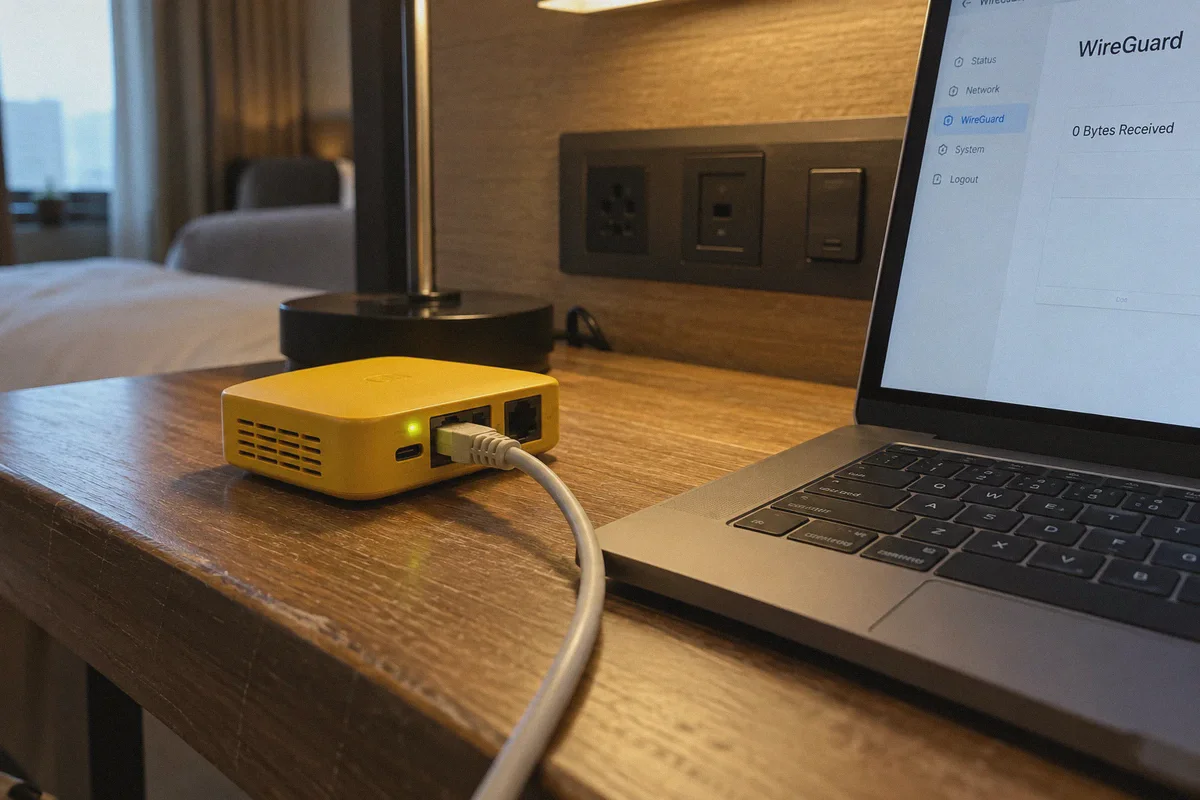
You’re sitting on a hotel bed with your suitcase half-unpacked, staring at 192.168.8.1 on your laptop screen. Beside your keyboard sits that familiar little slate-grey or pale-yellow box—a GL.iNet Beryl, Slate, or Opal—blinking its tiny blue light.
You bought this travel router because someone on Reddit or YouTube told you it was the holy grail for remote work: plug it in, flip on WireGuard, and instantly wrap your laptop, phone, and tablet inside one secure, encrypted bubble without having to log into hotel Wi-Fi on five separate gadgets.
Except right now, you’re stuck. Either you can’t figure out where to get the configuration file, or you imported it, hit "Connect," and watched the status icon spin endlessly while your connection counter sits stubbornly at 0 Bytes Received.
Let’s solve this. First, here is the exact, zero-fluff walkthrough to get WireGuard running on your GL.iNet router in under three minutes. After that, we’ll talk about the dirty secret of travel router setups that almost nobody mentions: why WireGuard tends to break the moment you hit hotel, airport, or international networks, and how to actually keep your connection alive on the road.
Article summary and product fit
Why can a GL.iNet WireGuard profile show “0 Bytes Received” on hotel Wi-Fi?
The article says the most common causes are an unfinished captive-portal login, packet fragmentation from an MTU that is too large, or a LAN subnet conflict. It also warns that some public networks throttle or block UDP, which can prevent a WireGuard handshake even when the configuration itself is correct.
Key points and limitations
- Best for: Travelers using a GL.iNet Beryl, Slate, Opal, or similar router who can import a WireGuard profile but cannot get traffic flowing on hotel or airport Wi-Fi.
- Article detail: The article’s troubleshooting sequence checks the captive portal first, then suggests a lower MTU and a different GL.iNet LAN subnet if the default 192.168.8.1 conflicts with the upstream network.
- Important limit: Raw WireGuard depends on UDP and can still fail on networks that aggressively block or throttle that traffic; a working configuration file cannot overcome every upstream network policy.
Product fit: Within this article, OnlyDogs VPN is presented as a device-level alternative for networks where static WireGuard profiles are blocked, using obfuscated HTTP/3-based transport, auto-routing, and weak-network recovery. OnlyDogs VPN official website.
Part 1: The 3-Minute Setup Walkthrough
Before touching the VPN tab, make sure your GL.iNet router is already connected to the internet (via Ethernet cable into the WAN port, or via the Repeater mode connected to the local Wi-Fi). If the router can't reach the internet on its own, the VPN will never connect.
Step 1: Grab Your WireGuard Configuration File
WireGuard doesn't use simple usernames and passwords; it uses cryptographic key pairs packaged into a .conf configuration file (or a block of text).
- Log into your VPN provider's website on your browser.
- Look for Manual Setup, WireGuard Configuration, or Router Configuration.
- Select your desired server location (e.g., Tokyo, Los Angeles, Frankfurt).
- Download the
.conffile to your computer, or copy the configuration text to your clipboard.
Step 2: Open the GL.iNet Admin Dashboard
- Connect your laptop to your GL.iNet router’s Wi-Fi network.
- Open your browser and go to
192.168.8.1(the default admin address). - Enter your admin password.
Step 3: Add the WireGuard Client Profile
- On the left-hand menu, navigate to VPN → WireGuard Client.
- Click Add New Group or Set Up WireGuard Manually.
- Choose your import method:
- Upload File: Simply drag and drop the
.conffile you just downloaded. - Text / Manual Input: Paste the text contents if your provider gave you raw configuration lines.
- Give the profile a recognizable name (like
US-West-Work) and click Apply.
Step 4: Configure the Kill Switch & DNS
Before clicking connect, click on the Global Options (or gear icon) within the VPN section:
- Block Non-VPN Traffic (Kill Switch): Turn this ON if you cannot risk your real IP leaking under any circumstances. Warning: Leave it OFF for now if you haven't completed the hotel's splash page login yet, or you will lock yourself out of the internet.
- VPN Cascading / DNS: Ensure DNS Rebinding Attack Protection is toggled off if you are using hotel Wi-Fi that redirects your browser to a login portal.
Step 5: Connect and Verify
- Go back to the WireGuard Client tab.
- Select the server you just imported and click Start.
- Look closely at the data indicators:
- If you see Data Received climbing into kilobytes and megabytes, your tunnel is active.
- Open a fresh tab, visit any IP-checking tool (like
ipleak.net), and confirm your IP and location now reflect your VPN server.
Part 2: The "0 Bytes Received" Trap (Why Handshakes Fail)
If your WireGuard client says "Connecting" forever, or if it says "Connected" but no websites load, you have run into the classic 0 Bytes Received handshake failure.
In WireGuard, the client sends UDP packets to the server. If the server receives them and accepts your keys, it replies. If it replies, your "Data Received" ticks up. If "Data Received" stays at zero, your packets are disappearing into a black hole.
Here are the three most common reasons this happens on travel routers:
- The Hotel Captive Portal Catch-22: You turned on the VPN Kill Switch, but the hotel's network is trying to hijack your browser to show you the "Enter Room Number & Last Name" page. The Kill Switch blocks that redirect because it’s unencrypted local traffic. Fix: Turn off the VPN, open
[http://neverssl.com](http://neverssl.com)to force the hotel login page to pop up, sign in, and only then start the WireGuard VPN. - MTU Packet Fragmentation: Travel routers encapsulated in hotel Wi-Fi repeaters add overhead. If the packet size (MTU) is too big, the hotel network drops the packets silently. Fix: In your WireGuard client configuration on the router, change the
MTUsetting from the default1420down to1360or1280. - Double NAT / Subnet Conflict: Most GL.iNet routers use
192.168.8.1. If your hotel or Airbnb router also uses192.168.8.1, routing tables crash. Fix: Go to Network → LAN on your GL.iNet dashboard and change the IP to192.168.10.1.
Part 3: The Reality Check Nobody Talks About
If you follow the steps above, you’ll likely get your WireGuard tunnel running. But once you start traveling with this setup, you quickly run into a much bigger, fundamental problem.
WireGuard was designed for speed and simplicity, not for hostile travel networks.
WireGuard runs purely on UDP. It does not look like regular HTTPS web traffic; it has very distinct packet headers and a fixed handshake pattern. To an IT administrator managing a hotel network, an airport terminal, a conference hall, or a cruise ship, WireGuard traffic sticks out like a neon flare.
Here is what actually happens when you rely solely on router-level WireGuard abroad:
- Aggressive UDP Throttling: Many public and hospitality Wi-Fi networks intentionally throttle or outright block UDP traffic outside of standard DNS (port 53). They do this to stop guests from torrenting or hogging bandwidth. When they drop UDP, your WireGuard tunnel simply dies.
- Firewalls & Deep Packet Inspection (DPI): If you travel to regions with tight internet restrictions—such as the UAE, China, Turkey, or even corporate hotel chains running strict enterprise filters—standard WireGuard is trivial to detect and block within seconds.
- The Config File Grind: Whenever a server gets slow, blocked, or goes down for maintenance, you can't just click a button. You have to log back into your laptop, open
192.168.8.1, delete the dead profile, log into your VPN provider, generate and download a new.conffile, upload it back to the router, and re-test. Doing this at 11 PM after a 14-hour flight is miserable.
A travel router is a fantastic piece of hardware for creating a local Wi-Fi bubble for your devices. But making raw, static WireGuard your single point of failure on travel Wi-Fi turns you into an unpaid network technician on your own trip.
Part 4: A Modern Alternative When Open Protocols Hit a Wall
If your goal is simply to protect your traffic, unlock your home streaming libraries, and work without worrying whether hotel network filters are going to nuke your tunnel, you need a setup built for unpredictable networks.
This is where a modern service like OnlyDogs VPN takes a completely different approach from traditional static config files.
Instead of forcing you to juggle raw WireGuard .conf files and fiddle with custom MTU values whenever an airport network drops your packets, OnlyDogs is engineered specifically around obfuscated transport, HTTP/3 protocol designs, and weak-network resilience.
Here is why that distinction matters when you are living out of a suitcase:
1. Traffic That Looks Like Regular Web Browsing
Standard WireGuard announces itself to the firewall. OnlyDogs uses proprietary protocol masking and HTTP/3-based transport designed to blend directly into normal internet traffic. When hotel Wi-Fi, school networks, or restrictive regional firewalls (even in high-censorship destinations) inspect the connection, it appears as standard encrypted HTTPS traffic rather than a raw VPN tunnel. It passes straight through filters that choke off plain WireGuard handshakes.
2. Auto-Routing Instead of Manual Server Hunting
With a router .conf file, you are locked to whatever single IP address is hardcoded into that file. If that IP is congested or blocked by the local ISP, your entire router goes dark.
OnlyDogs uses intelligent auto-routing. If a specific path experiences packet loss or an ISP bottleneck, the client dynamically routes around the block to find the cleanest active route without you needing to manually download a new configuration file.
3. Weak-Network and Wi-Fi Roaming Recovery
Anyone who has used hotel Wi-Fi knows the connection hiccups every twenty minutes. Traditional tunnels often freeze up during these micro-drops, requiring a manual reconnect or router reboot. OnlyDogs is optimized for packet re-ordering and rapid state recovery over unstable networks—meaning when the hotel Wi-Fi stumbles, your session recovers automatically instead of hanging your apps.
4. Zero Password and Key Sprawl
Generating WireGuard keys usually means managing accounts, passwords, and private keys. OnlyDogs streamlines access using lightweight email verification codes, cutting down account friction while keeping multi-device access seamless across macOS, Windows, iOS, and Android.
Part 5: The Ideal Setup: How to Get the Best of Both Worlds
You don't have to throw away your GL.iNet router. In fact, seasoned travelers usually split their network strategy into two clear buckets:
| Scenario | Best Tool for the Job | Why |
|---|---|---|
| Connecting back to your Home NAS / Fixed Office IP | GL.iNet + WireGuard | WireGuard is unmatched for self-hosted site-to-site tunnels when you control both endpoints. |
| Bypassing Restrictive Hotel / Airport Wi-Fi | OnlyDogs VPN Client | Obfuscated HTTP/3 traffic cuts through captive networks and UDP blocks where WireGuard fails. |
| Streaming & Geo-Unblocking on the Go | OnlyDogs VPN Client | Dedicated streaming presets eliminate the IP-flagging issues common to static WireGuard configurations. |
| Multi-Device Local Sharing (Kindle, Apple TV) | GL.iNet Repeater Mode | Use the router as a local Wi-Fi bubble, then run resilient encryption on your primary working devices. |
The Pragmatic Move
If your GL.iNet WireGuard tunnel is working on your current network, enjoy the speed. Keep your MTU set around 1360 to avoid fragmentation, and remember to leave the Kill Switch off until after you sign into hotel captive portals.
But if you find yourself staring at 0 Bytes Received, battling throttled hotel UDP, or traveling through regions where public VPN protocols are actively suppressed, stop fighting the router dashboard. Switch your primary devices to a service built for obfuscation and network resilience like OnlyDogs VPN, let its automated routing handle the connection headaches, and spend your trip getting work done instead of diagnosing network packets.
Frequently Asked Questions
What does “0 Bytes Received” usually mean on a GL.iNet WireGuard client?
The article treats it as a handshake or return-path failure: the router is sending packets but is not receiving usable replies from the WireGuard server.
Why should the hotel captive portal be completed before enabling the VPN kill switch?
The article explains that the captive portal needs local, non-VPN traffic to redirect the browser to its login page. A strict kill switch can block that redirect and leave the router with no usable internet path.
When can lowering the WireGuard MTU help?
The article says repeater mode and hotel Wi-Fi add encapsulation overhead. If packets become too large and are silently dropped, reducing the MTU from the default can restore the handshake and data flow.
How can a subnet conflict break the travel-router connection?
If both the GL.iNet router and the upstream hotel or Airbnb network use the same private subnet, routing becomes ambiguous. The article suggests moving the GL.iNet LAN to a different subnet in that situation.