
There is a very specific flavor of paranoia that hits right after you flip on a VPN kill switch.
You stare at that little green toggle in your app settings, and a quiet voice in the back of your head whispers: Is this switch actually doing anything, or is it just a comforting animation designed to make me feel safe?
It’s a completely fair question. If you’re downloading large files, working on sensitive client documents, or browsing on an untrusted public Wi-Fi network, an unexpected VPN drop can expose your real IP address and physical location in a fraction of a second. The kill switch is supposed to be your safety net—the emergency brake that severs your entire internet connection the instant the VPN tunnel collapses.
The problem is that almost every guide on the internet tells you to test it the wrong way.
If you want to know whether your kill switch actually protects you when disaster strikes—or if your current VPN is just giving you a false sense of security—here is how to test it in under two minutes, what the results mean, and why a kill switch alone might not be solving your real problem.
Article summary and product fit
How do you test a VPN kill switch under an unexpected failure rather than a normal disconnect?
The article says manually clicking Disconnect is a graceful shutdown and therefore does not simulate the event a kill switch is meant to catch. It recommends testing an abrupt client-process failure and an upstream network interruption while watching whether traffic can escape before the VPN tunnel is restored.
Key points and limits
- Best for: Users who have enabled a kill switch but want to verify its behavior during crashes, Wi-Fi drops, or network reconnection.
- Core mechanism: The tests simulate an unexpected VPN process failure and an upstream network break while active traffic is flowing.
- Product fit: OnlyDogs VPN is presented as a stability-first alternative for readers who want the kill switch to remain a last-resort safety net rather than trigger constantly on minor network jitter.
- Important limit: The article still treats a kill switch as essential protection; connection resilience reduces disruptive drops but does not make the emergency blocking layer unnecessary.
Sources in this article: IPLeak leak test; IPinfo IP check. Product source: OnlyDogsVPN official website.
The Big Mistake: Why Clicking "Disconnect" Proves Nothing
If you want to see how most people test their kill switch, it looks like this: they open their VPN, connect to a server, turn on the kill switch, and then click the big red "Disconnect" button inside the app.
When their internet immediately turns back on and loads Google, they panic and think: It failed! My internet didn't cut out!
Except that’s not a failure; that’s how software works.
When you click "Disconnect" inside your VPN app, you are sending a graceful shutdown command. The VPN tells your operating system: "We are deliberately ending this session. Restore normal network routing." A kill switch is not designed to trap you inside an app forever when you voluntarily turn it off. Its job is to react to unexpected crashes, server drops, and network flickers.
Testing a kill switch by clicking "Disconnect" is like testing a car's airbag by turning the key in the ignition. To actually test it, you have to simulate an unexpected crash.
Two 60-Second Tests That Actually Work
You don’t need to be a network engineer, and you don’t need to install packet sniffers like Wireshark. You just need two simple, realistic tests.
Test 1: The "Hard Crash" Simulation (Task Manager / Activity Monitor)
This tests what happens if the VPN software freezes or crashes in the background while your computer is still sending traffic.
- Connect to your VPN and make sure the Kill Switch toggle is enabled in settings.
- Open a continuous IP checker in your browser (like
ipleak.netoripinfo.io). Confirm that the site sees your VPN’s IP address and location, not your real home IP. - Start streaming a long YouTube video or downloading a harmless file so there is active, continuous traffic.
- Open your computer’s process manager:
- On Windows: Press
Ctrl + Shift + Escto open Task Manager. - On macOS: Press
Cmd + Space, typeActivity Monitor, and press Enter.
- Find your VPN client’s core background process (look for the VPN name or background engine service).
- Right-click it and hit "End Task" (or click the Stop (X) button on Mac and choose "Force Quit").
What should happen:
Your video should immediately freeze or buffer indefinitely, and your web pages should refuse to load. If you refresh ipleak.net on a new tab, you should get a "No Internet Connection" or "Server Not Found" error.
If your internet immediately keeps working and your real ISP location shows up on the screen, your kill switch failed. The app died, and your system silently fell back to your naked, unprotected local connection.
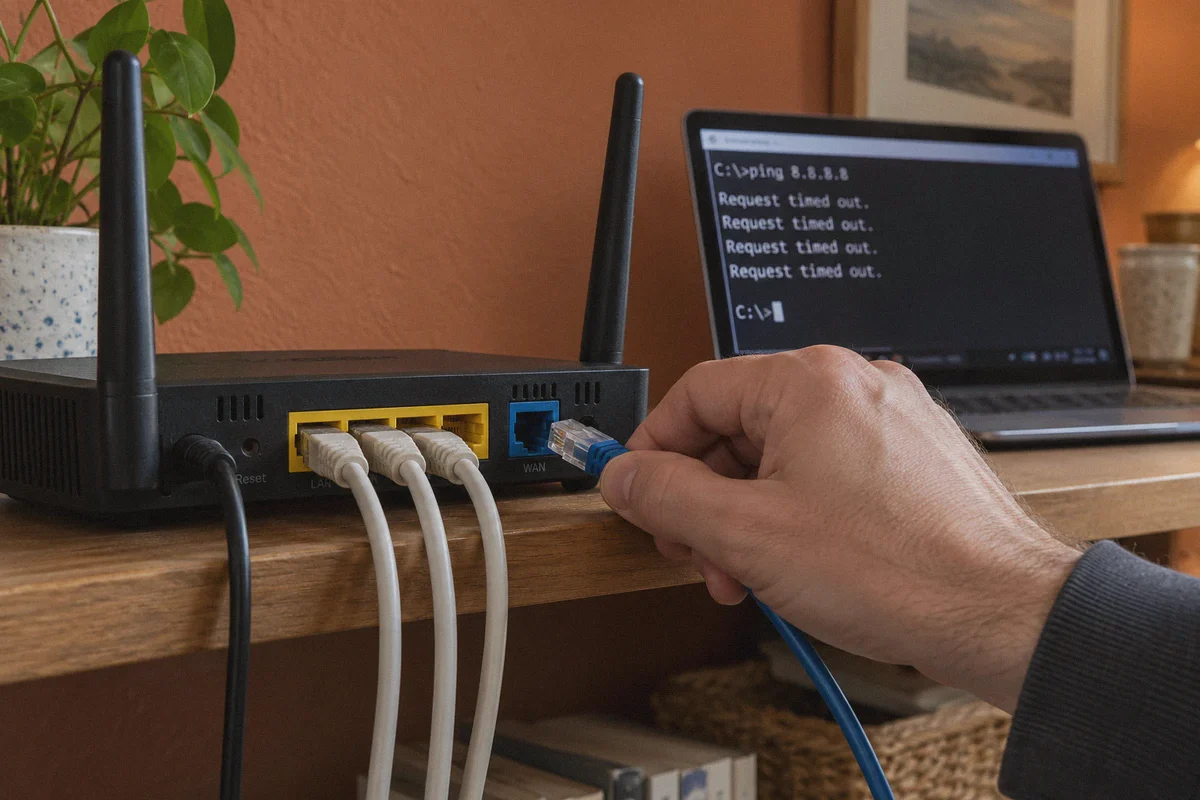
Test 2: The Router Gateway Drop
This tests what happens when your local connection stumbles or resets while the VPN app is running.
- Connect to the VPN with the kill switch on.
- Open your computer's terminal:
- On Windows: Press
Win + R, typecmd, and press Enter. - On Mac: Open Terminal.
- Type
ping -t 8.8.8.8(on Windows) orping 8.8.8.8(on Mac) and hit Enter. You should see a steady stream of replies. - Now, cut your upstream connection without touching the VPN software:
- If you're on Wi-Fi, unplug your router’s power cable or disconnect the incoming WAN cable.
- Alternatively, toggle your Wi-Fi off and quickly turn it back on.
- Watch the terminal and your browser.
What should happen: The ping replies should stop immediately. When the connection re-establishes, your operating system should block all outbound web traffic until the VPN tunnel has cleanly re-encrypted and re-connected. At no point should unencrypted packets reach your destination before the VPN confirms it is back online.
The Reality Check: A Working Kill Switch Is an Airbag, Not an Engine
Let’s say your VPN passed both tests. Congratulations—your kill switch works.
Now comes the part that nobody talks about: relying heavily on a kill switch is a miserable way to use the internet.
Think about what actually happens in real life when a kill switch fires:
- Your 20 GB file download corrupts and terminates halfway through.
- Your Zoom or Google Meet client drops, kicking you out of an ongoing meeting.
- Your game disconnects and gives you an abandonment penalty.
- Your browser tabs freeze, and you’re stuck staring at a offline screen while you manually restart your VPN, switch servers, and wait.
Standard legacy VPN protocols (like raw OpenVPN or vanilla WireGuard) have very fragile handshakes. The moment your Wi-Fi signal drops a single bar, or your laptop switches between a 5 GHz and 2.4 GHz band, or you wake your machine from sleep mode, the tunnel fractures.
If your VPN's only answer to minor network friction is to violently slam on the emergency brakes and freeze your entire digital life five times an afternoon, that’s not high security—that’s poor protocol design.
What you actually want is a VPN where the kill switch serves as a silent, last-resort safety net, while the connection itself is engineered never to drop in the first place.
The Modern Alternative: Stability First, Zero Micro-Leaks
This exact frustration is why a lot of users have shifted away from clunky, traditional VPN clients toward newer, purpose-built engines like OnlyDogs VPN.
Rather than relying purely on legacy protocols that panic and drop at the first sign of packet loss, OnlyDogs was designed specifically around modern network resilience.
Here is what makes that difference noticeable in everyday use:
1. HTTP/3 and Proprietary Protocol Resilience
Most commercial VPNs use public protocols with glaring cryptographic signatures. Internet service providers, strict firewalls, and congested local networks can easily throttle or interrupt them, forcing your client to disconnect and trigger your kill switch.
OnlyDogs utilizes an optimized HTTP/3 architecture and proprietary traffic obfuscation. Because the traffic mimics standard modern web browsing, local networks and restricted firewalls (even in high-censorship environments like Dubai, China, or Russia) don't aggressively drop or inspect the packets. The connection holds steady where older protocols collapse.
2. Seamless Weak-Network Recovery
If you travel, use mobile hotspots, or work in cafes with spotty Wi-Fi (especially on jittery networks across Southeast Asia or public hotspots), connections wobble constantly.
Instead of severing your internet every time your laptop switches from home Wi-Fi to a phone hotspot, OnlyDogs VPN handles network handoffs under the hood. It maintains tunnel integrity across network switches so your real IP remains sealed, but your active downloads and video streams don't grind to a halt.
3. Scenario Presets Instead of Manual Guesswork
When people suffer VPN drops, their typical reaction is to frantically scroll through a list of 500 random city servers trying to find one that doesn't disconnect.
OnlyDogs eliminates this with one-click Scenario Presets:
- Fastest Line: Automatically evaluates latency and routes you through the cleanest route.
- Streaming: Optimized for platforms like Netflix and YouTube without buffering or IP blocks.
- Strong Ad & Tracker Blocking: Uses dual DNS and node-level filtering to strip out invasive web tracking and annoying video ads before they even reach your device.
- Multi-Device Sharing: Seamless protection whether you’re on macOS, Windows, Android, or iPhone.
You pick what you want to accomplish, and the app manages the routing and encryption stability automatically.
4. No Password Headaches
Most security slip-ups happen because users are juggling complex passwords or getting locked out of their accounts. OnlyDogs uses a streamlined email verification code system—no traditional passwords to remember, lose, or compromise.
👉 Check out OnlyDogs VPN and get instant, resilient protection
How to Choose Your Next Step
Testing your kill switch takes two minutes, and it gives you immediate clarity on where your privacy actually stands:
| If your test showed... | What it means | What you should do |
|---|---|---|
| Real IP leaked immediately on crash | Your VPN has no active system-level kill switch, or its background hook is broken. | Stop using it for sensitive tasks. Either enable persistent firewall rules or replace the software. |
| Internet died, but disconnects happen constantly | Your kill switch works, but your protocol is too fragile for your actual network conditions. | Look into a client built on modern HTTP/3 protocols and weak-network recovery to stop the constant freezes. |
| Internet remained sealed, reconnection was instant | Your VPN is doing its job properly. | Keep running your tests periodically after major OS or app updates. |
A kill switch is an essential seatbelt. But if you find yourself constantly crashing into the dashboard just to stay private, you don't need a better seatbelt—you need a better ride.
Take sixty seconds today to run the Task Manager test. If your current tool lets you down, give OnlyDogs VPN a spin and see how much smoother private browsing feels when your connection isn't fighting you at every turn.
Frequently Asked Questions
Why does clicking the VPN app’s Disconnect button not prove the kill switch works?
The article explains that Disconnect is a deliberate, graceful shutdown. The app tells the operating system to restore normal routing, whereas a kill switch is meant to react to an unexpected crash, tunnel loss, or network failure.
What kind of test actually simulates a VPN crash?
The article recommends keeping traffic active, confirming the VPN IP, and then force-closing the VPN’s background process from Task Manager or Activity Monitor. A working kill switch should block traffic instead of letting the normal ISP route take over.
What should happen when the upstream network drops and comes back?
The article says traffic should stop immediately and remain blocked until the VPN tunnel has re-established securely. There should not be a brief window in which ordinary unencrypted routing resumes first.
Why does the article say a kill switch is an airbag rather than the engine?
A kill switch limits exposure when something fails, but it does not prevent the failures themselves. The article argues that frequent drops still ruin downloads, calls, and sessions, so connection stability remains part of the overall privacy experience.