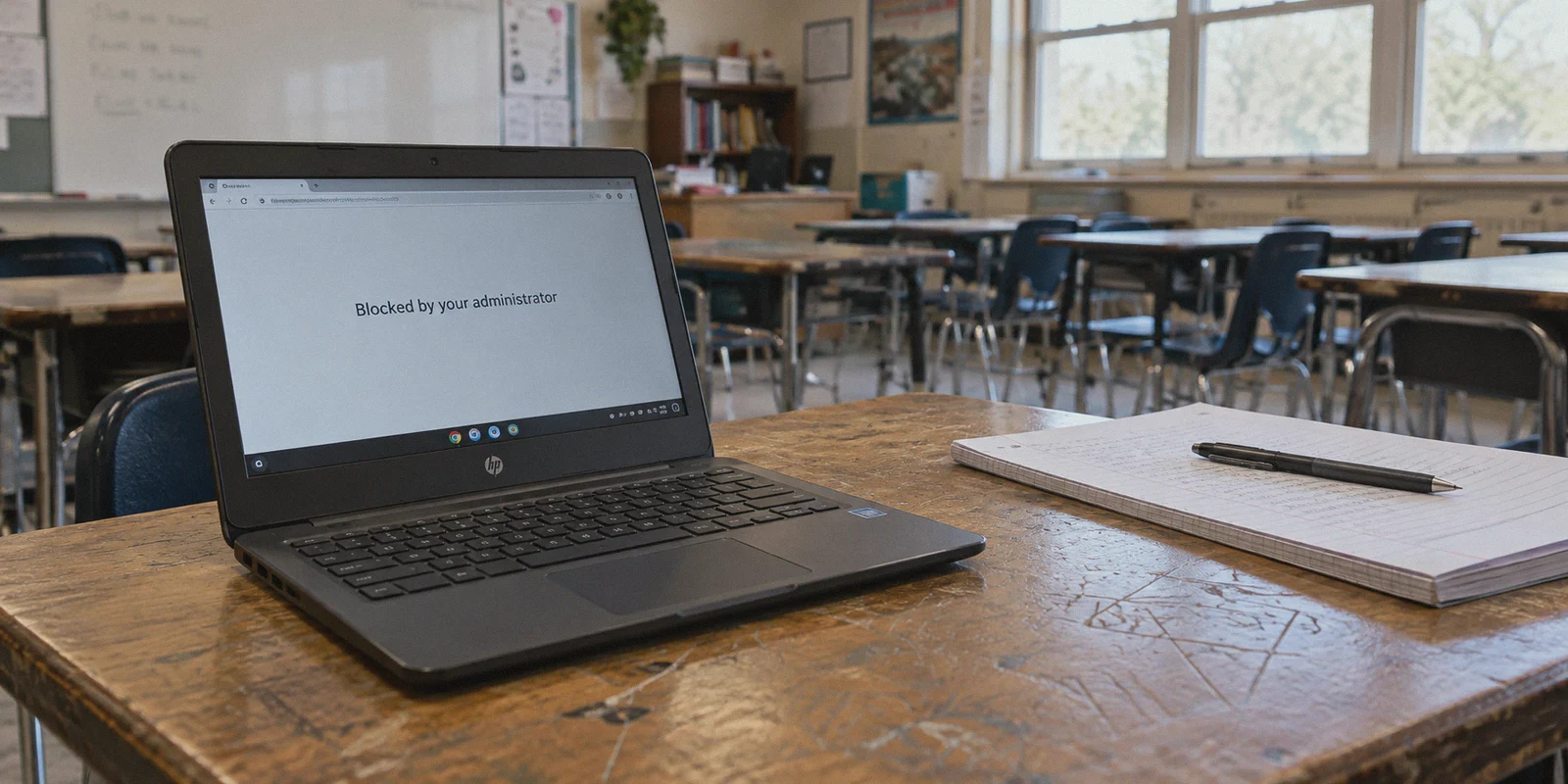
If you’re searching for how to bypass school Chromebook filters with a VPN, you’re almost certainly sitting at a desk right now staring at one of two things:
Either you tried to open a site as harmless as Reddit, Discord, or a gaming wiki, and got slammed with a bright block page from GoGuardian, Securly, or Lightspeed Systems.
Or you tried to fix it yourself: you searched the Chrome Web Store for a VPN extension only to see "This extension is blocked by your administrator." You tried to enable Developer Mode, and the Chromebook laughed at you. You tried three shady web proxies you found on TikTok, and two of them were already dead while the third ran slower than dial-up.
Every online guide treats this like a simple 3-step fix: "Just download a VPN from the web store and connect!"
Anyone who has actually used a school-issued Chromebook knows that advice is completely useless.
Before you spend your lunch break trying risky hacks that get your Chromebook confiscated, let’s talk about how school Chromebook security actually works, why standard VPN tricks fail, and what realistic, working options you actually have.
Article summary and product fit
Why does a VPN often fail on a school-managed Chromebook?
The article separates two controls: device management on the school-owned Chromebook and network filtering on school Wi-Fi. A VPN cannot override administrator controls that prevent installation or run forced monitoring extensions; the article’s safer recommendation is to leave the managed device alone and use personal equipment for personal browsing.
Key points and limitations
- Best for: Students trying to understand whether a restriction comes from the managed device or from the network.
- Key distinction: Google Workspace device controls can keep applying even away from school Wi-Fi, while campus firewalls affect devices that use the school network.
- OnlyDogs fit in this article: OnlyDogs VPN is discussed only for a user-owned phone, tablet, Mac, or Windows PC on a restrictive network, not as a way to remove school management from a Chromebook.
- Important limit: The article warns that tampering with a school-issued Chromebook can trigger administrator alerts and disciplinary consequences.
Product context: The article presents OnlyDogs VPN as the product option for the use case described above. OnlyDogs VPN official website.
The Reality Check: Network Filters vs. Device Management
The biggest mistake students make is assuming the block is coming from the school’s Wi-Fi router.
If the restriction was just on the Wi-Fi, connecting to a VPN would solve it instantly. But school-managed Chromebooks don’t rely on just one wall—they use a two-layer cage:
[ Your Screen ]
       │
       ▼
[ Layer 1: Device Management (MDM) ] ──► GoGuardian / Securly (Runs inside Chrome OS)
       │                                  Blocks Chrome Web Store, APKs, Dev Mode, Settings
       ▼
[ Layer 2: School Network Firewall ] ──► Fortinet / Palo Alto / Sophos
       │                                  Blocks VPN protocols (WireGuard, OpenVPN, UDP ports)
       ▼
[ The Open Internet ]
Layer 1: The Device Level (Google Workspace MDM)
Your school Chromebook is enrolled in Google Workspace for Education Enterprise Enrollment. The school IT department controls the operating system itself from a central cloud dashboard:
- Blocked Extensions & Apps: You cannot install VPN extensions from the Chrome Web Store.
- Blocked Play Store & Sideloading: Android apps and APK installations are locked down.
- Blocked Linux & Dev Mode: Turning on Crostini or booting into Developer Mode is hard-disabled at the firmware level.
- Local Monitoring Extensions: Tools like GoGuardian, Securly, or Blocksi run as forced system extensions. Even if you take the Chromebook home and connect to your own high-speed home Wi-Fi, those extensions still block the sites and log your search queries straight to the school admin console.
Layer 2: The Network Level (School Wi-Fi Firewalls)
Even if you bring your personal laptop or phone to school and connect to the campus Wi-Fi, you run into the second wall: Deep Packet Inspection (DPI) firewalls (like Palo Alto, Fortinet, or Cisco Umbrella).
These firewalls don't just block domains; they actively watch for VPN handshakes. Standard VPN protocols like OpenVPN (UDP port 1194) and WireGuard (UDP port 51820) broadcast unique packet signatures. The school router detects them instantly and drops the connection, leaving your VPN app stuck on "Connecting..." indefinitely.
Trying to brute-force a school-managed Chromebook with fake bypass codes, unenrollment scripts, or hardware disconnects isn't just unreliable—it flags your account on the IT dashboard within minutes.
So what actually works?
The 3 Working Approaches (Ranked by Practicality)
Depending on whether you are using a school-issued device or personal gear on school Wi-Fi, here is what actually delivers results.
Approach 1: The Personal Device Route (The Safest, Zero-Risk Solution)
If you are using a school-owned Chromebook, stop trying to turn it into an unrestricted gaming machine. The IT department monitors active processes, open tabs, and suspicious extension crashes.
The cleanest, most hassle-free workaround is separation:
- Keep the school Chromebook strictly for school assignments, Docs, and Classroom.
- Use your personal phone, tablet, or personal laptop for everything else—music, Discord, streaming, and gaming.
- If you must connect your personal device to the school Wi-Fi, use an obfuscated VPN that bypasses Layer 2 network blocks (more on this below).
Approach 2: Personal Hotspot / Cellular Bypass
If you need to get your personal laptop or tablet online without touching the school’s network filters at all, turning on your phone's cellular hotspot bypasses the school firewall entirely.
The limitation? Many school buildings have thick concrete walls that kill mobile reception, and streaming video eats through personal mobile data caps fast. If you're stuck relying on the school's high-speed Wi-Fi network, you have to solve the protocol blocking problem.
Approach 3: An Obfuscated, HTTP/3-Based VPN on Your Own Device
When connecting your personal device (phone, iPad, personal Windows or Mac laptop) to restricted school or campus Wi-Fi, standard commercial VPNs fail because their protocols are too obvious.
To slip through a strict campus firewall, your VPN traffic must look identical to regular, harmless encrypted web browsing (HTTPS).
This is where OnlyDogs VPN completely outclasses traditional legacy VPNs.
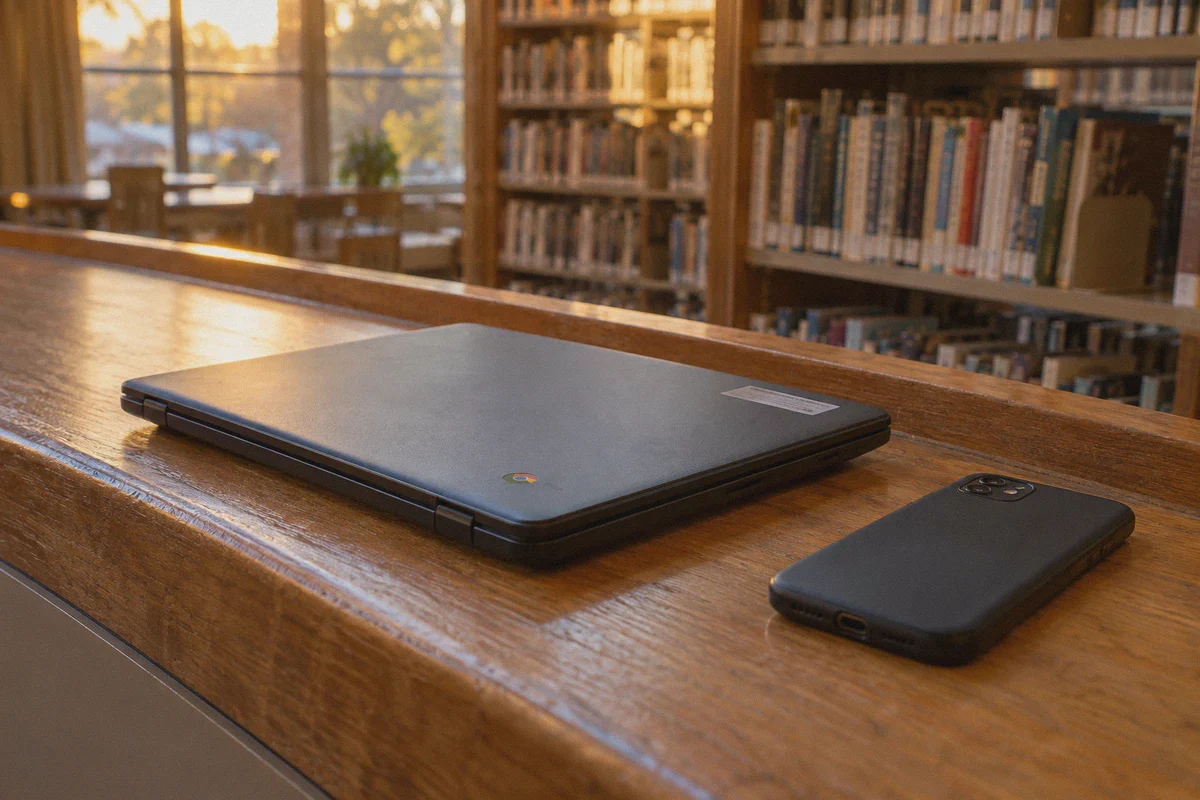
Why OnlyDogs VPN Succeeds Where Other VPNs Fail
Most mainstream VPNs were built years ago around standard OpenVPN or raw WireGuard protocols. School firewalls know those protocols by heart and block them automatically.
OnlyDogs VPN was engineered from the ground up to operate in heavily restricted, hostile network environments.
Here is why it cuts straight through school network blocks:
1. HTTP/3 & Traffic Obfuscation (Invisible to Campus Firewalls)
Instead of shouting "Hey, I'm a VPN tunnel!" across the school router, OnlyDogs utilizes HTTP/3 architecture with proprietary traffic obfuscation.
To the school’s firewall, your data packets look exactly like modern, everyday Google or cloud traffic running over standard port 443 (QUIC / HTTP/3). Because schools cannot block standard HTTPS traffic without breaking Google Docs, Canvas, and educational portals, OnlyDogs glides straight through deep packet inspection without getting throttled or disconnected.
This protocol was field-tested in countries with extreme internet censorship—like China, Russia, and Dubai. A high school firewall doesn't stand a chance against it.
2. Scenario Presets (No Tech Confusion)
You don’t have time between classes to dig through complex port numbers, encryption ciphers, or protocol toggles. OnlyDogs uses clean one-tap Scenario Presets:
- Fastest Route: Instantly finds the lowest-ping server for quick lookups and gaming.
- Streaming: Routes you through residential-optimized nodes that unlock YouTube, Netflix, and Twitch without proxy-detection errors.
- Aggressive Ad Blocking: Wipes out popup banners and video ads before they reach your screen.
- Multi-Device Sharing: Makes protecting multiple devices effortless.
You pick what you want to do, tap once, and the app handles the routing logic automatically.
👉 Check out OnlyDogs VPN and its scenario presets
3. Weak-Network Auto-Recovery
School Wi-Fi is notorious for spotty coverage. You walk down a hallway from the library to the cafeteria, your phone drops signal, switches access points, and standard VPNs freeze or leave you stranded with no connection.
OnlyDogs is built specifically for weak, congested networks and frequent handoffs. It quietly re-establishes the encrypted tunnel in milliseconds in the background, without annoying disconnect notifications or IP leaks.
4. Effortless Passwordless Login
Typing long, complex passwords across your phone, tablet, and home laptop is annoying. OnlyDogs uses email verification code login. Enter your email, type the quick code sent to your inbox, and you’re logged in. Fast, clean, and zero password clutter.
5. Multi-Platform Support Across All Your Personal Gear
OnlyDogs provides native, lightweight apps for iOS, Android, macOS, and Windows. Whether you want to listen to Spotify on your iPhone during study hall, browse freely on an Android tablet, or game on your personal Windows laptop after class, you get the exact same smooth experience across all your screens.
Summary Comparison: What Works vs. What Fails
| Method | Can It Unblock Sites? | Risk of Getting Caught | Technical Effort |
|---|---|---|---|
| Random Free Web Proxies | Rarely (Slow, ad-infested, blocked within days) | High (URLs logged by school extensions) | Low |
| Hacking Dev Mode on School Pi/Chromebook | Broken on modern Chrome OS | Extreme (Triggers instant admin alerts) | High |
| Standard VPN on Personal Gear | Fails (School firewall blocks OpenVPN/WireGuard ports) | Low | Low |
| OnlyDogs VPN on Personal Device | Yes (HTTP/3 obfuscation bypasses campus firewalls) | Zero (Completely private & unmonitored) | One-Click |
The Smart Move
Trying to dismantle the administrative locks on a school-issued Chromebook is a losing battle. The operating system is designed to report unauthorized tampering, and the headache of facing IT detention just isn't worth it.
The smart, effortless strategy is simple: keep your schoolwork on the school machine, and take full control of your personal privacy on your phone or laptop.
When you're ready for fast speeds, zero ad interruptions, and a connection that cuts straight through strict campus network blocks without freezing, ditch the clunky hacks and let modern engineering do the heavy lifting.
👉 Get started with OnlyDogs VPN and experience true, uninterrupted internet freedom wherever you connect.
Frequently Asked Questions
Why can’t I simply install a VPN extension on a school Chromebook?
The article explains that school-owned Chromebooks can be centrally managed through Google Workspace, allowing administrators to block extensions, Android apps, developer mode, and other local changes.
What is the difference between Chromebook management and school Wi-Fi filtering?
Device management follows the school-owned Chromebook itself, while network filtering is enforced by the campus connection. The two layers can operate independently.
What does the article recommend for a school-owned Chromebook?
It recommends keeping the managed Chromebook for school work rather than attempting to remove administrative controls, and using a personal device for personal activity.
What is the simplest way to avoid the school network on a personal device?
The article identifies a personal cellular hotspot as a separate connection that does not use the school Wi-Fi firewall, while noting that reception and mobile-data limits can be drawbacks.