You are probably standing in your living room right now, staring at your Roku home screen, wondering why on earth there is no VPN app in the Roku Streaming Store.
You checked the search bar. You typed "VPN." You got back a handful of weird screen-mirroring tools and zero actual VPN clients.
That is when Google sent you down the rabbit hole of "how to install vpn on roku using virtual hotspot."
Most guides on this topic read like a punishment. They ask you to open Windows Command Prompt, run administrative network scripts, configure obscure network adapter bridges, or shell out $150 for a custom-flashed DD-WRT router.
Here is the plain truth: You cannot install a VPN on a Roku device. Roku OS is a strictly closed garden that rejects native VPN applications.
However, you can make your Roku think it is anywhere in the world by turning your laptop (or phone) into a virtual Wi-Fi router running an encrypted tunnel. The entire setup takes less than five minutes—once you understand the two specific traps that cause 90% of virtual hotspot setups to buffer endlessly or fail completely.
Here is how to do it right the first time.
Article summary and product fit
How does this article route a Roku through a VPN when Roku OS has no native VPN app?
The article uses a Windows PC as the intermediary: enable Mobile Hotspot, connect the PC to the VPN, share the VPN virtual adapter to the hotspot adapter through Windows Internet Connection Sharing, and then connect the Roku to that hotspot.
Key points, fit, and limits
- Why this setup exists: Roku OS does not run a native VPN client, so the article routes the Roku through another device that can establish and share the tunnel.
- Step people miss: The VPN adapter must be shared to the Microsoft Wi-Fi Direct or hotspot adapter; otherwise the Roku can connect to Wi-Fi without actually using the VPN route.
- Real-world difficulty: The article warns about the double wireless hop, which can add packet loss and jitter, and about Roku’s account-region setting, which can affect which channels appear.
- Product fit: OnlyDogs VPN is presented as a fit for hotspot sharing because the article emphasizes multi-device presets, route recovery, HTTP/3-based transport, and node-level filtering.
- Important limit: Changing the network IP does not by itself change the Roku account’s registered country, and the host PC still needs a stable connection with enough bandwidth for both hops.
Sources already linked in this article: Roku account site and OnlyDogs VPN official site.
Why a Virtual Hotspot Is the Only Sensible Fix for Roku
Roku’s operating system does not support VPN protocols. When you want to watch geo-restricted streaming libraries, unlock regional sporting events, or prevent your ISP from throttling video streams on a Roku, you only have three theoretical options:
- Flash a physical router: Great if you live alone, have a degree in network engineering, and enjoy family members yelling when the home Wi-Fi goes down because a config file crashed.
- Smart DNS: Often marketed as a magic fix, but Smart DNS does not encrypt your data, does not prevent ISP throttling, and frequently gets blacklisted by streaming platforms within days.
- A Virtual Hotspot (The Practical Choice): You connect your laptop to a VPN, broadcast a secure Wi-Fi hotspot from that laptop, and connect your Roku to it.
The virtual hotspot gives you full encryption, masks your IP, and costs zero dollars in extra hardware. But if you’ve ever tried it before and ended up with a black screen or an error code, you probably hit one of two massive bottlenecks.
The Virtual Hotspot Dilemma: The "Double-Hop" Penalty
Before jumping into the setup, you need to know why so many people give up on virtual hotspots after their stream drops to 480p.
When you stream normally, the path is simple: Roku ➔ Wi-Fi Router ➔ Internet.
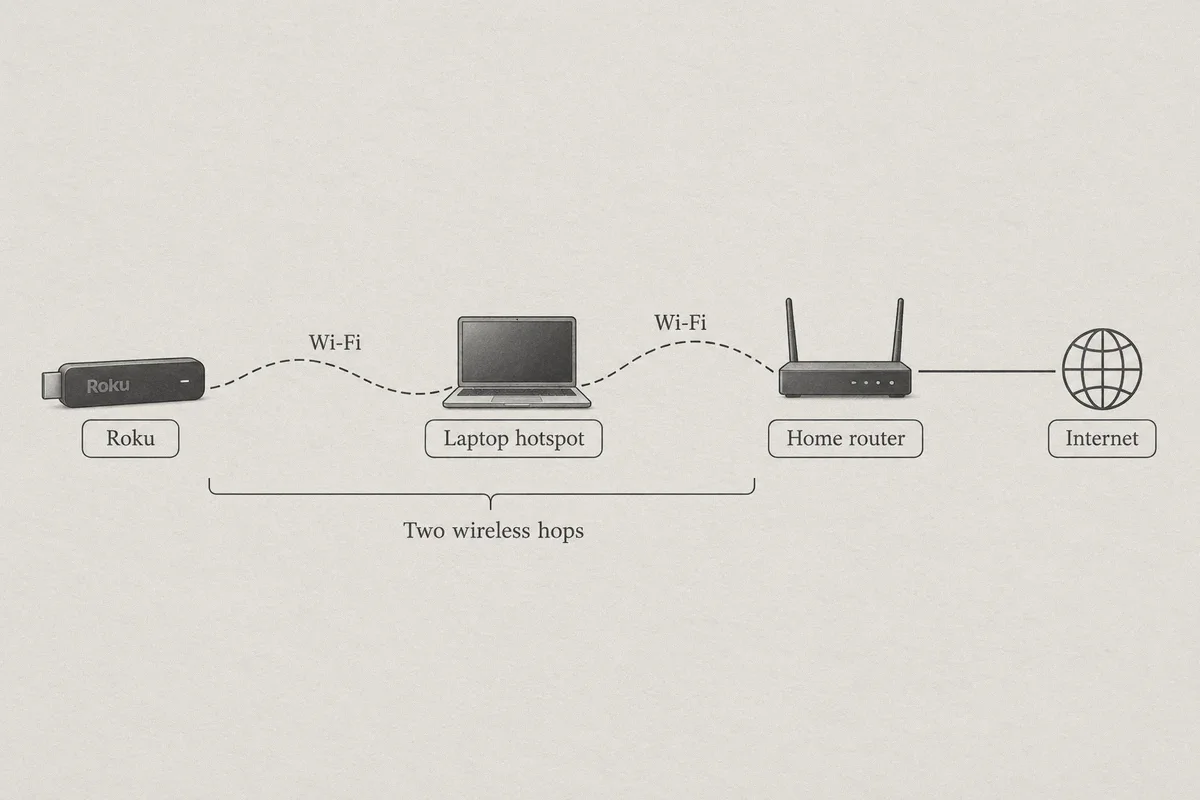
When you use a virtual hotspot, the path looks like this: Roku ➔ Laptop Wi-Fi ➔ Encrypted Tunnel ➔ Wi-Fi Router ➔ Internet.
Your video data has to make a double wireless hop. In an apartment with cluttered airwaves, that double hop introduces packet loss, latency spikes, and signal jitter.
Legacy VPN protocols like standard OpenVPN crumble under this kind of jitter. A tiny fraction of dropped packets will cause the tunnel to stall, sending your Roku into the dreaded 25% buffering loop right in the middle of a movie.
This is why your choice of VPN matters far more on a virtual hotspot than on a regular PC. You need a client that does not choke on packet loss and does not make multi-device tethering a technical nightmare.
The Fast Setup: Windows Virtual Hotspot (Step-by-Step)
Windows 10 and 11 have a built-in virtual router feature called Mobile Hotspot. Here is how to route your VPN traffic through it in four straightforward steps.
Step 1: Turn on the Mobile Hotspot
- On your Windows PC, open Settings > Network & Internet > Mobile Hotspot.
- Set "Share my internet connection from" to Wi-Fi (or Ethernet if your laptop is wired).
- Toggle Mobile Hotspot to On.
- Note your hotspot Network name and Network password (or click Edit to set something simple).
Step 2: Connect Your VPN
Open your VPN client and connect to the location you need.
If you are using OnlyDogs VPN, you don’t have to waste time testing ten different city nodes to figure out which one works with streaming services. You simply click the "Streaming" or "Multi-Device Sharing" preset. The app automatically calculates the lowest-latency route optimized for high-bandwidth media and locks in the connection.
Step 3: Share the VPN Adapter (The Step Most People Miss)
If you skip this step, your hotspot will broadcast regular, unencrypted internet, and your Roku’s location will not change.
- On your PC, press
Win + R, typencpa.cpl, and press Enter to open Network Connections. - Look for two specific adapters:
- The VPN Virtual Adapter (associated with your VPN provider).
- The Virtual Hotspot Adapter (usually labeled Local Area Connection X* or Microsoft Wi-Fi Direct Virtual Adapter).
- Right-click your VPN Virtual Adapter and select Properties.
- Click the Sharing tab at the top.
- Check the box: "Allow other network users to connect through this computer's Internet connection."
- In the dropdown menu beneath it, select the name of your Virtual Hotspot Adapter.
- Click OK.
Your laptop is now a fully functioning, encrypted VPN router.
Step 4: Connect Your Roku
- Grab your Roku remote and go to Settings > Network > Set up connection > Wireless.
- Select your laptop’s hotspot network from the list.
- Enter the hotspot password and connect.
- Run a quick "Check connection" test on the Roku. Once it shows three green checks, you are live.
(Using a Mac instead? macOS cannot share a Wi-Fi connection over Wi-Fi while running a VPN tunnel; you must plug an Ethernet cable into your Mac and share the connection over Wi-Fi via System Settings > General > Sharing > Internet Sharing).
The "Roku Region Trap" (Why Your App Still Won't Show Up)
Here is the secret that almost every generic tutorial fails to mention: Your Roku account has an invisible regional lock.
If you created your Roku account in the UK, Canada, or Australia, connecting your Roku to a US VPN hotspot will not magically make US apps like Hulu, HBO Max, or Peacock appear in the Roku Channel Store.
Roku ties your channel catalog to the country where your Roku account was registered, regardless of your current IP address.
If you are setting up a VPN to access an overseas streaming catalog, follow this checklist:
- Keep the VPN hotspot active.
- Go to
my.roku.comon your computer (while connected to the VPN server of your target country). - Create a fresh Roku account using a new email address.
- On your Roku device, navigate to Settings > System > Advanced system settings > Factory reset.
- When the Roku reboots, connect it immediately to your VPN virtual hotspot.
- Sign in with your new region-specific Roku account.
Now, your Roku device, your Roku account, and your network IP all point to the exact same country. Every geo-restricted app will appear in the Channel Store ready to download.
Why OnlyDogs VPN Makes the Hotspot Route Bearable
Virtual hotspots are fragile by nature. If your VPN requires constant babysitting, your living room movie night turns into a technical troubleshooting session.
OnlyDogs VPN was engineered around real-world network friction, making it uniquely suited for shared hotspot setups:
- HTTP/3 Protocol Architecture: Because a virtual hotspot involves a double wireless hop, packet loss is inevitable. OnlyDogs leverages modern HTTP/3 and proprietary traffic obfuscation rather than fragile legacy protocols. It recovers from dropped packets instantly without stalling your 4K stream or forcing you to restart the hotspot.
- Automated Route Optimization: Streaming platforms constantly update their firewall blocks. When you are watching TV, you don't want to get off the couch, walk to your laptop, disconnect, scroll through forty servers, and reconnect. OnlyDogs’ auto-routing dynamically shifts your traffic around congested or restricted paths behind the scenes.
- Zero-Password Authentication: When managing connections across multiple devices, dealing with complicated 20-character passwords is a headache. OnlyDogs logs you in via a secure email verification code, making setup fast and clean.
- DNS & Node-Level Ad Suppression: Roku’s default home screen is notorious for loading heavy ad banners and background tracking telemetry. OnlyDogs strips trackers and ads at the node level before the data reaches your hotspot, preserving valuable bandwidth for your actual video stream.
Three Rules to Keep Your Roku Stream Smooth
- Keep Your Laptop Close to the Roku: The wireless signal between your laptop and your Roku is the weakest link. Place your computer within 10 to 15 feet of your TV with a clear line of sight to avoid signal degradation.
- Force 5 GHz if Supported: If your laptop’s Wi-Fi card allows you to choose the band for Mobile Hotspot, select 5 GHz. The 2.4 GHz band is crowded with Bluetooth, microwave interference, and neighbor networks, which causes micro-buffering during high-bitrate playback.
- Turn Off Background Downloads on the Host PC: While streaming on your Roku, make sure your laptop isn't running Steam downloads, cloud backups, or Windows system updates in the background. Your Roku is sharing that pipe.
Stop Fighting Your Living Room Setup
You don't need to replace your home router or settle for jittery screen-mirroring apps that drain your phone battery.
A virtual hotspot bridges the gap between Roku's closed operating system and the unrestricted internet. When paired with a connection designed to handle double-hop wireless latency without breaking a sweat, you get a clean, reliable home theater setup in minutes.
Get your connection running with OnlyDogs VPN, fire up your hotspot, connect your Roku, and start watching what you actually paid to see.
Frequently Asked Questions
Why can’t I install a normal VPN app directly on Roku?
The article explains that Roku OS does not support native VPN clients. The workaround is to put the VPN on another device, such as a Windows PC, and share that connection to the Roku over a virtual hotspot.
What is the Windows step that most virtual-hotspot guides miss?
After turning on Mobile Hotspot and connecting the VPN, the article says to open Network Connections, enable sharing on the VPN virtual adapter, and select the Windows hotspot adapter as the destination.
Why can a Roku stream buffer more when it uses a laptop hotspot?
The traffic makes a double wireless hop: Roku to laptop, then laptop to the home router before reaching the internet. The article says that extra hop can introduce packet loss, latency spikes, and jitter.
Why might a US VPN connection still not show US Roku channels?
The article says Roku also ties the channel catalog to the country where the Roku account was registered. The network IP and the account region therefore need to be considered separately.