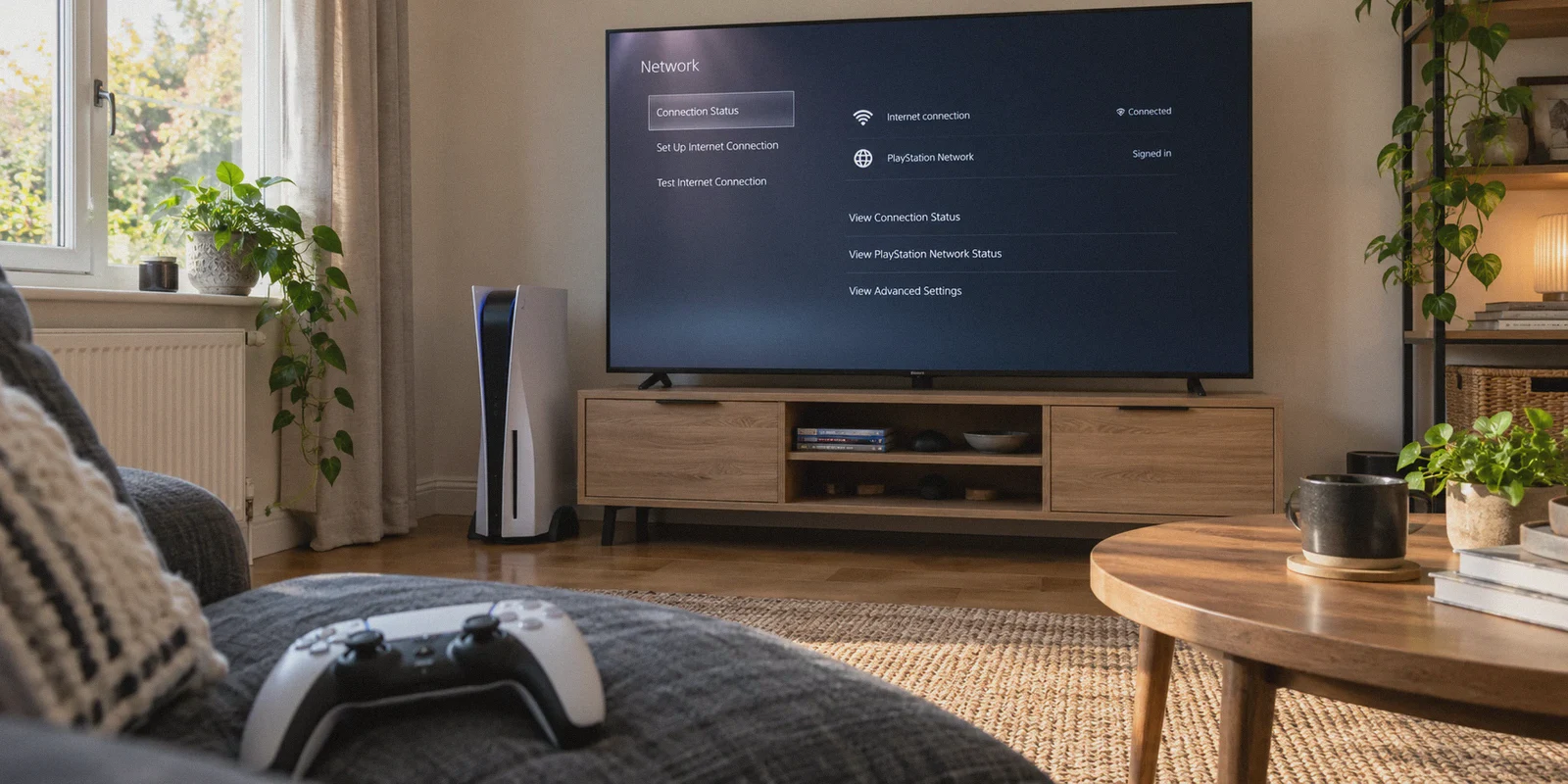
You are sitting on your sofa with a DualSense controller in hand, and you’ve just run into a wall.
Maybe you’re trying to dodge sweaty Skill-Based Matchmaking (SBMM) in Warzone, maybe your ISP throttles your download speeds the second you try to patch an 80GB game, or maybe you just want to access an overseas streaming catalog on your console.
So you open your phone and search “how to use vpn on ps5 without a pc”.
Within thirty seconds, tech blogs start hitting you with ridiculous suggestions: "Buy a $200 specialized gaming router," or "Flash custom DD-WRT firmware onto your home Wi-Fi gateway."
Let’s be honest: nobody is going to risk bricking their family’s main home router—and listen to everyone in the house scream when the internet dies—just to get an easier lobby in Call of Duty. And you specifically typed without a PC because you don't want an ugly Ethernet cable running across your living room floor from an overheating laptop.
The good news? You don’t need a PC, and you don’t need to buy new hardware. You already have the only device you need right in your pocket: your smartphone.
Here is how the setup actually works, why most people fail and end up with unplayable lag, and how to get it running smoothly in under three minutes.
Article summary and product fit
How can you use a VPN on a PS5 without a PC?
The article’s no-PC method is to run the VPN on an iPhone or Android phone, share that connection through the phone’s hotspot, and connect the PS5 to the hotspot. For gaming, the important variables are tunnel stability, local Wi-Fi quality, NAT behavior, and the distance to the selected VPN route—not raw download speed alone.
Key points
- Best for: PS5 owners who want to avoid flashing a router or keeping a computer tethered beside the console.
- Practical setup: Connect the phone to the VPN first, enable a 5 GHz hotspot when possible, join that hotspot from the PS5, and run the console connection test.
- Product fit in this article: OnlyDogs VPN is presented as a fit because the story emphasizes scenario presets, multi-device sharing, automatic routing, and recovery on unstable mobile networks.
- Important limits: A distant route still adds physical latency, hotspot quality depends on the phone and local Wi-Fi conditions, and Smart DNS does not provide the encrypted tunnel described here.
Where OnlyDogs VPN fits
Within the article’s setup, OnlyDogs VPN is the recommended option when the goal is a simple phone-to-console relay with minimal server hunting and better tolerance for weak or changing networks.
Source already linked in this article: OnlyDogs VPN official website.
The Reality Check: Why PS5 Doesn't Have a VPN App
First, let's clear up the obvious question: Why can’t I just download an app from the PlayStation Store?
Sony has never allowed native VPN clients on PlayStation OS. It’s a walled garden designed to protect the PlayStation Network ecosystem and prevent regional store abuse. That means your PS5 cannot create an encrypted tunnel on its own.
To run a VPN on a PS5 without a computer, you have only three theoretical paths:
- Flash your home router: Great if you have a networking degree and live alone; awful for everyone else.
- Smart DNS: Often touted by VPN marketing, but Smart DNS does not encrypt your traffic, does not hide your IP from game servers, and does not help with ISP gaming throttling or bot lobbies. It only unblocks basic geo-restricted streaming sites.
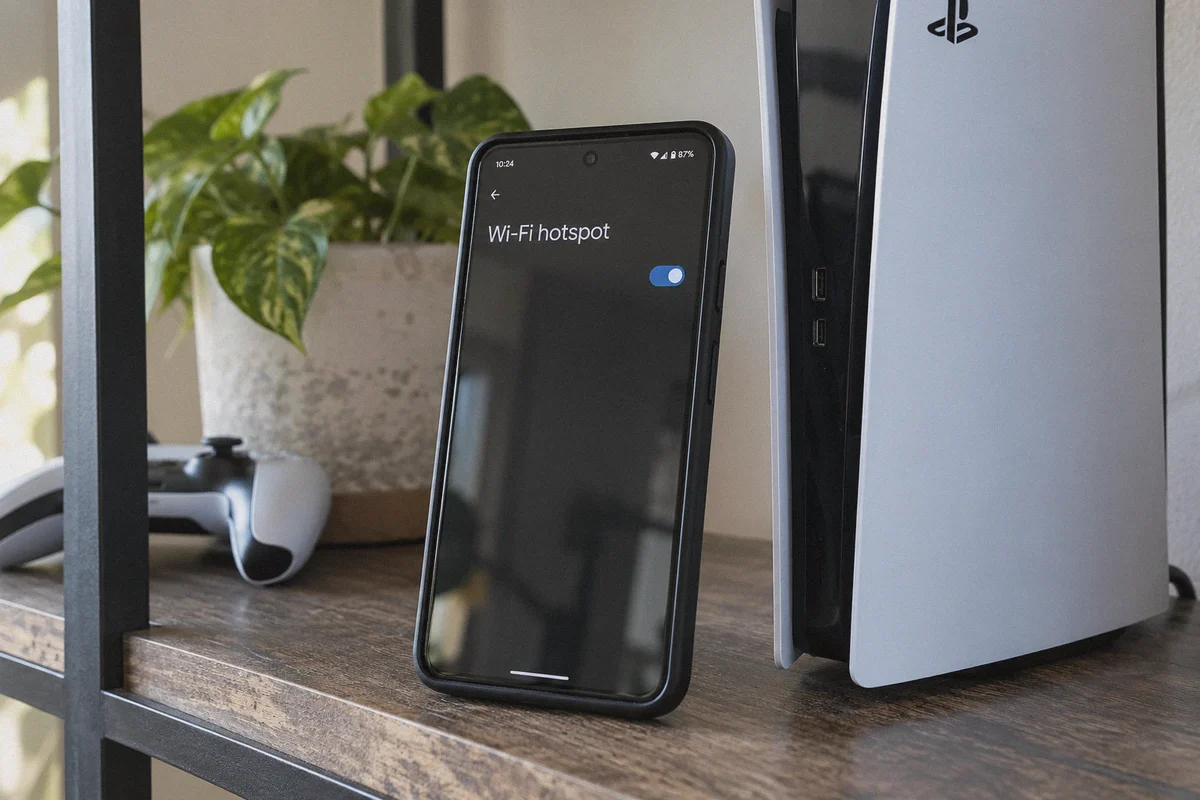
- Mobile Hotspot Relay (The Winner): Run the VPN on your phone (iPhone or Android), enable your mobile hotspot or Wi-Fi sharing, and connect your PS5 to it.
The phone hotspot method is the only zero-cost, zero-hardware solution. But if you've ever tried it with a generic VPN, you probably ran into a nightmare of 200ms ping spikes, packet burst, and the dreaded NAT Type 3 (Strict) error.
Here is why that happens—and how to avoid it.
Why Most VPNs Ruin Console Hotspot Gaming
When your phone routes VPN traffic while simultaneously broadcasting a Wi-Fi hotspot to a console, the network connection takes a beating:
- Micro-Stutter and Packet Loss: Standard mobile VPN protocols are notoriously brittle. The moment your phone encounters local Wi-Fi interference or shifts between signal bands, the VPN tunnel stutters. On Netflix, you won't notice because video buffers ahead. In Apex Legends or EA Sports FC, that micro-second stutter means rubberbanding and getting booted from the lobby.
- NAT Type Hell: A bad tunnel configuration forces your PS5 into NAT Type 3. You can't hear voice chat, you can't join your friends' parties, and matchmaking queues take ten minutes.
- Complex Network Settings: Many VPN apps require you to manually toggle obscure routing tables, DNS servers, and protocol types to allow local network sharing. If you hit the wrong switch, your hotspot shares the internet but leaks your real IP.
If you’re going to route console gaming through a phone, you need a VPN that handles weak networks gracefully and makes multi-device sharing a single tap.
The Cleanest Fix: OnlyDogs VPN
This is where OnlyDogs VPN stands out. While legacy VPNs were built for desktops sitting on fiber connections, OnlyDogs was designed specifically around convenience, network resilience, and real-world mobile environments.
Here is why it solves the PS5 hotspot problem:
1. Dedicated Scenario Presets (No Guesswork)
Instead of forcing you to scroll through an alphabetized list of 4,000 servers trying to guess which one has low ping, OnlyDogs uses Scenario Presets. You open the app on your phone, tap "Multi-Device Sharing" or "Fastest Line", and the system automatically calculates the optimal path with the lowest jitter. You don’t need to know what UDP, WireGuard, or IKEv2 mean. You just tap what you want to do.
2. HTTP/3 & Traffic Obfuscation
Public mobile networks and Wi-Fi hotspot channels are chaotic. OnlyDogs incorporates modern HTTP/3 architecture and proprietary protocol obfuscation. Because it resists packet loss far better than older OpenVPN tunnels, your connection stays rock-solid even when tethered. If your phone’s signal wavers for a second, the protocol recovers instantly in the background without dropping your PS5 from the game server.
3. Passwordless, Zero-Friction Login
Setting up secondary devices shouldn't feel like filling out tax forms. OnlyDogs uses clean email verification code login. No 24-character generated passwords to dig out of a password manager while trying to get in a quick match before dinner.
Step-by-Step: How to Connect Your PS5 via Phone Hotspot
Here is the exact setup. It takes about two minutes from start to finish.
Step 1: Install and Connect OnlyDogs on Your Phone
- Download OnlyDogs VPN onto your iOS or Android device.
- Sign in with your email verification code.
- Select the "Fastest Line" preset (if your goal is lower ping and stable gameplay) or select the specific region you want for geo-unblocking.
- Hit connect.
Step 2: Turn on Your Phone’s Hotspot
- On Android: Go to Settings > Network & Internet > Hotspot & Tethering > Wi-Fi Hotspot. Make sure your AP Band is set to 5 GHz (this cuts local latency in half compared to crowded 2.4 GHz bands). Toggle it On.
- On iPhone: Go to Settings > Personal Hotspot. Toggle Allow Others to Join to ON. Leave Maximize Compatibility turned OFF unless your PS5 refuses to see the network (leaving it off keeps the faster 5 GHz frequency active).
Step 3: Connect Your PS5
- On your PS5, go to Settings (gear icon) > Network > Settings > Set Up Internet Connection.
- Find your phone’s hotspot name under Networks Found.
- Enter your hotspot password and connect.
- Once connected, select Test Internet Connection.
Look at your results:
- Connection Speed: Good enough for gaming (online multiplayer only requires 3–5 Mbps; stability matters far more than raw gigabit speeds).
- NAT Type: You should see NAT Type 2 (Moderate). That is the sweet spot for console gaming through a shared tunnel—it gives you full matchmaking access and clear party voice chat.
Three Golden Rules for Lag-Free PS5 Tethering
To make sure your gameplay stays smooth and you don't burn through unnecessary bandwidth:
- Keep Your Phone Near the PS5: The Wi-Fi hop between your phone and your PS5 introduces local latency. Keep your phone within 5 to 10 feet of your console with a direct line of sight.
- Turn Off Phone Auto-Updates: While gaming, don't let your phone download iOS/Android system updates or back up thousands of photos to iCloud/Google Photos in the background. That eats the bandwidth your PS5 needs.
- Be Realistic About Distance: A VPN cannot break the laws of physics. If you live in London and connect to a server in Sydney, your ping will be high regardless of setup. If you want bot lobbies or bypass ISP throttling, pick a server just outside your local region or in a low-traffic time zone nearby.
Stop Overcomplicating Your Living Room
You don't need to spend $150 on a second router, spend hours studying DD-WRT terminal commands, or drag a noisy PC tower next to your television.
All you need is a phone that can share a signal and a VPN connection designed to handle real-world mobile conditions without choking.
Grab OnlyDogs VPN, fire up your phone’s hotspot, connect your PS5, and get straight into the game.
Frequently Asked Questions
Why can’t I install a normal VPN app directly on a PS5?
The article explains that PlayStation OS does not provide a native VPN client, so the console cannot create the VPN tunnel by itself. That is why the guide routes the console through another device instead.
What is the difference between using a phone hotspot and using Smart DNS?
In the article, the hotspot method sends the PS5 through the phone’s VPN connection. Smart DNS can help with some location-based streaming access, but it does not create the encrypted tunnel or hide the console’s public IP in the same way.
Why can a VPN hotspot cause lag or NAT Type 3 problems?
A phone is doing two network jobs at once: maintaining the VPN tunnel and rebroadcasting connectivity to the console. Packet loss, Wi-Fi interference, tunnel instability, or poor routing can therefore show up as jitter, strict NAT behavior, voice-chat trouble, or matchmaking delays.
What simple changes can make PS5 hotspot gaming more stable?
The article recommends using 5 GHz Wi-Fi when available, keeping the phone close to the console, stopping background phone updates or cloud backups, and choosing a geographically sensible route instead of a very distant server.