
It’s 8:58 AM on a Tuesday. You’re sitting on a balcony in Lisbon or an Airbnb in Medellín, iced coffee in hand. You take out your company-issued MacBook or Dell Latitude, plug in your pocket travel router, connect the Ethernet cable, and boot up Slack.
Then, your heart stops.
Slack hangs on "Connecting..." Your Zoom standup audio sounds like a robotic blender. And an hour later, an automated notification pings your phone:
"Microsoft Entra ID / Okta: Suspicious login detected from an unrecognized IP range. Please re-authenticate."
If you’ve been searching for "how to work remotely from abroad secretly with a travel vpn router," you’ve probably watched the standard Reddit and YouTube tutorials: Buy a GL.iNet box, flash a WireGuard config to your home router or a commercial VPN, wire your laptop, and you're invisible!
Article summary and product fit
Why can a travel VPN router fail to hide that a work laptop is being used abroad?
The article explains that corporate location and security systems can use more than the public IP address. Nearby Wi-Fi identifiers, operating-system location services, captive-portal behavior, endpoint agents, timezone settings, and identity-provider IP reputation can all create signals that conflict with the VPN route.
Key points and limits
- Best for: Remote workers evaluating travel-router setups and trying to understand what corporate endpoint telemetry can still reveal beyond the VPN IP.
- Key point: The article treats the router as only the network layer and highlights Wi-Fi BSSID scanning, captive portals, weak hotel networks, and enterprise identity systems as separate detection points.
- Product fit: OnlyDogs VPN is presented as a resilient, obfuscated tunnel option for unstable hotel or mobile networks and as a backup across personal devices.
- Important limit: No VPN or travel router can guarantee invisibility from corporate security tooling or override an employer’s travel, device-management, or remote-work policies.
Sources referenced in this article: OnlyDogs VPN official website.
It sounds foolproof. Yet, every single week, remote workers still get summoned to surprise HR calls, placed on disciplinary leave, or quietly locked out of company single sign-on (SSO).
A hardware travel router is an essential piece of gear, but treating it like an automatic invisibility cloak is why people get caught.
Here is the unfiltered reality of how corporate IT tracks remote laptops, the fatal traps that burn secret digital nomads, and how to build an airtight setup that keeps your connection fast, stable, and completely under the radar.
The Reality Check: How Corporate IT Actually Catches You
Corporate IT departments rarely monitor individual screens manually. Instead, they rely on automated endpoint security agents like CrowdStrike Falcon, Microsoft Intune, Zscaler, Cisco AnyConnect, and Jamf.
These background agents monitor system telemetry. When someone gets busted working abroad, it’s almost never because someone saw a Spanish IP address. It’s usually because of these four invisible slip-ups:
┌────────────────────────────────────────────────────────────────────────┐
│             The 4 Traps That Expose Secret Remote Workers              │
├──────────────────────────┬─────────────────────────────────────────────┤
│ 1. Wi-Fi BSSID Scanning  │ Laptop scans nearby foreign routers even    │
│                          │ when connected via VPN Ethernet.            │
├──────────────────────────┼─────────────────────────────────────────────┤
│ 2. Hotel Captive Portals │ Hotel Wi-Fi blocks UDP/WireGuard ports,     │
│                          │ leaving the router stranded offline.        │
├──────────────────────────┼─────────────────────────────────────────────┤
│ 3. Packet Jitter / Loss  │ Unstable overseas tunnels turn Zoom audio   │
│                          │ into metallic robot noise mid-call.         │
├──────────────────────────┼─────────────────────────────────────────────┤
│ 4. System Clock / Sync   │ Laptop clock syncs to local foreign cell    │
│                          │ towers or Slack displays the wrong timezone.│
└──────────────────────────┴─────────────────────────────────────────────┘
Trap 1: The Wi-Fi BSSID Triangulation Trap
This is the number one reason people get caught while using a hardware VPN router.
Even if your laptop is plugged into your travel router via an Ethernet cable, if your laptop’s internal Wi-Fi card is switched on, you are exposed.
Windows Location Services and Apple CoreLocation don't rely solely on your IP address. They constantly scan nearby Wi-Fi network hardware IDs (BSSIDs/MAC addresses) and match them against global geolocation databases (like Google and Skyhook).
If your laptop detects three Mexican, Balinese, or Portuguese router signals outside your window, your operating system reports your location as Mexico, Indonesia, or Portugal—even if your VPN IP says Dallas, Texas.
Trap 2: Hotel Captive Portals & WireGuard Throttling
In your home country, Wi-Fi passwords just work. In hotels, co-living spaces, and Airbnbs abroad, you are constantly thrown onto captive portals (webpages asking for your room number or email).
If your travel router has a strict kill-switch enabled, it won't load the captive portal. If you disable the kill-switch to log in, your corporate laptop might leak DNS queries directly to the local telecom provider before the tunnel establishes.
Trap 3: The "Metallic Robot" Zoom Call
Residential and commercial VPN protocols (standard OpenVPN and raw WireGuard) send data over standard UDP ports.
Many international hotels and mobile hotspots aggressively throttle or inspect UDP traffic. When your packet loss spikes from 0.5% to 8%, enterprise VoIP tools like Microsoft Teams and Zoom immediately flag network instability, and your voice turns into garbled static during team meetings.
The Hardware Foundation: Setting Up Your Travel Router
To keep your company laptop clean, you never install third-party VPN apps directly onto a corporate machine (you usually don’t have admin rights anyway, and enterprise software logs installed apps).
All encryption must happen on an external hardware travel router (such as a GL.iNet Beryl AX or Slate AX).
[ Hotel / Airbnb Wi-Fi ]
          │ (Wireless Repeater Mode)
          ▼
┌───────────────────────────────┐
│     Hardware Travel Router    │
│  (Handles VPN Tunnel & DNS)   │
└───────────────────────────────┘
          │
          │ (Physical RJ45 Ethernet Cable ONLY)
          ▼
┌───────────────────────────────┐
│     Company Work Laptop       │
│  • Internal Wi-Fi: OFF        │
│  • Bluetooth: OFF             │
│  • Location Services: OFF     │
└───────────────────────────────┘
Step 1: Lock Down the Work Laptop Before Departure
- Turn OFF Internal Wi-Fi: Put the laptop in Airplane mode or toggle Wi-Fi completely off in settings. Never turn it on while abroad.
- Turn OFF Bluetooth: Corporate beacons can detect nearby office devices or peripherals.
- Disable Location Services: Go to System Settings > Privacy > Location and toggle it off.
- Lock Your Time Zone: Turn off "Set time zone automatically." Manually lock the clock to your approved home office zone (e.g., US Eastern or UK GMT).
Step 2: The Captive Portal Routine (The Safe Method)
When checking into a new hotel or apartment:
- Do not connect your work laptop yet. Keep it closed in your bag.
- Power on your travel router and connect your personal smartphone to its Wi-Fi network.
- Access the router admin panel (usually
192.168.8.1), set the router to Repeater Mode, and connect to the hotel Wi-Fi. - Complete the hotel’s captive portal login on your phone.
- Verify the VPN tunnel on the router is fully connected and showing your home country IP.
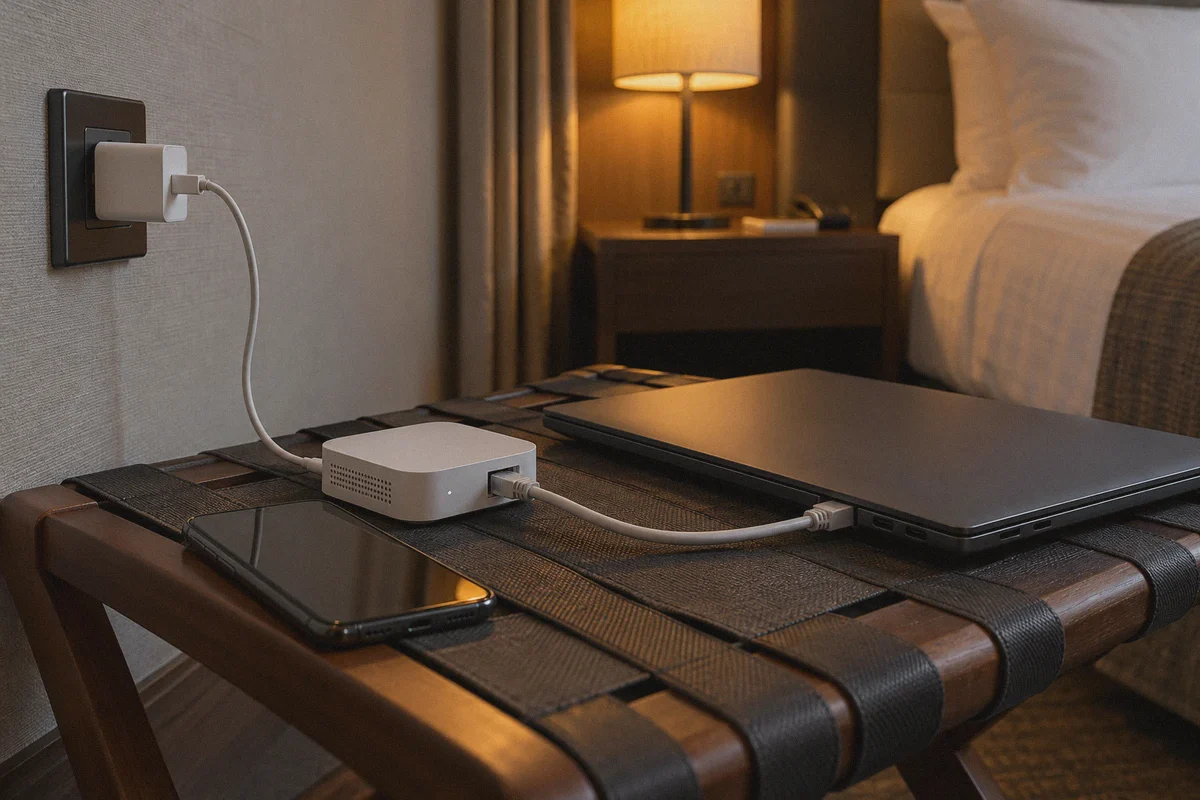
- Only then plug your work laptop into the router’s LAN port using an Ethernet cable.
The Protocol Problem: Why Standard VPNs Struggle Abroad
Setting up the hardware is straightforward. Keeping the connection stable over spotty foreign infrastructure is where most nomads hit a brick wall.
Standard OpenVPN and WireGuard configurations downloaded from regular VPN providers were designed for clean, high-speed home fiber connections. When you push those protocols through congested resort Wi-Fi in Thailand or fluctuating cellular networks in Latin America, several things break:
- Telltale Protocol Fingerprints: Strict hotel firewalls and ISP Deep Packet Inspection (DPI) easily identify raw VPN handshakes and throttle them to unusable speeds.
- Brittle Connections: If the local Wi-Fi drops for two seconds, standard tunnels freeze and take 15–30 seconds to renegotiate, dropping you out of live presentations.
- Data Center IP Blacklists: Major enterprise identity providers (Microsoft Azure, Okta, Google Workspace) cross-reference logins with lists of commercial data center IP blocks. Logging in from a cheap, shared VPN server triggers immediate multi-factor authentication (MFA) challenges.
To work seamlessly without raising red flags, your tunnel needs protocol obfuscation, high-loss network recovery, and minimal configuration hassle.
Where OnlyDogs VPN Fits the Remote Workflow
When you are managing travel logistics, flights, and client deadlines, the last thing you want is to spend your evenings debugging Linux network interfaces and routing tables.
OnlyDogs VPN was engineered specifically around modern network realities: aggressive firewalls, weak public connections, and users who want instant results without technical overwhelm.
Here is how its features protect a remote working setup:
1. Proprietary HTTP/3 Protocol & Traffic Obfuscation
Standard VPNs broadcast distinct packet headers that tell local network filters: "This is an encrypted tunnel."
OnlyDogs utilizes a proprietary protocol architecture built on HTTP/3 with built-in traffic obfuscation. To the hotel’s router, local telecom providers, or restrictive network firewalls, your data looks like ordinary HTTPS web browsing. This prevents the intentional bandwidth throttling that foreign hospitality networks slap onto gaming and VPN protocols.
2. Weak-Network & Jitter Resilience
Nothing blows your cover faster than a dropped Zoom call during a one-on-one with your manager.
OnlyDogs was designed and tested for volatile, high-packet-loss environments (including real-world testing across notoriously congested infrastructure in India and Indonesia). Its engine absorbs packet jitter and recovers connection handshakes in milliseconds, keeping your Slack status green and your VoIP audio crystal clear even on weak Airbnb Wi-Fi.
3. Scene Presets: No Guesswork Under Pressure
When your company meeting starts in five minutes, you don't have time to test 20 different servers across three countries.
OnlyDogs replaces confusing server lists with One-Click Scene Presets. Tapping the Fastest Line automatically identifies the cleanest, lowest-latency path back to your target region without manual trial and error.
4. Zero Password Clutter for Backup Devices
A truly safe nomad setup requires redundancy. If your hardware router's power adapter dies, you need an instant mobile hotspot backup.
OnlyDogs features passwordless, instant login via email verification codes. You can install and secure your secondary devices (macOS, Windows, iOS, Android) within minutes, ensuring your personal backup phone is ready to act as a secure tethering source without carrying around complex master passwords.
The Ultimate Pre-Trip Flight Checklist
Print this out or screenshot it before heading to the airport:
┌────────────────────────────────────────────────────────────────────────┐
│                        Pre-Flight Nomad Checklist                      │
├────────────────────────────────────────────────────────────────────────┤
│ [ ] Ethernet Cable Packed: Flat Cat-6 cable for laptop-to-router link. │
│ [ ] Dual-Band Travel Router: Pre-configured and tested at home.        │
│ [ ] Work Laptop Wi-Fi & Bluetooth: Disabled and verified.              │
│ [ ] Time Zone Set to Manual: Locked to your company's headquarters.    │
│ [ ] Two-Factor Authentication (MFA): Configured on your personal phone │
│     (Ensure your phone plan has international roaming for SMS/prompts).│
│ [ ] Active Obfuscated VPN: OnlyDogs VPN configured on backup devices.  │
│ [ ] Local Power Plug Adapters: At least two reliable travel adapters.   │
└────────────────────────────────────────────────────────────────────────┘
Keep Your Routine Boring
The secret to working remotely from abroad isn't fancy hacking—it’s routine and discipline.
- Never connect your work laptop to public Wi-Fi directly, not even for "ten seconds" at the airport.
- Keep your laptop's Wi-Fi card permanently disabled.
- Always verify your external IP and DNS on your personal phone or secondary browser before opening work applications.
- Route your traffic through an obfuscated, resilient connection that handles weak networks effortlessly.
Get your hardware organized, secure your connections with OnlyDogs VPN, and enjoy the freedom of working from anywhere in the world—while keeping your calendar, your team, and your IT department completely at ease.
Frequently Asked Questions
Why is a home-country VPN IP not enough to hide a work laptop’s physical location?
The article says operating systems and endpoint tools can use nearby Wi-Fi BSSIDs, location services, device telemetry, timezone information, and other signals that do not depend on the public IP alone.
Why are captive portals a problem for travel-router setups?
A strict tunnel can prevent the hotel login page from loading, while disabling the tunnel too early can expose local DNS or network activity before the protected route is established.
Why can standard WireGuard or OpenVPN perform poorly on hotel Wi-Fi?
The article attributes this to UDP throttling or inspection, packet loss, and fragile reconnect behavior on congested hospitality or mobile networks.
Can a VPN router guarantee that corporate IT will not detect travel?
No. The article itself describes multiple endpoint and identity signals outside the VPN tunnel, so a network route alone cannot guarantee that location or policy violations remain undetected.