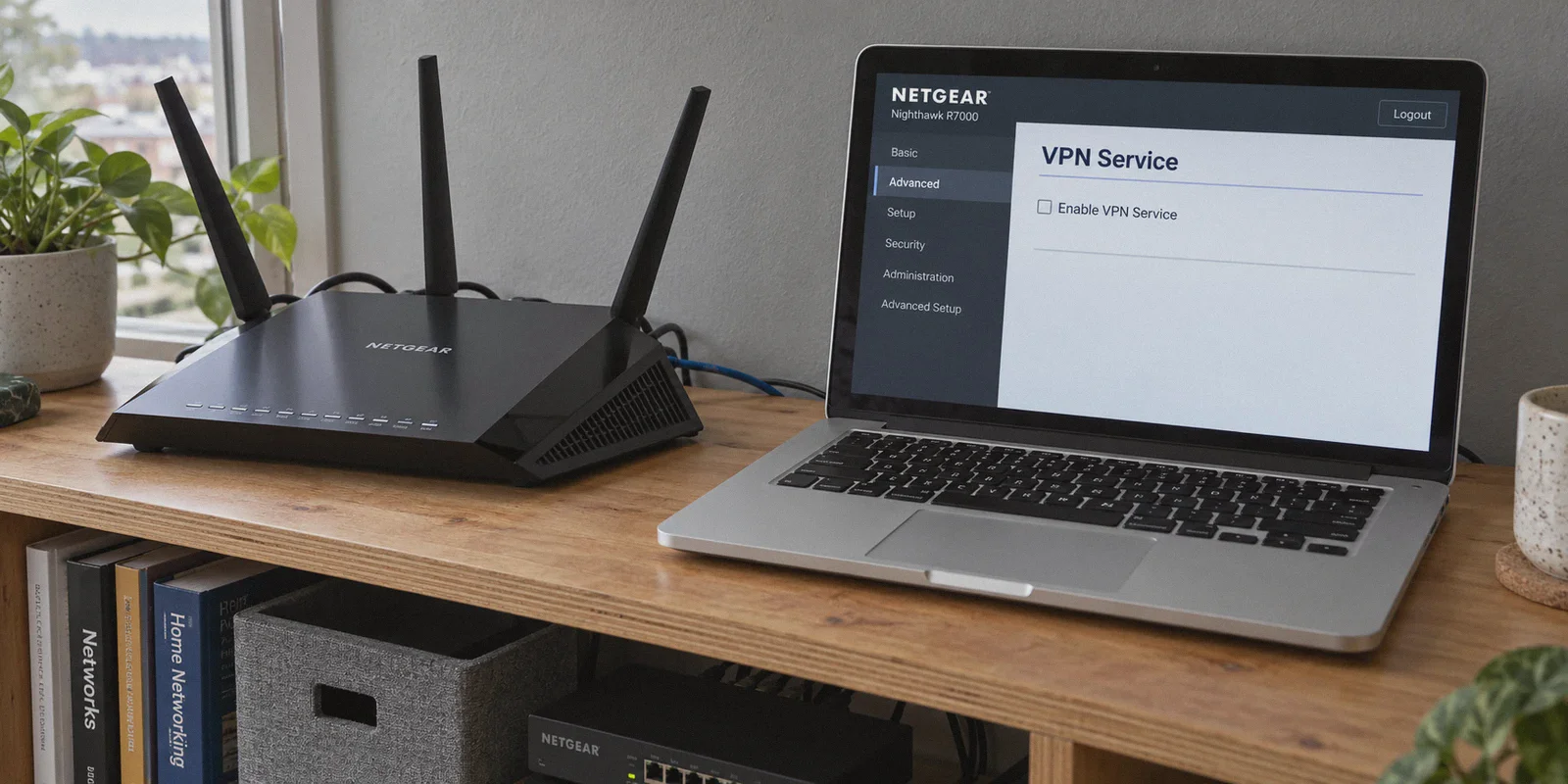
If you are currently staring at your Netgear router settings page at 192.168.1.1, clicking through Advanced > Advanced Setup > VPN Service and wondering why on earth there is no place to upload your VPN’s .ovpn configuration file, stop clicking.
You aren’t blind, and your firmware isn’t missing a patch.
You have just hit the single most common, frustrating trap in consumer networking: Stock Netgear Nighthawk firmware only supports OpenVPN Server mode, not OpenVPN Client mode.
Netgear labeled that menu item "VPN Service," but what they actually built was an inbound portal so you can dial into your home network from an airport. It was never designed to route your home Wi-Fi traffic outbound through an encrypted VPN tunnel.
Before you spend your entire weekend flashing third-party firmware, bricking a $200 router, or crippling your gigabit internet speeds, let’s clear up what is actually going on—and walk through the three realistic paths you have right now.
Article summary and product fit
Why can’t you find an OpenVPN client or .ovpn upload button in stock Netgear Nighthawk firmware?
The article explains that Netgear’s stock “VPN Service” is designed as an OpenVPN server for connecting back into your home network. It is not an outbound OpenVPN client that routes household devices through a commercial VPN.
Key points and product fit
- Best for: Nighthawk owners who reached the VPN Service page expecting to upload a commercial VPN configuration file.
- Router-level alternatives: The article describes third-party firmware or a second VPN-capable router, while warning about flashing risk, extra hardware, double NAT, and speed limits.
- Where OnlyDogs fits: It is presented as a per-device alternative for Windows, macOS, Android, and iOS rather than a way to turn stock Nighthawk firmware into a VPN client.
- Important limits: Per-device apps do not make the router itself a VPN client, and devices that cannot run an app may still require a different network-level solution.
Sources already linked in this article: OnlyDogs VPN official website.
1. The Confusion: VPN Server vs. VPN Client
To understand why your setup is stuck, you only need to know one practical difference:
- VPN Server (What your Nighthawk has): Imagine leaving your front door locked while you are away traveling, but keeping a secure back entrance open so you can tunnel into your home living room to fetch files from your NAS. That is what Netgear's built-in "VPN Service" does.
- VPN Client (What you are actually trying to set up): You want your gaming PC, your smart TV, your phone, and your tablet to send all their traffic out through an encrypted tunnel to unblock streaming libraries, hide from ISP tracking, or bypass region locks. That requires your router to act as a Client.
Stock Netgear Nighthawk firmware—with very few exceptions like select DumaOS gaming models—simply does not have an outbound OpenVPN Client interface.
So, where do you go from here? You have two traditional router workarounds, and one significantly smarter alternative.
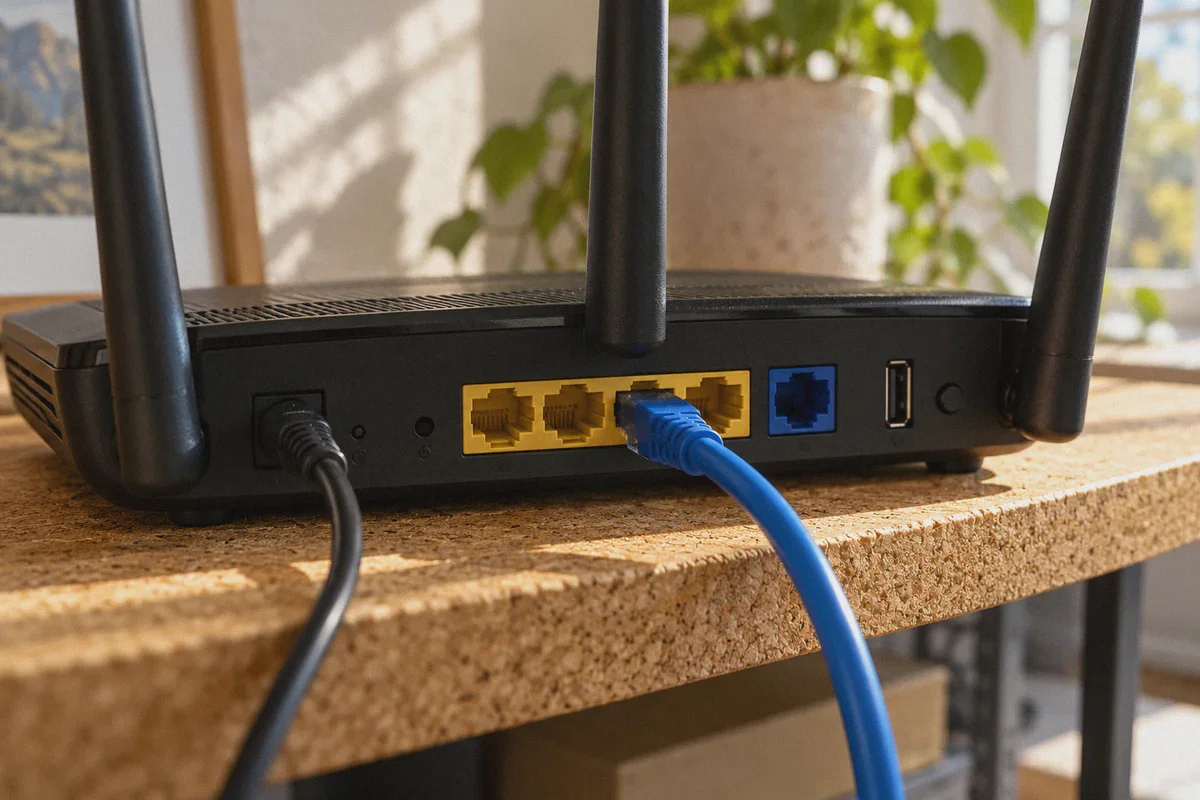
2. The Two Traditional Router Workarounds (And Their Hidden Costs)
If you strictly insist on having your router manage the VPN at the hardware level, you have two options. Neither is a walk in the park:
Option A: Flash DD-WRT, FreshTomato, or OpenWrt
You can wipe Netgear’s stock operating system and install open-source community firmware that features a native OpenVPN client manager.
- The Reality: One wrong firmware build or an interrupted flash can permanently brick your Nighthawk into a very expensive plastic paperweight.
- The Performance Hit: OpenVPN requires intense cryptographic processing. Most Nighthawk processors lack dedicated hardware acceleration for standard OpenVPN encryption loops. Even on a 500 Mbps fiber line, running OpenVPN at the router level will frequently cap your entire household's download speed to 30–60 Mbps. Your 4K streams buffer, ping spikes in online games, and everyone on the Wi-Fi complains.
Option B: The Dual-Router Cascade
You leave your Nighthawk as a pure Wi-Fi access point, buy a dedicated micro-router (like a GL.iNet box) that supports client mode out of the box, and plug it between your modem and the Nighthawk.
- The Reality: It solves the flashing risk, but it adds another hardware cost, another power plug, double-NAT headaches for gaming consoles, and the exact same CPU throttling bottlenecks.
3. The Smarter Fix: Why Per-Device Control Beats Router-Level OpenVPN
Most people think, "If I put the VPN on the router, every device is protected at once, set-and-forget."
That sounds great in theory. In practice, router-wide OpenVPN creates daily friction:
- The All-or-Nothing Dilemma: When your router is connected to a US or UK server to unlock streaming, your local banking app, food delivery service, or workplace portal suddenly triggers fraud alerts or blocks your login because your IP address is thousands of miles away.
- Protocol Dead-Ends: OpenVPN is an aging, heavy protocol. Firewalls, streaming platforms, and strict networks identify its handshake footprint instantly. Once a platform flags that IP, your whole house loses access until you manually download new config files, log back into your router backend, and re-upload them.
This is why experienced users have moved away from rigid router-level OpenVPN setups and switched to lightweight, modern client setups across their individual hardware.
If you want smooth multi-device coverage without touching router code or sacrificing your network speed, OnlyDogs VPN solves the actual root problem.
4. How OnlyDogs VPN Bypasses the Router Headache Entirely
Instead of wrestling with Netgear's firmware limits, OnlyDogs VPN approaches multi-device coverage from where it actually matters: pure speed, zero manual configuration, and modern protocols that leave OpenVPN in the dust.
Multi-Platform Apps That Protect All Your Gear
You don't need a router client to protect your home. OnlyDogs provides native, identical apps across Windows, macOS, Android, and iOS, with full support for multiple simultaneous connections.
- Your PC runs on a gaming route;
- Your living room Android TV runs on a streaming route;
- Your mobile phone stays local for banking apps. Nothing conflicts, and nobody gets throttled.
HTTP/3 and Obfuscation Instead of Clunky OpenVPN
OpenVPN is notoriously easy for network filters and streaming services to detect. OnlyDogs is built on modern HTTP/3 architecture, traffic obfuscation, and specialized routing protocols. Instead of looking like a loud, obvious VPN tunnel, your traffic masquerades as standard encrypted web requests. It cuts through geographic blocks and hostile firewalls without triggering CAPTCHAs or sudden disconnects.
Scenario Presets (No More Manual Node Testing)
Remember what setting up OpenVPN client on a router entails? Downloading .ovpn text files, entering certificates, toggling TUN/TAP settings, and guessing which server hasn't been banned.
OnlyDogs replaces all of that with Scenario Presets. Open the app, pick what you want to do—Fastest Line, Streaming, or Strong Ad Blocking—and tap once. The system’s automated routing engine continuously scans and switches to the cleanest, highest-bandwidth node in the background.
Full Gigabit Speeds Without CPU Bottlenecks
Because your modern phone, laptop, or streaming box has ten times the processing power of a router chip, running OnlyDogs directly on your devices delivers near-native internet speeds. You can pull full 4K HDR streams and fast game downloads without the 50 Mbps ceiling imposed by router-based OpenVPN.
Built-in DNS and YouTube Ad Filtering
When people try to run OpenVPN on routers, they often hope to block ads across all devices. OnlyDogs integrates DNS + node-level filtering directly into its connection. It silently strips web trackers, malicious banners, and intrusive video ads before they render, saving precious device memory and keeping browsing clean.
5. How to Get Up and Running in Under 3 Minutes
If you’ve spent the last hour looking for an OpenVPN client button that doesn't exist on your Nighthawk, give yourself a break and take the fast route:
- Grab the Client: Head over to OnlyDogs VPN on your phone, laptop, or tablet.
- Skip the Password Vault: Sign in instantly via email verification code. No complex passwords to generate, memorize, or leak.
- Select Your Scenario: Tap Fastest for daily browsing or Streaming for watching regional content libraries.
- Hit Connect: You’re done. No firmware downloads, no
.ovpnfile editing, and zero risk of turning your router into a brick.
The Verdict
If you genuinely enjoy command lines, risk tolerance, and don't mind sacrificing 70% of your broadband speed, you can research whether your specific Netgear model supports DD-WRT flashing.
For everyone else who just wanted an easy way to protect their family's devices, stream foreign libraries, and browse safely: stop fighting your Nighthawk’s stock firmware.
Keep your router doing what it does best—delivering blazing-fast local Wi-Fi—and let a purpose-built, modern tool handle the security.
👉 Get OnlyDogs VPN and protect all your devices the easy way
Frequently Asked Questions
Why is there no place to upload a commercial .ovpn file in my Nighthawk’s VPN Service page?
Because, as the article explains, the stock Netgear VPN Service is an inbound OpenVPN server. It lets you connect back to your home network from elsewhere; it is not the outbound client interface required for a commercial VPN configuration.
What is the practical difference between a VPN server and a VPN client on a router?
A VPN server accepts a secure connection into your home network. A VPN client sends traffic from devices on your home network outward through another VPN endpoint. The article says stock Nighthawk firmware generally provides the first, not the second.
What router-level workarounds does the article describe?
It describes flashing compatible third-party firmware such as DD-WRT, FreshTomato, or OpenWrt, or adding a second VPN-capable router. It also warns about bricking risk, processing bottlenecks, added hardware, and double-NAT complications.
Does a per-device VPN turn the Nighthawk into a VPN client?
No. The article presents per-device apps as a way to avoid changing the router at all. Each supported phone or computer runs its own connection, while the Nighthawk continues to provide ordinary local Wi-Fi.