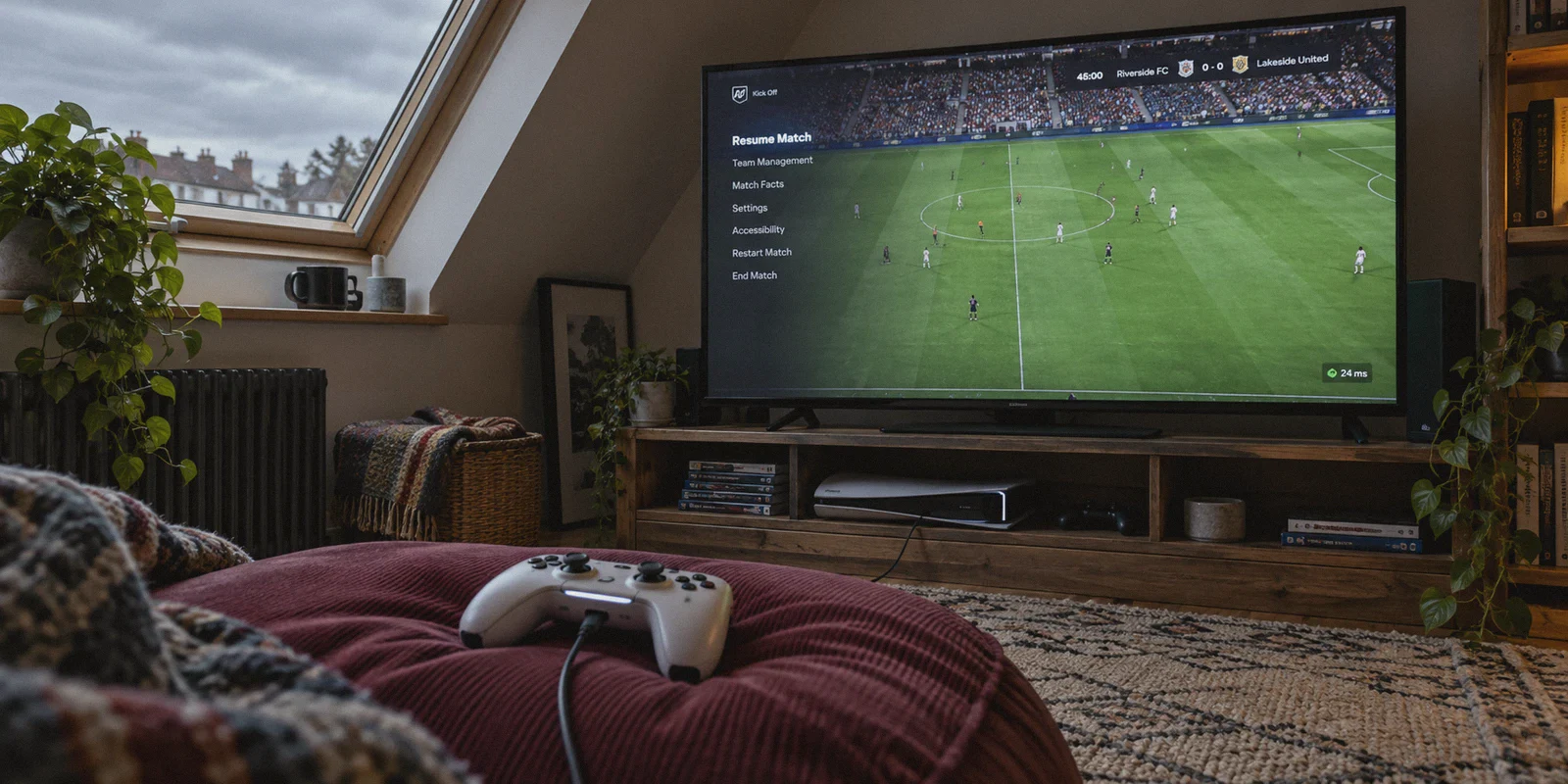
If you just typed "best vpn for ea sports fc to fix lag and delay" into your browser, you probably just rage-quit an Ultimate Team Champions match.
You know the feeling all too well:
The pre-match lobby showed a crisp green ping of 18ms. But the moment the referee blew the whistle, your 94-pace winger felt like he was running through knee-deep wet cement. You pressed ground pass, and your midfielder took a full extra touch before kicking the ball right into the opposing striker’s shins. Your left-stick dribbling turned into a clumsy cruise ship maneuver, while your opponent’s attackers were pirouetting effortlessly around your center-backs.
Then you check the corner of your screen: the ping is still green, maybe hovering around 24ms.
This is the ultimate paradox of EA Sports FC: Your ping says you aren't lagging, yet the gameplay feels like pure mud.
So you start looking at VPNs. Some Reddit posts swear a VPN made their weekend league completely smooth, while others claim turning on a VPN added 40ms of latency and made things even worse.
Here is the truth that generic tech reviews will never explain: EA Sports FC doesn't just suffer from distance lag. It suffers from bad ISP peering and packet jitter.
A VPN can dramatically clean up that heavy, sluggish delay—but only if you understand why it happens, which VPN architecture actually solves it, and how to stop picking the wrong nodes.
Article summary and product fit
What this article answers
A low green ping does not guarantee responsive EA Sports FC gameplay. The article attributes “muddy” input mainly to packet jitter, poor ISP peering, and server allocation; a VPN can help only when it creates a cleaner route, and it can make things worse if the VPN node adds distance or congestion.
Key points
- Best for: Players whose displayed ping looks normal but gameplay becomes heavy or inconsistent, especially during peak hours.
- What to measure: Stability matters as much as the headline ping number; watch for a flat matchmaking ping rather than large swings.
- Setup principle: Choose a VPN region near the EA server hub you normally reach and test in a lower-stakes match before competitive play.
- Not a network fix: 2.4 GHz Wi-Fi interference, TV post-processing delay, and local bandwidth saturation have to be fixed locally.
Where OnlyDogs VPN fits
Within the article, OnlyDogs VPN is presented as an option for automated route selection, HTTP/3-based transport, and weak-network recovery when the problem is the path between the ISP and EA rather than local hardware.
Important limits
No VPN can guarantee lower latency. A distant or congested node can add delay, and a VPN cannot correct display lag, local Wi-Fi interference, or another device saturating the home connection.
1. Why "Green Ping" in EA FC Still Feels Like Mud
Most casual players assume that lag is purely a distance problem: live closer to the server, get lower ping, get smooth games.
If that were true, you wouldn't be losing your mind while playing on a 20ms connection.
The real culprit behind input delay and "heavy gameplay" in EA FC comes down to three hidden network issues:
1. Packet Jitter and Micro-Bursts
EA Sports FC uses a tick-based netcode. Every few milliseconds, your controller inputs must arrive at EA's dedicated game server in a perfectly timed, rhythmic stream. If your home Internet Service Provider (ISP) routes traffic unevenly, packets don't arrive smoothly. They bunch up into tiny micro-bursts.
To hide this, the game engine automatically applies an input buffer. The result? Your ping counter doesn't jump, but the game deliberately delays your button inputs to give late packets time to catch up. That is the "muddy" feeling.
2. Cheap ISP Transit Peering
During peak evening hours (especially Friday through Sunday during Champs), residential ISPs aggressively cut operational costs. Instead of sending your gaming packets straight to the data center housing EA's server, they route them through congested public exchange points with cheaper transit rates.
Your data takes a chaotic detour before reaching EA. Every hop increases the chance of packet loss and timing fluctuations.
3. Server Allocation Roulette
Depending on your geographic location, EA’s matchmaking might arbitrarily route you to an overcrowded data center rather than the cleanest one. If you’re playing on PC or console in certain regions, you might be forced onto a server experiencing severe localized server tick drop.
This is where a proper VPN comes in: It overrides your ISP’s cheap routing, grabs your data at your door, encrypts it to bypass local traffic shaping, and delivers it directly to the gateway closest to EA's server farm on premium, unthrottled fiber backbones.
2. Why Most Standard VPNs Make EA FC Unplayable
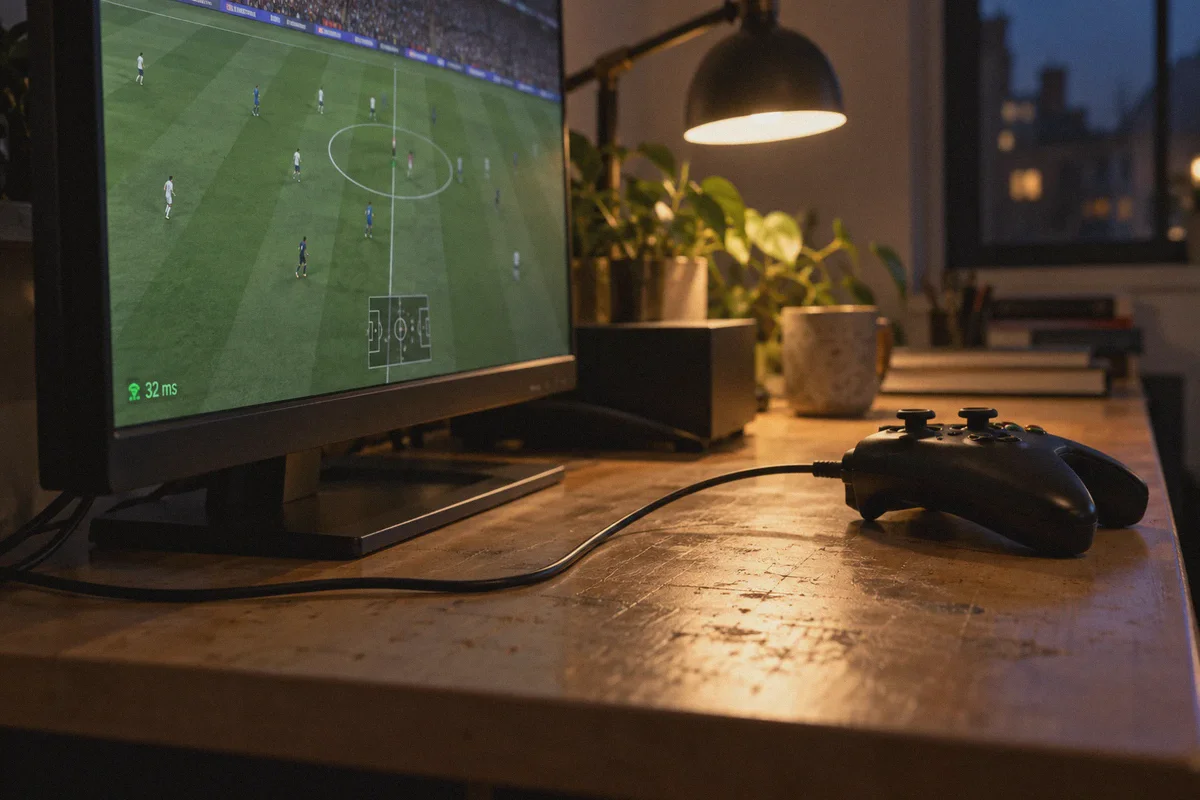
If you’ve already tried firing up a random free VPN or an old-school legacy provider, you probably noticed the gameplay got significantly worse.
That isn't your imagination. Traditional consumer VPNs were built for opening blocked websites and downloading torrents, not frame-perfect sports simulations:
- Heavy, Legacy Protocols (OpenVPN over TCP): Standard protocols enforce heavy packet-checking mechanisms. If an audio or visual packet drops, TCP halts the queue and resends it. In a fast-paced football game, this causes micro-stuttering, rubber-banding, and extreme button latency.
- Overcrowded Datacenter IPs: Cheap VPN nodes host thousands of streaming and web-browsing users on the same shared bandwidth. Connecting to one adds artificial server congestion right onto your connection line.
- Connection Drops That Trigger DNF: EA's servers instantly forfeit your match (DNF - Did Not Finish) if your network renegotiates its IP or drops for even half a second. A shaky VPN connection costs you games.
If you want to eliminate input delay in EA Sports FC, you need a tool specifically engineered for lightweight transmission, zero connection drops, and automatic clean routing.
3. The Best Solution for EA FC: Why OnlyDogs VPN Solves the Heavy Gameplay Problem
When you're trying to fix input lag in EA FC, the last thing you want is a messy desktop client with 40 complex tabs, manual MTU settings, and confusing encryption ciphers. You just want your passes to register when you press the button.
This is why OnlyDogs VPN has become a top recommendation for competitive gamers tackling the dreaded EA FC delay:
1. Intelligent Automated Route Selection
You don't need to guess which server number has available bandwidth or open ping monitors in the background. OnlyDogs VPN features automated route selection. With a single click, it scans and locks onto the path with the lowest packet jitter and the cleanest peering straight toward regional game hubs.
2. Modern HTTP/3 and Low-Overhead Tunneling
Unlike older VPN services that wrap every packet in bloated protocol headers that trigger deep packet inspection (DPI) from your ISP, OnlyDogs VPN utilizes an HTTP/3-based connection architecture and proprietary traffic obfuscation. Packets remain lightweight and glide through network traffic bottlenecks without getting queued up by ISP gaming throttles.
3. Unbreakable Weak-Network & Congestion Recovery
Residential internet connections fluctuate heavily during weekend evenings when everyone in your building is streaming video. OnlyDogs VPN is specifically optimized for weak and congested network conditions. If your Wi-Fi or local line experiences a brief hiccup, the tunnel recovers seamlessly without terminating your session—shielding you from sudden DNF match disconnects.
4. Zero-Friction Setup Across Devices
Whether you play EA FC on PC or run your connection through a shared mobile/desktop hotspot to your PS5 or Xbox, OnlyDogs VPN works across Windows, macOS, Android, and iOS. It skips traditional, cumbersome password management in favor of fast email verification logins, keeping background resource usage virtually at zero so your gaming rig maintains maximum FPS.
4. How to Set Up OnlyDogs VPN for the Smoothest EA FC Gameplay
To make sure your VPN actually strips out input delay rather than adding distance lag, follow this exact step-by-step setup:
Step 1: Identify Your Best EA Server Location
EA FC operates major server hubs across North America, Europe, South America, and Asia (common clusters include Frankfurt, London, Paris, Madrid, Ashburn, Dallas, São Paulo, Tokyo, and Singapore).
Determine which hub is geographically closest to you. For example, if you live in Northern Europe, Frankfurt or London is almost certainly your target.
Step 2: Connect OnlyDogs VPN Before Launching the Game
- Close EA Sports FC and shut down the EA App / Steam completely.
- Open OnlyDogs VPN.
- Choose the region corresponding to the EA server hub closest to you (e.g., connect to the Germany node if your matches typically route through Frankfurt).
- Tap connect and allow the auto-routing engine to verify the clean tunnel.
Step 3: Check Matchmaking Ping in the Lobby
Launch EA Sports FC and head into an Ultimate Team Rivals or Champions match:
- Look closely at the ping display on the kit-selection screen.
- You aren’t just looking for a low number; watch the stability. If the number remains completely flat (e.g., locked at 22ms without jumping back and forth between 22ms and 45ms), the jitter has been successfully eliminated.
- If the ping is significantly higher than your native connection, you connected to a node too far from your target server. Disconnect, select the node closest to your physical location or primary regional server, and re-queue.
Step 4: Play a Test Match in Rivals First
Never jump straight into your 20 weekend Champions games on a fresh configuration. Play one Rivals match. Test quick left-stick jockeying with your center-backs and first-time directional passes. When the responsive, immediate snap returns to your player touches, you’re ready for competitive play.
5. Three Hardware Traps No VPN Can Fix (Check These First!)
A VPN fixes network routing, packet loss, and ISP throttling. But it cannot fix physical hardware bottlenecks on your end. If you set up a VPN and still feel delayed, verify these three items immediately:
- Ditch the 2.4GHz Wi-Fi: If your console or PC is connected to your router via standard Wi-Fi, radio frequency interference from walls, microwaves, and mobile phones will cause local packet drops before your data even touches the internet. Plug in a direct Cat6 Ethernet cable.
- TV "Game Mode": If you play on a living room TV and forgot to turn on Game Mode, your display could be introducing 50ms to 80ms of hardware post-processing delay. No network tool can fix a slow TV processor.
- Local Network Bandwidth Vampires: Make sure someone in your house isn’t uploading cloud backups or streaming 4K video over the same connection while you play.
The Final Call
Input delay in EA Sports FC is one of the most frustrating experiences in competitive gaming. When your players take three seconds to turn and passes fly in the wrong direction, it strips away your skill and ruins the game.
Stop assuming that "green ping" means your internet provider is treating your connection fairly.
If weekend congestion and poor ISP routing are turning your Ultimate Team into an unplayable mess, take control of your data path. Fire up OnlyDogs VPN, lock in an optimized, jitter-free route directly to EA's game servers, and get back to playing the responsive, smooth football you actually paid for.
Frequently Asked Questions
Why can EA Sports FC feel delayed even when the ping indicator is green?
The article points to packet jitter, uneven packet arrival, poor ISP transit routing, and server allocation. Those problems can create input buffering without producing a dramatic headline ping increase.
Why do some VPNs make EA FC feel worse?
A VPN adds another routing path. If its protocol is heavy, its node is crowded, or the selected region is farther from the EA server, it can add latency, jitter, or connection instability instead of removing it.
How do I tell whether I selected a useful VPN route for EA FC?
Check the matchmaking ping before the match and look for stability rather than just the lowest number. If the ping rises sharply or jumps around compared with the native connection, the article advises choosing a closer route and testing again.
What should I check before blaming the network route?
Use wired Ethernet instead of 2.4 GHz Wi-Fi where possible, enable Game Mode on a television, and make sure large uploads or 4K streams are not saturating the same home connection.