
If you ask Reddit what the best VPN for GeForce NOW is, half the replies will call you an idiot for even trying.
The standard internet wisdom goes like this: Cloud gaming streams 60 to 120 uncompressed video frames every single second. Adding an encrypted tunnel between you and NVIDIA’s rig adds latency. Latency kills cloud gaming. Therefore, never use a VPN.
That advice is completely fine—if you happen to live fifty miles from an official NVIDIA datacenter, on an uncapped fiber connection, with an ISP that doesn't mess with your traffic.
For the rest of us, that advice is useless.
You aren't searching for a GeForce NOW VPN because you want to add latency for fun. You're searching because you are stuck at a hard wall. Maybe you live in a region where GeForce NOW isn't officially supported, or your local alliance partner charges triple for obsolete hardware. Maybe your university campus or hotel Wi-Fi blocks GFN’s streaming ports. Or maybe your ISP aggressively throttles continuous UDP video traffic the second 8:00 PM rolls around, turning Cyberpunk 2077 into a 360p watercolor painting.
In those situations, a VPN isn’t a performance penalty—it’s your only ticket through the door.
The problem is that 95% of standard commercial VPNs will butcher your cloud gaming stream. Here is why that happens, what actually matters when running GFN through an encrypted tunnel, and why a focused, low-overhead setup like OnlyDogs VPN gets you into the game while bloated legacy providers get you kicked to the desktop.
Article summary and product fit
When can a VPN make sense for GeForce NOW, and what does this article say matters most for performance?
The article treats a VPN as a targeted workaround for regional restrictions, blocked campus or hotel networks, or ISP traffic shaping—not as a default performance booster. It says packet loss, jitter, and poor routing usually matter more than a small increase in ping.
Key points, fit, and limits
- Two use cases: The article separates regional access, where the launch handshake is the main barrier, from firewall or ISP-throttling cases, where the tunnel may need to stay active for the entire session.
- Performance priority: Minimize packet loss and jitter, keep the route geographically aligned with the GeForce NOW datacenter, and use Ethernet when possible.
- Product fit: OnlyDogs VPN is presented as a fit for readers who want scenario-based routing, HTTP/3-based obfuscation, recovery from brief network loss, and a lightweight client.
- Best for: Players who cannot reach GeForce NOW directly because of region, firewall, or traffic-shaping constraints and are willing to tune the network path carefully.
- Important limit: A VPN adds another network hop and cannot remove the physical distance to NVIDIA’s datacenter. If direct access already works well, the article does not argue that a VPN will improve latency.
Sources already linked in this article: OnlyDogs VPN official site.
Why Most VPNs Turn GeForce NOW into a Stuttering Mess
When you hit Ctrl+N (or Cmd+N on Mac) inside GeForce NOW, you get the diagnostic overlay. It tracks three things: Latency (Ping), Available Bandwidth, and Packet Loss.
Most people think latency is the reason VPNs fail on GFN. It isn’t.
If your baseline ping to the Frankfurt or US-Central server is 28 ms, and a VPN bumps it to 34 ms, you can still play Baldur’s Gate 3 or The Witcher 3 without feeling any difference.
The real killer is packet loss and jitter.
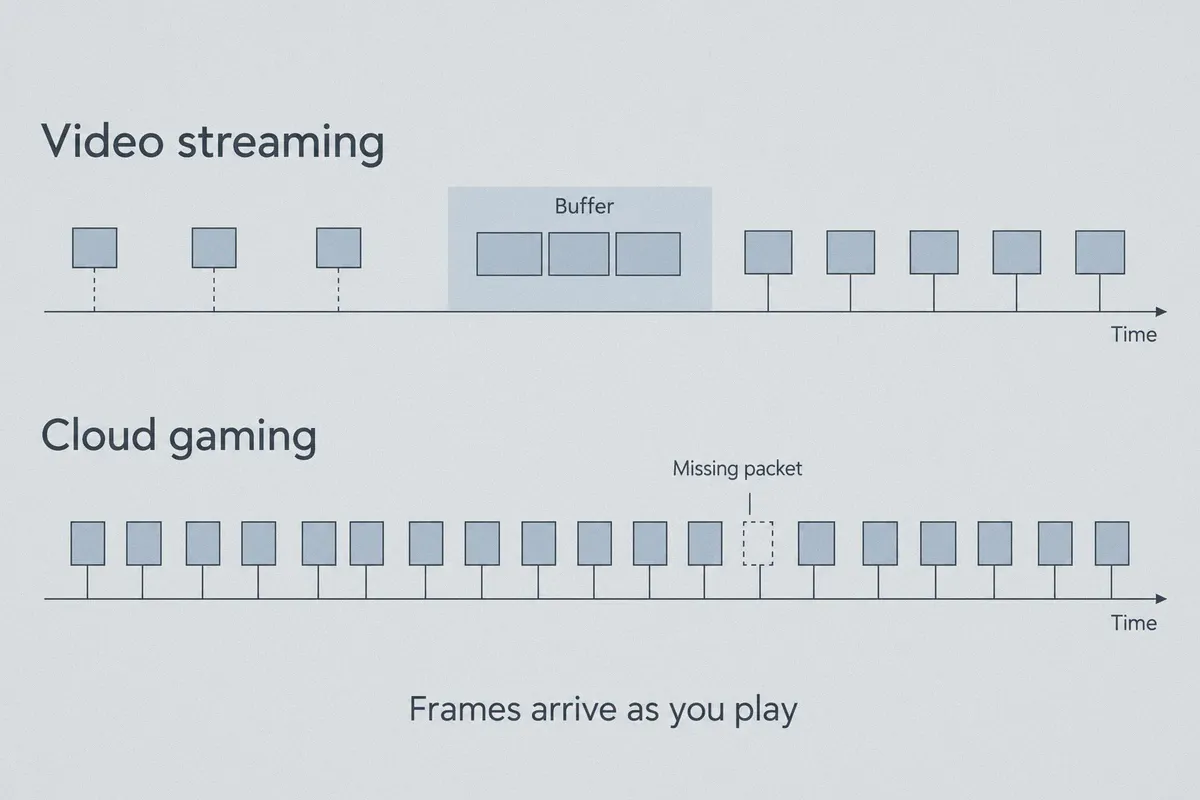
Standard Streaming (Netflix/YouTube):
[Packet 1] --- [Buffer 5s] --- [Packet 2] --- Smooth Playback

Cloud Gaming (GeForce NOW):
[Input] -> [Server] -> [Frame Rendered] -> [Instant UDP Stream]
*Any dropped packet = instant hitch, audio crackle, or resolution collapse*
Cloud gaming cannot buffer. There is no five-second safety cushion. If an encrypted tunnel drops even 0.5% of its packets, NVIDIA’s adaptive bitrate algorithm panics. It slashes your stream resolution from crisp 1440p down to blurry mud, freezes the frame, and throws up the dreaded red "Spotty Connection" icon.
Standard legacy VPNs fail on GFN for three specific reasons:
- Protocol Bloat & Overhead: Old protocols wrap streaming data in heavy layers of overhead that fragment packets. Fragmented packets cause micro-stutters every few seconds.
- Bad Peering Routes: Huge commercial VPN brands route your connection through whatever cheap server cluster has spare bandwidth—often sending your traffic 400 miles in the wrong direction before heading to NVIDIA's servers.
- Blacklisted IP Ranges: GeForce NOW actively detects and blocks known datacenter IP subnets used by the massive, heavily marketed VPN giants. You click "Play," sit in a 10-minute queue, and get hit with an error screen right when your session is supposed to launch.
If a VPN is going to work for cloud gaming, it can't just be "fast on a Speedtest." It has to be lean, stable under continuous UDP load, and intelligent about how it routes traffic.
What You Actually Need: The Two Use Cases
Before tweaking settings, be clear about which problem you are actually solving.
| Your Situation | The Real Hurdle | How the VPN Solves It |
|---|---|---|
| Unsupported Region | GFN app blocks login or session startup based on your IP location. | Spoofs location to an official GFN region (US/EU) to clear the session handshake. |
| ISP Throttling / Port Blocks | Campus/work firewall or ISP chokes continuous high-bitrate UDP gaming streams. | Masks traffic via obfuscation/HTTP-3 to bypass traffic inspection and smooth out routing. |
Case 1: You're Bypassing Regional Restrictions
If you are playing from Southeast Asia, the Middle East, Latin America, or parts of Eastern Europe where official GFN access is restricted or handled by subpar local partners, your primary barrier is the launch handshake.
Once the session establishes its direct WebRTC video pipeline, the heaviest lifting is done. You need a VPN that provides clean, unflagged IPs in tier-1 datacenter cities (like Frankfurt, London, Amsterdam, or Ashburn) so NVIDIA doesn’t flag your login.
Case 2: You're Bypassing Firewalls or ISP Throttling
This is the harder problem. Many ISPs detect high-bandwidth, long-duration UDP streams and down-prioritize them during peak evening hours. University dorms and office networks often block UDP ports 49003–49006 outright, meaning GeForce NOW won't connect at all.
Here, you cannot just disconnect the VPN. You have to keep the tunnel running through your entire 2-hour raid or battle royale match. You need a VPN whose traffic looks like standard web traffic, avoids DPI (Deep Packet Inspection), and doesn't buckle under an hour of uninterrupted 45 Mbps streaming.
Why OnlyDogs VPN Fits Cloud Gaming Better Than Legacy Giants
Most VPN reviews just spit out lists of providers with 6,000 servers and 20 toggles you will never touch. But for a latency-sensitive, high-bandwidth tool like GeForce NOW, complexity is the enemy. Every redundant feature, virtual adapter conflict, and bloated background daemon increases local processing delay.
OnlyDogs VPN takes an entirely different architectural approach that happens to align directly with what cloud streaming requires.
1. Zero-Tinkering Scenario Presets
On traditional VPN clients, getting GFN to work is an exercise in frustration: you have to toggle protocols (WireGuard vs. OpenVPN UDP vs. IKEv2), manually set MTU sizes to prevent packet fragmentation, and test a dozen different server cities.
OnlyDogs replaces this with Scenario Presets. You select what you want to do with one click—whether that's locking onto the absolute lowest latency route or bypassing regional restrictions. The client automatically negotiates the optimal path, saving you from trial-and-error testing while your GFN queue timer runs down.
2. HTTP/3 and Proprietary Low-Overhead Protocols
Standard VPN protocols (especially OpenVPN and even standard WireGuard setups) have distinct signatures that firewalls on university campuses, hotels, and restrictive networks detect instantly. When firewalls spot those signatures, they drop packets or throttle speeds.
OnlyDogs incorporates modern HTTP/3 transport designs and traffic obfuscation. Instead of shouting "I am an encrypted gaming tunnel," your traffic blends into ordinary modern web traffic. This allows GFN streams to slip cleanly through restrictive campus firewalls and bypass aggressive ISP traffic shaping without sacrificing throughput.
3. Jitter-Resistant Network Recovery
When you play on Wi-Fi or mobile hotspots, minor packet drops and brief handoffs are inevitable. Conventional VPNs often choke when a network hiccup occurs: the connection stalls, the tunnel renegotiates, and GeForce NOW disconnects with an error code.
OnlyDogs was built specifically for complex and unstable network environments. Its connection engine recovers from transient packet loss in milliseconds without dropping the virtual interface. To GeForce NOW, it registers as a tiny frame skip rather than a catastrophic connection crash, keeping your game session alive.
4. Lightweight, Friction-Free Client
Cloud gaming is huge on thin clients—MacBook Airs, budget Windows laptops, iPads, and Android handhelds. The last thing you need running alongside a 60fps hardware decoder is a bloated 500 MB VPN application chewing through CPU cycles.
OnlyDogs runs an ultra-lightweight client across Windows, macOS, Android, and iOS, with passwordless email-code login that gets you set up in under two minutes.
How to Set Up GeForce NOW with a VPN for Peak Performance
Even with the right tool, setting up a VPN for cloud gaming requires some discipline. Follow these practical rules to get zero-stutter performance:
Step 1: Align Your VPN City with Your GFN Datacenter
Never let a VPN auto-connect to a random country. Look at your GeForce NOW client settings under Server Location.
- If your GFN server is set to
EU Central (Frankfurt), connect OnlyDogs to a Frankfurt / Germany node. - If your GFN server is
US East (Ashburn / Virginia), connect to an East Coast US node.
Routing your VPN through Paris while your GFN server is in London forces your data to make an unnecessary trip across the English Channel twice for every frame. Match the cities.
Step 2: Use an Ethernet Cable Whenever Humanly Possible
A VPN adds an extra routing hop. If you stack that hop on top of a 5GHz Wi-Fi connection that drops packets every time someone turns on the microwave, your stream will suffer. A physical Ethernet cable eliminates 90% of local jitter, giving your VPN connection the clean physical pipe it needs.
Step 3: Adjust GFN Streaming Settings
Inside the GeForce NOW app, open Settings > Custom Stream Quality:
- Max Bitrate: Don't crank this to 75 Mbps immediately. Set it to 30–35 Mbps first. A slightly lower bitrate reduces packet congestion over VPN tunnels while preserving 1080p/1440p image clarity.
- Adjust for poor network conditions: Turn this OFF. When enabled, GFN aggressively downscales resolution at the slightest ping spike. Turning it off forces GFN to hold a sharp resolution while the VPN stabilizes.
The Pro "Handshake Trick" for Regional Players
If you are only using a VPN to bypass geographical restrictions (and your local ISP does not throttle GeForce NOW once connected), you can use the community-tested Handshake Method:
- Launch OnlyDogs VPN and connect to the region where your GFN membership is active (e.g., US or Europe).
- Open the GeForce NOW client. Your games will load normally, and your session will bypass the regional block.
- Click Play on your chosen game and wait for the rig allocation counter to finish.
- As soon as the game window launches and you see the game's title screen, hit
Alt+Tab(orCmd+Tabon Mac). - Disconnect OnlyDogs VPN.
- Switch back to your game window.
GFN will hiccup for half a second as it re-routes directly to your home network, and then continue running on your naked ISP connection with the lowest possible physical ping.
Note: This trick only works for regional bypasses. If you are on a restricted school network or battling ISP throttling, keep OnlyDogs connected throughout your session.
The Verdict
Using a VPN for cloud gaming isn't a contradiction—it’s a targeted solution for specific networking roadblocks.
You don't need a bloated legacy service with thousands of congested servers and aggressive marketing campaigns. For GeForce NOW, you need a service that prioritizes clean routing, lightweight overhead, and resilient packet delivery.
If you are tired of dealing with "GeForce NOW is not available in your region" banners, blocked campus firewalls, or peak-hour ISP throttling:
👉 Try OnlyDogs VPN, select your nearest gaming node preset, match your GFN datacenter, and get back into your games without the frame drops.
Frequently Asked Questions
Is extra ping the main reason VPNs perform badly with GeForce NOW?
The article argues that packet loss and jitter are often more damaging than a modest ping increase. Cloud gaming has very little buffering, so even small packet-loss spikes can trigger resolution drops or a “Spotty Connection” warning.
When would I keep the VPN connected for the whole GeForce NOW session?
The article says to keep it connected when the underlying problem is a restrictive school, hotel, or office network or ISP traffic shaping. In those cases, disconnecting would bring the original network restriction back.
How should I choose the VPN location for GeForce NOW?
Match the VPN route as closely as possible to the GeForce NOW server location. The article warns that routing through a different city or country can create unnecessary distance and extra latency.
What local-network change can reduce jitter the most?
The article strongly recommends Ethernet when possible. Removing the Wi-Fi hop reduces local packet loss and gives the VPN and GeForce NOW a more stable physical connection.