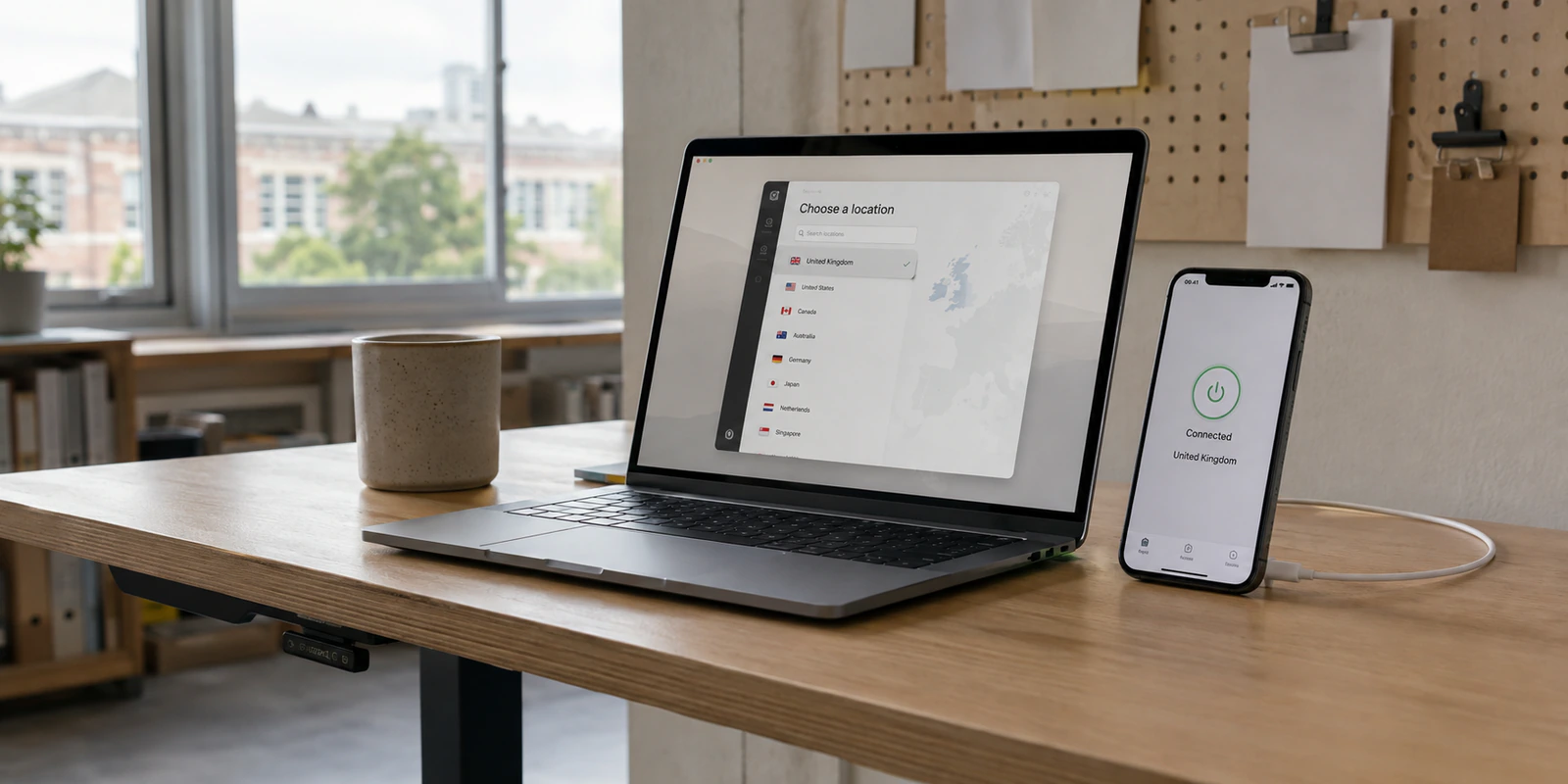
You may not know the full magic of choosing a VPN server.
I did not, either.
I thought the whole process was obvious: open a VPN app, tap a country, and connect. A few seconds later, websites see the VPN server’s IP address instead of the one from my hotel, home, or mobile network.
And if that is all you need, the answer takes about 30 seconds:
- Open your VPN.
- Choose a country.
- Tap Connect.
- Refresh the website or reopen the app.
That part really is simple. What took me longer to understand was that a server is not just a pin on a map. The one I choose can affect speed, block ads, trackers, and whether a website accepts the connection at all. First, though, here is what changing location actually means.
Quick article context
Core answer
A VPN changes the public IP address seen by sites; it does not automatically change GPS, account country, device settings, payment region, or previous sessions. On iPhone and Mac, success depends on which location signal the service actually uses.
Key points
- An eSIM supplies connectivity while a VPN changes how that connection is routed.
- Maps, banking, and streaming apps may compare IP location with other device or account signals.
- Test the intended service on the actual phone or Mac before departure.
Where OnlyDogs VPN fits
OnlyDogs VPN fits readers who prefer to choose a travel, browsing, or streaming task and let the app select a route rather than manage servers manually.
Limits
It is a weaker fit for precise city-level control or router configuration. No VPN changes every form of location or guarantees that a service will accept the route.
Sources already cited in the article
- iPhone Location Services (support.apple.com)
- a VPN designed for travel (apps.apple.com)
What Does a VPN Location Actually Change?
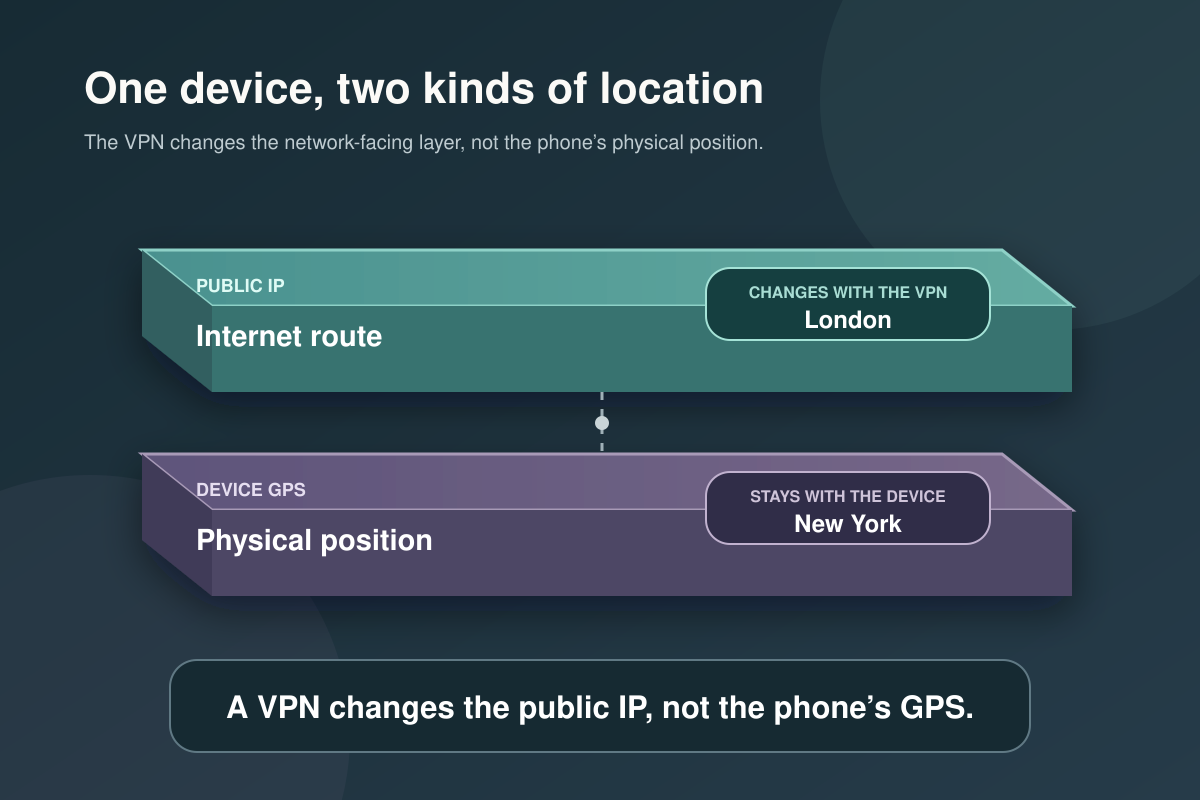
A VPN changes the location associated with your public IP address.
I could be sitting in New York, connect to a server in London, and appear to many websites as though my connection is coming from the UK. That may change the regional version of a site or the content it shows me.
What it normally does not change is my GPS location.
Apple Maps, Find My, ride-hailing apps, and other apps that request precise location can still use the physical position reported by my device.
The easiest way to remember the difference is this:
- A VPN changes where my internet connection appears to come from.
- It does not pick up my iPhone and place it in another country.
Apple manages precise device location separately through iPhone Location Services.
How to Change Your VPN Location on an iPhone
On an iPhone, the process takes less than a minute:
- Install and open a VPN app.
- Approve the VPN configuration when iOS asks.
- Open the server or location list.
- Choose a country.
- Tap Connect.
- Refresh the website or reopen the app you want to use.
The selected country should appear inside the VPN app while the connection is active.
If that does not work, I disconnect, choose another server in the same country, and try again. The country may be correct even when one particular server is not.
How to Change Your VPN Location on a Mac
The steps on a Mac are almost identical:
- Open the VPN app.
- Choose a country or recommended server.
- Click Connect.
- Refresh the website or restart the app you are using.
Manual setup is useful for work or custom network configurations. For everyday switching, I would rather open an app than edit network settings every time I want to appear somewhere else.
The same positions can actually have different effects.
Once I connect, my IP location has changed.
Problem solved—at least in theory.
In practice, two servers in the same country can behave very differently. One may be quick and quiet. Another may be overloaded. A third may use an IP address that a particular website does not like.
So the server list becomes a small guessing game. Pick one. Connect. Test it. Disconnect. Pick another. After doing that several times on my iPhone, I realized I did not really want to choose a server. I wanted to choose an outcome.
That frustration sent me back to the App Store, where I discovered an amazing VPN, a VPN designed for travel. I initially used it in the usual way—country, server, connect—until I noticed several options built around situations rather than places.
Instead of asking only, “Where do you want to connect?” it also answered a more useful question:
“What are you trying to do?”
That distinction sounds small. In daily use, it removes a surprising amount of fiddling.
Magic No. 1: Fewer Ads Without Remembering Albania
Here is one of those oddly useful VPN facts: connecting through Albania has sometimes reduced or removed YouTube video ads for some users. Knowing the trick is one thing. Remembering and testing it is another. With this VPN, I only need to click to enable ad filtering, and it will automatically select the appropriate settings.
I tapped it out of curiosity. The app handled the route in the background, and a counter showed advertising and tracking requests being blocked as I browsed.
I immediately went to YouTube to test it. The first video started playing instantly, and the second one started playing instantly too—no ads, no interruptions. Watching the number of blocked ads keep increasing made me very excited. My first impression was that reducing ads was so simple!
Magic No. 2: A UK Server Without the Guessing Game
Choosing “United Kingdom” sounds precise. It is not always precise enough. One UK server may use an IP address that a streaming platform has already flagged. I can choose the right country and still end up with the wrong connection. This is tolerable at a desk. It is far more irritating when I am traveling, holding an iPhone, and bouncing between a VPN app, a browser, and a video app for the fourth time.
it had an option called I Want UK Shows. Instead of handing me another list of British server names, it looked for a suitable UK connection and selected one. It felt less like a special streaming feature and more like passing the most boring part of the job to someone else. The practical advantage is simpler: fewer blind attempts before finding an appropriate connection.
Magic No. 3: A New Location Without the Slowdown
Sometimes I do not care which country I connect through. I just want a different public IP address without turning a video call into a slideshow. The nearest server looks like the obvious choice, but it is not always the fastest. It might be busy, badly routed, or simply having a rough afternoon. The Maximum Speed option made immediate sense. I tapped it without choosing a country, and the app compared available connections before picking a low-latency, stable route.
In those moments, I care far more about a responsive connection than a particular flag.
A VPN cannot fix weak Wi-Fi, poor mobile coverage, or every problem caused by an internet provider. What automatic testing can remove is the need to compare five servers myself.
Which Method Makes Sense for You?
Manual selection is still the best choice when:
- You need an IP address from a specific country.
- You already know which server works for you.
- You want complete control over the location.
- You are troubleshooting and need to test servers individually.
A goal-based option is more useful when:
- You want fewer ads and tracking interruptions.
- You need a suitable UK connection without testing every UK node.
- You want to change your IP while keeping the connection responsive.
- You care about the outcome more than the flag beside the server name.
I still use the ordinary location list. It is quick and predictable when I know exactly where I want to connect.
The automatic options matter in the moments when I do not.
The Better Question Is Not Always “Where?”
Changing your VPN location on an iPhone or Mac is easy:
- Open the VPN.
- Choose a location.
- Connect.
- Refresh the service you are using.
That is the complete answer when you already know the country you need. But a country is often only a means to an end. Maybe I want fewer interruptions. Maybe I need a suitable UK connection. Maybe I just want a different IP without making everything feel slower. For years, I assumed it was my job to translate each goal into the right flag, city, and server number. Now I think about it differently. Sometimes I choose where I want my connection to come from.
Other times, I choose what I want it to do—and let the VPN work out the geography.
That is also the fairest way to judge OnlyDogsVPN. You do not have to believe that scenario-based selection is better because an app says so. Try the ordinary server list first. Then try one of the goal-based options for the same task.
If it saves you from opening, testing, and abandoning several servers, you will understand the appeal within a few taps.
Frequently Asked Questions
Can a VPN replace an eSIM while traveling?
No. An eSIM supplies mobile data, while a VPN changes how that internet connection is routed. Travelers may use both: the eSIM provides access and the VPN adds a different public IP address and an encrypted connection.
Why can maps or banking apps still know my region?
A VPN changes the public IP address, not every location signal. Apps may also use GPS, account country, device settings, or previous sessions. Apple explains precise device location separately through Location Services. ( Apple’s Location Services guide )
Should I test the VPN before leaving home?
Yes. Connect on the same phone or computer you will carry, switch once between Wi-Fi and mobile data, and open the services you expect to use. A short test reveals device or account problems before they become travel problems.